

How to Effectively Fix Android File Transfer Not Working

Due to the different ecosystems, it is difficult to transfer files between Android and Mac. Therefore, Google released a handy tool, Android File Transfer. It allows users to move files between Android devices and Mac computers quickly with USB cables. However, some users reported that they encountered various issues with the data migration process. This article helps you fix Android File Transfer not working on your Mac computer or laptop.
PAGE CONTENT:
Part 1: What Is Android File Transfer
As mentioned previously, Android File Transfer is a free utility developed by Google. It allows Mac users to connect their Android devices to their computers for file migration through a USB cable.
Main Features of Android File Transfer
- Transfer files between Mac and Android without hassle.
- Manage and organize files efficiently on a computer.
- Support photos, videos, documents, downloads, etc.
- Work on macOS 10.7 and above, Android 3.0 and later.
Part 2: Why Android File Transfer Is Not Working
Before diving into solutions, you’d better understand why Android File Transfer could not connect to the device. That can help you to identify your situation and resolve the problem more efficient.
- Faulty USB cable or connection.
- Outdated macOS or Android OS.
- Incorrect USB settings.
- Locked or disabled Android device.
- Interference from other apps, like Smart Switch.
Part 3: How to Fix Android File Transfer Not Working
Solution 1: Turn on USB Debugging
To connect an Android and a computer with a USB cable, you must enable USB Debugging. Otherwise, Android File Transfer won’t work on a Mac. You can find USB Debugging in Developer options on Android.
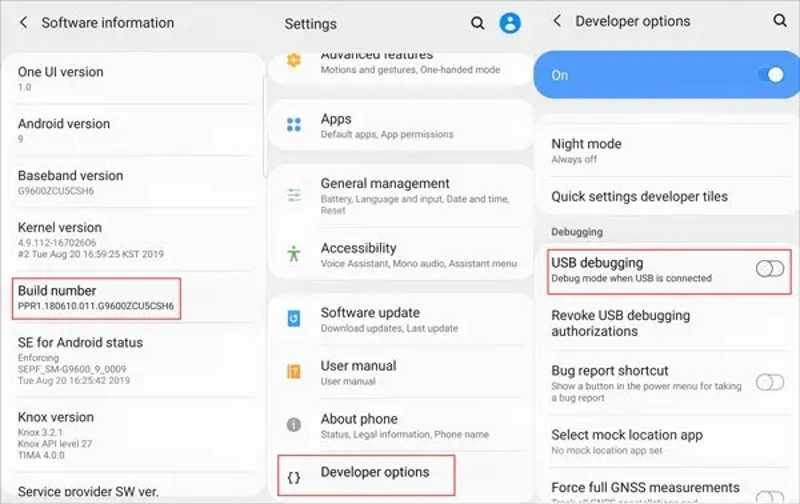
Step 1. Run the Settings app on your phone.
Step 2. Scroll down and choose Developer options.
Tips: If you cannot find Developer options, go to About or About Phone, and tap Build number for 7 times in a row to activate Developer options.
Step 3. Next, toggle on USB debugging.
Step 4. Then, try Android File Transfer again.
Solution 2: Enable File Transfer Mode Correctly
The USB port on your Android phone is used not only for file transfer but also for charging and connecting to smart TVs. If you select other uses, Android File Transfer does not work on Mac.
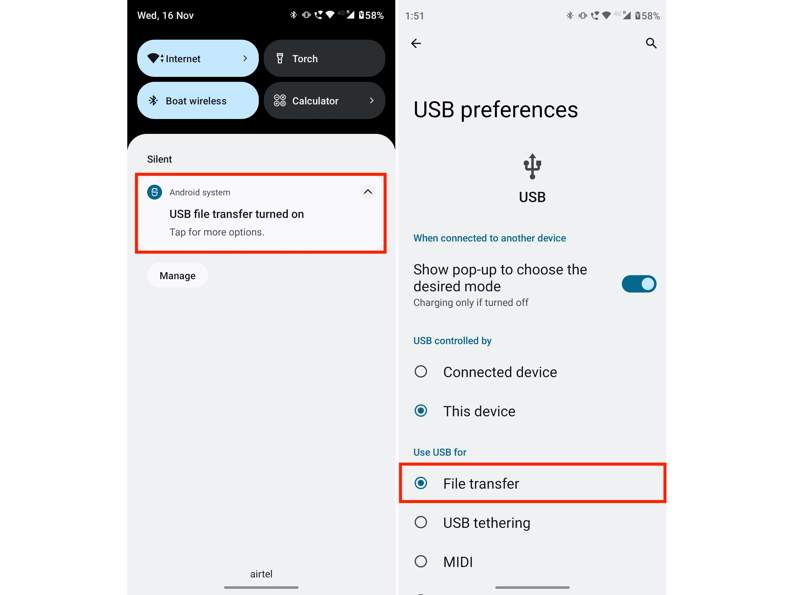
Step 1. Connect your phone to your computer with a USB cable.
Step 2. After a successful connection, you will get a notification at the top of your screen.
Step 3. Tap it and make sure to select File transfer under Use USB for.
Step 4. Then, Android File Transfer will automatically detect your phone.
Solution 3: Check Your USB Cable
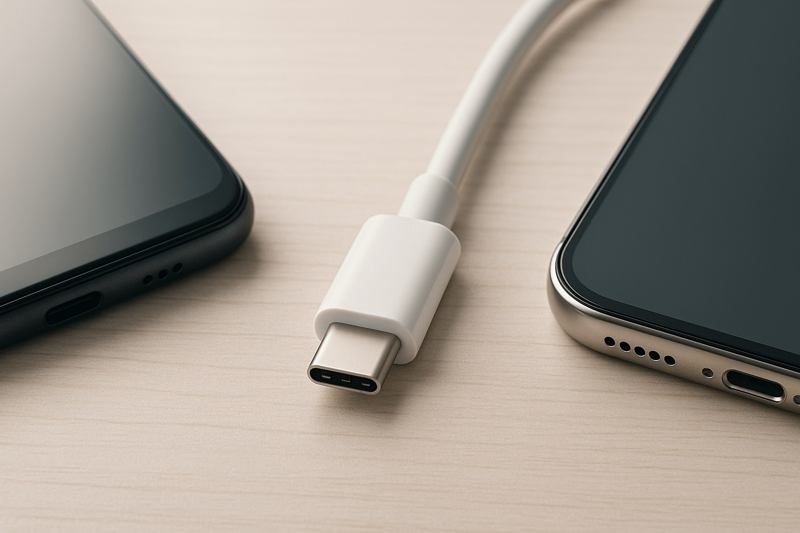
To connect Android to Mac, you must have a USB-C cable. If Android File Transfer could not connect to your device, disconnect it, and check the cable carefully. Or you can use a new cable directly.
Solution 4: Update macOS
The outdated software can lead to various errors. Apple fixes bugs and adds new features in each update. To fix macOS Android File Transfer not working, you’d better keep your software up to date.
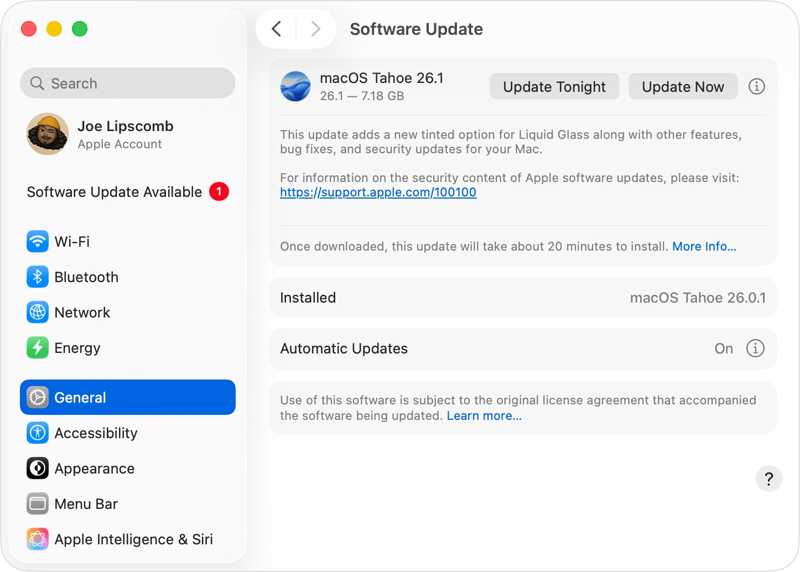
Step 1. Click your Apple menu and choose System Settings or System Preferences.
Step 2. Go to General, and click Software Update to search for updates.
Step 3. If an update is available, click the Update Now button.
Solution 5: Reinstall Android File Transfer
Another solution to fix Android File Transfer not working on Mac is to delete the application and reinstall it from the official website. That can help you get the latest version of the Android File Transfer app.
Step 1. Go to Applications in Finder.
Step 2. Find Android File Transfer, right-click on it, and choose Move to Bin.
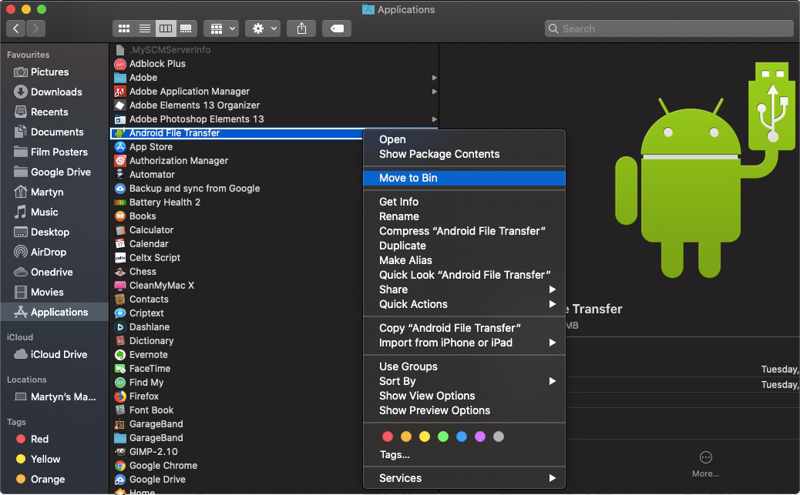
Step 3. Delete the relevant files and folders.
Step 4. Download the latest version of Android File Transfer online.
Step 5. Open the androidfiletransfer.dmg file.
Step 6. Drag Android File Transfer to the Applications folder.
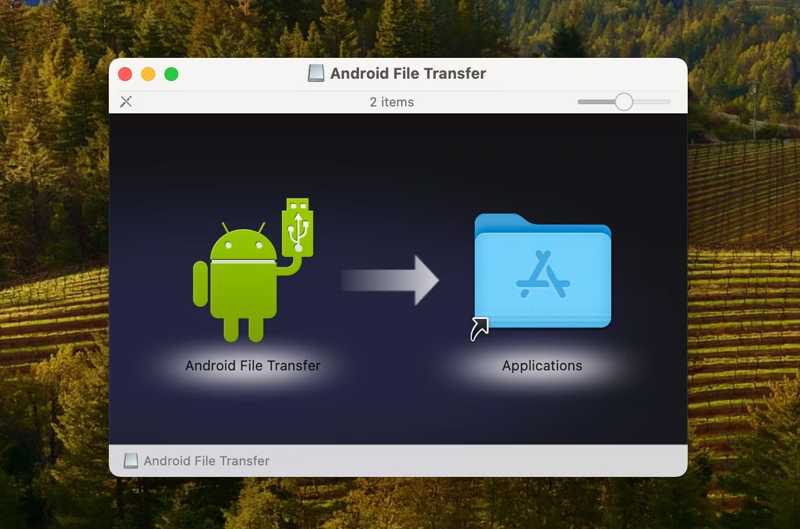
Step 7. Now, you can transfer files between Android and Mac.
You May Also Like:
[4 Solutions] Transfer Apps from Android to Android Easily
Transfer Everything from Android to Android with 9 Ways
Solution 6: Use an Alternative
If Android File Transfer is still not working, you can use an alternative data transfer tool for Android devices, such as Apeaksoft MobieTrans. It allows you to move data between Android and a computer quickly.
A Great Alternative to Android File Transfer
- Transfer files between Android and a computer.
- Compatible with a wide range of data types.
- Preview data on your phone for selective transferring.
- Support almost all Android brands and models.
- Support almost all iPhones and Android devices.
Secure Download
Here are the steps to transfer files between an Android and a computer:
Step 1. Connect to your phone
Run the alternative to Android File Transfer after installing it on your computer. Plug your phone into your computer with a compatible cable. Make sure to enable USB debugging mode.
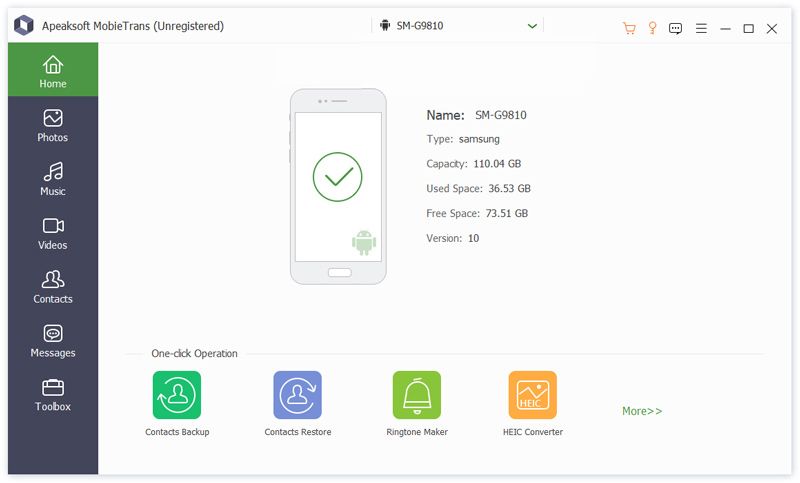
Step 2. Preview your data
Once your phone is detected, preview your data by type. To view videos, for instance, go to the Videos tab.
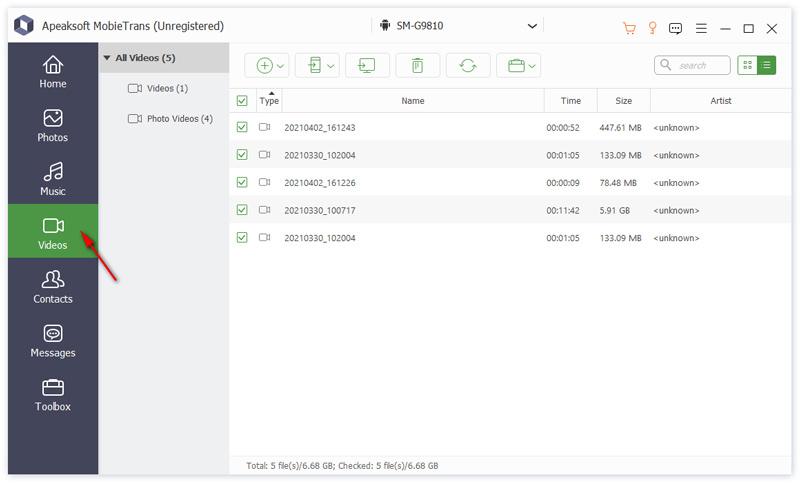
Step 3. Transfer files between Android and computer
Select the desired files and click the Computer button on the top ribbon, and choose Export to PC. Set an output folder and confirm data transfer.
Conclusion
This article shared 6 solutions to fix Android File Transfer could not connect to the device or transfer data between Android and computer. You can follow our solutions to get rid of the issue quickly. Apeaksoft MobieTrans is an easy alternative solution if Android File Transfer is not working.
Related Articles




