


Why Contacts Didn't Transfer to a New iPhone and How to Fix It

Key Takeaways
When your iPhone contacts didn't transfer to a new iPhone, you can
- Check whether both iPhones are sign with the same iCloud account.
- Check your iCloud storage.
- Check whether you have enabled Contacts in iCloud Settings.
- Reset the network settings and try again.
When you purchase a new iPhone, it is necessary to transfer contacts from the old iPhone to the new iPhone. The easiest and fastest method is to use iCloud. However, sometimes your contacts didn’t transfer to the new iPhone due to the inconsistency of the iCloud account or other factors. This post will tell you why contacts didn’t transfer to the new iPhone smoothly and how to fix it with 5 effective methods!
PAGE CONTENT:
Part 1: Why iPhone Contacts Didn't Transfer to a New iPhone
The preferred method of transferring contacts to a new iPhone is to use iCloud. But when you can't use iCloud to transfer contacts normally, there may some reasons such as using a different account or a poor network. Here we list some possible reasons. You can check them one by one to see whether any of these issues are preventing your contacts from transferring to a new iPhone successfully.
The iCloud accounts are inconsistent. If the iCloud account you log in to on the two devices is inconsistent, the contact cannot be transferred to the new iPhone.
Insufficient space in iCloud. When your iCloud space is insufficient, your mobile data, such as contacts, may no longer be synchronized with iCloud. This will prevent you from transferring contacts to your new iPhone.
iCloud contacts sync Is turned off. If iCloud Contacts is turned off on either iPhone, your contacts won't sync through iCloud. Therefore, you can't transfer iPhone contacts to a new iPhone.
Poor network quality. When your network quality is poor, you may not be able to transfer contacts to your new iPhone. You must ensure that the network quality of the two mobile phones is stable and good when transmitting contacts.
Part 2: How to Fix iPhone Contacts Didn't Transfer to a New iPhone
In this section, we will introduce 5 proven fixes to help you solve the problem that contacts didn’t transfer to the new iPhone.
Fix 1: Check iCloud Account Consistency
Only when you log in with the same iCloud account can you correctly sync contacts from one iPhone to another new iPhone. Therefore, you need to follow the following steps to check whether your two devices are logged into the same iCloud account.
Step 1. Go to Settings on both iPhones.
Step 2. In your profile, click it to view your profile information and select iCloud from the list.
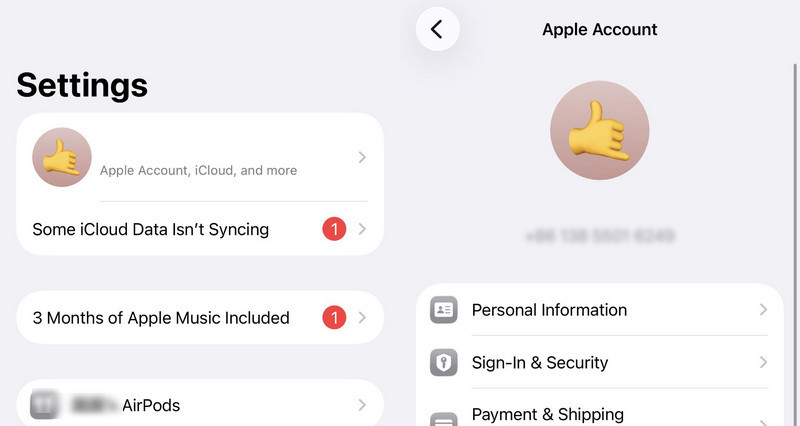
Step 3. Now you can check whether the two iPhones log in to the same iCloud account. If not, log in to the same account again. If yes, you can restore contacts from iCloud to iPhone to see if the problem is fixed.
Fix 2: Check iCloud Storage
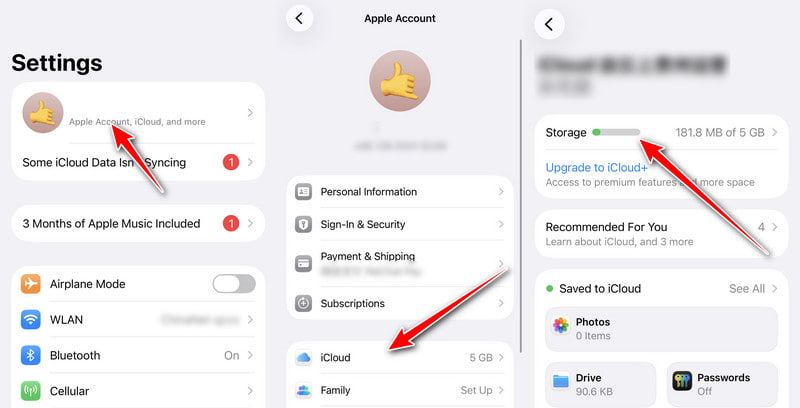
iCloud only provides a free storage space of 5GB for you to store contacts, photos, messages, etc. Once the file size is over 5 GB, you cannot sync data with iCloud anymore. Follow the steps below to check whether it is full and judge whether it's iCloud storage that prevents you from transferring iPhone contacts to a new iPhone:
Step 1. Open Settings on your iPhone.
Step 2. Tap your name.
Step 3. Click iCloud and check the storage status.
Fix 3: Turn on the Contacts in iCloud Settings
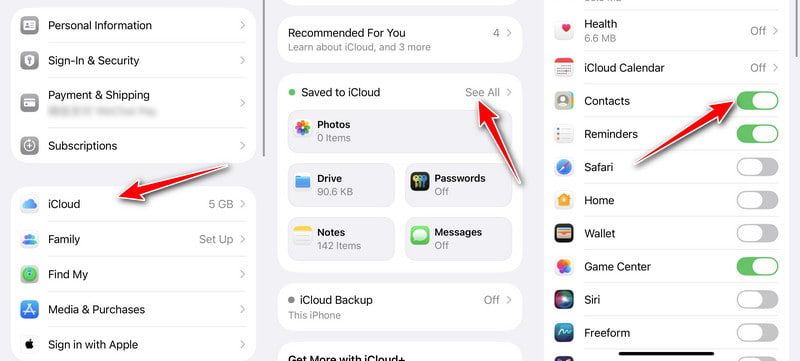
If you don't turn on the contact in iCloud, the contact didn’t transfer to your new iPhone. Therefore, it is important to check whether it is opened before transmission.
Step 1. Unlock your two iOS devices and launch Settings. Then tap your Name from the menu.
Step 2. Now, you need to tap the iCloud button from the list.
Step 3. The last step is to turn on the Contact in iCloud to enable it for proper cloud synchronization and fix the contact that didn’t transfer to a new iPhone.
Fix 4: Reset the Network Settings
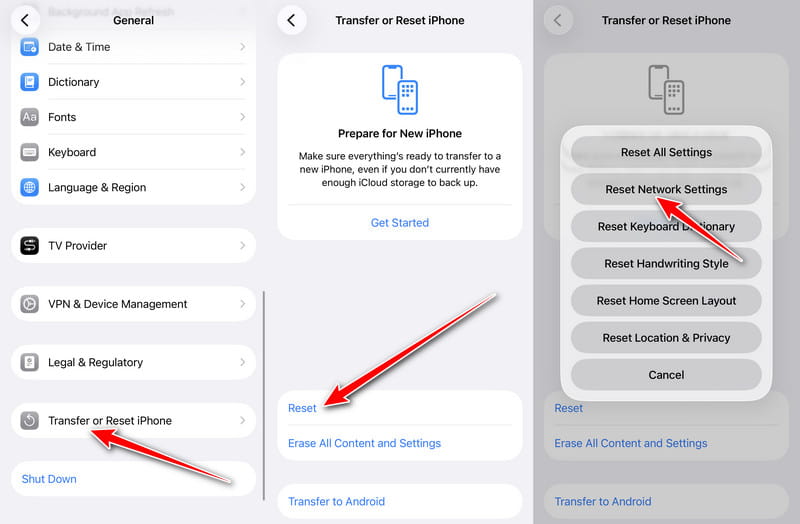
Transforming contacts to the new iPhone will fail if the network connection is unstable during transmission. You need to ensure that the Wi-Fi networks on both iPhones are stable before they can be successfully transmitted. Here are the steps to reset the network.
Step 1. You should open Settings on your iPhone and tap the General button from the list.
Step 2. Click Transfer or Reset iPhone, and choose Reset.
Step 3. You need to tap the Reset Network Settings button to fix the contacts that didn’t transfer to your new iPhone.
Here is the full guide to resetting network settings on iPhone
Fix 5: Transfer iPhone Contacts to a New One with Apeaksoft iPhone Transfer
If your iPhone contacts still haven't transferred to a new iPhone after trying all the fixes above, you can try to use another reliable way to sync contacts between iPhones. Tools like Apeaksoft iPhone Transfer is excellent to safely transfer contacts from iPhone to iPhone/PC/Mac. You can also back up contacts/music/photos to free up more storage space on an iPhone. Moreover, you can use it as a contact assistant to add, delete, change, and restore your contacts.

Downloaded by over 1,000,000 users
- Transfer contacts to a new iPhone without data loss.
- Edit single/group contacts, like add, delete, backup, and restore.
- Support syncing contacts to PC/iOS/iTunes with one click.
- Besides contacts, it also support photos, messages, calendars, music, call history, and more.
Secure Download
Secure Download

Step 1. Free download the Apeaksoft iPhone Transfer on your device and launch it directly. Connect your iPhone and computer with a regular USB.
Step 2. If you are using iOS 13 and later, you need to enter the password on the iOS device to confirm the operation. After tapping the Trust button, you will need to enter the password again.
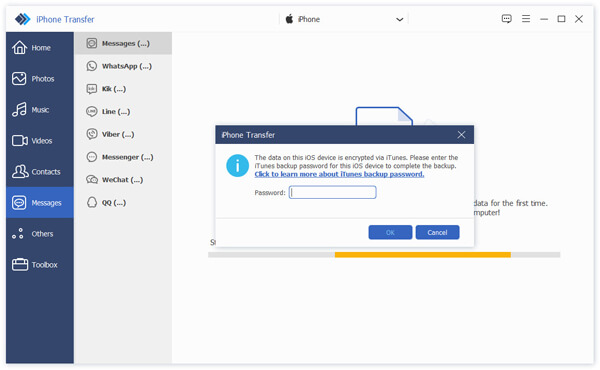
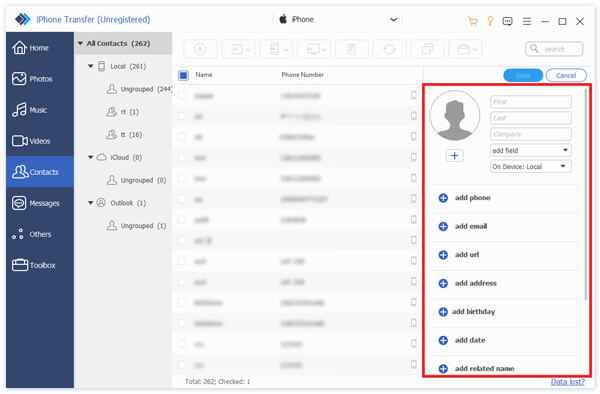
Step 3. After the successful connection, click the Contact button on the left toolbar. You can see all contacts and click the checkbox on the left of the Name to check all contacts.
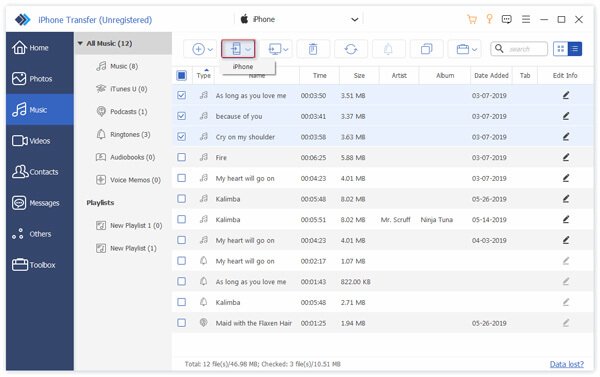
Step 4. Finally, you should click the Export to Device button to choose your new iPhone. Then you can transfer contacts from an old iPhone to your new iPhone.
Part 3: FAQs About Contacts Didn’t Transfer to New iPhone
Can I transfer contacts from an iPhone to an Android?
Yes, of course. You can use the Google account to transfer the contacts from an iPhone to your Android. For more methods of syncing iPhone contacts to Android, you can check them here.
How to restore the deleted contacts on iPhone?
If you have backed up the contacts on iCloud before deleting them, you can recover contacts easily from iCloud.
Why there are only a part of contacts transferred to my new iPhone?
It may be because some contacts may be stored in a different account, such as Gmail, Outlook, or another email service, rather than iCloud. Go to Settings > Apps > Contacts > Accounts on both iPhone to make sure all contact accounts are enabled.
Conclusion
When you can't transfer contacts to the new iPhone, you don’t have to worry because you can easily solve the problem using the above 5 methods. Even if you still can’t use iCloud to transfer contacts, you can use tools like Apeaksoft iPhone Transfer to successfully transfer contacts to the new iPhone.
 Apeaksoft iPhone Transfer
 Transfer iOS data among iOS devices, computer and iTunes.
Secure Download
Secure Download
Related Articles




