

How to Export Contacts from iPhone to Another Device

There are scenarios when you need to export contacts from your iPhone. For example, you should back up your iPhone contacts before you free up space or sell your device on the second-hand market. Moreover, you might need to export contacts from an iPhone to another mobile device if you upgrade to a new iPhone or Android phone. Anyway, this article shares the proven methods and demonstrates the workflow step by step.
PAGE CONTENT:
Part 1: A Flexible Way to Export iPhone Contacts
Currently, more and more people are multi-device users. They have more than one digital device, like an iPhone, iPad, Android phone, tablet, computer, laptop, Chromebook, and more. Therefore, we recommend a flexible way to export contacts from your iPhone: Apeaksoft iPhone Transfer. It is able to move your iPhone contacts to another mobile device or a computer quickly.
A Flexible Method to Export Contacts from Your iPhone
- Export contacts from an iPhone quickly.
- Move iPhone contacts to any device.
- Preview and manage iPhone contacts.
- Export iPhone contacts as CSV, vCard, and more.
- Support a wide range of iPhone models.
Secure Download
Secure Download

How to Export Contacts from Your iPhone
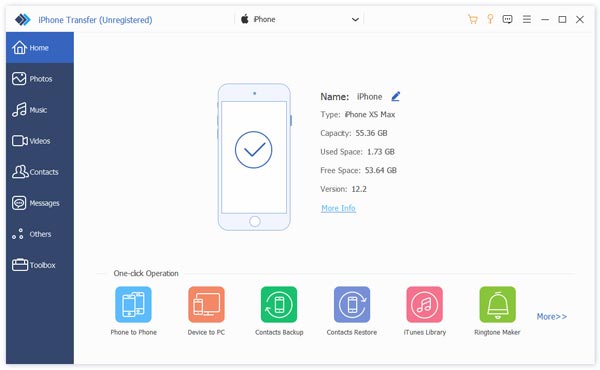
Step 1. Link your iPhone
When you need to export iPhone contacts, install iPhone Transfer on your PC and launch it. There is another edition for Mac users. Link your iPhone to your PC with a Lightning cable.
Tips: If you intend to export contacts from an iPhone to an iPad or another iPhone, connect the two devices to your computer.
Step 2. Preview iPhone contacts
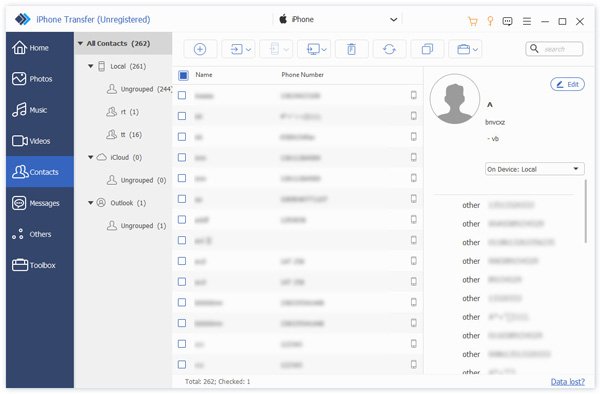
After your device is detected, go to the Contacts tab on the sidebar. Then, you can view all contacts on your device. Here, you can manage, group, or delete iPhone contacts.
Step 3. Export contacts on your iPhone
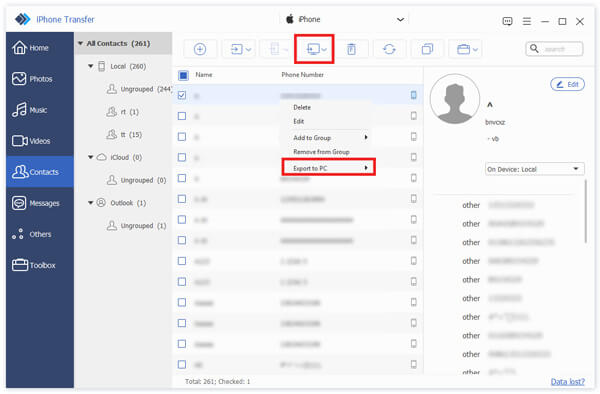
Select the contacts you want to export. To export contacts from iPhone to computer, click the PC button on the top ribbon, choose Export to PC, and set an output folder. If you wish to export contacts to another iOS device, click the Phone button and choose the target device.
Part 2: How to Export Contacts from iPhone Contacts App
The built-in Contacts app on your iPhone allows you to export contacts from iPhone to Android, another iPhone, or iPad. This method just doesn’t require extra software or hardware.
Step 1. Open the Contacts app on your iPhone.
Step 2. Tap the Back button and hit Add List.
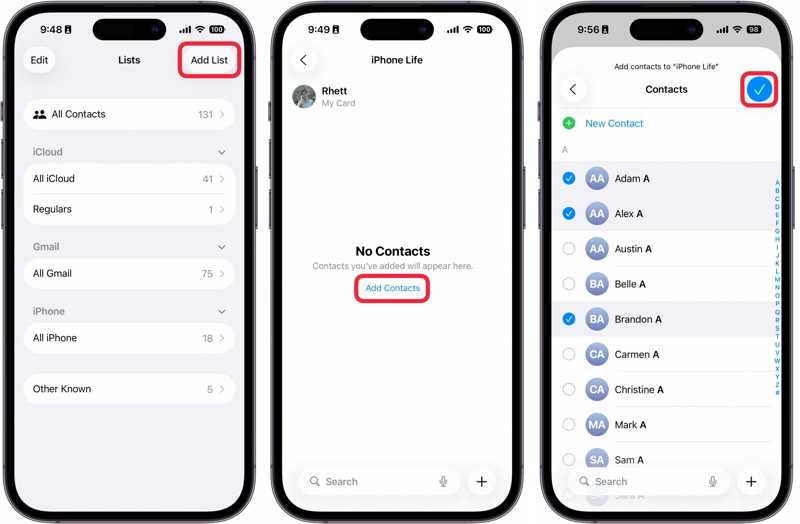
Step 3. Choose iPhone or iCloud, and leave a name for the new group.
Step 4. Tap the new group, press Add Contacts, and select the contacts you want to export.
Step 5. When you finish, tap the Done button.
Step 6. Press and hold the group until the context menu appears, and choose Export.
Now, you will face two scenarios:
Scenario 1: Export iPhone contacts to a computer
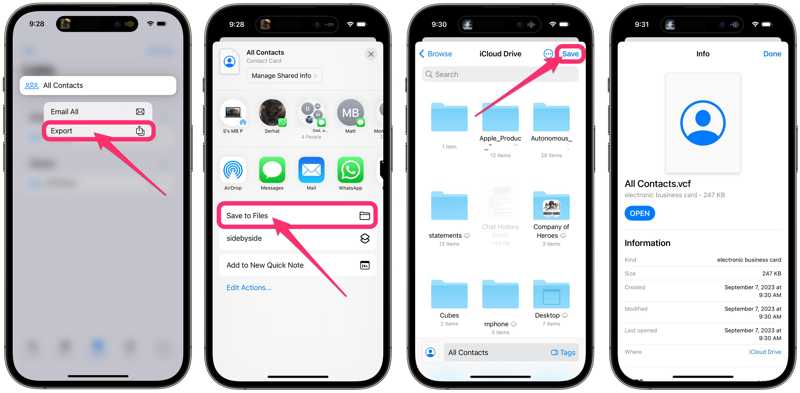
Step 7. Choose Save to Files, access iCloud Drive, and tap Save.
Step 8. Go to www.icloud.com in a browser and sign in with your Apple credentials.
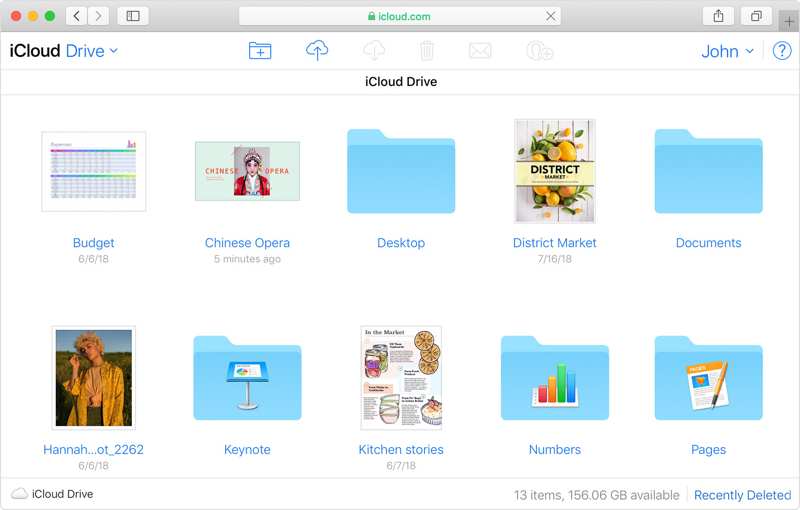
Step 9. Choose iCloud Drive, and download the VCF file.
Scenario 2: Export contacts from iPhone to Samsung or another iPhone
Step 7. Choose an instant messaging app, such as WhatsApp.
Step 8. Then, the recipient will receive the exported iPhone contacts.
Part 3: How to Export iPhone Contacts by iCloud
iCloud is another way to export contacts from an iPhone to a computer wirelessly. You can sync all your iPhone contacts to iCloud, and then export your contacts as a vCard file. This way is used to export all contacts on your device. Of course, you can move specific contacts or lists.
Step 1. Run the Settings app on your iPhone.
Step 2. Tap on your profile, and tap Show All under the Apps Using iCloud section.
Step 3. Toggle on the Contacts option.
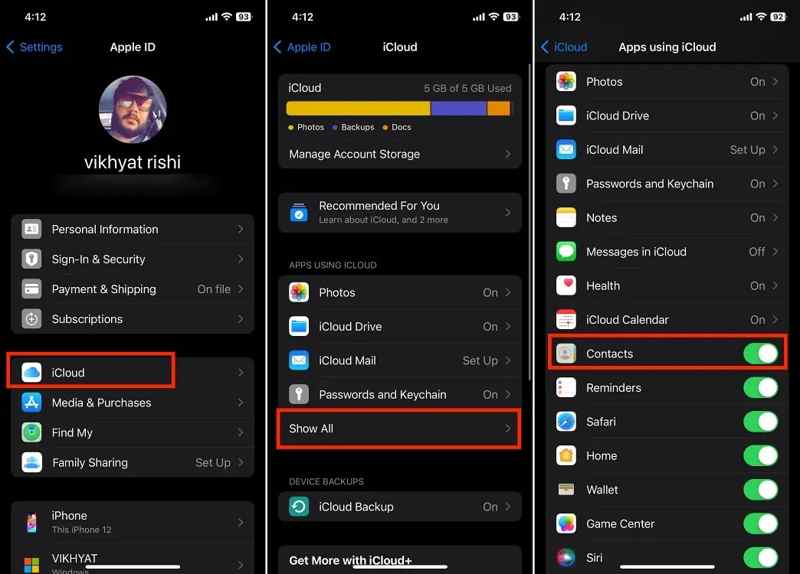
Step 4. Connect your iPhone to an internet connection.
Step 5. After your contacts are synced to iCloud, turn to your computer.
Step 6. Go to www.icloud.com in a web browser and log in with your Apple ID and password.
Step 7. Expand the Apps panel and choose Contacts.
Step 8. Select all contacts you want to export, and click the Share button.
Tips: Press the Ctrl key on PC or Command key on Mac and select discontinuous contacts. To select multiple continues contacts, press the Shift key on your keyboard.
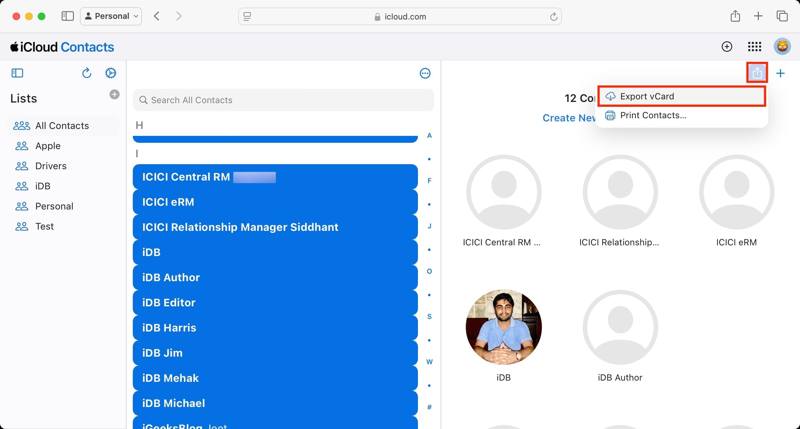
Step 9. Choose the Export vCard option, pick an output folder, and export it.
If you intend to export contacts from iPhone to Mac, it will ask you whether you want to add the contacts to the Mac Contacts app. Click the Add button to confirm it. If you wish to export iPhone contacts as a file, choose Cancel.
Further Reading
Part 4: How to Export Contacts from iPhone to Excel
If you need to export contacts from an iPhone to Excel, iTunes is available. It allows you to sync iPhone contacts to Windows Contacts. Then, you can export contacts in CSV. MS Excel is able to open CSV files.
Step 1. Plug your iPhone into your PC with a USB cable.
Step 2. Click the Phone button at the top left side.
Step 3. Go to the Info tab on the sidebar.
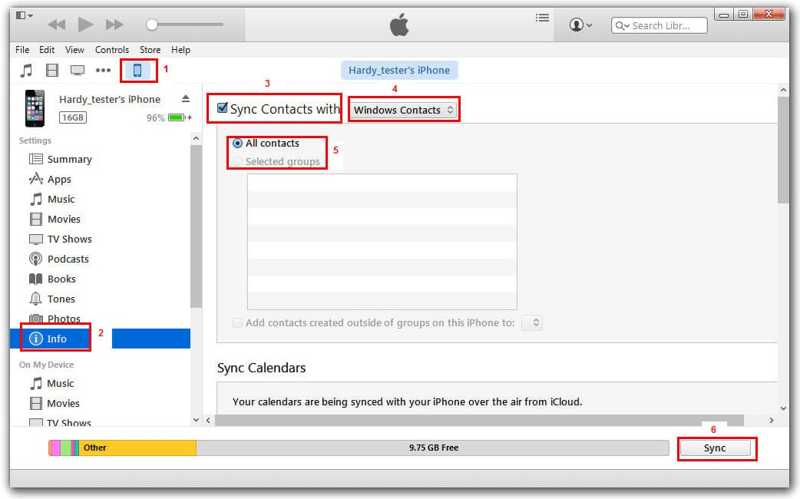
Step 4. Check Sync Contacts with, and choose Windows Contacts from the drop-down option.
Step 5. Select the desired groups or All contacts.
Step 6. Click the Sync or Apply button to confirm it.
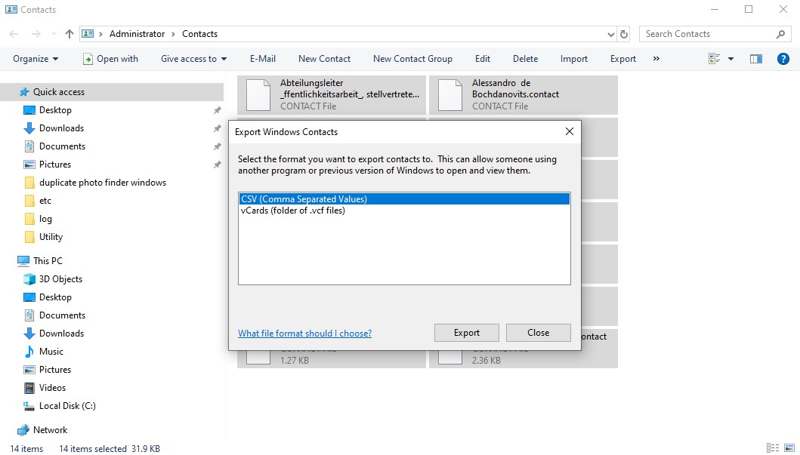
Step 7. Open the File Explorer and access the Contacts folder.
Step 8. Select your iPhone contacts, and click the Export menu.
Step 9. Choose CSV and hit Export.
Step 10. Set an output folder, and save the CSV file.
Step 11. Run MS Excel from your desktop, and open the CSV file directly.
Conclusion
This guide demonstrated four ways to export contacts from your iPhone. The preinstalled Contacts app allows you to export contacts to another mobile device or computer. You can also sync iPhone contacts to iCloud, and export your contacts. iTunes enables you to sync contacts to Windows Contacts and export them to Excel. Apeaksoft iPhone Transfer is a flexible way to export contacts on your iOS device.
Related Articles




