


How to Get Photos off Broken iPhone from iCloud or Computer

While iPhones are advanced mobile devices, they are as vulnerable as other digital devices. Suppose your iPhone slips from your hands and drops on the road. Chances are that your device is broken and cannot turn on at all. As a result, you will lose access to your data. The good news is that you can get photos off an iPhone with a broken screen. This concrete guide shares the proven methods.
PAGE CONTENT:
Part 1: How to Recover Photos from a Broken iPhone Without a Backup
With Apeaksoft iPhone Data Recovery, you can recover photos from a broken iPhone without a backup. It is able to scan your memory, find photos, videos, documents, and other files, and let you retrieve them quickly. All you need is a computer and a compatible cable.

Downloaded by over 1,000,000 users
- Retrieve photos from a broken iPhone or iPad in 3 steps.
- Open iTunes or iCloud backup and extract photos.
- Available to a wide range of data types.
- Preview photos on your broken iPhone.
- Support the latest editions of iOS and iPadOS.
Secure Download
Secure Download

How to Recover Photos from a Broken iPhone Without a Backup
Step 1. Connect to your iPhone
Run iPhone photo recovery software after installing it on your PC. There is another version for Mac. Connect your iPhone to your PC with a Lightning cable. Make sure to trust this PC. Once your iPhone is detected, click the Start Scan button.

Step 2. Preview photos
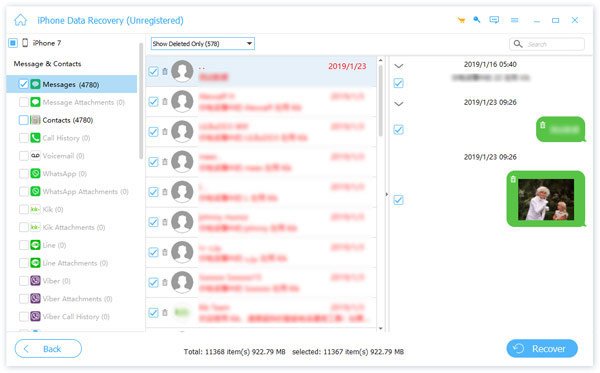
After scanning, select the data type you want to recover. Here, we select Camera Roll and Photo Library. Then, preview all photos on your broken iPhone.
Step 3. Retrieve photos
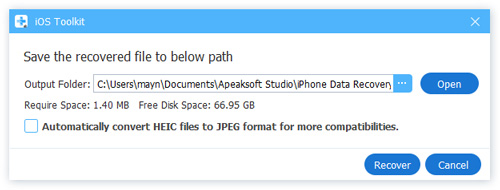
Tick the checkbox for each photo you want returned. Click the Recover button, set an output folder, and hit Recover again to recover photos from your broken iPhone without iCloud.
Part 2: How to Get Photos off a Broken iPhone with a Cable
One simple way to get photos off an iPhone with a broken screen is to use a physical cable. While the touchscreen is broken, you can still access your photo library on the memory with a computer. It can also recover deleted photos from an iPad. This way requires the computer that you have linked with your iPhone.
Step 1. Plug your iPhone into your PC with a USB cable.
Step 2. Open File Explorer.
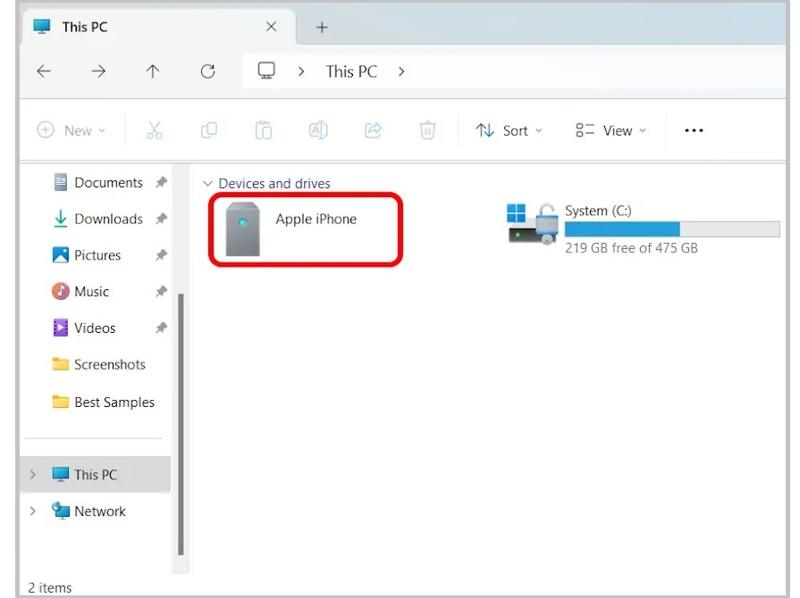
Step 3. Click your iPhone under the Devices and drives heading.
Step 4. Navigate to Internal Storage and DCIM.
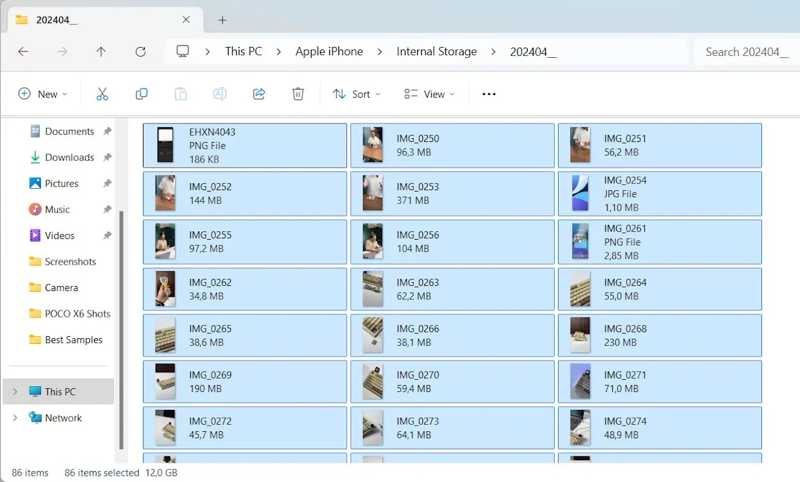
Step 5. Choose the most relevant folder, then view photos in the Camera Roll.
Step 6. Select the desired photos and copy and paste them to your desktop.
Part 3: How to Get Photos off a Broken iPhone from iCloud
iCloud provides two ways to keep your iPhone photos. If you have turned on iCloud Photos on your iPhone, media files will be synced to iCloud automatically. Another way is to back up the iPhone to iCloud, either automatically or manually.
How to Retrieve Pictures from a Broken iPhone on iCloud

Step 1. Log in to www.icloud.com with your Apple ID and password in a browser.
Step 2. Choose Photos to enter iCloud Photos.
Step 3. Head to the Library album on the sidebar.
Step 4. Press Ctrl or Cmd on your keyboard, then select the desired items.
Step 5. Click the Download button and choose Download [number] Items.
Step 6. Then, you will retrieve the pictures from the broken iPhone in your Downloads folder.
How to Recover Photos from a Broken iPhone Using iCloud Backup
Step 1. Turn on another iPhone with enough storage.
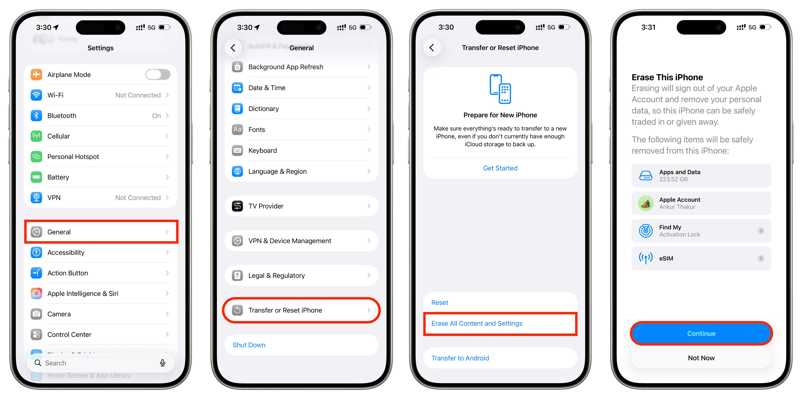
Step 2. Go to Settings, General and Transfer or Reset iPhone.
Step 3. Tap Erase All Content and Settings.
Step 4. Follow the onscreen instructions to erase your iPhone.
Step 5. Then, restart your device and set it up.
Step 6. Make sure to connect to a Wi-Fi.
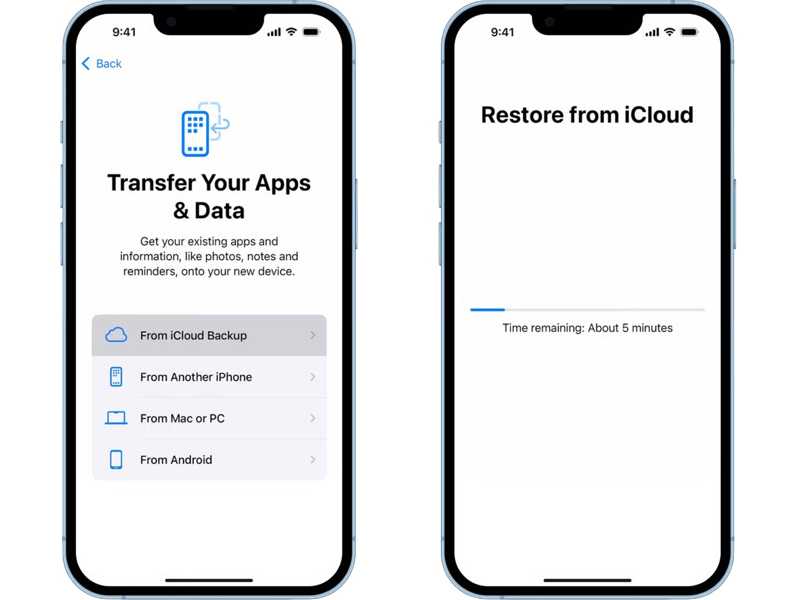
Step 7. When you reach the Transfer Your Apps & Data screen, choose From iCloud Backup.
Step 8. Log in with the Apple ID credentials linked to your broken iPhone.
Step 9. Select the latest backup and restore it.
Part 4: How to Recover Photos from a Broken iPhone Using iTunes Backup
If you want to recover photos from a broken iPhone without iCloud, you can use a computer backup. The precondition is that you have an iTunes or Finder backup. Plus, you need an iOS device with enough space.
Step 1. Hook up the iOS device to your computer with a compatible cable.
Step 2. Open iTunes on Windows and macOS Mojave or earlier. Open Finder on macOS Catalina or later.
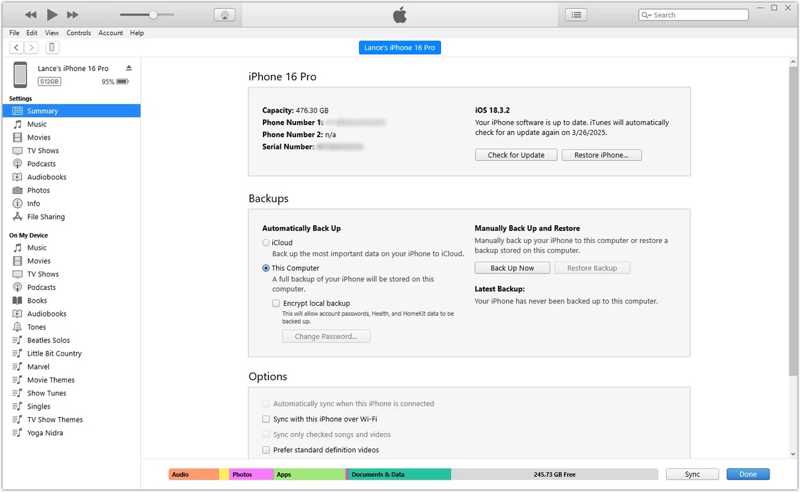
Step 3. Once your device is recognized, click the Phone button in iTunes, then select Summary.
In Finder, click your device name and go to General.
Step 4. Click the Restore Backup button.
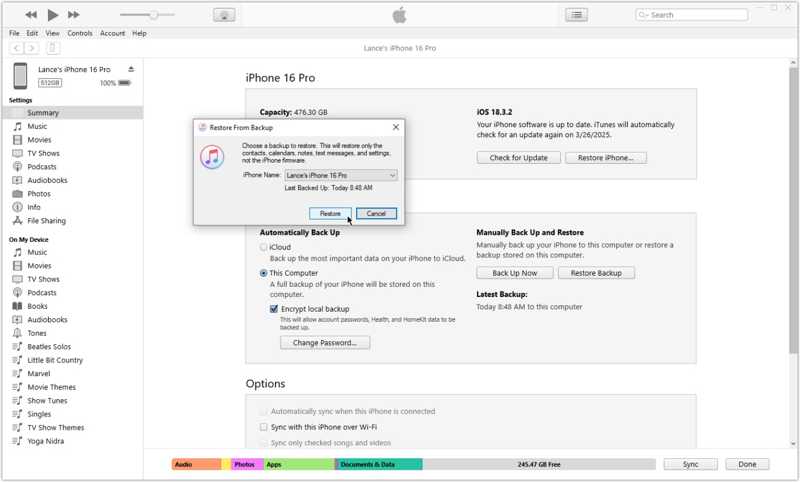
Step 5. Choose the latest backup and click the Restore button.
Further Reading
Conclusion
This guide shared five ways to get photos off a broken iPhone with or without backup. The physical cable is a simple way to extract photos from your iOS device. iCloud lets you download iPhone photos in a browser or restore them from a backup. A computer backup is another option. Apeaksoft iPhone Data Recovery lets you recover iPhone photos without a backup.
 Apeaksoft iPhone Data Recovery
 Recover deleted or lost data from iOS Devices, iTunes, and iCloud backup.
Secure Download
Secure Download
Related Articles




