

An In-Depth Review of Leawo iTransfer - All Features

Leawo iTransfer can be helpful if you ever find it less effective to manage your iPhone data with iTunes. In this comprehensive review, you can explore everything you need to know about Leawo iTransfer, along with the detailed steps to manage your iPhone data with it. After reading the Leawo iTransfer review, you can determine if it's the right fit for your everyday iPhone file management needs.
PAGE CONTENT:
Part 1: A Brief Introduction to Leawo iTransfer
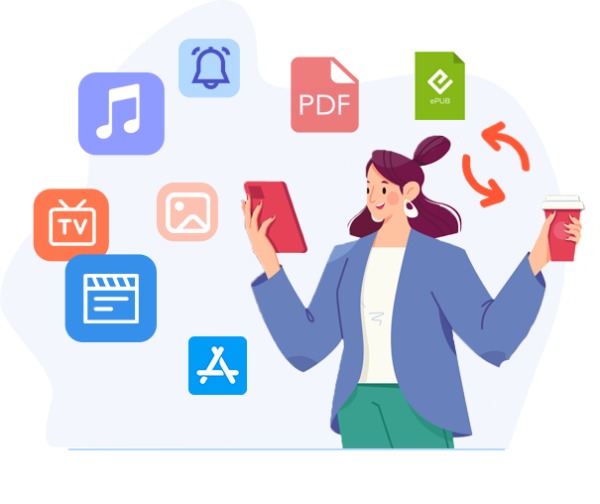
Leawo iTransfer is a desktop-based iPhone data management and transfer tool designed to provide greater flexibility than iTunes. With support for photos, music, videos, apps, ringtones, and eBooks, Leawo iTransfer aims to function as an all-in-one solution for organizing or transferring iPhone content.
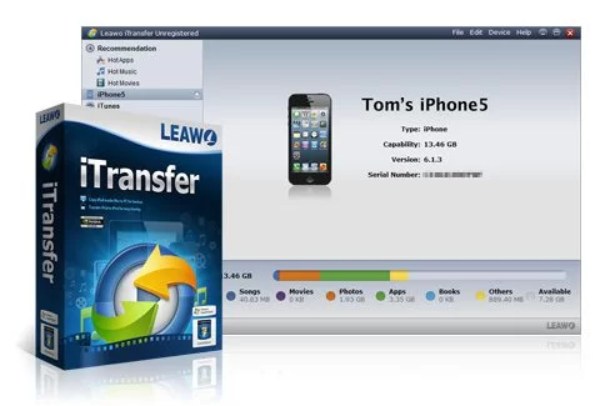
Compatible with Windows systems and a wide range of iPhone, iPad, and iPod models, Leawo iTransfer is particularly useful for users who want selective data transfers instead of full-device syncing. Overall, if you are seeking both precise control and effective workflow, Leawo iTransfer can be a practical one.
Part 2: Features of Leawo iTransfer for File Management
However, a simple introduction might not be sufficient to help you fully understand what Leawo iTransfer can really do. Regarding how it performs in practice, you can read the basic features that were identified after its actual application in this section to determine if it is suitable for you.
1. Selective iPhone Data Transfer
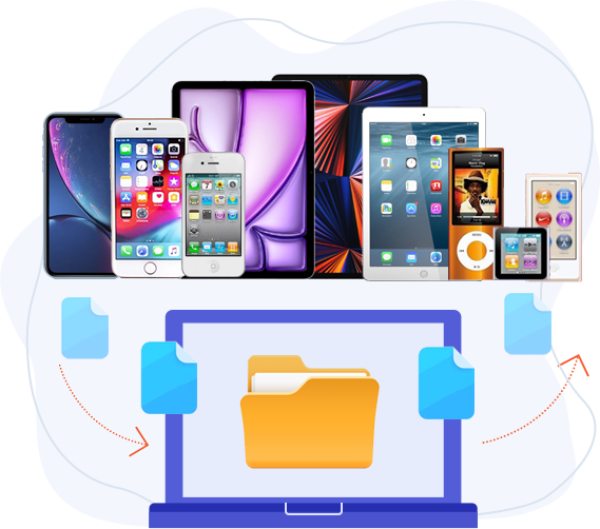
When you transfer data between an iPhone and other devices, you may not intend to transfer all the data and files to another device, as it would take a considerable portion of the storage space. Luckily, Leawo iTransfer allows you to transfer specific types of files rather than entire libraries. Photos, music, videos, apps, and other data can be individually selected and moved between devices. This feature is handy for users who want to back up important files or free up storage without affecting existing content.
2. Two-Way Transfer Between iPhone and Computer
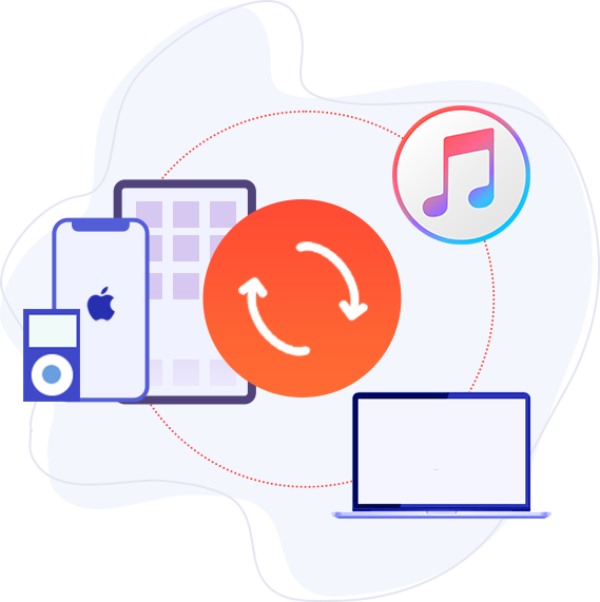
If there are some valuable or interesting items on your computer that you want to transfer to your iPhone so that you can view them anytime and anywhere, you can simply transfer them to your iPhone.
3. iTunes Library Management Without Syncing
Leawo iTransfer works alongside iTunes while avoiding forced synchronization. This feature reduces the data loss from the root. During the process, Leawo iTransfer will scan your iPhone and analyze music files from the iTunes backup location. This feature is helpful for maintaining multiple devices under one iTunes library or reorganizing media files efficiently.
4. Built-in File Preview and Organization
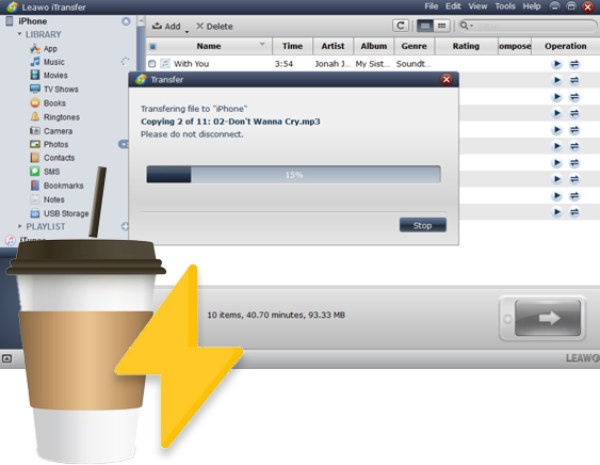
When you find that your iPhone is filled with a lot of miscellaneous data, you might find it challenging to categorize and filter out the contents that you want and those that you don't. However, this is not a problem for Leawo iTransfer. Before transferring any file, you can preview the categorized files to select further and delete them. This improves accuracy and efficiency during transfers and helps keep iPhone data well-structured.
Part 3: How to Use Leawo iTransfer to Transfer iPhone Data
Once the key features of Leawo iTransfer are clear, the next step is understanding how it works in practice. If you don't know the detailed operation yet, you can follow the steps below to start the process in no time.
Tips: To avoid unnecessary risk of data loss, please remember to create an iTunes backup before the process.
Step 1. Launch Leawo iTransfer and connect your iPhone to the computer via the USB cable. Your iPhone will be detected automatically if the devices are under a stable connection.
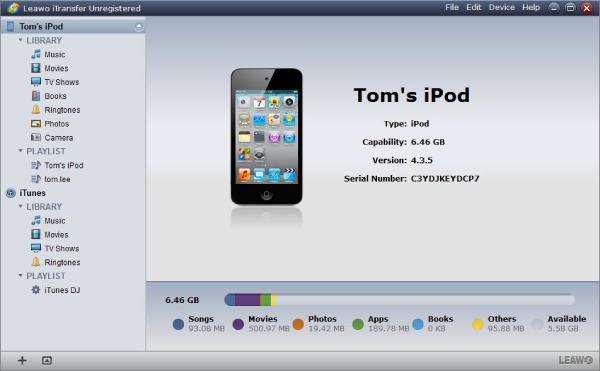
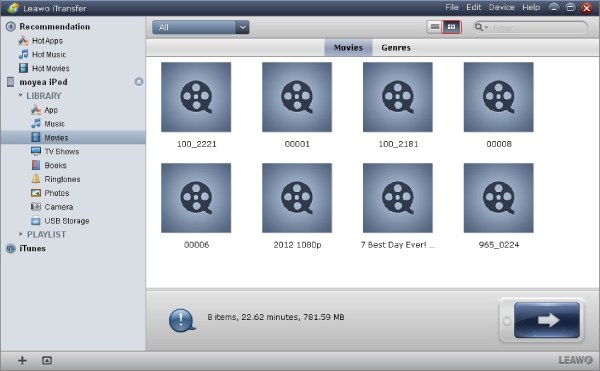
Step 2. All your files will be categorized so well that you can find them according to their types. Click to select the files you want to transfer between your devices.
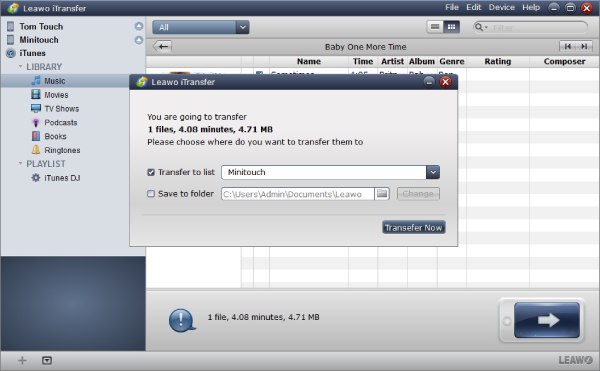
Step 3. Once the selection is made, click Transfer, and a new window will pop up. Here, you can choose and type the path to select the destination folder. Finally, click Transfer Now, and the process will start.
Part 4: A Top-Notch Alternative to Leawo iTransfer
While Leawo iTransfer delivers solid performance for basic iPhone data management, some users may seek a more stable, flexible and feature-rich solution. And Apeaksoft iPhone Transfer can meet your requirements as a reliable alternative. Following the simple steps below, you will find iPhone data transfer can never be so fast and stable ever.
Step 1. Launch Apeaksoft iPhone Transfer once you download and install the package. Then, connect your iPhone to the computer via the USB cable, making sure the connection is stable.
Secure Download
Secure Download
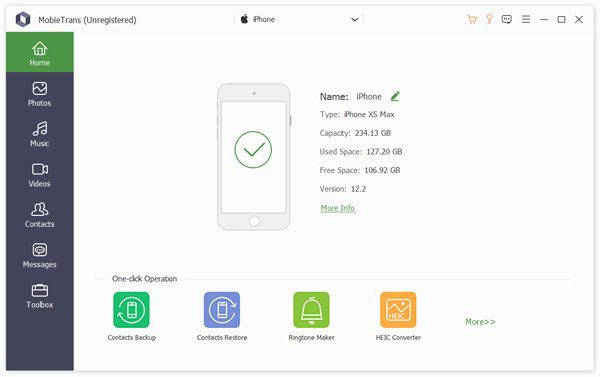
Step 2. Your iPhone will be detected, and the files within your iPhone will be listed and categorized clearly so that you can select them quickly.
Step 3. You can click to select whether you want to transfer iPhone data in the following ways: Add to Device, Export to Device, and Export to PC.
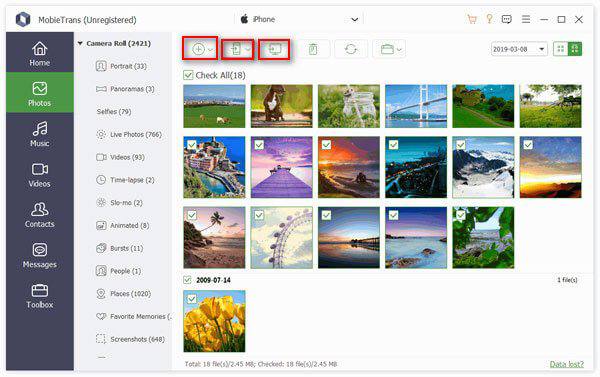
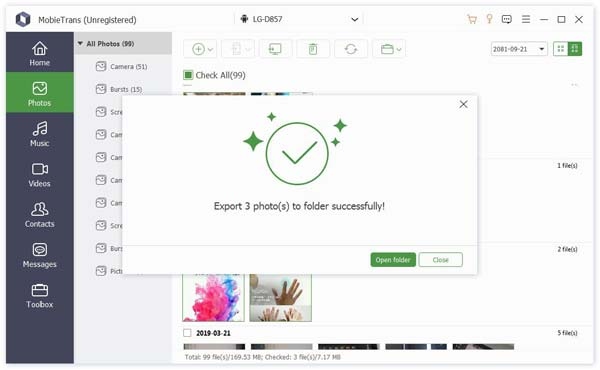
Step 4. Now, select the iPhone data you want to transfer. You can select files from different types like Photos, Music, Videos, Contacts, and Messages. Once finished, transfer them in the way that meets your requirements.
Conclusion
Leawo iTransfer can provide you with basic iPhone data transfer beyond iTunes. However, limitations still exist, preventing you from completing the process quickly and stably. For those who are looking for more powerful and trustworthy tools for iPhone data transfer or management, you can download and try Apeaksoft iPhone Transfer for free.
Secure Download
Secure Download
Related Articles




