


Why Is Move to iOS Not Working? Common Problems and Easy Fixes

You just got a new iPhone and want to move your photos, contacts, and messages from your Android. But the official transfer app, Move to iOS, is not working. What can you do next? In this guide, we'll explain why Move to iOS not working on Android, show simple ways to fix it, and recommend an alternative if Move to iOS still fails.
PAGE CONTENT:
Part 1: Why is Move to iOS Not Working
Basic Info: What is Move to iOS?
Move to iOS is Apple's official app that helps Android users transfer data to a new iPhone. It works with Android 4.0 or higher, and iOS 9 or later. You can transfer contacts, messages, photos and videos, albums, files and folders, settings, web bookmarks, mail accounts, WhatsApp messages and media, Voice Memos, call history, calendars, and certain free apps.
How to use Move to iOS:
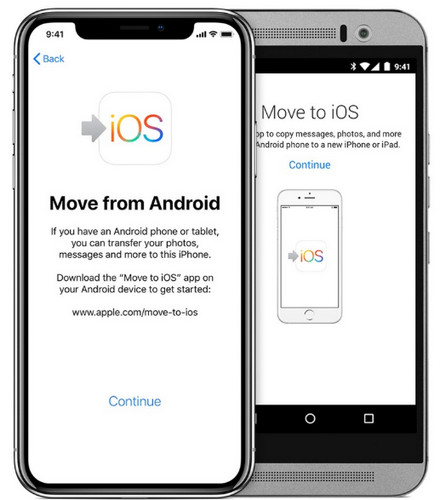
Step 1. You can use the Android's camera to scan the QR code on the iPhone, then download and install Move to iOS app on your Android.
Step 2. On your iOS device, tap Continue when you see the Move from Android screen. Then a one-time verification code will appear.
Step 3. Enter this code on your Android device, and tap Connect to join your Android to iPhone's temporary network.
Step 4. On your Android, select the content you want to transfer, then tap Continue. Don't use both devices until the transfer completes.
Common Move to iOS Not Working Problems You Might Meet
Many users report they encounter some issues when using Move to iOS. Here are some common problems you might face:
- Move to iOS not connecting: The app fails to connect to the Wi-Fi network, cannot communicate with the device, or cannot pair your Android and iPhone.
- Move to iOS taking forever: The transfer process is extremely slow or gets stuck for a long time.
- Move to iOS unable to migrate: You may see the "Unable to Migrate" error when the transfer reaches a certain point and then stops unexpectedly.
These problems are typically caused by unstable network connections, iPhone software glitches, compatibility issues, insufficient storage space, or transferring a large amount of data. In the next part, we'll introduce quick fixes and alternative to solve these problems.
Part 2: How to Fix Move to iOS Not Working
Restart Both Android and iPhone
If Move to iOS gets stuck on preparing, or does not respond after entering the verification code, you can restart your Android and iPhone to resolve software glitches. A quick restart is the most efficient way to clear temporary system errors or bugs and refresh the connection.
- For Android: Press and hold the Power button, tap Restart, and wait for the device to reboot.
- For iPhone X or later: Press and hold the Side and Volume buttons, then drag the power-off slider.
- For iPhone 6-8: Press and hold the Side button, then drag the power-off slider.
- For iPhone 5 and earlier: Press and hold the Top button, then drag the power-off slider.
Check Network Connection
The Move to iOS app creates a temporary Wi-Fi network on the iPhone that the Android device must connect to. If your Android fails to join the network and keeps disconnecting, check your Wi-Fi network or mobile data connection. If the Wi-Fi network is not working properly, reboot the Wi-fi router.
Disable Connection Optimizer on Android
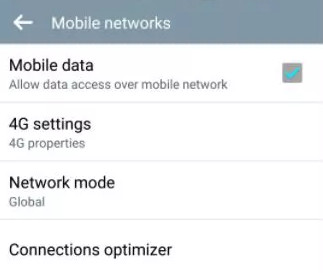
If your Android phone keeps disconnecting from the network, the Connection Optimizer feature may be the reason for the Move to iOS not working issue. This feature is available on many Android devices running Android 8.0 or later. It automatically switches between Wi-Fi and mobile data to improve network performance, but this can interrupt the transfer, so it's better to turn it off.
Step 1. Go to Settings on your Android and select Connections.
Step 2. Select Mobile Networks > Connection Optimizer.
Step 3. Turn off your cellular network and disable Connection Optimizer.
Turn on Airplane Mode
If the transfer stops at a certain percentage, it probably means some background activities are interrupting the connection. To fix Move to iOS not working issue, turn on the Airplane mode on both Android and iPhone before using the Move to iOS app.
- On Android: Swipe down from the top of the screen, then tap Airplane Mode.
- On iPhone: Swipe up to launch the Control Center and tap Airplane Mode.
Check iPhone Storage Space
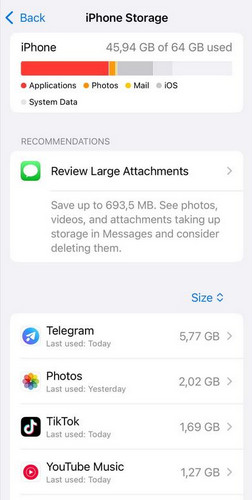
Insufficient storage space can lead to the Move to iOS not working problem. To check iPhone storage, open Settings > General, select iPhone Storage, then check the amount of available space. If your iPhone says not enough storage, you need to free up your iPhone storage space by deleting unused apps, large files, old downloads, and system caches.
Part 3: Move to iOS Still Not Working? Try This Alternative
If Move to iOS still doesn't work after trying all the fixes above, you can switch to a third-party tool. Apeaksoft MobieTrans is a powerful data transfer tool that lets you move various types of data between Android, iPhone and PC. It supports almost all Android and iOS versions, including iOS 27 and Android 17.

Downloaded by over 1,000,000 users
- Move data from Android to iPhone, iPhone to Android, or between iPhones or Androids.
- Transfer photos, videos, contacts, messages, music, and more.
- Manage, delete, or export your phone data directly from your computer.
- Back up and restore your important data without data loss.
Secure Download
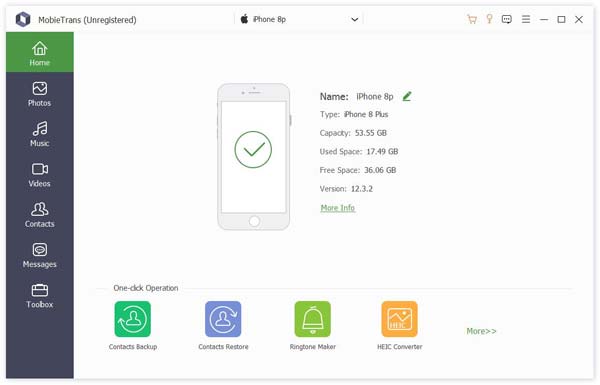
Step 1. Open the software and connect your Android and iPhone devices to the PC. Then click one of the options on the left bar.
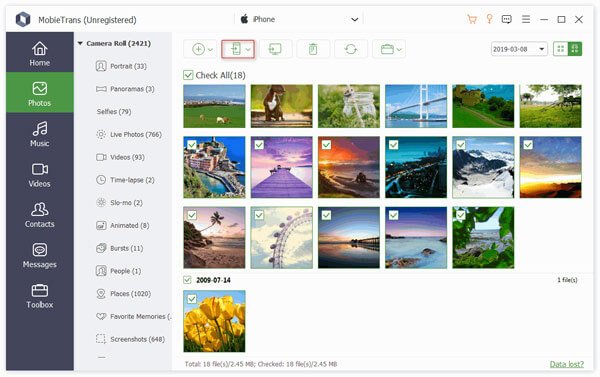
Step 2. If you click Photos, you can see all your photos on your device. Choose the photos you want to transfer.
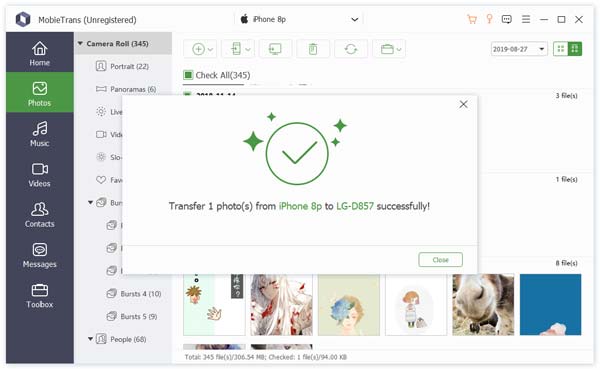
Step 3. Click the Phone button on the top bar, choose Export to Device, and select your iPhone to receive the photos. Wait for a few seconds, your photos will be transferred successfully.
Part 4: FAQs on Move to iOS Not Working
How long does Move to iOS take?
The transfer time depends on the amount of data, network speed and your device performance. Generally speaking, it takes about 5 to 30 minutes.
Why does my Android phone keep disconnecting during the transfer?
This often happens because of network issues. You can disable Connection Optimizer, turn off mobile data, enable Airplane Mode, and keep the devices close together.
Why is Move to iOS not working for WhatsApp chat transfer?
Move to iOS can transfer WhatsApp chats from Android to iPhone, but you need to have the latest WhatsApp version. Check your WhatsApp version and system compatibility.
Conclusion
Next time you meet the Move to iOS not working issues, try the mentioned fixes first, and if they don't solve the problem, use an alternative tool like Apeaksoft MobieTrans. Have you faced issues with Move to iOS before? Sharing your experience could help others avoid the same problems.

Related Articles




