


How to Transfer Contacts from iPhone to a SIM Card in 3 Possible Ways

"How do I transfer contacts from iPhone to SIM card?"
According to Apple, "your iPhone doesn't store contacts on the SIM card." Unlike Android phones, iPhones store contacts in iCloud or linked accounts instead of SIM cards. How to transfer contacts from iPhone before switching to a new phone?
Don't worry. This guide will show you how to transfer contacts from iPhone through iCloud, Google Contacts, or a transfer tool.
PAGE CONTENT:
- Part 1: Can I Transfer Contacts from iPhone to SIM Card
- Part 2: How to Transfer Contacts from iPhone to SIM Card (Best Ways Explained)
- Part 3: How to Transfer Contacts from iPhone to SIM Card Using iCloud
- Part 4: How to Transfer Contacts from iPhone to SIM Card via Google Contacts
- Part 5: How to Save Contacts from iPhone to SIM Card by Email
Part 1: Can I Transfer Contacts from iPhone to SIM Card
Apple does not allow users to transfer contacts from iPhone to SIM card directly. Unlike Android phones, which may support exporting contacts to SIM card storage, iPhone does not have a built-in feature to copy contacts from iPhone to SIM card.
Therefore, if you want to transfer contacts from iPhone to SIM card when switching phones or creating a backup, you need to use an Android phone as a bridge. You should move contacts from iPhone to Android first, then export contacts from Android to the SIM card.
Part 2: How to Transfer Contacts from iPhone to SIM Card (Best Ways Explained)
The most direct and time-saving method to transfer contacts from iPhone to SIM card on any iPhone/Android conveniently is using Apeaksoft MobieTrans. It supports contacts, photos, videos, audio, SMS and almost all files between iPhone and Android without data loss.
More than data transferring, you can add or delete any iPhone contact. It is also capable to find and merge duplicate contacts in one click. The preview window will show you the detailed information of iPhone contacts. Thus, you can import SIM contacts from iPhone selectively and quickly.

Downloaded by over 1,000,000 users
- Export contacts from iPhone to SIM card quickly.
- Merge the duplicated iPhone contacts and other files.
- Add contacts to groups.
- Manage or delete contacts at will.
- Fully compatible with all popular iPhone and Android models.
Secure Download
Step 1. Connect iPhone and Android to MobieTrans
Free download, install and launch Apeaksoft MobieTrans from the buttons above. Connect the iPhone and Android to the same computer with USB cables. It is an important step to save contacts to SIM card from iPhone.
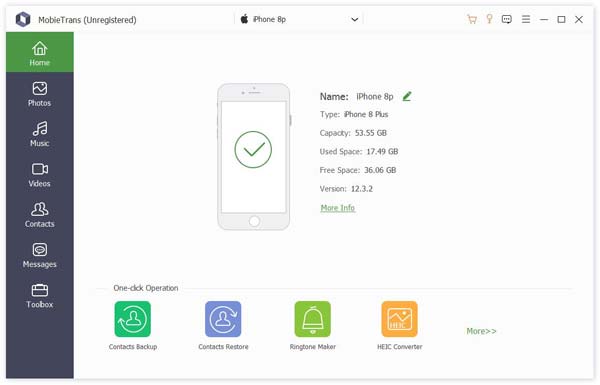
Step 2. Scan iPhone contacts
Choose Contacts in the left pane. Wait for a while for the computer to scan all contacts stored on your iPhone.
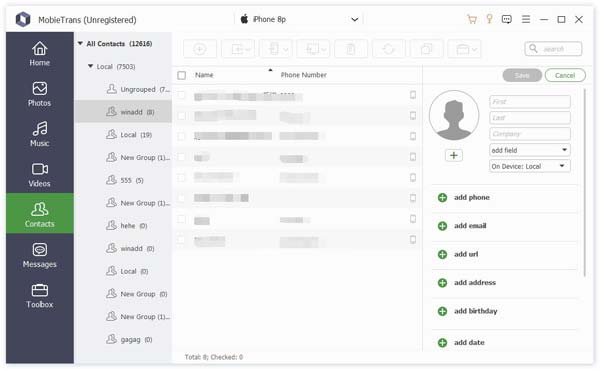
Step 3. Copy contacts from iPhone to SIM card
Click Edit on the top right corner to edit the iPhone contact information if necessary. Preview and mark before contacts you want to transfer to the Android SIM card. At last, click the phone button and set Android as the path folder. All your selected iPhone contacts will be transferred to Android directly.
Tips: Apeaksoft MobieTrans is the most recommended tool to save contacts to SIM card from iPhone and other devices. By the way, you can transfer Blackberry contacts to Android with MobieTrans in clicks too.
Part 3: How to Transfer Contacts from iPhone to SIM Card Using iCloud
If you want to transfer multiple contacts to SIM card, you can sync iPhone contacts to cloud storage first. Later, you can download contacts to your Android phone or other devices. Generally speaking, you need to transfer iPhone contacts to iCloud, then download to Android and export to SIM card. Of course, you can export iPhone contacts to SIM Card with Gmail and other similar tools too.
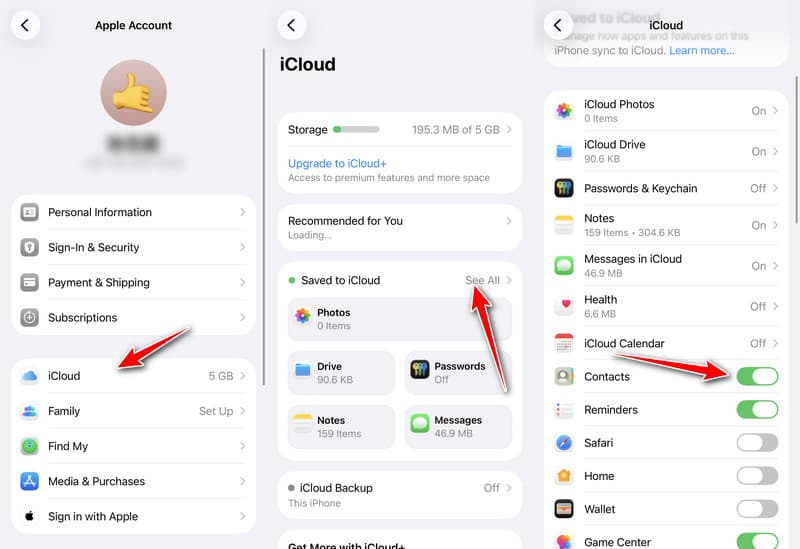
Step 1. Backup contacts to iCloud
Open Settings > Your name > iCloud > See All. Toggle on Contacts. If you have set a Screen Time passcode, it will be automatically enabled.
Step 2. Download contacts on PC
Visit iCloud.com on your computer. Sign in to your iCloud account. Open Contacts, select the contacts you want to export, click the Share button, and choose Export vCard to download the contacts as a .vcf file.
Step 3. Transfer contacts from iPhone to SIM card
Connect Android to PC with a USB cable to transfer the downloaded vCard file to your Android phone. Open the Contacts app and import contacts from the .vcf file. Choose the Export contacts option and choose SIM card as the destination.
Part 4: How to Transfer Contacts from iPhone to SIM Card via Google Contacts
If you want to transfer multiple contacts from iPhone to SIM card, you can also use Google Contacts as an intermediate platform.
Step 1. Open Settings on your iPhone and go to Apps - Contacts.
Step 2. Click Contacts Accounts and choose Gmail. Toggle on Contacts.
Step 3. Open your Android phone, sign in with the same Google account. Then, open Settings > Accounts > Google and enable Contacts sync. Your synced iPhone contacts will appear in the Android Contacts app.
Step 4. Export contacts from Android to SIM card as the same steps mentioned in the previous method.
Part 5: How to Save Contacts from iPhone to SIM Card by Email
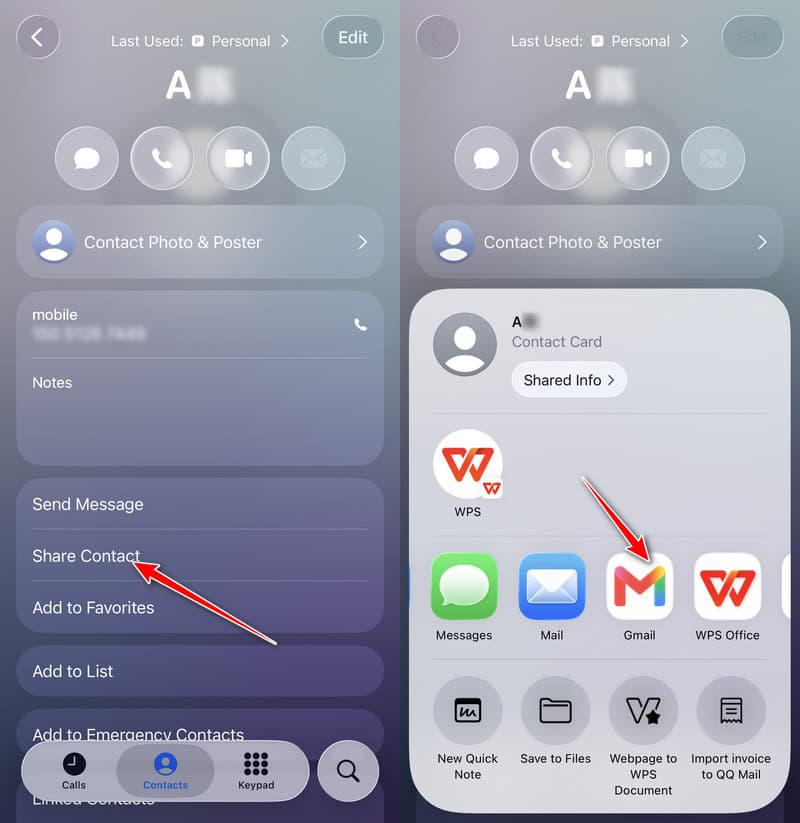
If you want to copy few contacts from iPhone to SIM card, you can send an email to your Android phone. The specific iPhone contacts will be saved in SIM card via Email quickly. Be aware that you can transfer one contact from iPhone to SIM card by email per time. Here are detailed steps to save contacts to SIM card from iPhone via email.
Step 1. Send contacts by email
Open the Contacts app on iPhone. Choose the contact you want to save to SIM card. Tap Share Contacts to send iPhone contacts. Choose an email app and send the contact as a vCard (.vcf) file.
Step 2. Download contacts on Android
Download vCards from the email on Android. Run the Contacts app and import the contact from the file.
Step 3. Save contacts from iPhone to SIM card
Go back to the Import/Export contacts option. Select Export to SIM card to transfer contacts to SIM card from iPhone 4 and later.
Conclusion
This post has shared 4 useful ways to export contacts from iPhone to SIM card by using an Android phone as a bridge. What's more, no matter you want to create a backup or transfer iOS data to new Android, you can free download Apeaksoft MobieTrans to have a try.

Related Articles




