

How to Fix It When I Forgot My Android Password and Pattern

When you forgot Android password, PIN, or pattern, it will be extremely frustrating, especially when you urgently need to access your device. Whether you changed your passcode recently, haven't used your phone for a while, or Face ID and Touch ID don't work, you will be in a great dilemma in this modern life.
Fortunately, there are several effective ways to unlock your phone without losing important data. You will regain access to your phone easily and quicly. Check how to get into Android phone when you forgot password.
PAGE CONTENT:
- Part 1: The Easiest Solution When You Forgot Android Password
- Part 2: Use Google Find My Device When You Forgot Android Password
- Part 3: Use Samsung Find My When You Forgot Android Password
- Part 4: Use Android Debug Bridge When You Forgot Android Password
- Part 5: Factory Reset to Fix It When You Forgot Android Password
Part 1: The Easiest Solution When You Forgot Android Password
What's the best solution when I forgot my password on Android? Apeaksoft Android Unlocker is definitely the best fix. It can one-click bypass lock screen PIN, pattern, Touch ID, and Face ID on any Android device. You will enjoy a high efficiency to regain access to your phone.
The Best Solution When You Forgot Password on Android
- Connect your Android phone to your PC to remove forgotten password.
- Easily remove PIN, pattern, Touch ID, and Face ID on Android.
- Work on all popular Android phone models and OS versions.
- Help you remove Google FRP without Google account and password.
Secure Download
How to Remove Forgotten Password on Android
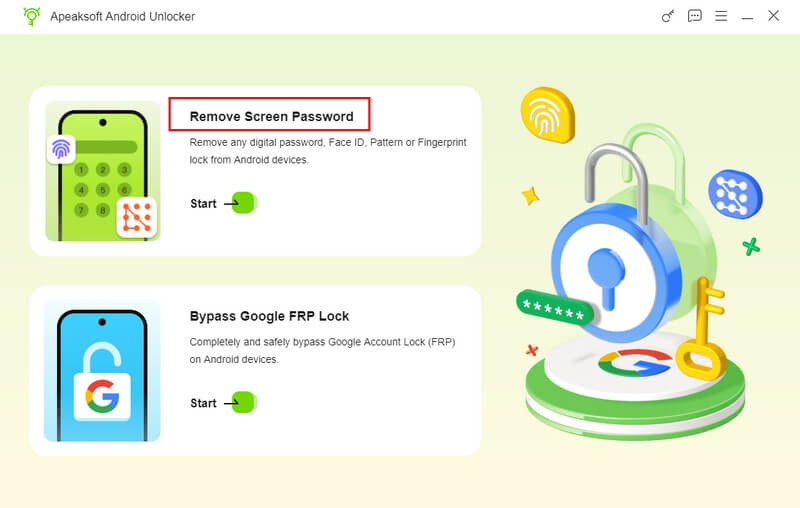
Step 1. Download, install, and launch Apeaksoft Android Unlocker on your computer. Connect your Android phone to your computer. Click the Remove Screen Password buton.
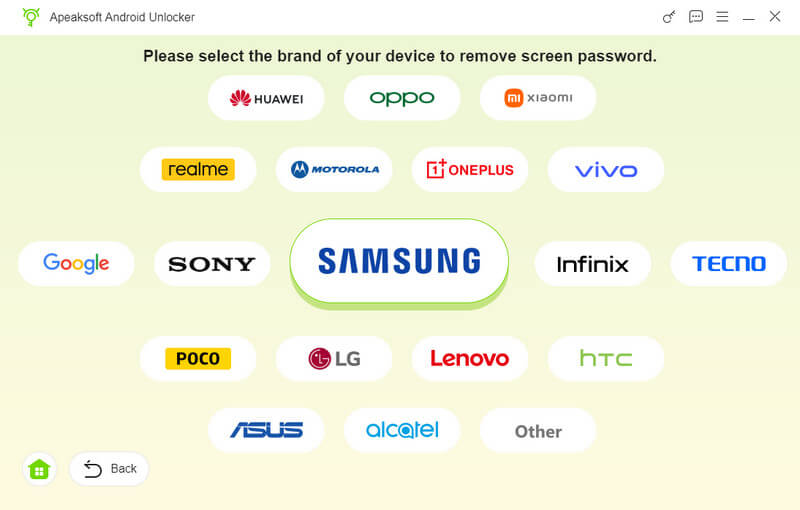
Step 2. Now, you should select your phone brand. It works on all popular Android phones, like Samsung, LG, Google, OPPO, and more.
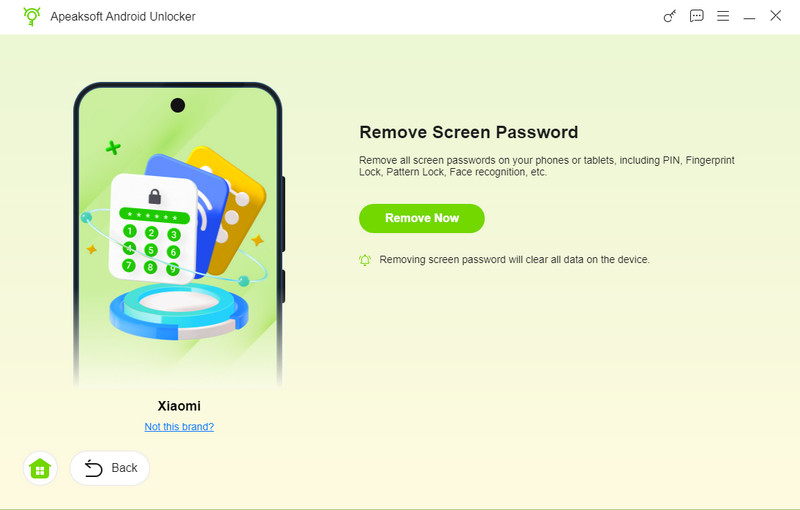
Step 3. Finally, just click the Remove Now button to fix the problem. Then, you can get into your Android phone easily.
Note: This process may factory reset your device. When your phone reboots, you may see Google FRP. If you need to bypass FRP, Apeaksoft Android Unlock can still help you.
Part 2: Use Google Find My Device When You Forgot Android Password
Google's Find My Device is one of the most effective ways to fix it when you forgot Android password or pattern. However, this method will erase all data, so only use it if you accept a factory reset. Also, your phone must be connected to a Wi-Fi or mobile data, and Find My Device must be enabled, or you cannot use this method to remove forgotten Android password.
Step 1. Visit the official webpage of Google Find My Device on a computer or another phone. Log in to your Google account linked to the locked Android phone.
Step 2. Select your device from the list, and then click the Erase Device button.
Step 3. Enter your Google account password. Then, you can regain access to your phone when you forgot Android password.

Part 3: Use Samsung Find My When You Forgot Android Password
If you are using a Samsung phone, you are in luck because Samsung offers a convenient tool that can unlock your Android device quickly without needing Android password, as long as you have a Samsung account added to the device. Check how to unlock your Samsung phone when you forgot Android password. Also, ensure that your phone is connected to Wi-Fi or mobile data.
Step 1. Go to the official webpage of SmartThings Find. Then, sign in with your Samsung account. Ensure that this Samsung account is associated with your current Android device.
Step 2. Select your locked Samsung phone, then click the Erase data button.
Step 3. Enter your Samsung account password to confirm. Your Samsung lock screen will be removed. That's how easy you can fix it when you forgot Android password with SmartThings Find.

Part 4: Use Android Debug Bridge When You Forgot Android Password
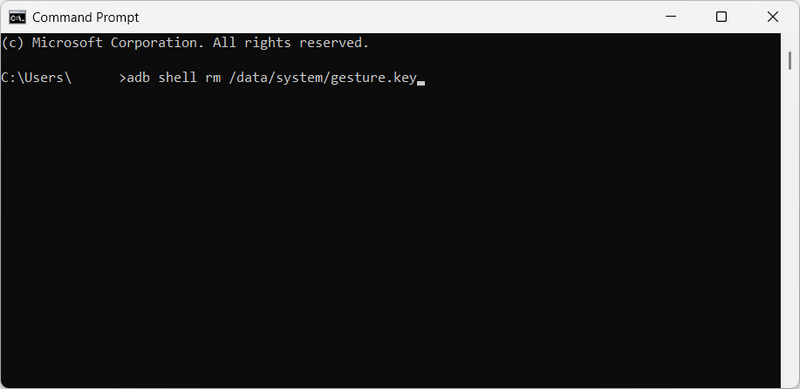
This method works only if USB debugging is enabled on your device before it gets locked. It's a more technical solution mainly for advanced Android users. Therefore, if you can ensure that your Android phone meets the requirements: USB debugging enabled previously on your phone and your computer has ADB, you can easily fix it when you forgot Android password.
Step 1. Connect your locked Android phone to your computer via USB.
Step 2. Open Command Prompt on Windows or terminal on Mac.
Step 3. Then, input the following command and then hit the Enter key on your keyboard:
adb shell rm /data/system/gesture.key
Step 4. Restart your phone, and then you can remove lock screen when you forgot Android password.
Part 5: Factory Reset to Fix It When You Forgot Android Password
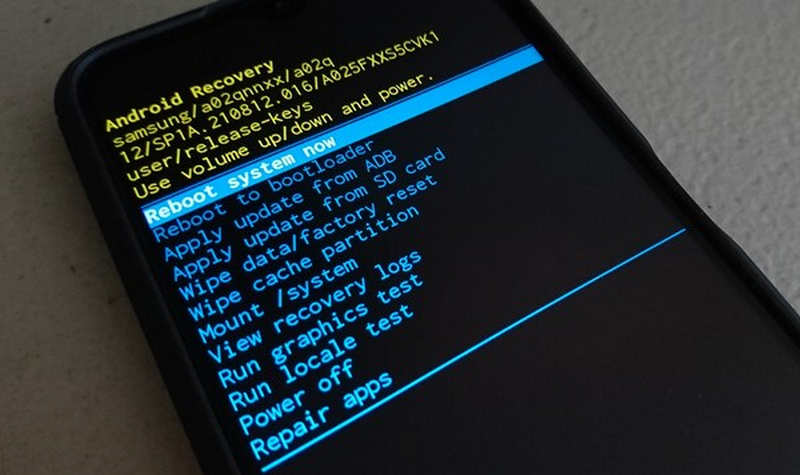
If none of the above solutions work when Android phone password is forgotten, a factory reset via Recovery Mode is the universal method that works for any Android phone. But this method will erase all data, including photos, apps, messages, and settings. Please consider before using this method to get into Android phone with a forgotten password.
Step 1. Turn off your Android phone. Hold specific key combinations to enter Recovery Mode. It depends on your phone brand. For example, you should hold Power button and Volume Up button on Samsung phone.
Step 2. Use the volume keys to navigate to an option like Wipe Data or Factory Reset.
Step 3. Then, press the Power button to confirm. It will start factory resetting your device. After that, you should choose to reboot your phone if there's a prompt. It will make your phone return to factory settings with no lock screen when you forgot Android password.
Conclusion
"How can I fix it when I forgot my Android password?" This article offers 5 workable methods to help you remove lock screen on Android devices. However, some of them are difficult to perform. If you want to choose an easy way to do it right now, choose Apeaksoft Android Unlocker. It will help you one-click regain access to your Anddroid phone.
Related Articles
This article tells you how to do Schok Volt SV55 FRP Bypass with professional FRP bypass tools when your Schok Volt SV55 is in FRP after a factory reset.
Are you trapped in the Google FRP on your Motorola phone? Luckily, this post will offer you the best 4 Moto FRP bypass tools to unlock without the passwords.
If you are locked by FRP, learn how to bypass Google account verification after a factory reset on your Android phone or tablet.
Follow our guide and you can learn how to bypass FRP on a TCL phone with or without a computer when you forgot your Google account password.



