


[2026] How to Effectively Bypass Google Account FRP on TCL Phones

Key Takeaways
- TalkBack is a simple, no-PC solution for bypassing FRP on TCL Android 11/12 devices.
- Mediatek FRP tool is a PC-based method for TCL devices with MediaTek processors on Android 11/12/13.
- If you have experience in flashing the system, you can try advanced methods such as TWRP.
- For devices running Android 10 or above, PC-based tools are more reliable.
It is frustrating when you are stuck at the FRP lock screen after a factory reset. There are lots of ways to bypass FRP, but most of them are designed for Samsung phones. As a result, people who use smartphones from other brands, such as TCL, will feel frustrated when their devices are locked by Google accounts.
This guide will explain how to bypass FRP on TCL Android phones with or without a PC. We've tested these methods on different TCL models running Android 11 and above, such as TCL 40 XE (Android 12), TCL A509DL (Android 11), and TCL Tab 8 LE (Android 11).
Disclaimer
Please note that all the methods provided for bypassing TCL FRP are applicable only to your device and must be used legally. Unauthorized bypassing of FRP may violate relevant laws and regulations.
PAGE CONTENT:
Part 1: What Is TCL FRP Bypass
TCL FRP Bypass refers to the deed of bypassing the FRP lock on TCL phones.
FRP, Factory Reset Protection, is an important security feature on Android phones. If you perform a factory reset on your Android device, the system will require you to log in to the Google account you previously used on the device to confirm its legitimacy and security. However, sometimes, users may forget their Google account information, and that’s when they need to bypass FRP to unlock the device.
Can I bypass FRP on TCL Tracfone?
The answer is Yes! You can bypass FRP on a TCL Tracfone phone using an FRP bypass tool, using TalkBack, or the custom recovery mode. Next, we will provide you with a detailed demonstration of how to bypass FRO on TCL phones with/without PC.
Here is a comparison table of all methods mentioned for your quick overview:
| Method | Supported Devices | Supported Android Versions | Success Rate | Complexity | Notes |
| Mediatek FRP Bypass | Devices with MediaTek chipsets (e.g., TCL 40 XE, A509DL, Tab 8 LE) | Android 11/12 | High | Medium | Suitable for devices with MediaTek chipsets |
| TalkBack Bypass | TCL Devices (Android 11/12) | Android 11/12 | High | Low | Works on older Android versions, requires TalkBack to be enabled |
| TWRP Custom Recovery | Devices with custom recovery (e.g., TCL 40 XE) | Android 11/12 | Low | High | Only suitable for experienced users |
*Test Environment Statement: We tested these methods on TCL 40 XE (Android 12), TCL A509DL (Android 11), TCL Tab 8 LE (Android 11), and TCL 40 A2 (Android 12). The results may vary depending on the specific device model, chipset, and Android version. The success rate mentioned in this guide is based on our controlled testing environment and may change in different situations.
Part 2: How to Bypass FRP TCL Tablet Using a PC
If you wonder how to bypass FRP on TCL with a computer, you can try an FRP bypass tool. What is the best TCL FRP bypass APK? One commonly recommended TCL FRP bypass APK is Mediatek FRP Bypass based on our tests and user feedback online. It works on TCL phones, such as TCL 40 XE/A2 running Android 11/12/13. In our tests, the Mediatek FRP Bypass Tool achieved high success rate on TCL 40 XE running Android 12, while the success rate for older models like A509DL was relatively lower.
Step 1. Start by installing Universal MTK Drivers on your PC. If your antivirus software reports errors, turn it off temporarily.
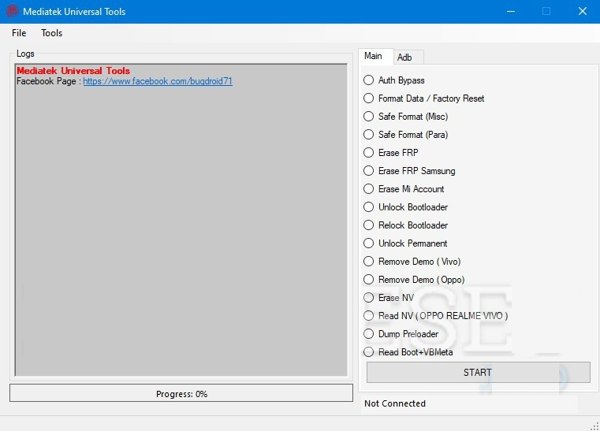
Step 2. Next, install the TCL FRP bypass tool on your hard disk, unzip it, and open the Mediatek Universal Tools.exe file. Go to the Tools menu, click Driver, and choose USBDk_1.022_x64. Wait for the drive installation to finish, and your PC will reboot.
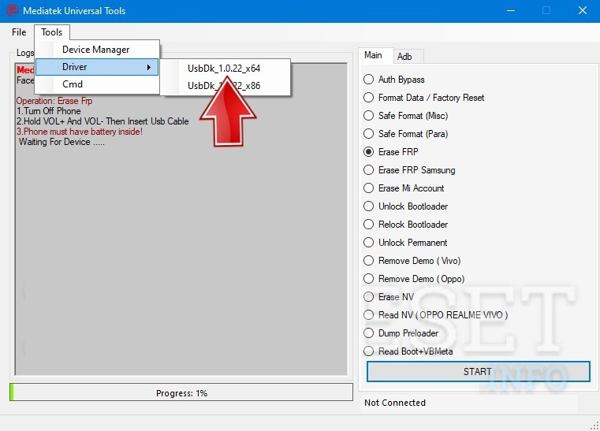
Step 3. Then open the .exe file again, select Erase FRP on the right side, and hit the Start button.
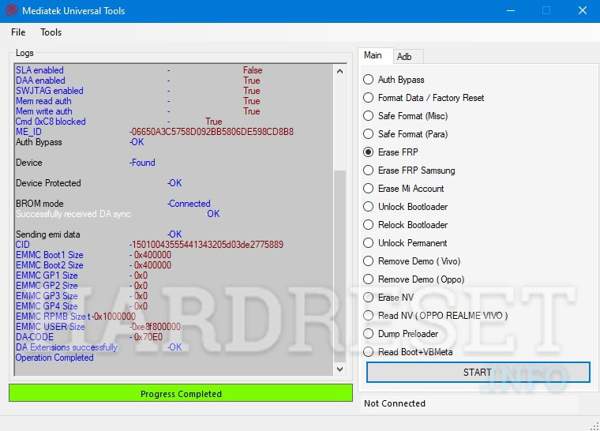
Step 4. Turn off your TCL phone, and hold down the Volume Down + Volume Up buttons while connecting your device to your PC with a USB cable.
Step 5. When your phone is detected, the tool will begin bypassing the FRP lock immediately. When it finishes, disconnect your phone.
Part 3: How to FRP Bypass TCL TracFone Without PC
Method 1. How to Bypass FRP on TCL with TalkBack
TalkBack is a simple and effective way to bypass FRP on TCL Android 11/12 or other versions without a PC or extra software. All you need is a good internet connection on your phone. Based on our tests, TalkBack works well when bypassing FRP on TCL A509DL with Android. However, its success rate varies on other devices.
Step 1. After factory resetting your TCL phone, tap the Vision settings button on the opening menu, which is labeled with an eyeball icon.
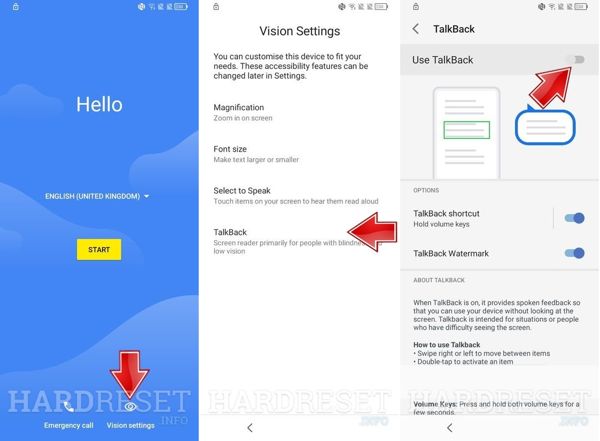
Step 2. Choose TalkBack, and toggle on the Use TalkBack option. Then press the Back button on the top left corner, and you will be presented with the TalkBack tutorial.
Step 3. Swipe from left to right to draw a mirror L on your screen to open the help menu, which explains the voice control options. Tap Use Voice Control, and hit Open Google Assistant to enter the Google Assistant screen.
Step 4. Head to Apps, and tap Open All Apps. Press the Options button with a three-dot icon, and choose Show System Apps.
Step 5. Open Android Setup, press Disable, and hit Force Stop. Tap Storage, and choose Delete Data. Then open Google Play Store, Setup Wizard, and Google Play Services, and delete data for each app.
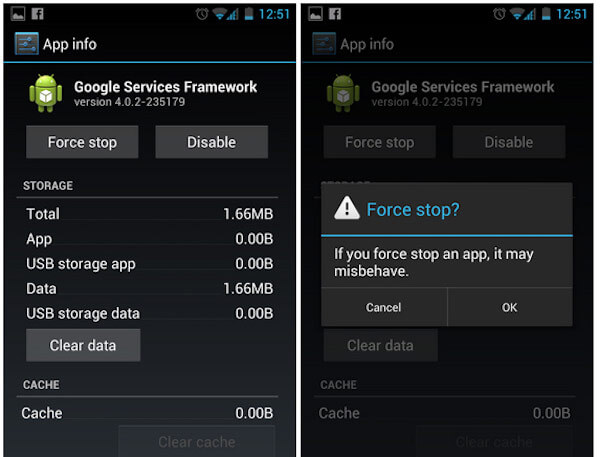
Step 6. Now, restart your device, and FRP is no longer active on your TCL.
Method 2. How to Bypass FRP on TCL Using a Custom Recovery
A custom recovery is a third-party recovery environment. Flashing a custom recovery on your phone replaces the default. Therefore, it is another way to bypass FRP on TCL phones. TWRP, short for Team Win Recovery Project, is a custom recovery available to TCL phones. Based on our tests, TWRP is compatible with several TCL models and can effectively remove the FRP lock most of the time. However, please note that this method involves a series of complex steps and is only suitable for users with some experience. If you're a beginner, it's recommended to skip this method to avoid potential risks.
Step 1. Open the Settings app, tap About Phone, and press Build Number seven times to activate Developer Options.
Step 2. Back to Settings, head to Developer Options, and enable USB Debugging.
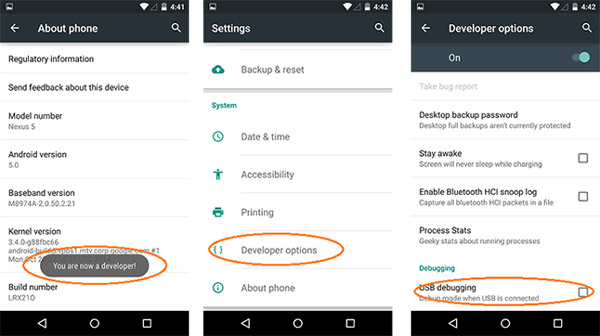
Step 3. Download the ADB toolkit on your desktop and unzip it. Moreover, download a proper TWRP from the official website to your desktop, too. Move the image file of TWRP into the ADB folder.
Step 4. Connect your TCL phone to your PC with a USB cable. Launch a command prompt in the ADB folder on your desktop.
Step 5. Type in adb devices, and press the Enter key on your keyboard. Next, type in adb reboot bootloader and hit Enter. Then run the command fastboot flash recovery twrp.img.
Replace twrp.img with the actual name of your TWRP image. At last, run the command fastboot reboot.
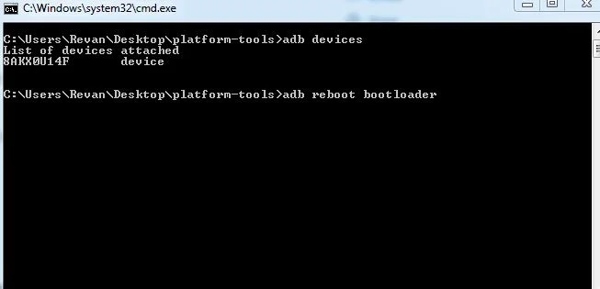
Step 6. Now, your phone should be in TWRP recovery mode, and FRP won't ask you to verify your Google account.
Bonus: Bypass FRP Lock on Newer Android Versions
As you can see above, most available methods for bypassing the FRP lock on Android devices have limited support for devices running Android 12+. That's because in new update, Google patches certain vulnerabilities and loopholes that were previously exploited by these bypass methods. In such cases, desktop-based FRP bypass tools, such as Apeaksoft DroidAide Android Unlocker, offers a reliable solution.

Downloaded by over 1,000,000 users
- Bypass the FRP lock on Samsung, Google, HTC, etc.
- Support a wider range of devices running on Android 12 and above.
- Remove FRP on Android with a USB connection.
- Fast and simple process.
- 24/7 customer and technical support.
Secure Download
Step 1. Download Apeaksoft Android Unlocker by clicking the link above.
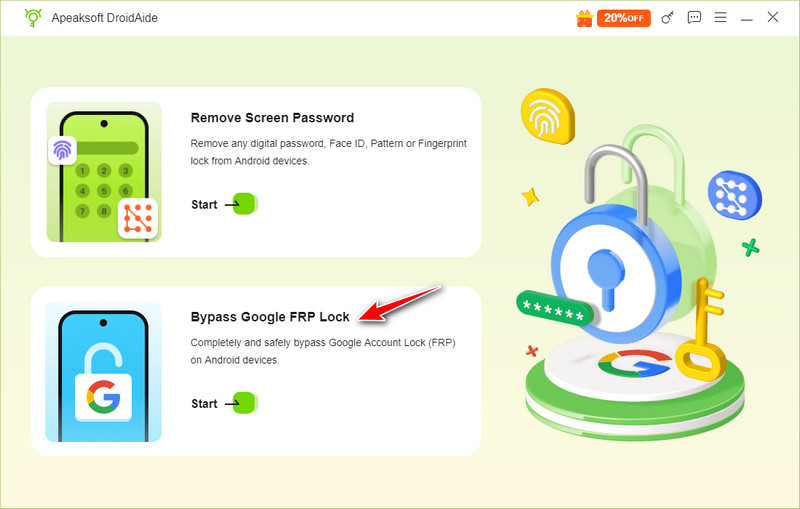
Step 2. Click Bypass Google FRP Lock on the main interface and then connect your device to the computer.
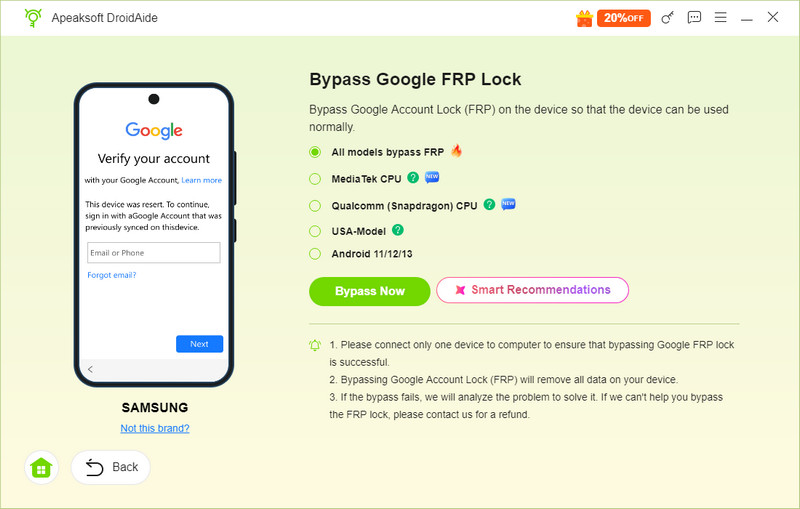
Step 3. This FRP bypass tool can automatically detect your phone. Check your phone information and then click Bypass Now.
Part 4: FAQs about TCL FRP Bypass
Are all the methods mentioned in the text suitable for all TCL models?
Not all models. It mainly depends on the processor type and Android version. For instance, the MediaTek method is only applicable to models equipped with MediaTek (MTK) chips. The TalkBack method only works on older Android systems, such as Android 11 or 12.
Can I bypass the TCL FRP without a computer?
Of course. You can bypass the FRP lock on TCL using TalkBack. This method doesn’t require a computer.
How can I disable the FRP feature before a factory reset?
To disable FRP, you simply need to remove your Google account from the phone before performing a factory reset by heading to Settings - Accounts - Google - Remove account.
Conclusion
Now, you should learn three ways about TCL FRP bypass with or without a computer.
TalkBack is a simple way to bypass Google lock, but it is not available to all TCL phones. Mediatek is a TCL FRP bypass tool that needs a PC. Or you can try to do it in a Custom Recovery mode.
What's more, we also introduced a powerful desktop-based tool, Apeaksoft DroidAide Android Unlocker, to bypass the FRP lock on newer Android versions.
 Apeaksoft DroidAide
 Unlock your Android passwords and bypass the FRP lock easily.
Secure Download
Related Articles




