
Top 5 Huawei FRP Tools to Bypass Huawei FRP Lock with/Without Computer

If you have enabled the Google FRP (Factory Reset Protection) security feature and performed a factory reset on your Huawei phone, you will encounter a situation where the Huawei device gets stuck at the Google account verification interface. You can bypass this lock with your Google account credentials with ease.
However, what if you cannot recall your old Google account information. In this case, you can try the 5 reliable Huawei FRP tools from this article.
Disclaimer
All the Huawei FRP bypass tools mentioned in this article is for educational purposes only. Do try them on your legally owned devices, otherwise, there will be legal risks. Bypassing FRP will void your device's warranty, and improper operation could cause data loss or software issues. Make sure you fully understand the potential risks and consequences involved.
PAGE CONTENT:
Part 1: What Is Huawei FRP Lock
Like most FRP locks on Android phones, the Huawei FRP lock is an anti-theft security mechanism on Huawei mobile phones. When your Huawei phone has undergone an unauthorized factory reset, it will require you to input the bound Google account information to make sure you are the owner of this phone.
Since the Mate 30 series, Huawei no longer uses Google services. From then on, Huawei has introduced the Huawei ID factory reset protection mechanism that requires verification of the previously logged-in Huawei ID account instead of the Google account. It made Huawei FRP bypass more difficult, as many methods no longer work on newer Huawei devices.
Part 2: How to Bypass Huawei FRP Lock with a Computer
Tool 1. Apeaksoft DroidAide Android Unlocker
Based on our real-device tests, Apeaksoft DroidAide Android Unlocker supports FRP lock removal for most Android-based Huawei devices. What makes this Huawei FRP tool outstanding is its intuitive interface and simple steps. Unlike other complicated Huawei FRP & ID bypass tool, it requires no technical skills.
- Simplified FRP removal procedures for compatible Huawei devices.
- Regain normal device access after successful FRP bypass.
- Support most Android versions (6.0 and above).
- The Mac version hasn’t come yet.
- Not compatible with HarmonyOS.
Secure Download
How to bypass Huawei FRP using this tool:
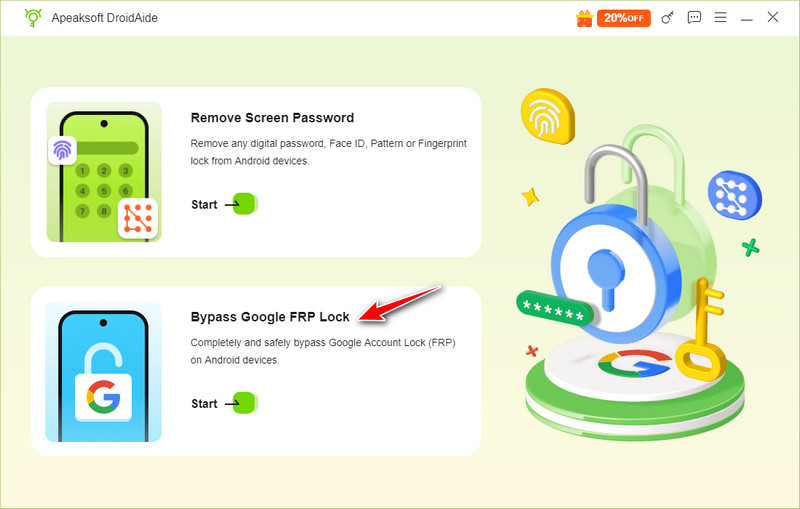
Step 1. Get Apeaksoft DroidAide Android Unlocker from the link above and select the Bypass Google FRP Lock option on the main interface.
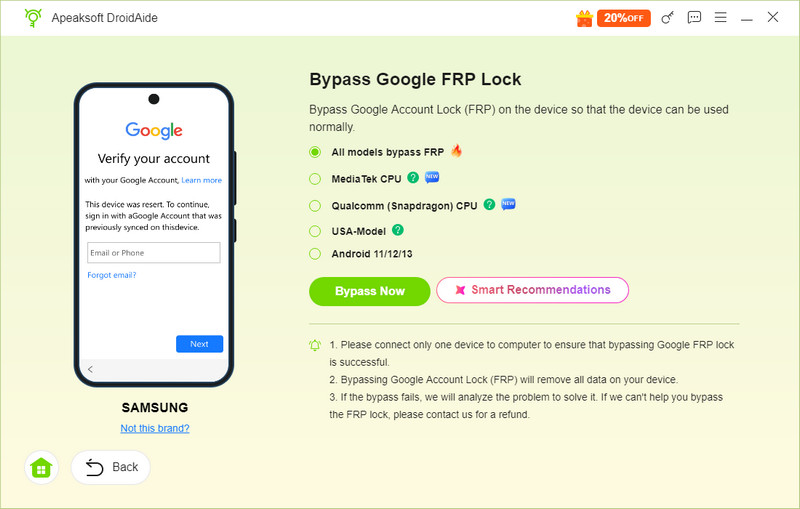
Step 2. Connect your device and check your phone's model. Then, click Bypass Now.
Step 3. Follow the on-screen instructions to remove the Huawei FRP lock.
Tool 2. Tenorshare 4uKey for Android
Tenorshare 4uKey for Android can help you bypass Google FRP lock on Huawei phones running Android 10. It provides clear guidance for users with limited technical experience. However, user experience may vary from person to person. Some online reviews indicate that there is a delay in receiving customer support.
- Improper operations may lead to data leakage risks.
- The easy-to-use interface is friendly to beginners.
- Improper operations may lead to data leakage risks.
- You can only utilize the FRP bypass feature with a paid license.
- It only works for early Huawei phones that apply Google services.
How to bypass Huawei FRP via 4uKey for Android:
Step 1. Download and launch this Huawei FRP tool on your computer. Connect your locked Huawei phone with a USB cable. Select the Remove Google Lock (FRP) option in the main interface.
Step 2. This Huawei FRP tool will automatically detect your device’s brand. Or you can select the Huawei logo manually.
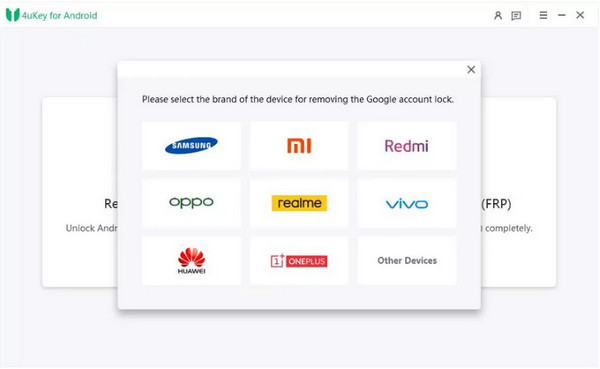
Step 3. Then, perform the on-screen instructions on how to bypass the Google FRP lock on your Huawei phone.
Tool 3. Octoplus FRP Tool
Octoplus FRP Tool is a renowned Android unlocking solution that supports Huawei, Samsung, Lenovo, ZTE, LG, etc. It offers both Huawei FRP bypass and screen lock removal features, which is a great tool for Android device management.
- With a user-friendly interface, you can use the Octoplus FRP tool with ease.
- This Huawei FRP tool has wide compatibility with popular Android brands.
- You need to purchase a USB flash drive to use this tool.
- Complicated operation procedure.
How to use Octoplus FRP Tool to bypass Huawei FRP lock:
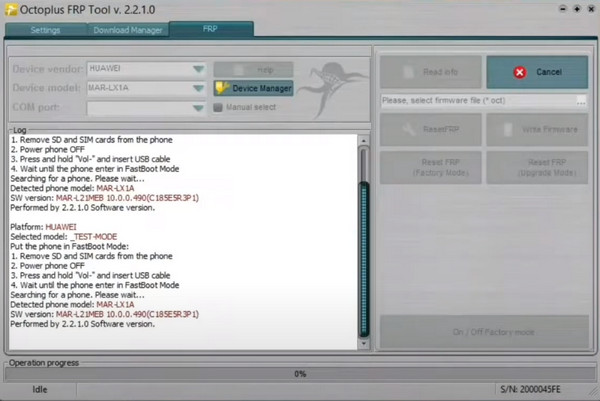
Step 1. Go to the Octoplus FRP Tool website to download and launch this Huawei FRP Tool. Purchase the Octoplus FRP Tool Dongler.
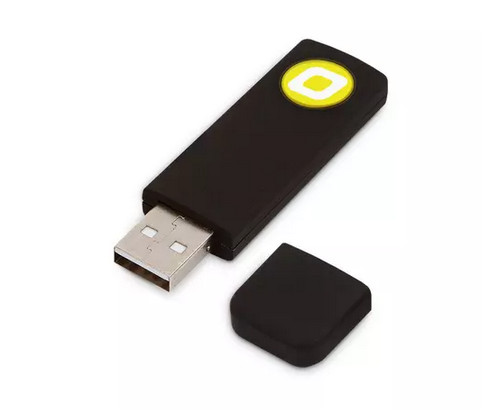
Step 2. Eject the SIM and SD cards from your locked Huawei phone. Put your Huawei into FastBoot Mode and install the Octoplus FRP Tool driver using a USB cable.
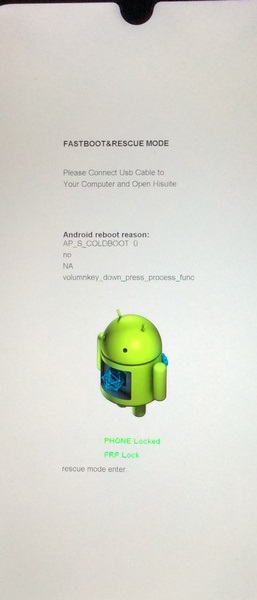
Step 3. Click the Reset FRP button and follow the on-screen instructions to bypass FRP on your Huawei.
Apeaksoft's editorial team independently tests every tool. We verify compatibility, success rates, ease of use, and overall performance using real devices and the latest operating systems. Our reviews are based on hands-on experience, technical analysis, and user feedback. We regularly review and update the content to reflect software updates, operating system changes, and user feedback.
- Test Environment: Windows 10/11 Pro (24H2), macOS Ventura & Sequoia 15, Huawei phones covering legacy models to mainstream models, Android 6.0 and above
- Simulated Unlocking Scenarios: Google FRP lock after factory reset, Huawei ID factory reset protection lock
- Tested Functions: FRP lock bypass, Huawei ID lock removal
- Testing Rules: Each tool is tested at least three times on different devices and network environments. Only if the FRP lock is fully removed and the device runs normally, the tool is counted as successful.
- Reminder: The unlocking success rate depends on the device model, system version, carrier restrictions, and network conditions.
Part 3: How to Bypass Huawei FRP Lock Without a Computer
Tool 1. QuickShortcutMaker APK
QuickShortcutMaker APK is a free tool that can help you remove the FRP lock from your Huawei phone and add a new Google account.
- It can help you remove the Huawei FRP lock for free.
- It can make shortcuts to access applications and hidden features easily.
- It requires no root and administrator permissions to run.
- You need to download Google Account Manager 7.7.2 or lower to make it work.
How to use QuickShortcutMaker APK to bypass Huawei FRP lock:
Step 1. Set up your locked Huawei phone from the start and make a connection with a stable Wi-Fi network. Select Add network and type any text into the box. Then, press and hold the text until the three-dot button appears. Then, tap it and choose ASSEST to open the Google browser.
Step 2. Search and download the Google Account Manager APK according to your Android OS version. After its installation, download the QuickShortcutMaker APK and install it.
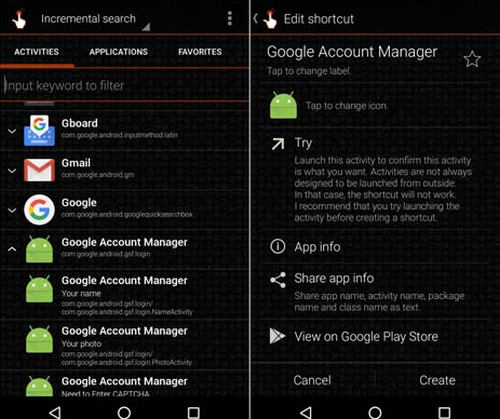
Step 3. Open it and find the Google Account Manager with the Type any email and password option.
Step 4. Tap on Try. Then, tap the three-dot button and choose Browser sign-in.
Step 5. Enter your current Google account and password. Then, you can restart your phone without the FRP lock.
Tool 2. TalkBack (Android 11-13)
For early Huawei phones, there is a TalkBack feature designed especially for people with visual impairments. It can read out the text, buttons, notifications, etc. on the screen, allowing users who cannot see the screen clearly to operate the phone. However, you can make use of this feature to bypass the Huawei FRP lock.
- It is a free feature.
- You don’t need to download software.
- Compatibility is limited in the newly released Huawei devices with new security patches.
How to use TalkBack to bypass the FRP lock on Huawei:
Step 1. Press the Volume Up and Volume Down keys together for about 3 seconds to enter the TalkBack page.
Step 2. Draw an L-shaped pattern on the screen to activate the voice command prompt.
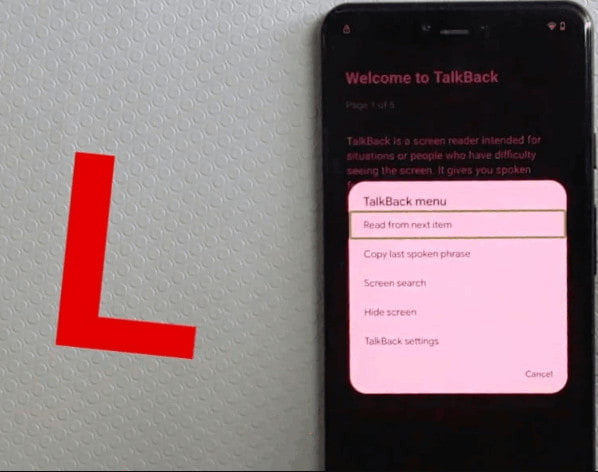
Step 3. Say Open Google Assistant to open YouTube.
Step 4. Go to Settings - About - Google Privacy Policy to open the browser.
Step 5. Add a new Google account in the browser.
Tips: Are there any other ways to bypass Huawei FRP lock without a PC?
Yes, you can put your Huawei device into the Safe Mode to bypass the annoying Google FRP lock without a PC. Use the Volume buttons to select the Wipe data/factory reset option and press the Power button to confirm. Then, go to Settings > System > Reset > Reset all settings > Advanced Settings > Restart.
Part 4: FAQs about Huawei FRP Tool
What's the difference between Google FRP and Huawei ID lock on HarmonyOS devices?
Google FRP requires Google account verification, while Huawei ID lock requires the Huawei ID associated with the device. On HarmonyOS devices, the Huawei ID lock is the primary security protection mechanism.
Why do TalkBack FRP methods fail on Mate 60 series?
Many of the security loopholes and vulnerabilities relied upon by TalkBack have been patched in the newer versions of HarmonyOS.
Do Huawei FRP tools work on all Huawei models?
No. Most of them take advantage of some loopholes, while newer security updates have patched many previous exploits.
Can I trust free FRP tools downloaded from random sites?
Be cautious and prudent when downloading the so-called free Huawei FRP tools. You’d better choose reputable vendors or verified community tools and download them from their official websites.
Are there official ways to remove FRP from a Huawei phone?
The best and safest way to remove the Huawei FRP lock is to get back your Google account. Sign in with your credentials, and the FRP lock will be gone forever.
Conclusion
This article lists 5 practical Huawei FRP methods and tools for your reference. With these practical tools, you don’t have to use a Huawei FRP tool with the FRP key. We hope this article can get you out of the Google account verification screen on compatible Huawei devices.
 Apeaksoft DroidAide
 Unlock your Android passwords and bypass the FRP lock easily.
Secure Download
Related Articles