

How to Unlock or Factory Reset Locked Android Device

“I have forgotten my phone’s password and cannot open it. Can I get into or factory reset my phone?” Users may be locked out of their Android phone due to they forgot their password, the screens are cracked, or their phone is completely melted down. However, there is no need to panic, as there are a few ways to regain access to your Android device and factory reset it quickly.
PAGE CONTENT:
- Part 1: How to Break into a Locked-out of Android
- Part 2: How to Unlock a Locked-out Android Phone via Smart Lock
- Part 3: How to Remove a Locked-out Android Password with ADB
- Part 4: How to Factory Reset a Locked Android by Find My Device
- Part 5: How to Factory Reset a Locked Android in Recovery Mode
Part 1: How to Break into a Locked-out of Android
Apeaksoft Android Unlocker is an easy way to break into your device when you are locked out of your Android password. It is able to remove the screen password and factory reset your device without technical skills.
A Quick Way to Factory Reset an Android Phone When Locked out
- Break into an Android device without the password.
- Work in various situations, including a disabled phone.
- Bypass Google FRP Lock without password.
- Support a wide range of Android brands and models.
Secure Download
How to Remove Locked out Android Password
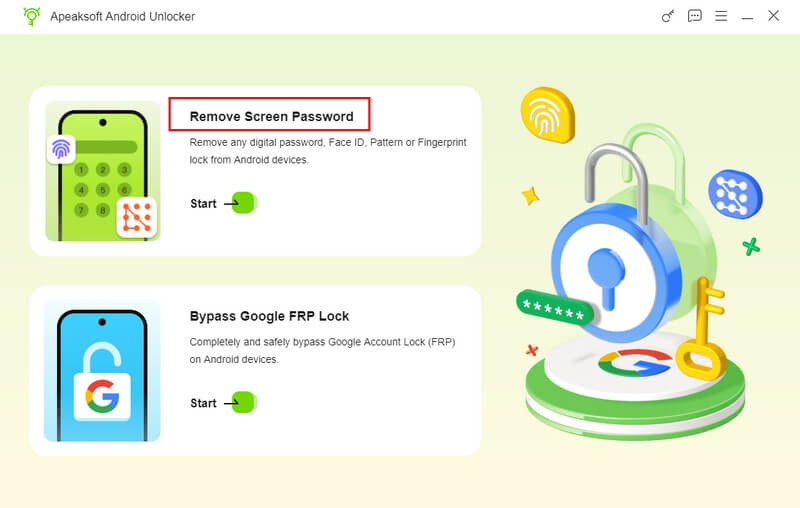
Step 1. Connect to your phone
Launch the Android unlocking software once you install it on your computer. Connect your phone to your computer with a USB cable. Choose Remove Screen Password to proceed.
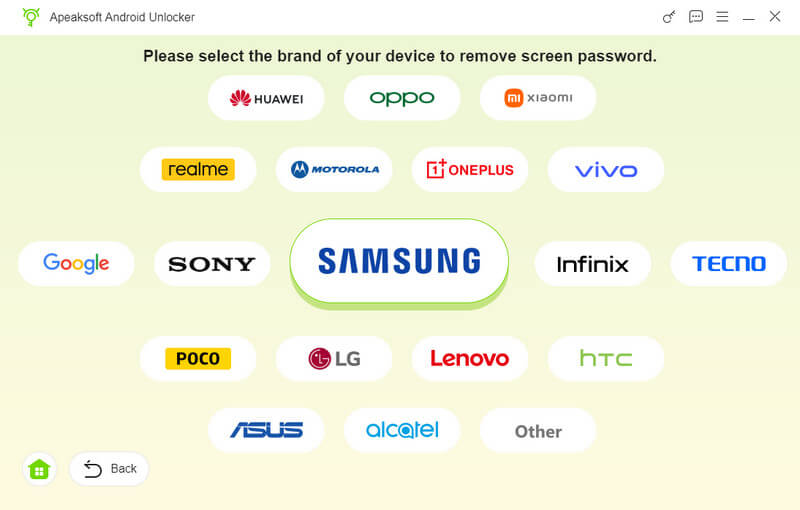
Step 2. Choose your brand
Next, choose your phone brand, such as Samsung. The software will detect your device automatically.
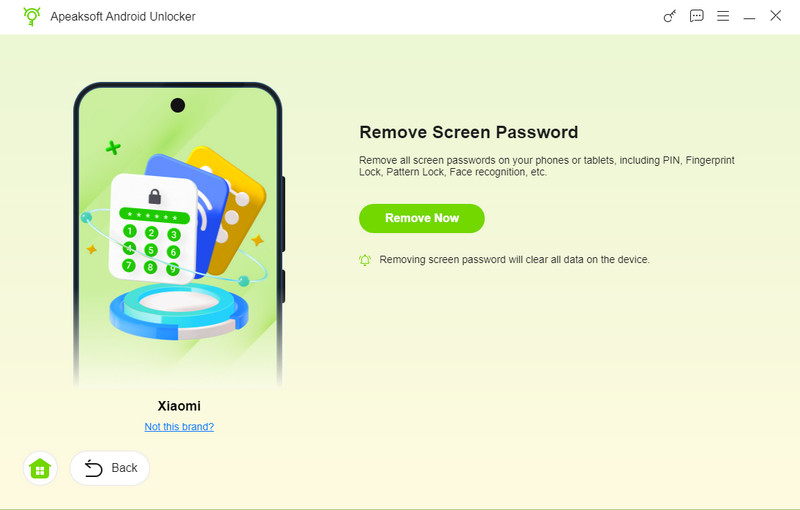
Step 3. Remove now
Once you are ready, click on the Remove Now button to begin unlocking your Android device.
Part 2: How to Unlock a Locked-out Android Phone via Smart Lock
Smart Lock is a built-in feature on Android devices. Once you set it up, your device will keep unlocked when you reach a trusted location or connect to a trusted device, depending on your settings.
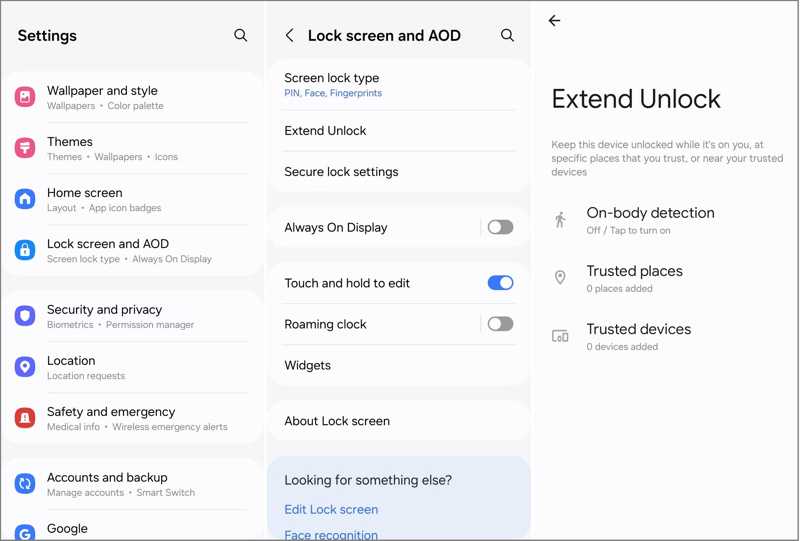
Step 1. Open the Settings app on your phone.
Step 2. Go to the Security tab and choose Smart Lock.
Tips: If you are using a Samsung device, go to Lock Screen and AOD, and choose Extend Lock.
Step 3. Now, you will see three options:
On-body detection: your phone stays unlocked when you are carrying it.
Trusted places: Set a location to keep your device unlocked when you are near it.
Trusted devices: Set a Bluetooth device to keep your phone unlocked when connected to it.
After setup, you can reach the trusted place or connect to a trusted device to unlock your device when you are locked out of your Android phone.
Part 3: How to Remove a Locked-out Android Password with ADB
Android stores your credentials in a specific file, including fingerprints, PIN, patterns, and more. You can access this file with ADB to unlock your phone when you are locked out of Android.
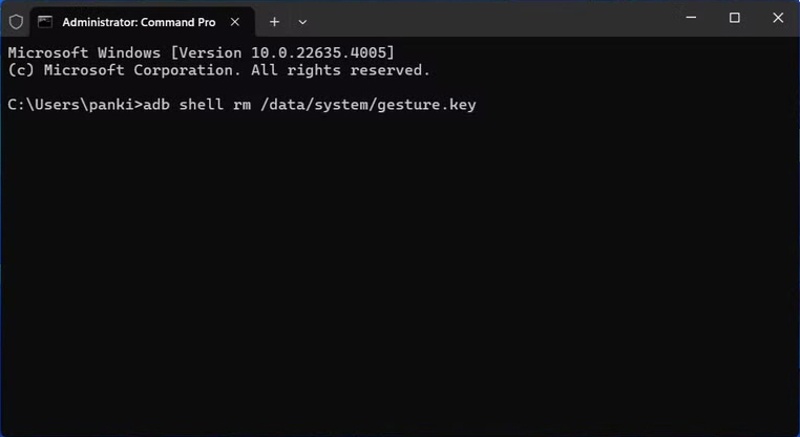
Step 1. Make sure USB Debugging mode is enabled on your phone.
Step 2. Connect your phone to your computer with a USB cable.
Step 3. Install ADB on your computer.
Step 4. Run a Command Prompt or Terminal in the ADB installation directory.
Step 5. Type in adb shell rm /data/system/gesture.key and hit the Enter key on your keyboard.
Step 6. Restart your phone, and you can access it directly.
Further Reading
Part 4: How to Factory Reset a Locked Android by Find My Device
If you want to factory reset an Android phone when locked out, Google’s Find My Device can meet your needs. The prerequisite is that you must have turn on Find My Device on your phone before it is locked.
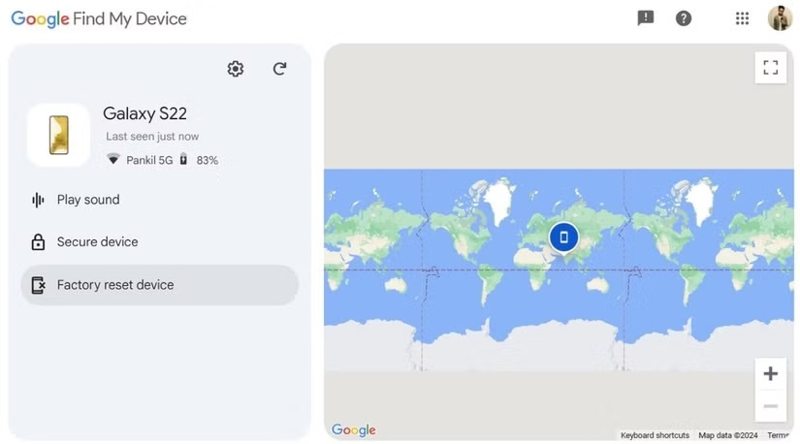
Step 1. Go to https://www.google.com/android/find/ in a browser and log in with the Google account you have added to your phone.
Step 2. Choose your phone if you have signed in with multiple devices.
Step 3. Find My Device will track your phone on the map.
Step 4. Next, click Factory reset device.
Step 5. If prompted, confirm your action and begin factory resetting it.
When you set up your phone again, you need to enter your Google account password to disable FRP.
Part 5: How to Factory Reset a Locked Android in Recovery Mode
If you didn’t set up Find My Device on your phone, you have to factory reset a locked Android phone in Recovery Mode. This way uses the physical buttons on your phone. However, you still need your Google account password to turn off FRP when setting it up.
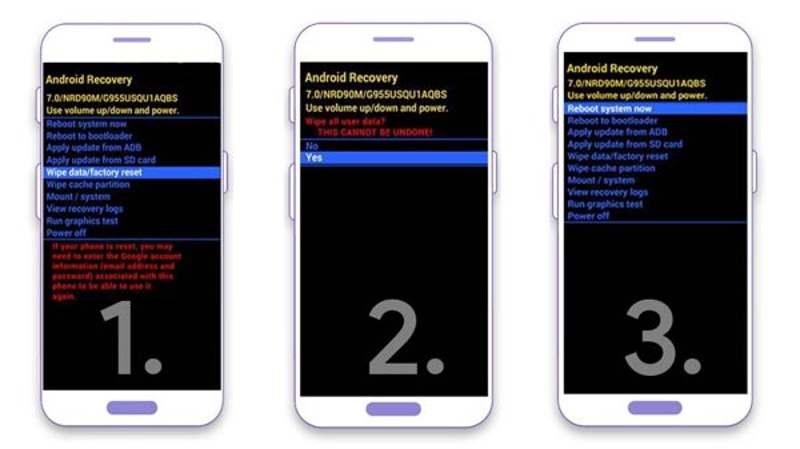
Step 1. Long-press the Power button, and tap Power off.
Step 2. After your screen turns black, press and hold the Volume Down + Power buttons together until you enter Recovery Mode.
Step 3. Use the volume buttons to highlight Wipe data/factory reset.
Step 4. Hit the Power button to select it.
Step 5. Next, select Yes with the volume buttons, and hit Power.
Step 6. When it is done, select Reboot system now.
Conclusion
This guide told you what you can do if you are locked out of an Android phone or tablet. Smart Lock is an easy way to unlock your device without a password. ADB is able to remove the file that stores your screen locks. Find My Device and Recovery Mode are used to factory reset your phone without unlocking it. Apeaksoft Android Unlocker can remove the phone password if you forgot it.
Related Articles




