

How to Factory Reset Your Android Phone When Locked

Finding yourself locked out of your Android phone or tablet can be a frustrating experience. If you forgot your PIN or pattern, it is impossible to access your device. However, there are methods for resetting an Android phone when locked. Of course, these methods are involved with some prerequisites. We identify the proven methods, list the prerequisites, and share the workflows. Then, you can regain access to your handset.
PAGE CONTENT:
- Part 1: When You Need to Reset an Android Phone
- Part 2: How to Reset an Android Phone in Recovery Mode When Locked
- Part 3: How to Hard Reset an Android Phone When Locked Remotely
- Part 4: How to Reset an Android Phone When Locked with Another Phone
- Part 5: How to Factory Reset a Locked Android Using a Computer
Part 1: When You Need to Reset an Android Phone
Resetting an Android phone is also known as hard resetting, factory resetting, or master resetting. The process erases all data and custom settings on your device and brings it to the factory status. The scenarios when you need to reset an Android phone include:
1. You forgot the password to your mobile device.
2. Software glitches occur on your Android device.
3. Your phone is stolen or lost.
4. You want to sell your device or give it to others.
Part 2: How to Reset an Android Phone in Recovery Mode When Locked
One way to hard reset an Android phone when locked is the Recovery Mode. That is the built-in feature to access the boot menu without entering the Android operating system. The process doesn't require extra hardware.
Requirements
1.The hardware buttons on your phone are working.
2.The associated Google account password if you have turned on FRP.
Here are the steps to hard reset your Android phone when locked:
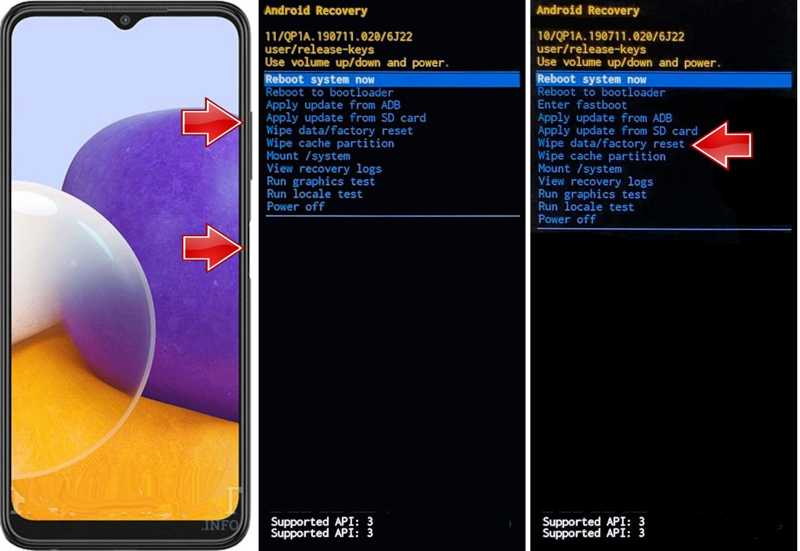
Step 1. Long-press the Power button to trigger the power-off screen.
Step 2. Choose Power Off or a similar option.
Step 3. Next, hold down the Volume Up + Power buttons together until your phone enters Recovery Mode.
Tips: For some devices, use the Volume Down + Power buttons.
Step 4. Use the Volume buttons to highlight the Wipe data/factory reset option.
Step 5. Press the Power button to select it.
Step 6. If prompted, highlight Yes with the Volume buttons, and press the Power button to confirm it.
Step 7. When it is done, highlight Reboot system now, and hit the Power button.
Note: If FRP is enabled, you still need to provide the associated Google account password when setting it up.
Part 3: How to Hard Reset an Android Phone When Locked Remotely
If your phone is lost or stolen, you can hard reset an Android phone when locked remotely using Google Find My Device. That is a website released by Google for tracking Android devices. Plus, it provides a few options to handle your phone remotely. This method can also help you hard reset the phone when you forget your Android password.
Requirements
1. A Google account is associated with your Android device.
2. Find My Device is enabled.
3. Your device is online.
4. A web browser.
Here are the steps to hard reset your Android phone remotely when locked:
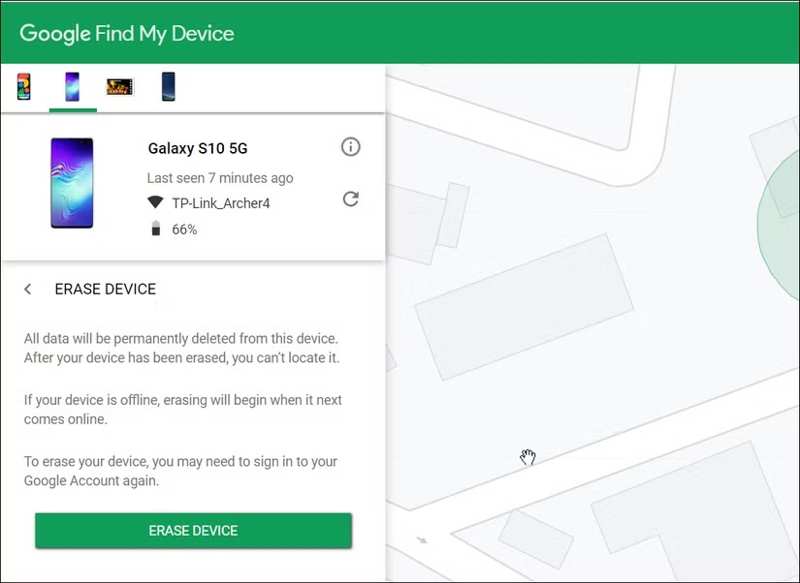
Step 1. Access https://android.com/find in a browser and sign in with the Google account associated with your phone.
Step 2. Choose the device you want to reset if you have more than one device linked.
Step 3. Tap or click the Erase Device button.
Step 4. Read the warning and hit Erase Device again.
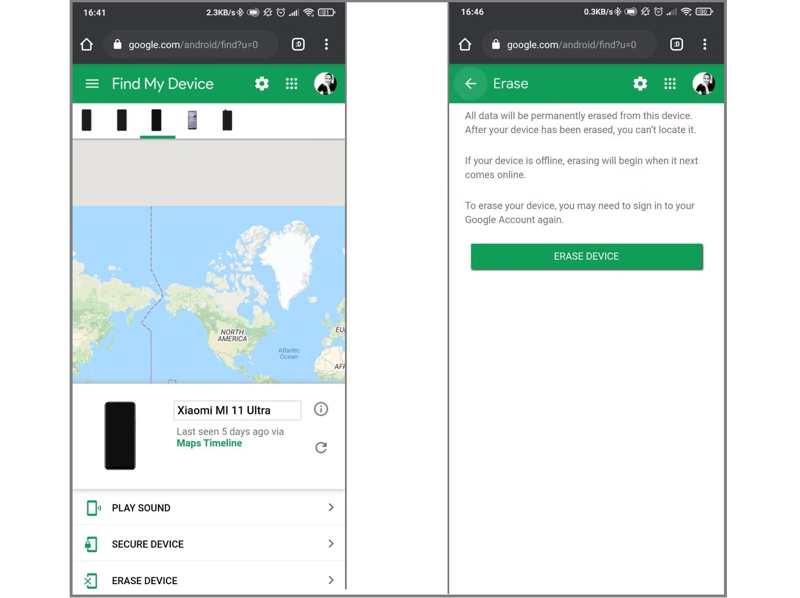
Step 5. Enter your Google account password if prompted.
Step 6. When it finishes, your device will restart and get a factory reset.
Note: If your device is offline currently, the factory reset will initiate the next time it connects to the internet.
Part 4: How to Reset an Android Phone When Locked with Another Phone
In addition to the website, Google also released the Find My Device app for tracking Android devices. That is another way to master reset a locked Android phone, even if your device is not in your hand.
Requirements
1. A Google account is associated with your device.
2. Find My Device is activated.
3. Your phone is online.
4. An accessible Android device.
Here are the steps to master reset a locked Android phone using another device:
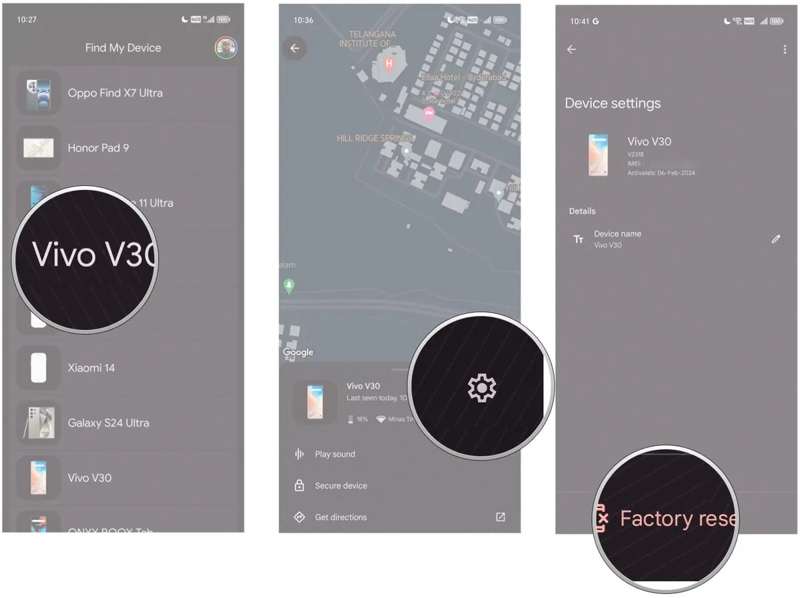
Step 1. Run the Find My Device app from the app drawer. You can download it from the Play Store for free.
Step 2. Sign in with your Google account and password.
Step 3. Select your phone or tablet from the list.
Step 4. Tap the Settings button with a gear icon.
Step 5. Choose Factory reset.
Step 6. If prompted, enter your Google account password again to begin resetting your device.
Tips: Note that you will encounter a Google FRP lock after a reset if you have added a Google account on your device. Keep your Google account in mind, or you may need to seek help from some FRP bypass tools.
Part 5: How to Factory Reset a Locked Android Using a Computer
If the methods above are unavailable, Apeaksoft Android Unlocker is a good option. It is able to factory reset a locked Android device using a computer. More importantly, it works for any phone or tablet without prerequisites.
The Best Way to Factory Reset a Locked Android Phone Using a Computer
- Hard reset an Android phone or tablet in one click.
- Don’t require your Google account or password.
- Offer bonus features, like FRP bypass.
- Work for disabled or broken devices.
- Support almost all Android brands and models.
Secure Download
How to Factory Reset a Locked Android Phone Using a Computer
Step 1. Install Android Unlocker
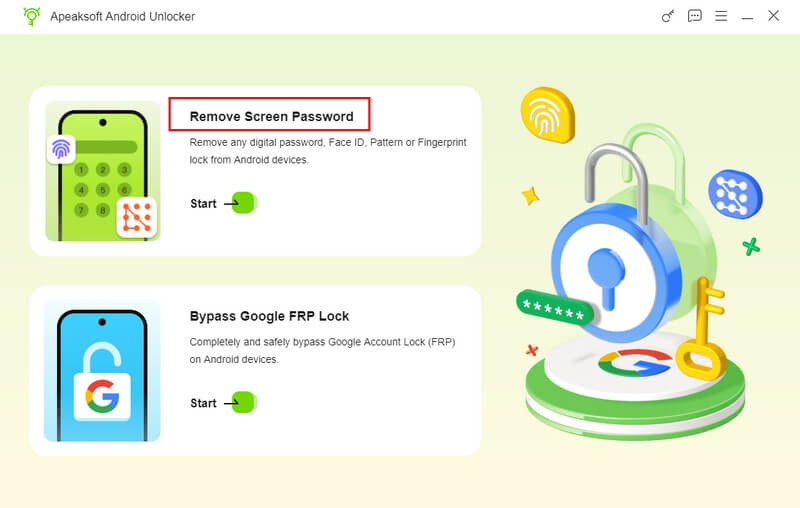
Launch the best Android unlocking software after installing it on your computer. Then, choose Remove Screen Password to continue.
Step 2. Select your brand
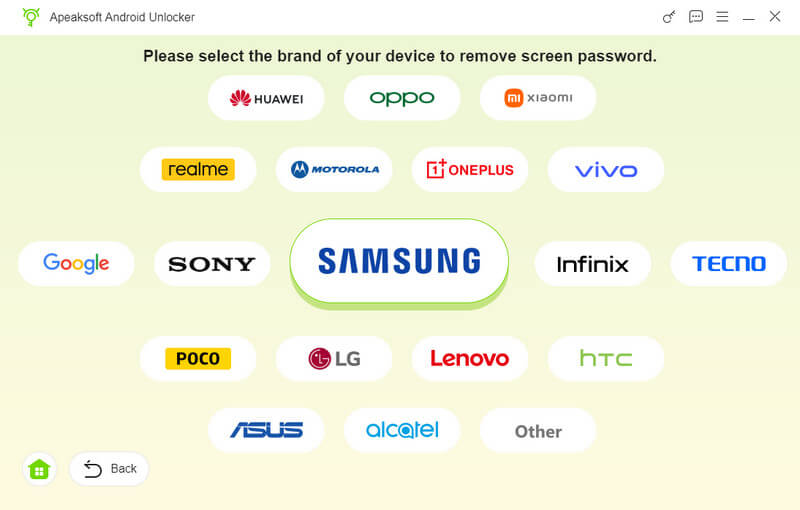
Next, select your phone brand. Link your locked phone to your computer with a compatible cable. If prompted, tap Trust on your phone to trust this computer.
Step 3. Factory reset your phone
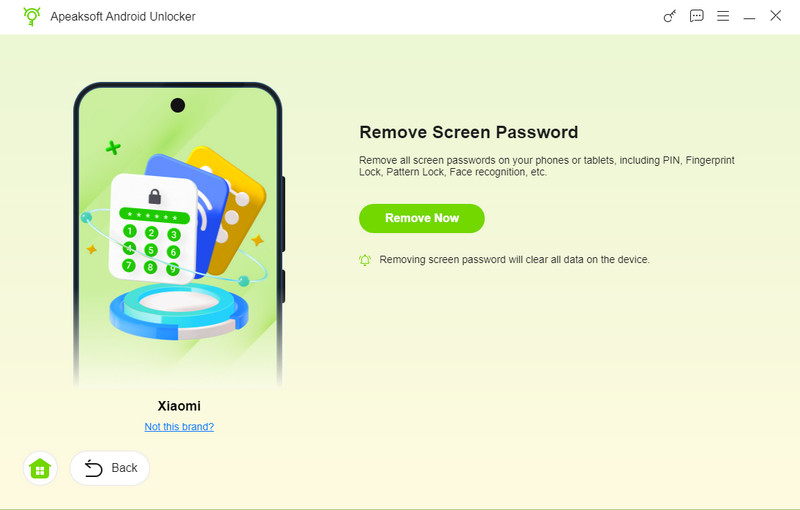
Note: If you have turned on FRP, choose Bypass Google FRP Lock and get rid of the lock on your device.
Conclusion
This article shared four ways to factory reset a locked Android phone or tablet in various situations. The Recovery Mode allows you to erase your device without a computer. Google's Find My Device web app enables you to reset your device remotely using a browser. The Find My Device mobile app is another option. However, you must follow the requirements. Apeaksoft Android Unlocker can factory reset any Android device without technical skills.
Related Articles




