


How to Reset Forgotten iPhone Backup Password on iTunes

"I know the importance of data backup, so I backed up my iPhone to my computer each month with the official iTunes app. However, when I tried to restore deleted photos from the iTunes backup today, it said my password was wrong. How to recover or reset the password?"
An iPhone backup password is a security setting on the iPhone telling it to encrypt any backups made on a computer. This guide shares what to do if you forgot your iTunes backup password.
PAGE CONTENT:
Part 1: How to Recover iTunes Backup Password
If you turn on an encrypted backup in iTunes or Finder, the password applies to all backups made of this iPhone, even when you back up using other software. The setting on your iPhone is also stored in your backups.
Method 1: How to Recover iTunes Backup Password
Once you forgot your iTunes password for backup, you can attempt all possible passwords. The good news is that you can try an unlimited password, and your backup won't be locked or deleted. The potential passwords you can try include:
- Computer login password
- Apple ID password
- iPhone lock screen passcode
- Email password
- Login passwords for websites
- Wi-Fi password
- Your phone number
- Your or your child's birthday
Method 2: How to Recover iTunes Backup Password from Keychain Access
If you forgot your iPhone backup password on iTunes for Mac, your password may be stored in your macOS Keychain Access. You can recover your backup password on your Mac computer quickly.
Step 1. Open the Keychain Access app from the Applications folder.
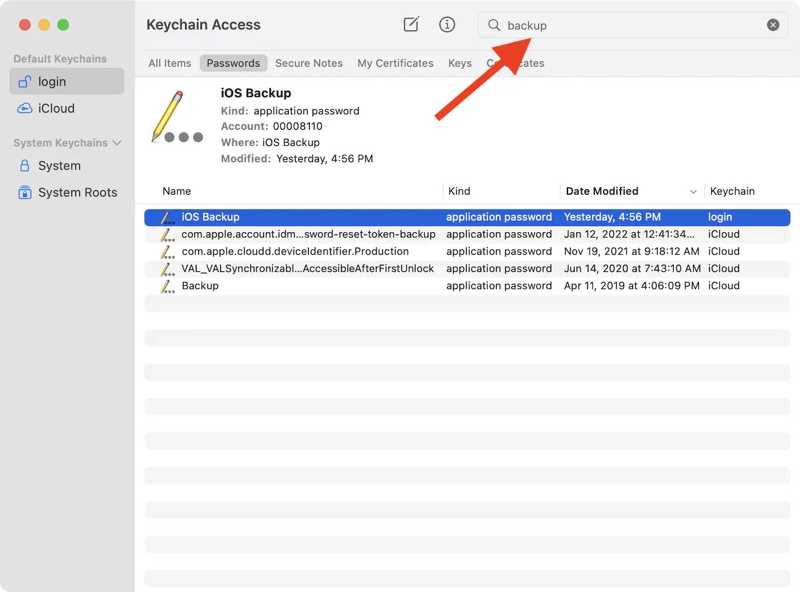
Step 2. Search for backup in the search field at the upper right corner.
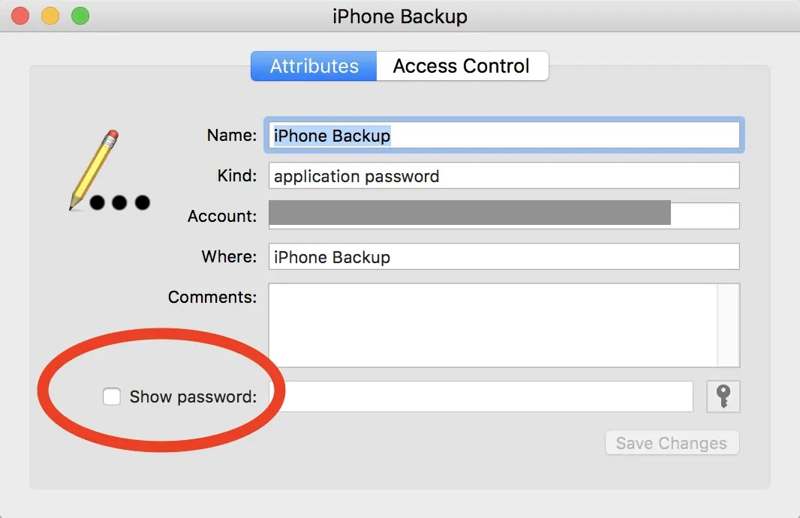
Step 3. Find the iOS Backup option and double-click on it.
Step 4. Next, check the box next to Show password to recover the forgotten encrypted iTunes backup password.
Further Reading
Part 2: How to Reset Forgotten iTunes Backup Password
If you cannot retrieve your forgotten iTunes backup password, you have to reset it on your iPhone. Otherwise, your backups will be encrypted by the forgotten password and become inaccessible.
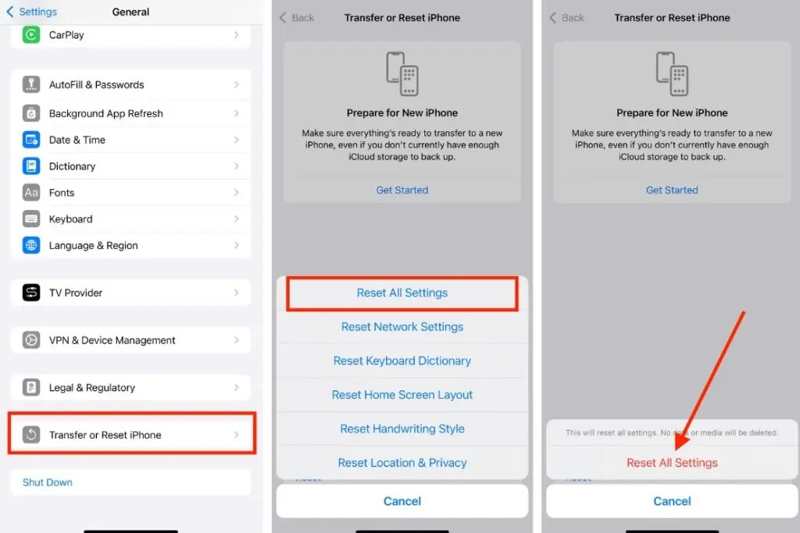
Step 1. Run the Settings app on your iPhone or iPad.
Step 2. Go to General, and then Transfer or Reset iPhone.
Step 3. Tap the Reset button and pick Reset All Settings.
Step 4. Enter your Apple ID password to turn off Find My.
Step 5. Next, choose Reset All Settings on the confirmation box.
Step 6. Then, connect your iPhone to your computer with a compatible USB cable.
Step 7. Make a backup using iTunes, Finder, or a third-party backup software.
Note: This method is available on iOS 11 and above. Moreover, it won’t decrypt old backups. It means that you cannot access data in the old backups or restore them to your iPhone.
Part 3: One-stop Way to Remove iTunes Password for Backup
Some users complained that they cannot reset their forgotten iTunes backup passwords. The causes are complicated. Of course, you can perform a factory reset or restore your iPhone to completely get rid of the password. However, that will erase all data on your device. Fortunately, Apeaksoft iFoneKit can help you resolve this problem. It is able to remove the iTunes backup password without any restrictions.

Downloaded by over 1,000,000 users
- Remove iTunes backup password in three steps.
- Don't require your passcode or Apple ID password.
- Won't damage the current data on your iOS device.
- Offer bonus features, like removing the Apple ID account.
- Support a wide range of iPhone and iPad devices.
- Also help you turn off Screen Time and bypass MDM profile.
Secure Download
Secure Download

How to Remove Forgotten iTunes Backup Password from Your iPhone
Step 1. Install iOS unlocking software
Launch the password removal software once you install it on your PC. It is compatible with Windows 11/10/8/7/XP/Vista. There is another version for macOS 10.7 and above.
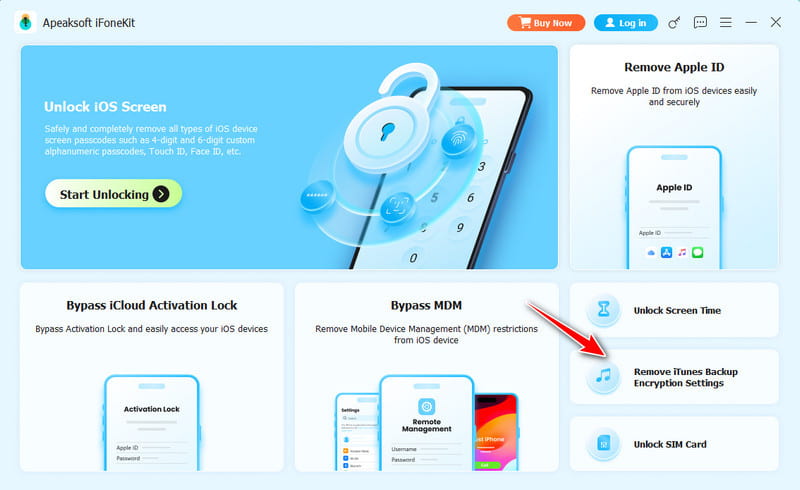
Step 2. Connect to your device
Connect your iPhone or iPad to your computer with a Lightning cable. If prompted, tap Trust on your screen to trust this PC. The software will detect your device immediately.
Tips: If Find My iPhone has been enabled on your iPhone, make sure to turn it off.
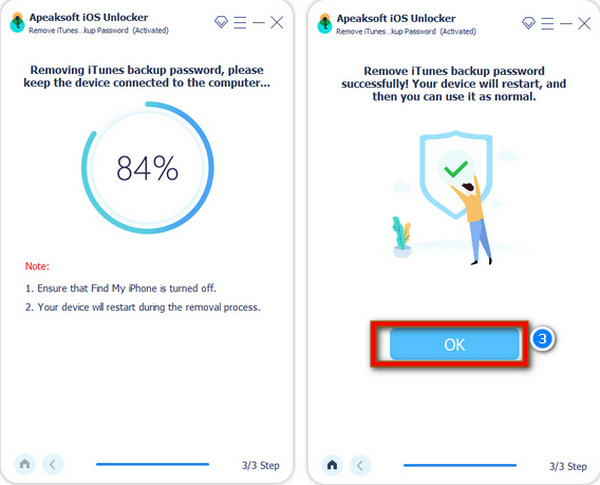
Step 3. Remove iTunes backup password
Next, choose the Remove iTunes Backup Encryption Settings mode and begin removing your forgotten backup password for iTunes immediately. During the process, don't open iTunes. When it is done, your iPhone will restart, and you can create a new backup without a password.
Conclusion
This guide explained what to do if you forgot the backup password on iTunes for your iPhone or iPad. Firstly, you should try your old passwords to recover your backup. Moreover, find the backup password with a password manager, such as macOS Keychain. If you cannot find your password, reset it on your iOS device. Apeaksoft iFoneKit is the ultimate option to reset your iTunes backup password without technical skills.
 Apeaksoft iFoneKit
 Unlock all types of iOS passwords from iPhone, iPad and iPod.
Secure Download
Secure Download
Related Articles




