


How to Recover and Reset Forgotten Keychain Password

"I forgot my Keychain password. I have done everything on Keychain preferences and tried to reset the default, but it is still not working. Pleas can someone help?" As the built-in password manager app on macOS, Keychain Access is used to save, manage, and recover login information on Mac computers without extra apps. This guide tells you what you can do if you forgot the Keychain password on your Mac.
PAGE CONTENT:
Part 1: What Is a Keychain Password
A Keychain password is the master password for the Keychain Access app on Mac. The app is used to store your login information for websites and applications on your MacBook. When you try to fill out these websites or retrieve your login information, you are asked for the Keychain master password.
If you forgot the Keychain password on a Mac, you will lose access to all login information. Of course, you cannot edit, manage, or change your login credentials.
Part 2: What to Do If You Forgot Keychain Password
How to Reset Forgotten Keychain Password
If you forgot the Keychain password on MacBook Air and other models, you can reset it to the default password. This way will remove your login information. Bear in mind that you need to turn off iCloud Keychain first.
Step 1. Click the Apple menu and choose System Settings or System Preferences.
Step 2. Click on Apple Account or Apple ID.
Step 3. Choose iCloud and click Passwords & Keychain.
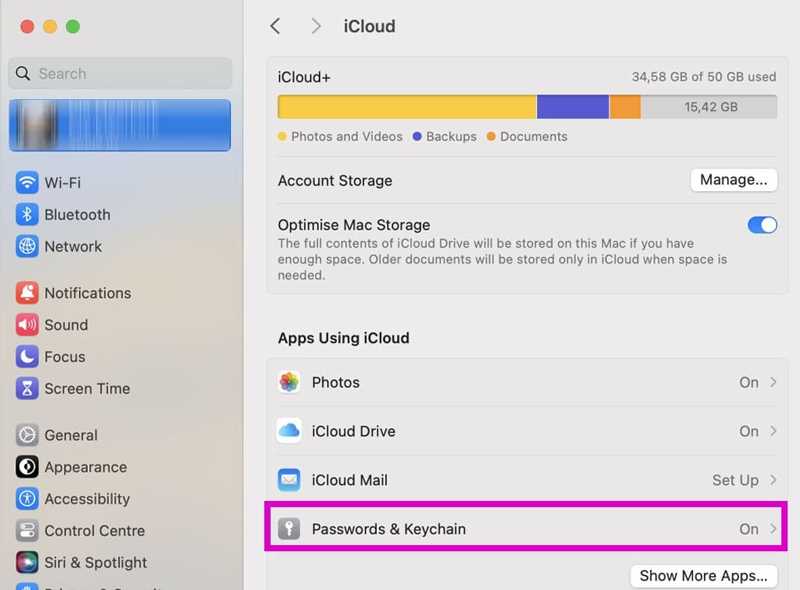
Step 4. Then, toggle off Passwords & Keychain.
Step 5. Quit System Settings or System Preferences.
Step 6. Open the Finder app.
Step 7. Go to Applications and Utilities.
Step 8. Double-click Keychain Access to open the app.
Step 9. Click the Keychain Access menu and choose Settings.
Step 10. Next, click the Reset Default Keychains button.
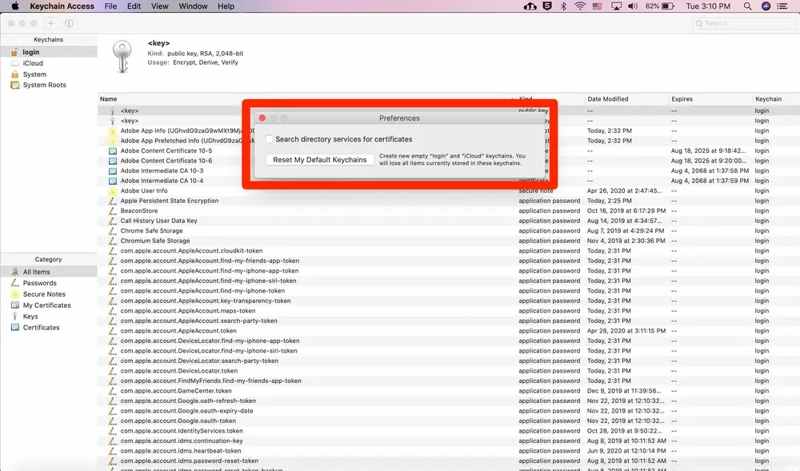
Step 11. Restart your Mac and open Keychain Access again.
Step 12. When prompted, enter your Mac login password.
Step 13. Turn on iCloud Keychain to bring your login information back.
Further Reading
How to Force Reset Forgotten Keychain Password
If the above method is unavailable, you have to reset the forgotten Keychain password on your Mac manually. This method requires technical skills, and you must follow the steps below carefully.
Step 1. Open the Finder app on your Mac.
Step 2. Click the Go menu and choose Go to Folder.
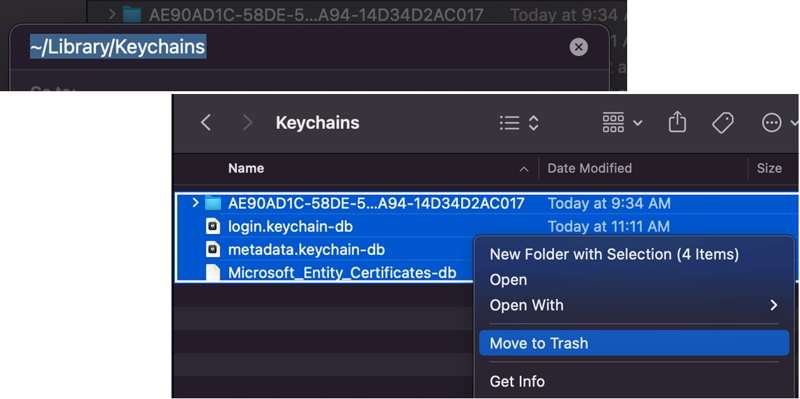
Step 3. Input ~/Library/Keychains/ in the field and press the Return key on your keyboard.
Step 4. Select all files in the folder and move them to another position, like your desktop.
Step 5. Go to the Apple menu and choose Restart.
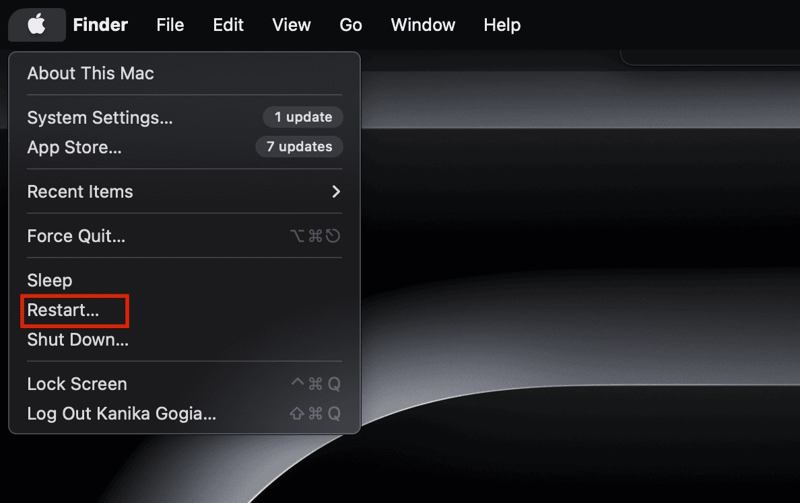
Step 6. Once your computer restarts, open the Keychain Access app.
Step 7. Now, you can access it with your Mac login password.
Part 3: Bonus Tip: A Quick Way to Unlock iPhone Without a Password
Keychain passwords are synced across all your Apple devices through iCloud. If you forgot Keychain passwords on iPhone, you can recover them from iCloud or Keychain Access on Mac. If you forgot your iPhone passcode, Apeaksoft iFoneKit iOS Unlocker can help you regain access to your device without technical skills.

Downloaded by over 1,000,000 users
- Remove forgotten iPhone passcode in three steps.
- Don't require your Apple ID password.
- Easy to use and doesn't require technical skills.
- Work for locked and disabled iOS devices.
- Support a wide range of iPhones and iPad devices.
Secure Download
Secure Download

How to Remove Forgotten iPhone Passcode
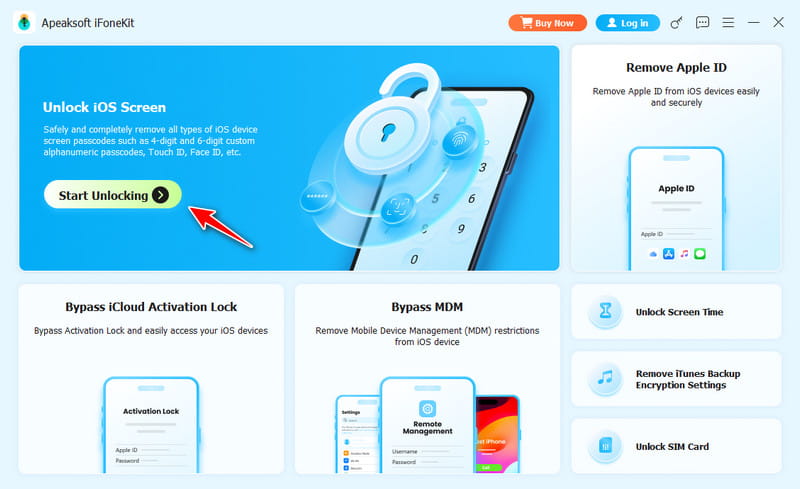
Step 1. Load your device information
Start the iOS unlocking software after you have installed it on your PC. There is another version for Mac. Choose the Unlock iOS Screen mode. Plug your iPhone into your PC with a Lightning cable. Once your device is detected, the software will load your device information.
Tips: If you link the two devices for the first time, tap Trust on your screen to trust this PC.
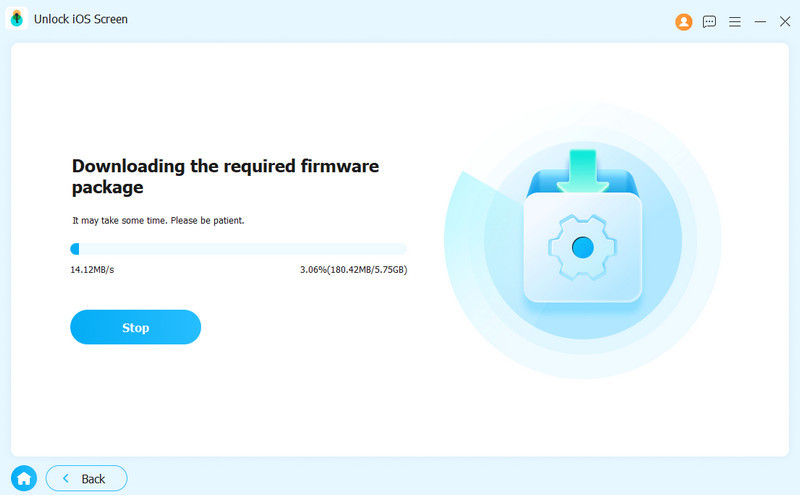
Step 2. Download firmware
Click the Start Now button to begin downloading the firmware package. Next, read the warning on the confirmation dialog and click the OK button to continue. Note that this process will factory reset your iPhone without password.
Step 3. Remove forgotten passcode
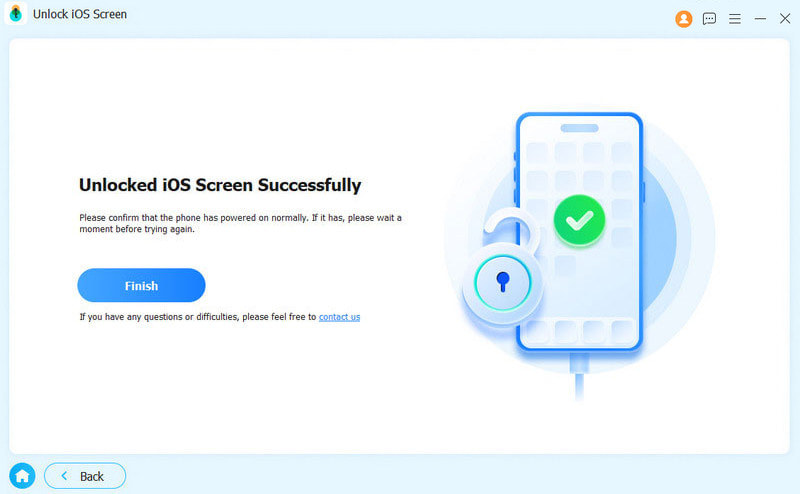
Then, click the Confirm Again button to verify the firmware. When the verification process finishes, the software will begin removing your forgotten iPhone passcode automatically. When it is done, restart your iPhone and restore the forgotten Keychain password from an iCloud or iTunes backup.
Conclusion
This article shared what to do if you forgot your Keychain password. Firstly, you should attempt all passwords you have used, like your Apple ID password, Mac login password, and more. If you still cannot remember your password, try to resetting the Keychain password. Plus, you can manually get rid of the Keychain password by deleting the files. Apeaksoft iFoneKit iOS Unlocker is the ultimate solution to unlock your iPhone passcode and recover forgotten Keychain passwords.
 Apeaksoft iFoneKit
 Unlock all types of iOS passwords from iPhone, iPad and iPod.
Secure Download
Secure Download
Related Articles




