


How to Reset Forgotten Screen Time Passcode on iOS/Mac

Since more and more users realized that they and their children were addicted to their Apple devices. Thankfully, Apple has introduced the Screen Time feature on iPhone, iPad, and Mac to help users control their time consumption. The Screen Time password adds controls to screen, app, and services access. However, if you forgot your Screen Time passcode, you will be locked out of your device. This guide shares what to do if you forgot your passcode.
PAGE CONTENT:
Part 1: What to Do If I Forgot Screen Time Passcode
What to do if I forgot my Screen Time passcode? The first thing you can do is try all potential passcodes. Unlock lock screen passcodes; you can try Screen Time passcodes without limit. If all of them fail, change the Screen Time passcode when you forget it. Actually, you can change it with your Apple ID password quickly.
How to Change Forgotten Screen Time Passcode on iPhone/iPad
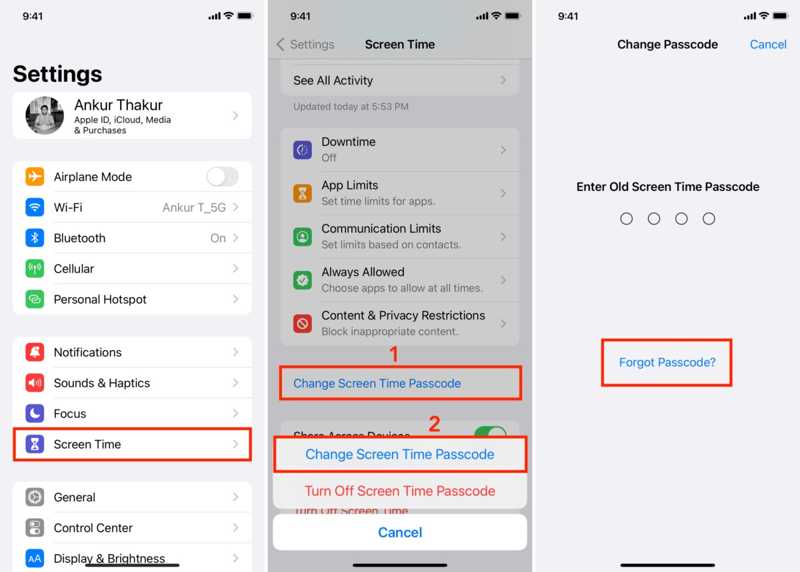
Step 1. Run the Settings app from your home screen.
Step 2. Scroll down and go to Screen Time.
Step 3. Tap the Change Screen Time Passcode button, and choose Change Screen Time Passcode.
Step 4. In addition to entering your passcode, tap Forgot Passcode.
Step 5. Now, type in your Apple ID email or phone number and tap OK.
Step 6. Next, input your Apple ID password and hit OK.
Step 7. Create a new Screen Time passcode and confirm it.
How to Change Forgotten Screen Time Passcode on Mac
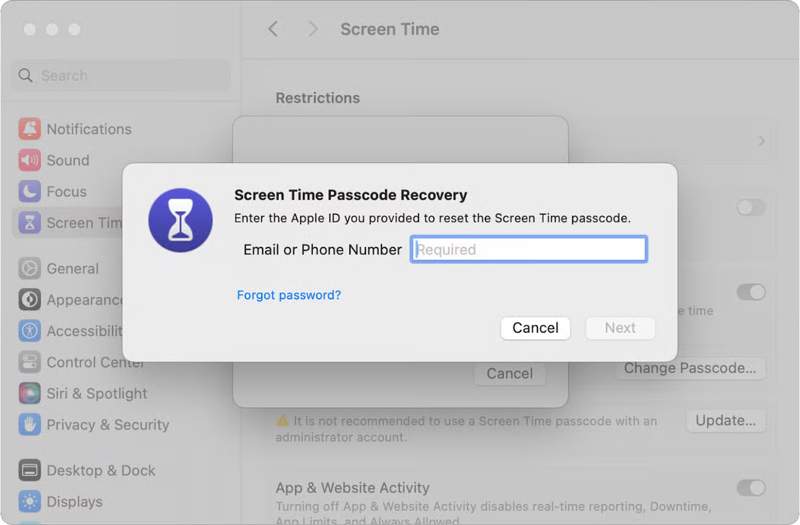
Step 1. If you forgot the Screen Time passcode on your Mac, click the Apple menu.
Step 2. Choose System Settings or System Preferences.
Step 3. Click the Screen Time option.
Step 4. Hit the Change Passcode button.
Step 5. When prompted, choose Forgot Passcode.
Step 6. Input your Apple ID and password to authenticate.
Step 7. Now, set a new password to replace the old one.
Part 2: What If No Option for Forgot Screen Time Passcode on iPhone
Some users reported that there is no option for forgot Screen Time passcode. In fact, this option is added on iOS 13.4 and later. If you are using an old version of software, it won't show up. Moreover, if Family Sharing or MDM manages your Apple device, you are not allowed to reset a forgotten Screen Time passcode. Another way to get rid of the Screen Time passcode is to restore your device from a backup. Make sure that the backup doesn't include a Screen Time passcode. Plus, this way will erase all current data on your device.
Step 1. Connect your iPhone or iPad to a computer with a compatible USB cable.
Step 2. Open the latest version of iTunes on Windows or macOS Mojave and earlier. Run Finder on macOS Catalina or later.
Situation 1: Your Device is Accessible
Step 3. Once your iPhone is detected, click the Phone button in iTunes and go to the Summary tab. In Finder, click your device name and go to the General tab.
Step 4. Click the Restore iPhone button.
Step 5. Follow the onscreen instructions to restore your device.
Step 6. When it restarts, disconnect your iPhone.
Step 7. Set it up as a new device. If prompted, enter your Apple ID password.
Step 8. On the Apps & Data screen, restore an iCloud or iTunes backup to remove the forgotten Screen Time passcode.
Situation 2: Your Device Is Locked
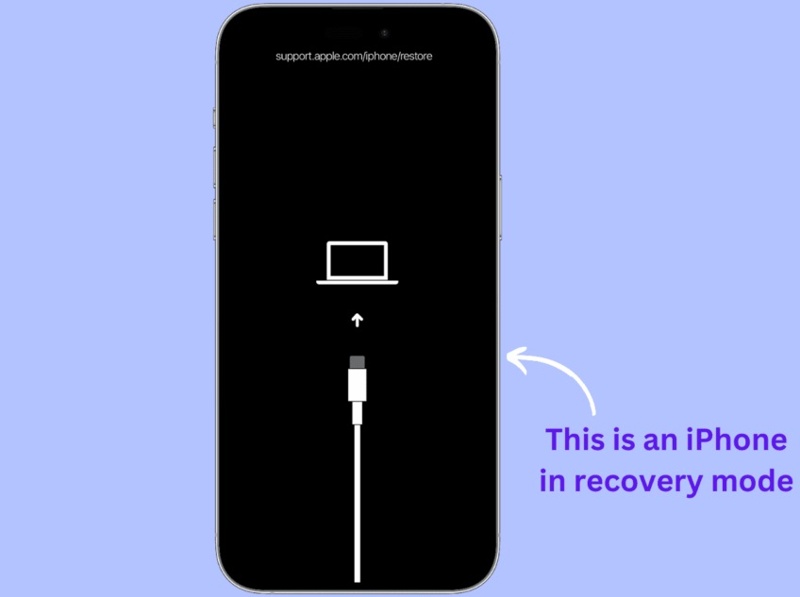
Step 3. If your iPhone or iPad is locked and inaccessible, put it in Recovery Mode:
An iPhone or iPad with Face ID
Quickly press the Volume Up button and release it.
Quickly press the Volume Down button and release it.
Hold down the Side button until your device is in Recovery Mode.
An iPhone 7/7 Plus
Long-press the Volume Down + Side buttons together.
Once it is in Recovery Mode, release the buttons.
An iPhone or iPad with a Home button
Hold down the Home + Power buttons simultaneously.
When you see the Recovery Mode screen, release them.
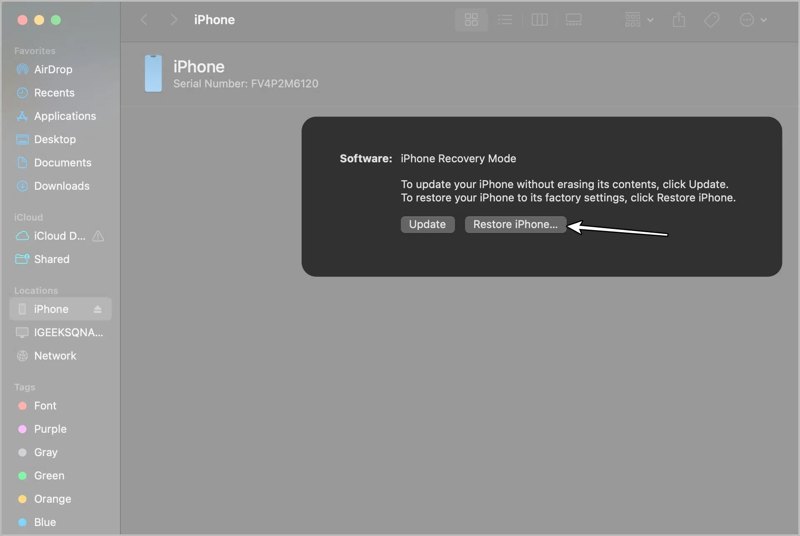
Step 4. Next, click the Restore or Restore iPhone button on the dialog in iTunes or Finder.
Step 5. When the process finishes, disconnect your device.
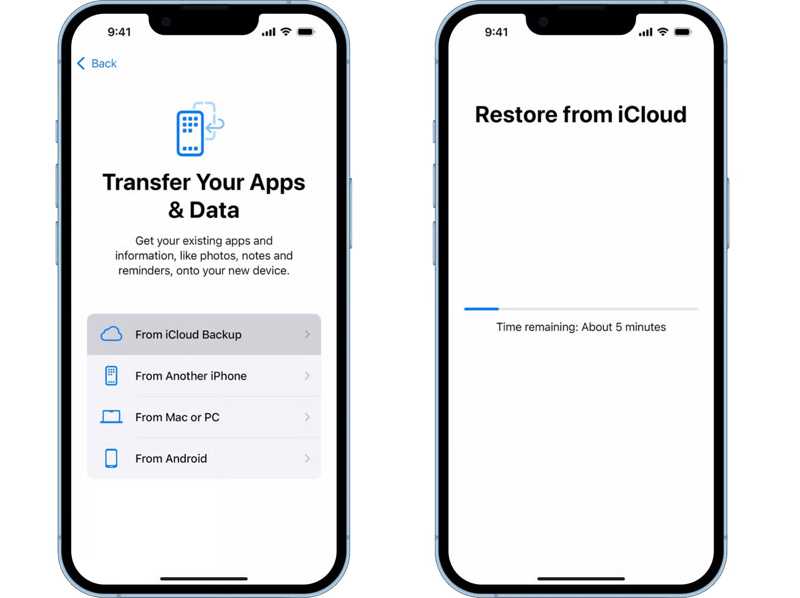
Step 6. Set it up following the onscreen instructions and restore a proper backup.
Part 3. How to Reset Your Child's Screen Time Password If You Forgot It
If you forgot the Restrictions passcode on your iPhone for your child, you have to reset it on your or your organizer's device. Your kid cannot reset the passcode on his or her device. This way won't restore your device or erase your data.
How to Reset a Child's Screen Time Passcode on iPhone
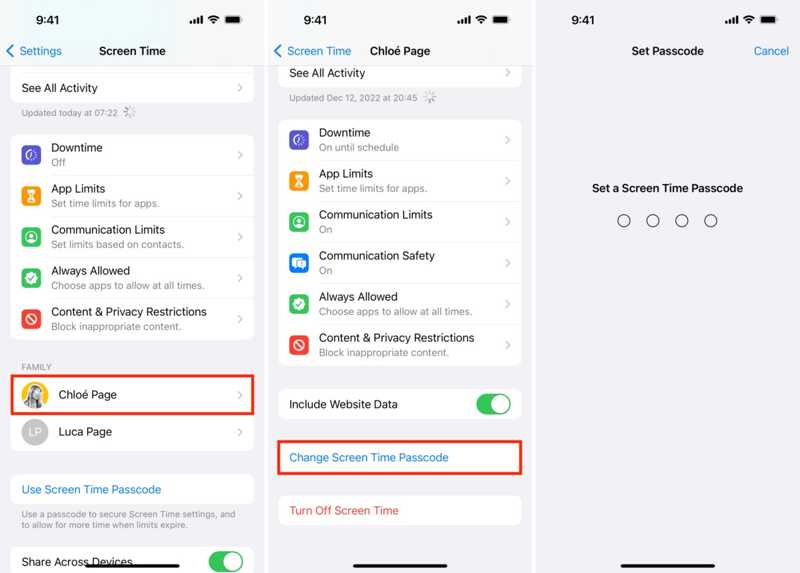
Step 1. Run the Settings app and choose Screen Time.
Step 2. Locate the Family section and choose your child's device.
Step 3. Tap Change Screen Time Passcode and choose Change Screen Time Passcode.
Step 4. Authenticate with your Face ID, Touch ID, or passcode.
Step 5. Finally, set a new Screen Time passcode for your child.
How to Reset a Child's Screen Time Passcode on a Mac
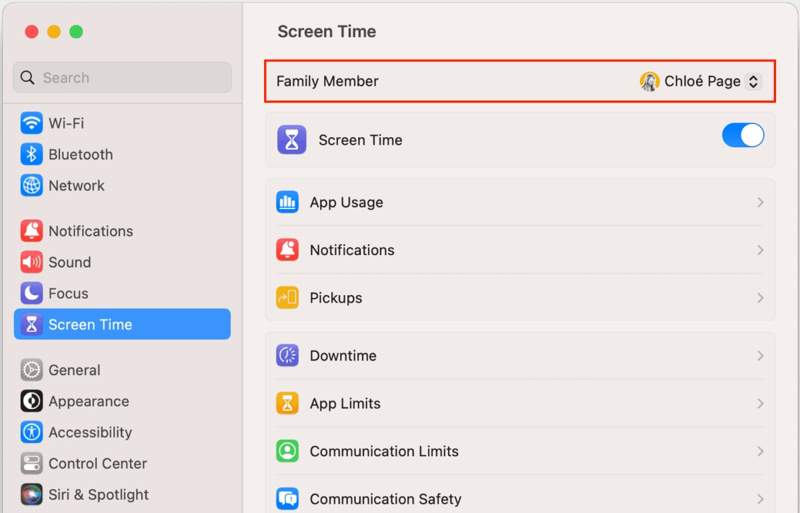
Step 1. Go to System Settings or System Preferences in the Apple menu.
Step 2. Choose Screen Time, and select your child's name from the Family Member area.
Step 3. Click the Change Passcode button.
Step 4. Enter your Mac login password.
Step 5. Then, set a new Screen Time passcode for your child's device.
Part 4. One-stop Solution to Reset Forgotten Screen Time Passcode
A quicker way to reset a forgotten Screen Time passcode on an iPad or iPhone is Apeaksoft iFoneKit iOS Unlocker. It utilizes advanced technology to remove the Screen Time or Restrictions passcode on any iOS device without losing data. It simplifies the workflow and is user-friendly to beginners.

Downloaded by over 1,000,000 users
- Remove the Screen Time passcode without a password.
- Protect your data during the process.
- Work for any iOS device, including locked or disabled iPhones.
- Support almost all iPhone and iPad models.
Secure Download
Secure Download

How to Remove Forgotten Screen Time Passcode on Your iPhone
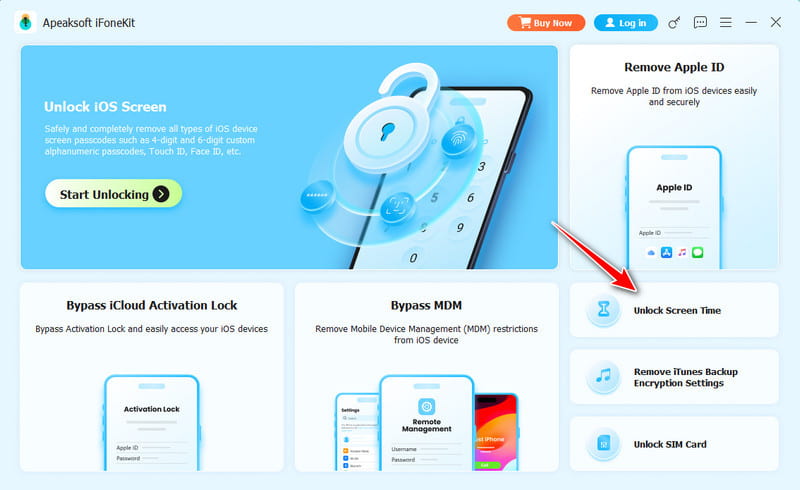
Step 1. Install iFoneKit iOS Unlocker
Run the Screen Time removal software after you install it on your computer. It is available on Windows 11 and earlier, macOS 10.7 and later. Choose the Unlock Screen Time mode to proceed.
Step 2. Connect to your iPhone
Connect your iPhone to your computer with a Lightning cable. Next, choose how your Screen Time password is set. Once your device is detected, click the Start Now button.
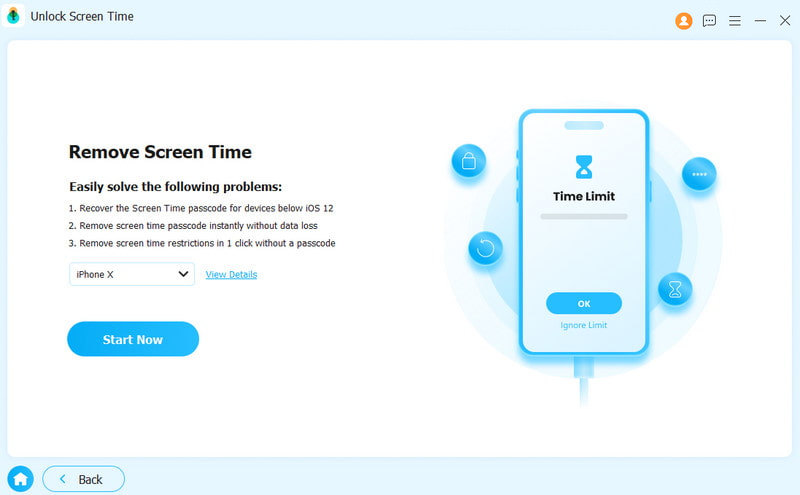
Step 3. Remove Screen Time passcode
If Find My is enabled, follow the onscreen instructions to turn it off. Click the Continue button to begin removing the Screen Time passcode on your device.
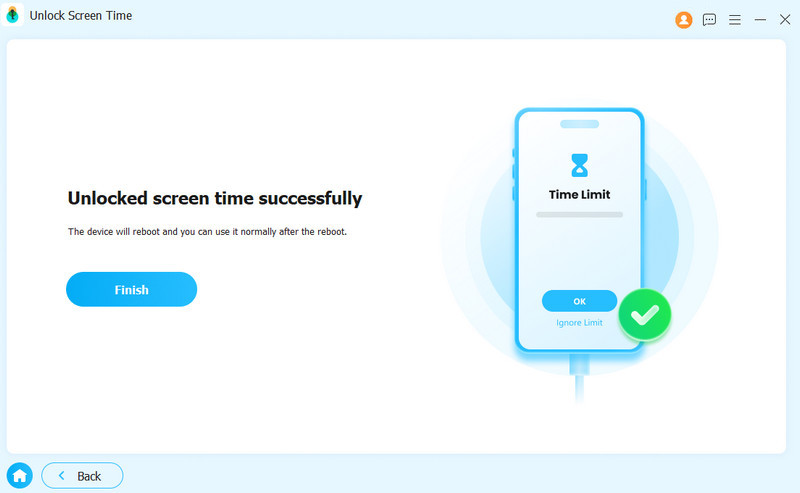
Note: On iOS 11 or earlier, the software can retrieve a forgotten Restrictions passcode on your iPhone if the iTunes backup is not encrypted. This process will also factory reset your iPhone, so you’d better ensure that you have ever backed up your iPhone.
Conclusion
This article explained what to do if there is no option for forgot Screen Time passcode. First of all, you can reset the Screen Time passcode on your device if you forgot it. The only thing you need is your Apple ID password. If you cannot reset the passcode, it means you have to restore your device or reset it through Family Sharing. Apeaksoft iFoneKit iOS Unlocker is the one-stop solution to get rid of the Screen Time passcode.
 Apeaksoft iFoneKit
 Unlock all types of iOS passwords from iPhone, iPad and iPod.
Secure Download
Secure Download
Related Articles




