


How to Change iCloud Password With or Without Your Password

iCloud offers you the ability to sync data with your account across devices, new and old, wherever you are. With that accessibility comes a need for extra security. Your iCloud password provides this by requiring you to enter it each time you want to back up and sync your data. If you want to make your data more secure, you can change your iCloud password, even if you forgot it.
PAGE CONTENT:
- Part 1: How to Change iCloud Password Without Password
- Part 2: How to Change iCloud Password Online
- Part 3: How to Change iCloud Password on iPhone/iPad
- Part 4: How to Change iCloud Password on Mac
- Part 5: How to Change iCloud Password for Your Child
- Part 6: How to Change a Forgotten iCloud Password
Part 1: How to Change iCloud Password Without Password
According to Apple, you log in to iCloud with your Apple ID and password. In other words, your iCloud password is the same as your Apple Account password. Can you change your iCloud password if you forgot it? Yes. All you need is Apeaksoft iFoneKit iOS Unlocker. It is able to remove the old iCloud account, and then sign up for a new account and password.

Downloaded by over 1,000,000 users
- Remove the iCloud password from your iPhone in 3 steps.
- Won't ask you to enter iPhone passcode or iCloud password.
- Work on locked and disabled iCloud accounts.
- Offer bonus features, like iPhone unlocking.
- Support a wide range of iPhone and iPad models.
Secure Download
Secure Download

How to Change iCloud Password on Your iPhone Without Password
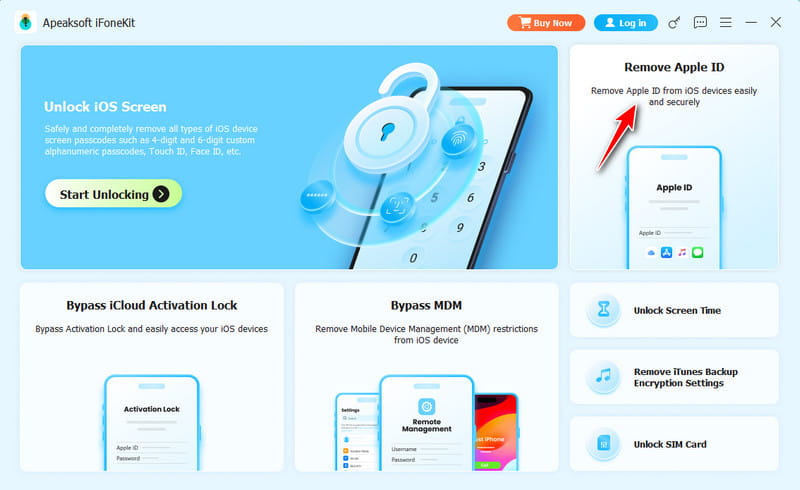
Step 1. Install iFoneKit
Launch the iCloud password removal software once you install it on your PC. There is another version for macOS 10.7 and above. Choose the Remove Apple ID mode to proceed.
Step 2. Detect your iPhone
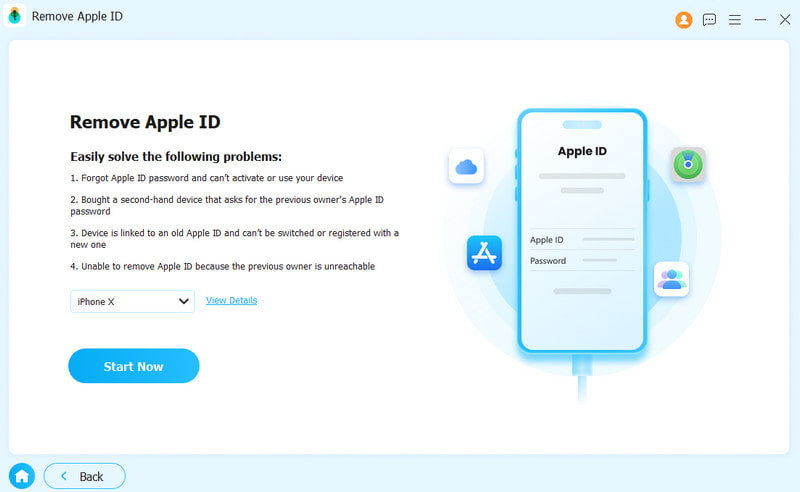
Connect your iPhone to your PC with a Lightning cable. If prompted, make sure to trust your PC. After the software detects your device, click the Start Now button.
Step 3. Change iCloud password
If Find My iPhone is enabled, follow the onscreen instructions to reset all settings on your device. Then, click the OK button and hit Confirm Again to remove the old iCloud password. If Find My is disabled, the software will automatically start the process.
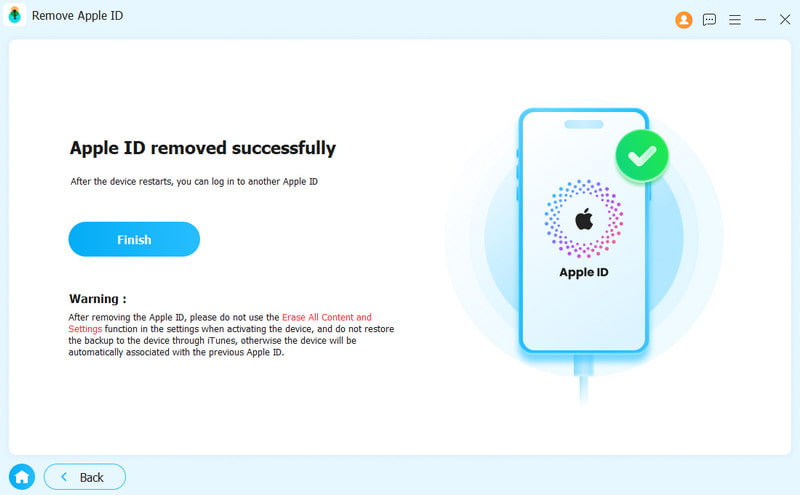
Note: When it is done, restart your iPhone and sign in to a new account to change your iCloud password without a password.
Part 2: How to Change iCloud Password Online
If you still remember your iCloud password, you can change it on Apple's account webpage. You'd better complete the process in a web browser on a computer. If you are using a mobile browser, switch to the desktop mode.
Step 1. Go to https://account.apple.com/ in your browser.
Step 2. Sign in with your Apple ID and password.
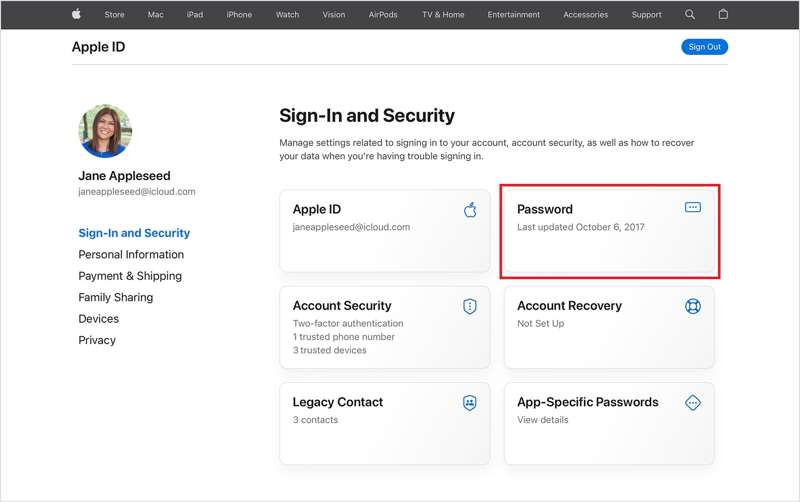
Step 3. Go to the Sign-In and Security tab.
Step 4. Click Password on the right side.
Step 5. Enter your current iCloud password.
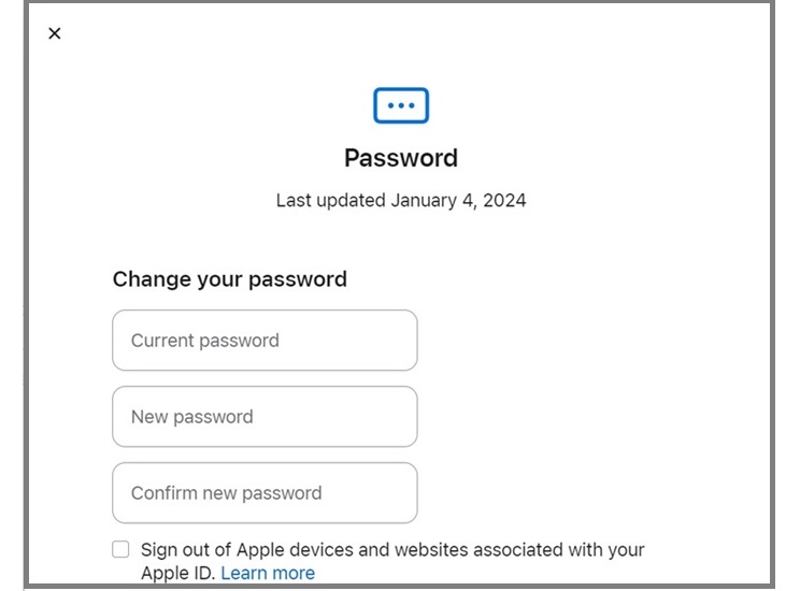
Step 6. Then, type a new password and confirm it.
Step 7. Once done, click the Change Password button.
Note: You’d better check the box of Sign out of Apple devices and websites associated with your Apple ID. If not, manually update the new iCloud password on all your Apple devices and services.
Part 3: How to Change iCloud Password on iPhone/iPad
If your iPhone or iPad is accessible, you can change your iCloud password on your iPhone. The process requires you to verify your ownership with your iPhone lock screen passcode. If Find My iPhone is enabled, you'd better turn it off first.
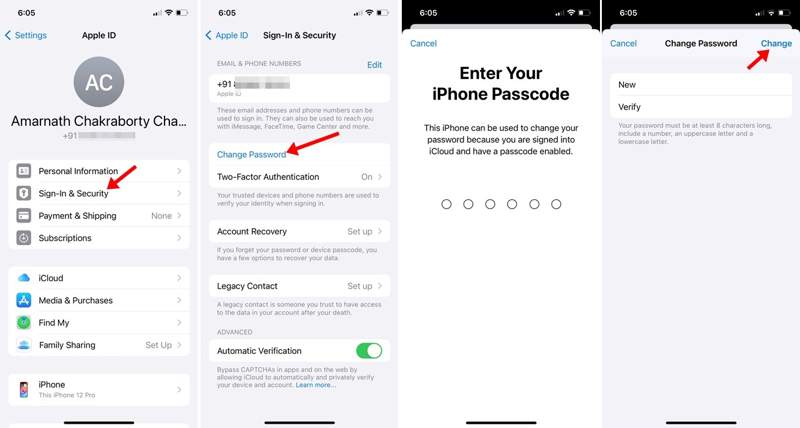
Step 1. To get started, run the Settings app from your home screen.
Step 2. Tap on your profile at the top.
Step 3. Navigate to Sign-In & Security and tap Change Password.
Step 4. If Two-factor Authentication is set up, enter your iPhone passcode. If 2FA has not been set up, input your Apple ID password.
Step 5. Next, type a new password, verify it, and tap the Change button.
Step 6. When prompted, choose Sign Out Other Devices or Don't Sign Out, depending on your situation.
Further Reading
Part 4: How to Change iCloud Password on Mac
If you are using a MacBook, you can change your iCloud password in the built-in System Settings app. The process may ask you to enter your login password or your iCloud password, depending on your settings.
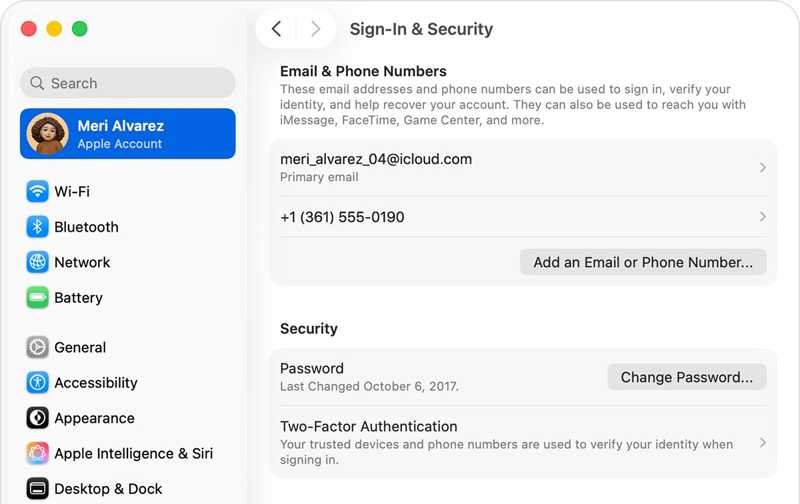
Step 1. Click the Apple menu.
Step 2. Choose System Settings or System Preferences.
Step 3. Click Apple Account or Apple ID.
Step 4. Go to the Sign-In & Security heading.
Step 5. Click on the Change Password button.
Step 6. If 2FA is enabled, enter your Mac login password. If not, input your iCloud password.
Step 7. Then, type a new password, retype it, and click Change.
Step 8. At last, select Sign Out Other Devices or Don't Sign Out.
Part 5: How to Change iCloud Password for Your Child
With Family Sharing, parents can use parental controls to make safe choices about how their children use their devices. Of course, you can change your child's iCloud password after Family Sharing is set up.
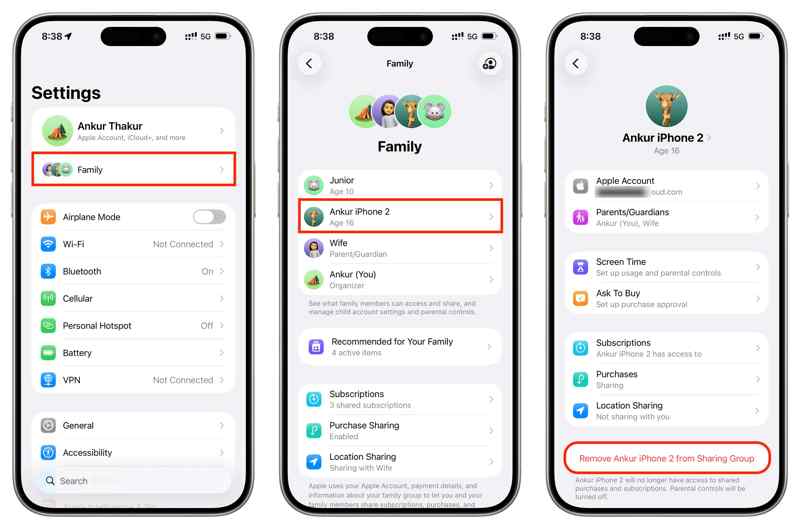
Step 1. Run the Settings app on the organizer's iPhone.
Step 2. Tap Family under your profile picture.
Step 3. Choose your child's account.
Step 4. Next, tap the Apple Account option.
Step 5. Tap Change [child's] Password.
Step 6. If prompted, enter your iPhone passcode.
Step 7. Finally, enter the new password and confirm it.
Part 6: How to Change a Forgotten iCloud Password
If you forgot your iCloud password, you'll need to reset it on Apple's iForgot website. This method requires you to verify your ownership with a trusted device, trusted phone number, email address, security questions, and more.
Step 1. Go to iforgot.apple.com in a browser.
Step 2. Click the Reset Password button.
Step 3. Enter the email address or phone number linked to your iCloud account, followed by the Captcha, and click Continue.
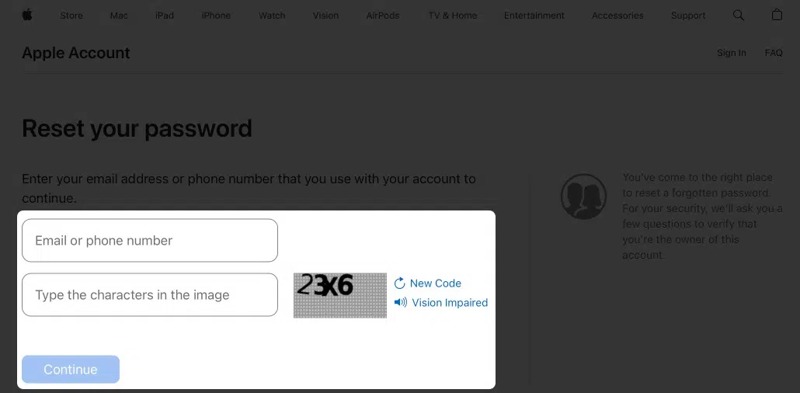
Step 4. Next, select an option to verify your ownership:
Option 1: Use a Trusted Device
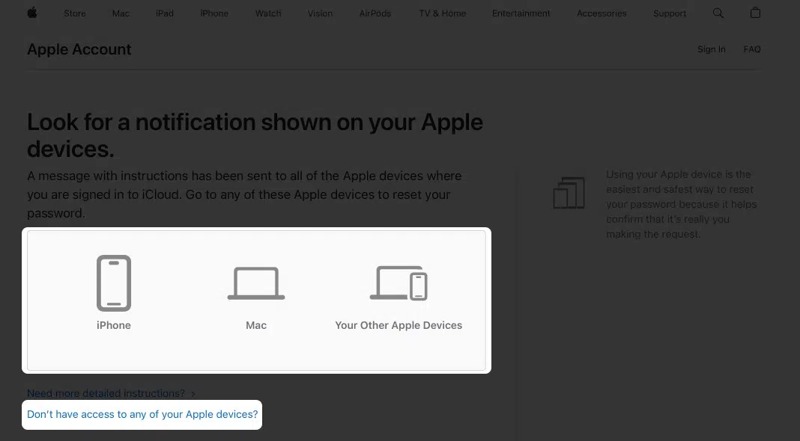
Step 5. If 2FA is set up, choose a trusted device.
Step 6. Tap Allow on the notification on the trusted device.
Step 7. Offer the login passcode.
Step 8. Change the iCloud password to a new one.
Option 2: Use Trusted Phone Number
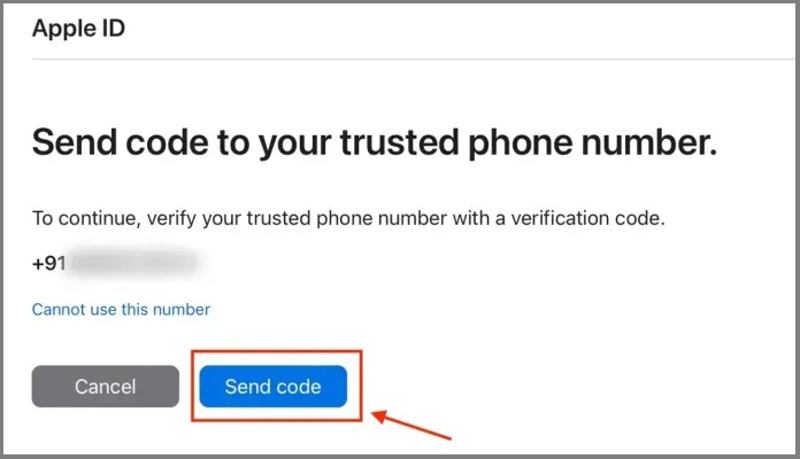
Step 5. Press the Don't have access to any of your Apple device link if your trusted device is inaccessible.
Step 6. Follow the onscreen instructions to send a code to your phone number.
Step 7. Enter the code to go to the new password page.
Step 8. Input a new password and confirm the change.
Option 3: Use Your Email or Security Questions
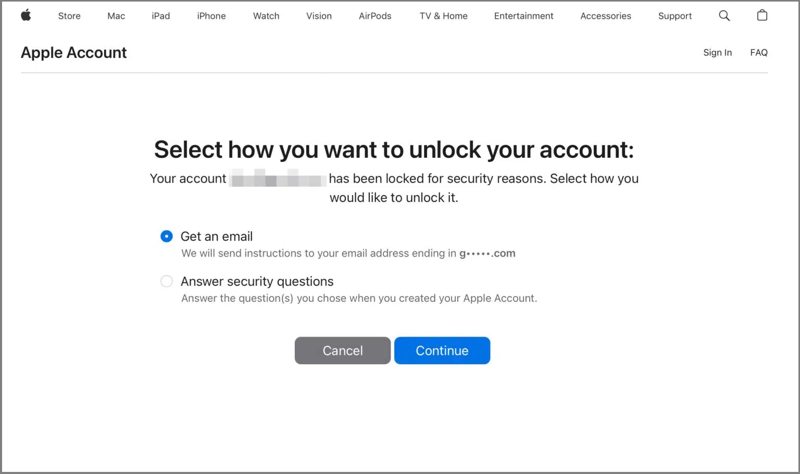
Step 5. If you haven't set up Two-factor Authentication for your account, you will get two other channels: Get an email and Answer security questions.
Step 6. Choose the appropriate option for your situation and click Continue.
Step 7. Follow the prompts to enter the new password page.
Step 8. Finally, set a new password and confirm it.
Note: Plus, you can also verify your ownership using the Recovery Key or Recovery Contact if you have set them up.
Conclusion
This guide shared multiple ways to change your iCloud password on your iPhone, iPad, Mac, and online. You can choose the right method for your situation and follow our detailed steps to modify your account credentials. Even if you forgot your iCloud password, you can reset it quickly with Apeaksoft iFoneKit iOS Unlocker.
 Apeaksoft iFoneKit
 Unlock all types of iOS passwords from iPhone, iPad and iPod.
Secure Download
Secure Download
Related Articles




