


4 Easy Ways to Turn Off iPad Passcode Even If You Forgot It

Many users want to turn off the iPad passcode to use it more conveniently in daily life. This article lists all feasible methods for disabling the iPad passcode, whether you have a password or have forgotten it.
See our comprehensive steps with applicable scenarios, and choose the solution that best suits your needs. Note that some of them will erase your iPhone data.
PAGE CONTENT:
- Part 1: Turn Off iPad Passcode Normally If You Remember It
- Part 2: Turn off iPad Passcode Remotely via Find My If You Forgot the Passcode
- Part 3: Turn off Passcode on iPad via Recovery Mode
- Part 4: One Click to Turn off iPad Passcode (No Apple ID & Internet)
- Part 5: Comparison of Four Methods to Remove iPad Passcode
Part 1: Turn Off iPad Passcode Normally If You Remember It
If you remember your iPad password and can log in to the system normally, then all you need to do is simply follow a few steps in the settings to disable the iPad password without losing any data. This method is fast and keeps all your data intact.
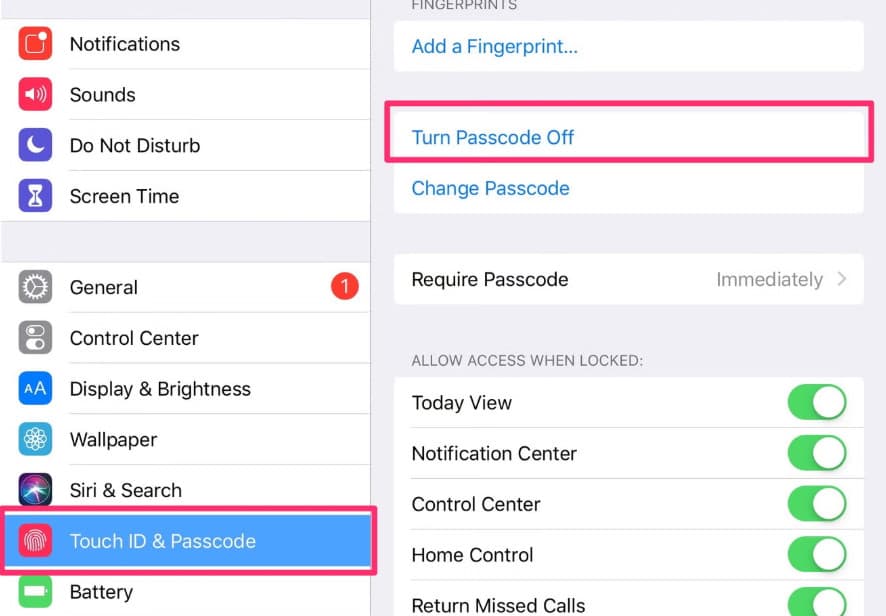
Step 1. Go to Settings and tap Face ID & Passcode (or Touch ID & Passcode).
Step 2. Enter your existing passcode.
Step 3. Select Turn Passcode Off and confirm.
Tips: Avoid frequent incorrect passcode attempts, as they may permanently disable the iPad.
Part 2: Turn off iPad Passcode Remotely via Find My If You Forgot the Passcode
If you forget your iPad lock screen password, don't worry. You can remotely erase your iPad to remove the passcode using two reliable methods: the Find My app on another Apple device signed in with the same Apple ID, or the official iCloud website on any device connected to the internet. However, be aware that this method will delete the data on your iPad.
Disable iPad Passcode via Find My
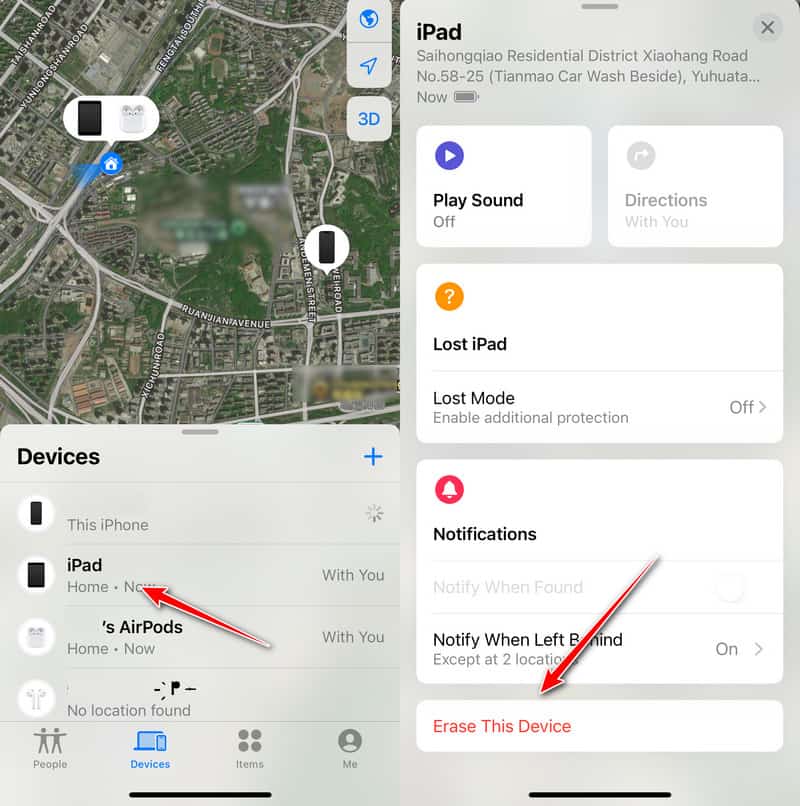
Step 1. Open Find My on another Apple device.
Step 2. Locate your iPad in the Devices section.
Step 3. Click it and choose Erase this device.
Tips: If Activation Lock is enabled, you must use the correct Apple ID and password to bypass the activation lock on the iPad after a reset.
Disable Passcode on iPad via iCloud.com
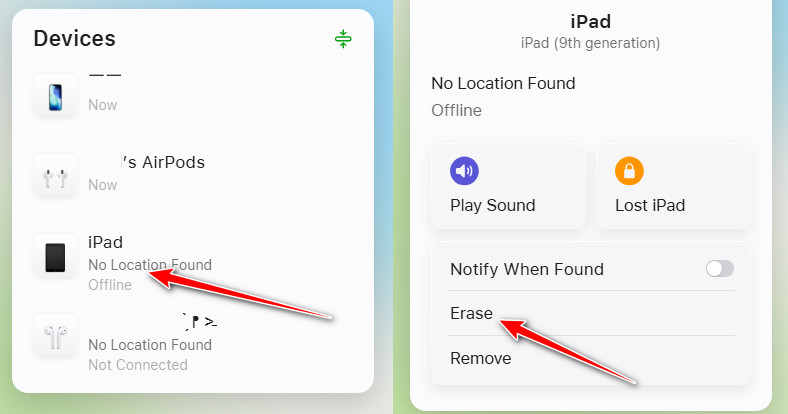
Step 1. Visit iCloud.com, log in with the same Apple ID.
Step 2. Click Find My and locate your iPad.
Step 3. Choose Erase iPad. After remote wiping, the passcode is removed, and you can activate the device again.
Tips: All the operations can only take effect immediately when connected to the internet. If the iPad is offline, the instructions will be saved to the cloud first. Only when the iPad connects to the internet next time will it automatically erase the instructions and disable the lock screen password.
Part 3: Turn off Passcode on iPad via Recovery Mode
When you forget the iPad password and your iPad is offline, the Find My remote erase method will no longer work. At this point, you can use the recovery mode to reset the device and remove the password settings. This operation requires a computer and will delete all the contents and settings on your iPad.
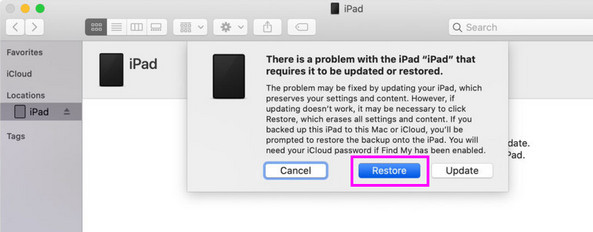
Step 1. Connect the iPad to a computer
Step 2. Enter Recovery Mode on your iPad.
Step 3. Open Finder or iTunes and click Restore iPad. This will erase all data and permanently remove the passcode.
Tips: Make sure your iPad has enough battery before resetting or restoring to prevent interruption.
Part 4: One Click to Turn off iPad Passcode (No Apple ID & Internet)
When the official methods, such as Find My or recovery mode, are too complicated to operate, a third-party Apple unlocking software, such as Apeaksoft iFoneKit iOS Unlocker, is a more convenient alternative.
This method does not require an Apple ID or an internet connection. Compared to the official complicated methods, the entire process can be finished in one click. The learning curve is relatively lower. But keep in mind that this method will clear all the data on the iPad.
Step 1. Download and install this software for free on your computer.
Step 2. Connect your iPad to your computer.
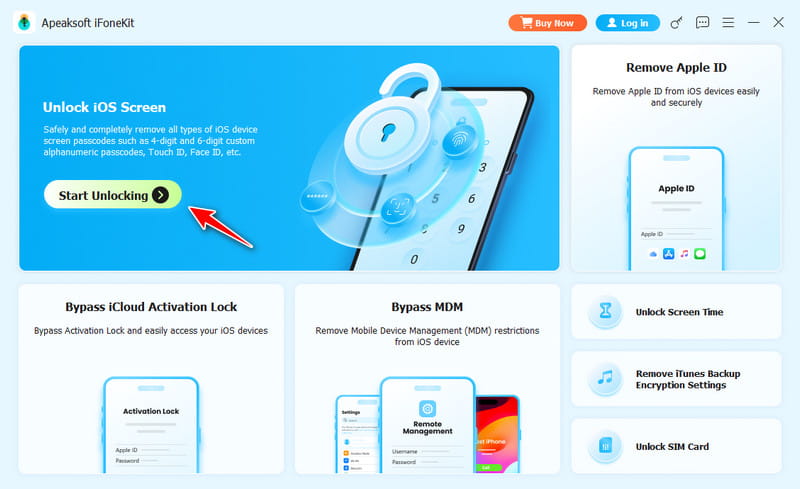
Step 3. Choose Unlock iOS Screen.
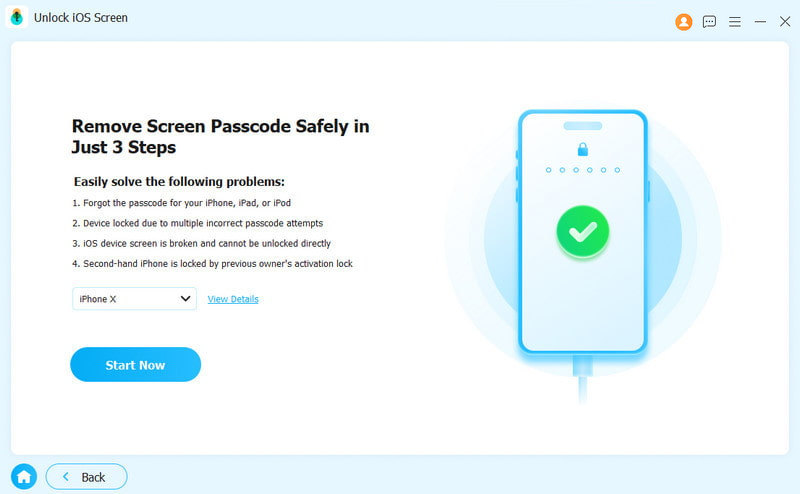
Step 4. Check your device's info, then click Start Now to download the required firmware.
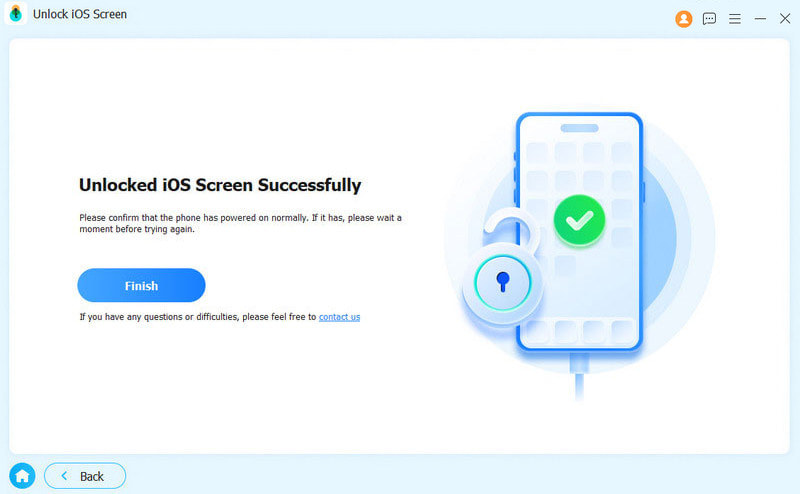
Step 5. Carefully read the important reminders. Then confirm your operation. The iPad passcode will be removed soon.
Part 5: Comparison of Four Methods to Remove iPad Passcode
| Method | Data Loss | Internet Needed | Apple ID Required | Difficulty | Suitable Scenarios |
| Turn off iPad passcode in Settings | No | No | No | Very easy | Can access iPad normally and know the current passcode |
| Erase iPad via Find My / iCloud.com | Yes | Yes (iPad online) | Yes (same Apple ID) | Easy | Forgot passcode, iPad connected to network |
| Restore iPad via Recovery Mode | Yes | No | Yes(if Activation Lock is enabled) | Moderate | Disabled/offline iPad, cannot use Find My |
| Remove passcode with third-party unlocking software | Yes | No | No | Very easy | Disabled iPad, no available Apple ID, forgot iPad passcode |
Conclusion
In summary, you can choose the appropriate method to turn off the passcode on iPad based on whether you remember the lock screen passcode, the network status of the device, and whether you have an available Apple ID. Since most reset methods will erase the device data, it is recommended to back up the iPad data in advance.
If you are looking for a one-stop solution, Apeaksoft iFoneKit iOS Unlocker is a good choice.
 Apeaksoft iFoneKit
 Unlock all types of iOS passwords from iPhone, iPad and iPod.
Secure Download
Secure Download
Related Articles




