How to Unlock and Bypass Parental Controls on Your iPhone

Today, oceans of content are published and distributed on the internet. Moreover, almost everyone has a mobile device for accessing this content. That brings a significant challenge for parents in protecting their kids. It makes sense that more and more people look for parental controls. Many parents apply Apple parental controls to their children's iPhone. This tutorial shares how to unlock parental controls on an iPhone with or without the password.
PAGE CONTENT:
Part 1: What iPhone Parental Controls Are
Whether you bought your kid a new Apple device or upgraded yours and gave them the old one, the ideal route is to create a new Apple ID through the Family Sharing feature for the purpose of setting up parental controls.
What You Can Do with Parental Controls? It helps you manage your children's downloads and purchases, who they can communicate with, and the apps and other content they can access.
- 1.Prevent App Store purchases.
- 2.Allow built-in apps and features.
- 3.Prevent explicit content and manage content ratings.
- 4.Prevent inappropriate web content.
- 5.Restrict Game Center features.
- 6.Restrict Intelligence & Siri features.
- 7.Prevent changes to privacy settings.
- 8.Prevent or allow changes to other settings and features.
- 9.Make changes to health and safety features.
When You Should Turn off Parental Controls?
- 1.Your children's age reaches 16.
- 2.You plan to sell your children's devices.
- 3.You forgot the Screen Time passcode.
- 4.Your children want to give away their devices.
Part 2: How to Unlock Parental Controls on iPhone
How to Disable Parental Controls on Your Child's iPhone
One easy way to disable parental controls is through the Settings app on your child's iPhone. This way doesn't require any extra software or hardware. This way just requires the Screen Time passcode.
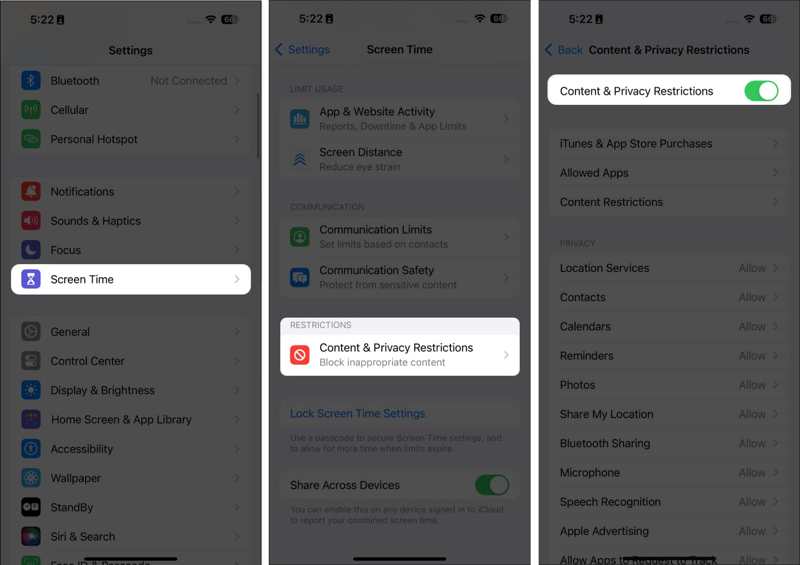
Step 1. Open the Settings app on your iPhone.
Step 2. Choose Screen Time, and enter the parental controls passcode.
Step 3. Tap Content & Privacy Restrictions and toggle off Content & Privacy Restrictions.
Step 4. If prompted, confirm your action.
How to Switch off Parental Controls via Family Sharing
If you cannot access your child's iPhone, you can also switch off parental controls via Family Sharing remotely. This method requires the family organizer's Apple device and the login password.
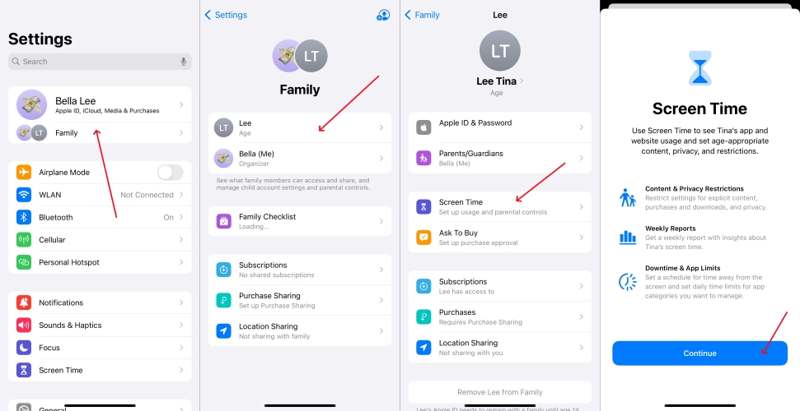
Step 1. Run the Settings app on the family organizer's device.
Step 2. Tap on the profile and choose Family Sharing.
Step 3. Choose your child's name on the list.
Step 4. Pick Screen Time, and tap Content & Privacy Restrictions.
Step 5. If prompted, enter the password.
Step 6. Then, confirm deactivating parental controls on the iPhone.
Further Reading
Part 3: How to Turn off Specific Parental Controls
Sometimes, you just want to turn off specific parental controls on iPhone, but not all restrictions. Fortunately, Apple allows you to control app purchases, specific apps, or content access.
How to Get Rid of Parental Controls on App Purchases
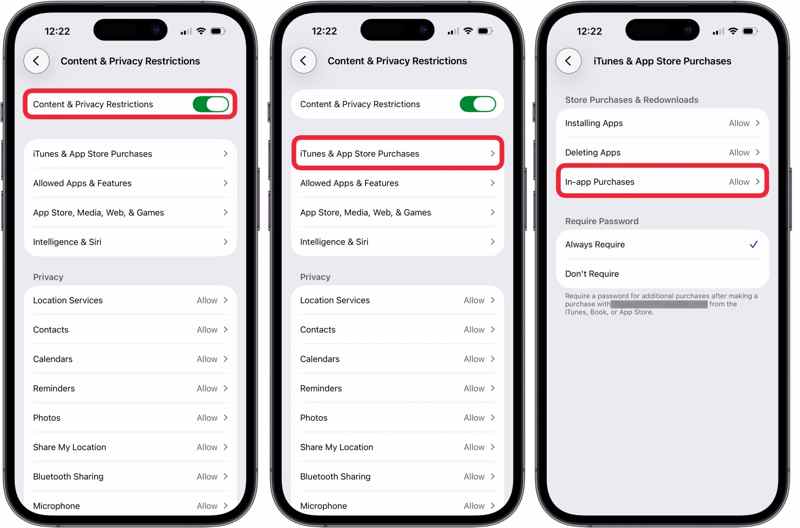
Step 1. Run the Settings app from the home screen.
Step 2. Choose Screen Time and enter the Screen Time passcode.
Step 3. Tap Content & Privacy Restrictions and keep Content & Privacy Restrictions on.
Step 4. Choose iTunes & App Store Purchases, and pick In-app Purchases.
Step 5. Tap Allow and get rid of parental controls.
How to Bypass Parental Controls for Specific Apps
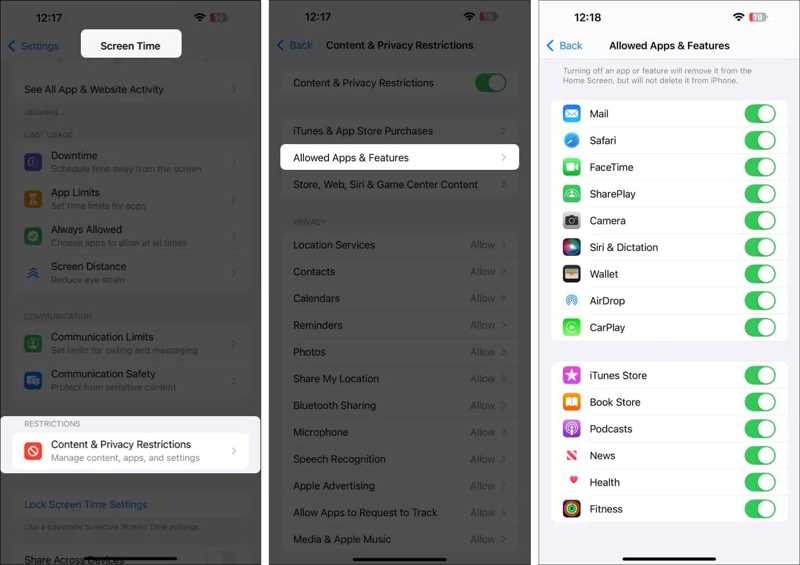
Step 1. Enter Screen Time in your Settings app.
Step 2. When prompted, enter the Screen Time passcode.
Step 3. Choose Content & Privacy Restrictions and toggle on Content & Privacy Restrictions.
Step 4. Choose Allowed Apps & Features to view all apps.
Step 5. Toggle off the apps that you want to bypass parental controls.
How to Turn off Parental Controls for Content
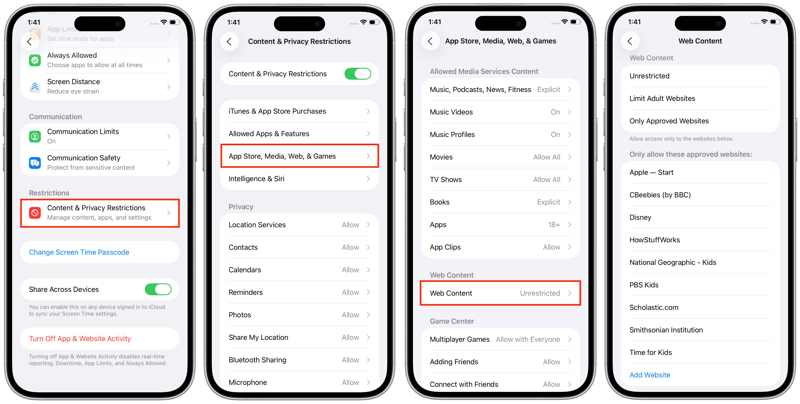
Step 1. Go to Screen Time in the Settings app.
Step 2. Enter the Screen Time passcode.
Step 3. Choose Content & Privacy Restrictions, and pick App Store, Media, Web, & Games.
Step 4. Choose Web Content and select Unrestricted or Limit Adult Websites.
Note: If you need to delete parental controls for specific websites, tap Add Website and type in the addresses, and select Only Approved Websites.
Part 4: How to Disable Parental Controls Without a Password
Whether you disable parental controls on your child's iPhone or your family organizer's device, you must enter the password. If you forgot the password, you will need a powerful tool, such as Apeaksoft iOS Unlocker. It is able to remove parental controls on an iPhone without a password or technical skills.
A Quick Way to Disable Parental Controls Without a Password
- Turn off parental controls on iOS devices.
- Don't require any password or passcode.
- Protect your data while removing parental controls.
- Support the latest editions of iOS and iPadOS.
- Available for Screen Time and other passcodes.
Secure Download
Secure Download

How to Disable Parental Controls Without a Password
Step 1. Connect to your iPhone
Run the quick parental control removal tool after you install it on your PC. It is compatible with Windows 11/10/8/7/XP/Vista. There is another version for Mac. Connect your iPhone to your PC with a Lightning cable. If prompted, tap Trust on your screen to trust this PC. Then, choose the Unlock Screen Time mode to proceed.
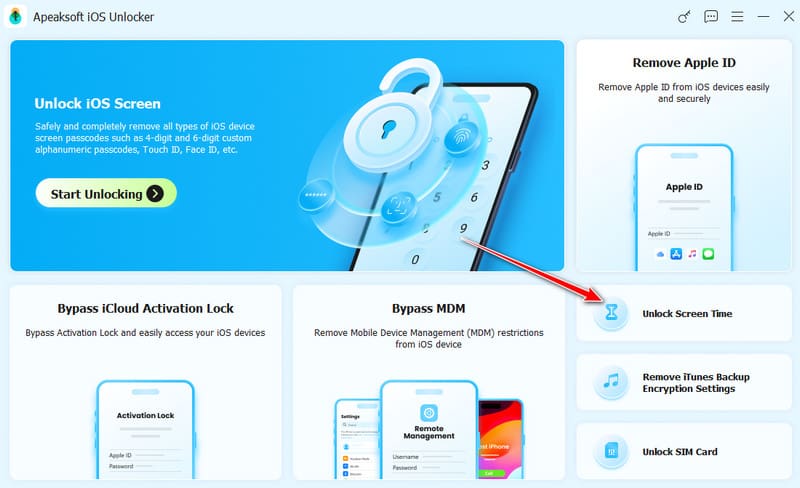
Step 2. Remove parental controls
Once your device is detected, click the Start Now button. Then, follow the onscreen instructions to disable Find My if Find My iPhone is enabled. When it is done, the software will begin bypassing parental controls on the iPhone immediately. During the process, keep your device connected to your computer. When it finishes, disconnect your iPhone and close the software. Now, all restrictions will be removed.
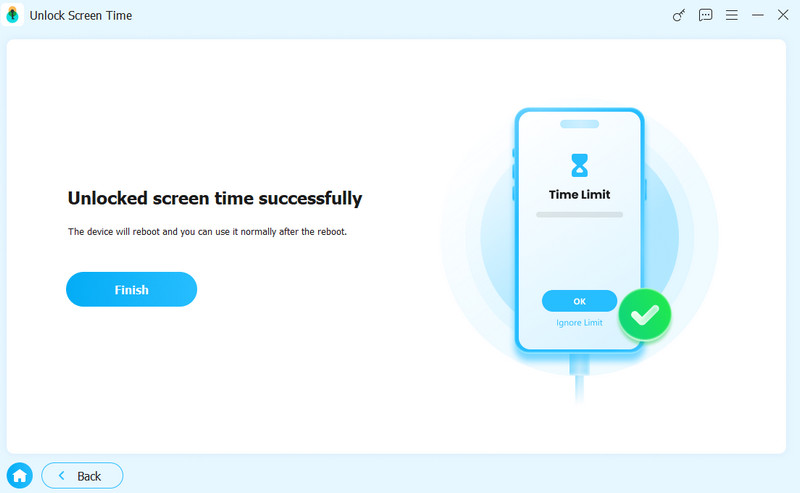
Note: The software won’t interrupt existing data on your iPhone when turning off parental controls.
Conclusion
This guide shared how to disable parental controls on your or your child's iPhone or iPad. You can complete get rid of the restrictions on the iPhone or family organizer's device with the password. Moreover, you can also remove the restrictions on specific app purchases, apps, and websites. Apeaksoft iOS Unlocker allows you to get rid of the controls if you forgot the passcode or password. More importantly, the user-friendly design makes it easy to use.
Related Articles