


How to Get Rid of Screen Time on Your or Your Kid's iPhone

It cannot be denied that Screen Time is a useful parental control feature, especially for parents. However, it is annoying if you are constantly interrupted by app time limits and repeatedly reports on your iPhone use. It makes sense that you want to get rid of Screen Time on your iPhone or iPad. This guide shares the proven methods in different situations and detailed steps.
PAGE CONTENT:
Part 1: How to Get Rid of Screen Time on iPhone
You can set up Screen Time and an independent passcode on your iPhone or iPad. If you still remember your passcode, you can get rid of Screen Time and Screen Time passcode on your iPhone directly.
How to Get Rid of Screen Time Passcode
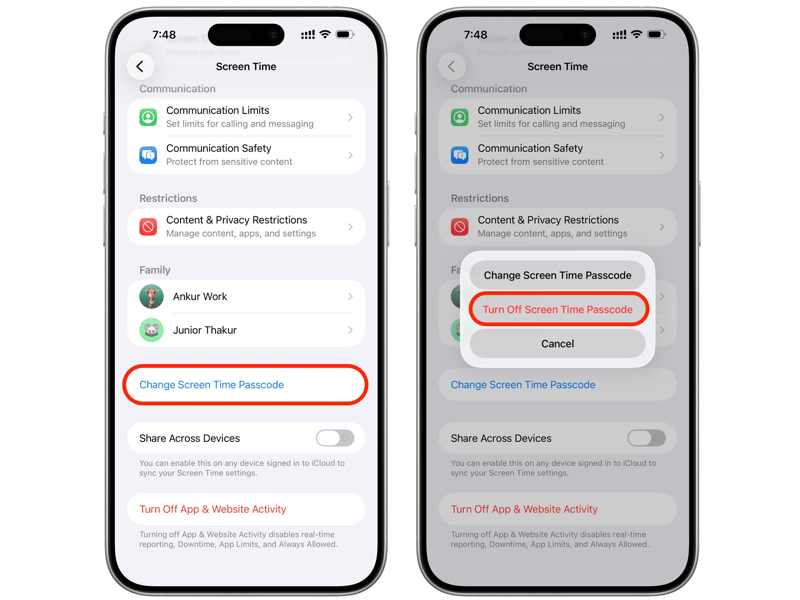
Step 1. Open the Settings app from the home screen.
Step 2. Scroll down and choose the Screen Time option.
Step 3. Tap the Change Screen Time Passcode button.
Step 4. Choose Turn Off Screen Time Passcode.
Step 5. Enter your Screen Time passcode to confirm it.
How to Get Rid of Screen Time on iPhone with iOS 17 and Later
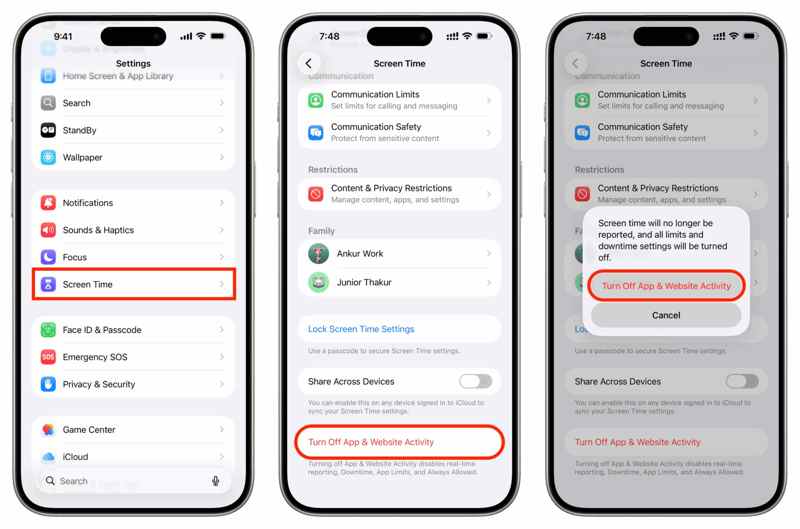
Step 1. Run your Settings app.
Step 2. Go to the Screen Time option.
Step 3. Scroll down and tap Turn Off App & Website Activity.
Step 4. Choose the Turn Off App & Website Activity option.
Step 5. If you have set up a Screen Time passcode, enter it to confirm the action.
How to Get Rid of Screen Time on iPhone with iOS 16 or Earlier
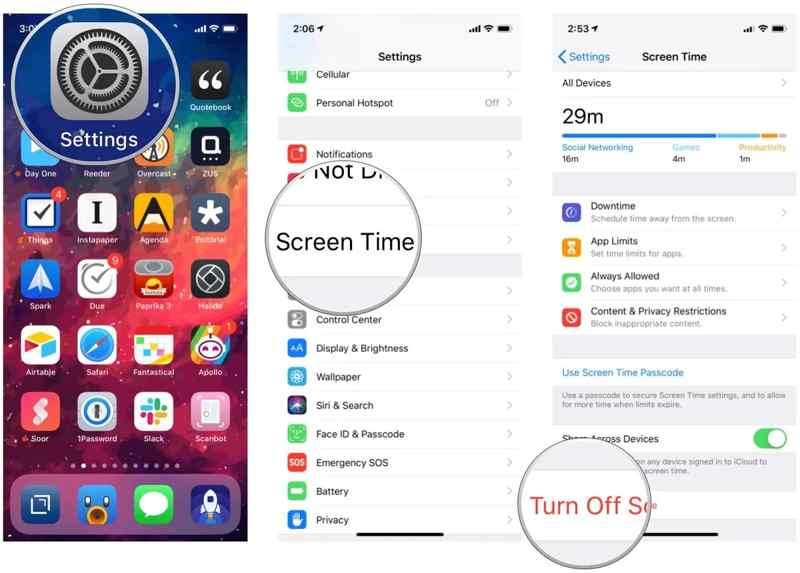
Step 1. Go to Settings and Screen Time.
Step 2. Tap the Turn Off Screen Time option.
Step 3. Choose Turn Off Screen Time.
Step 4. Enter your Screen Time passcode.
Part 2: How to Get Rid of Screen Time on Your Kid's iPhone
If you have set up Screen Time on your kid's iPhone through Family Sharing, you have to get rid of Screen Time on the organizer's device. This way also requires the Screen Time passcode if you have set it up.
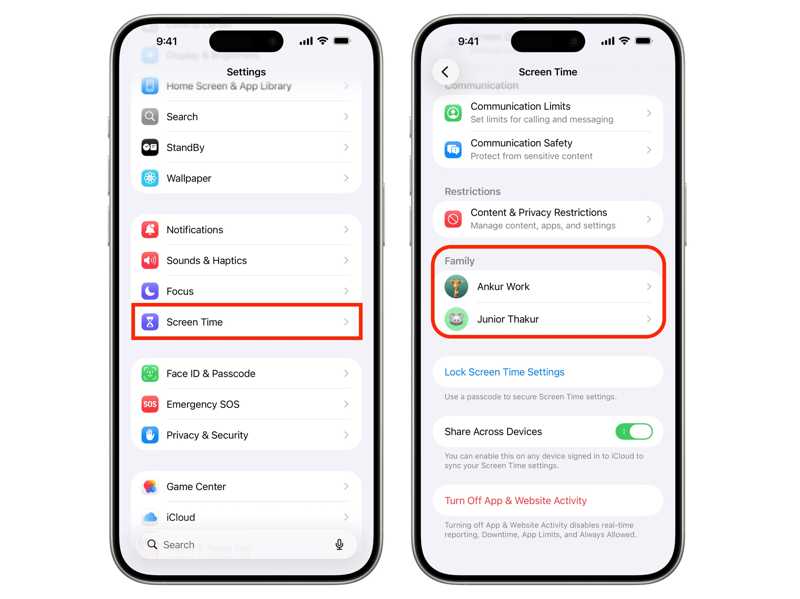
Step 1. Run your Settings app on the organizer's iPhone.
Step 2. Go to the Screen Time option.
Step 3. Choose your child's name under the Family heading.
Step 4. Tap the App & Website Activity option.
Step 5. Press the Turn Off App & Website Activity button.
Step 6. Choose Turn Off App & Website Activity.
Step 7. Authenticate with the passcode to get rid of Screen Time.
Part 3: How to Get Rid of Screen Time Limits
Screen Time is a set of features, including lots of settings. The App Limits, for example, allow you to set a time limit for specific apps. If you don't want to be interrupted when using these apps, you can get rid of Screen Time limits quickly.
Step 1. Head to the Settings app on your iPhone.
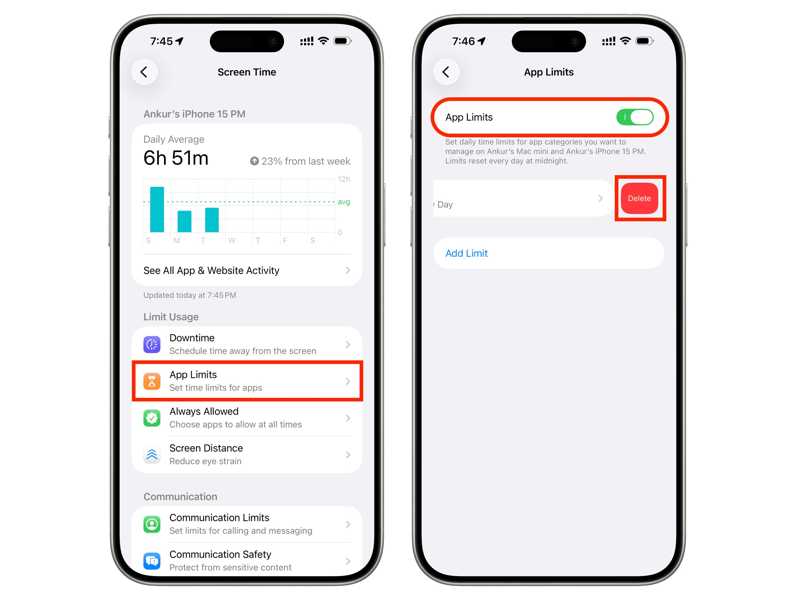
Step 2. Choose the Screen Time option.
Step 3. Tap the Apple Limits option.
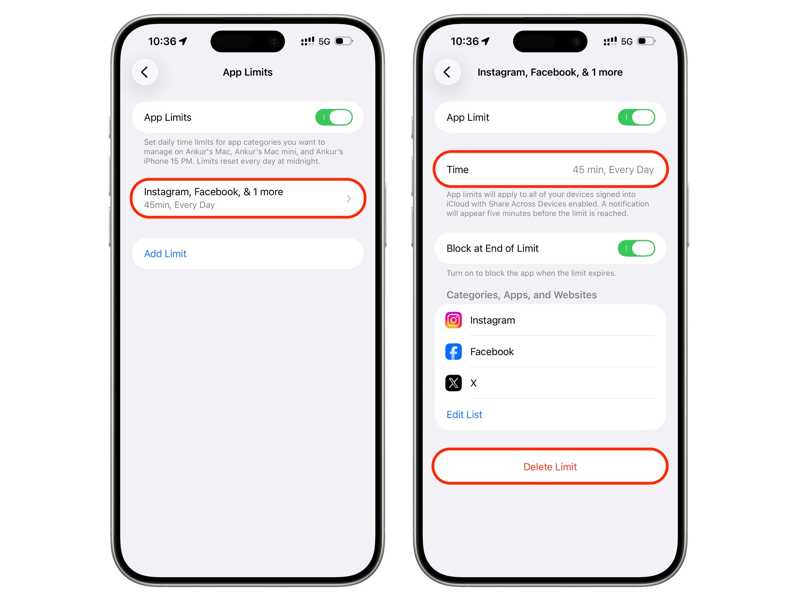
Step 4. If you want to get rid of Screen Time limits for a specific limit, tap it and press Delete Limit. Then, enter your Screen Time passcode.
To get rid of Screen Time limits completely, toggle off App Limits, and input your Screen Time passcode.
Part 4: How to Get Rid of Screen Time Without a Passcode
As mentioned previously, you cannot get rid of Screen Time limits without a passcode on your iPhone or iPad. If you forgot your Screen Time passcode, you have to reset it first and then remove Screen Time.
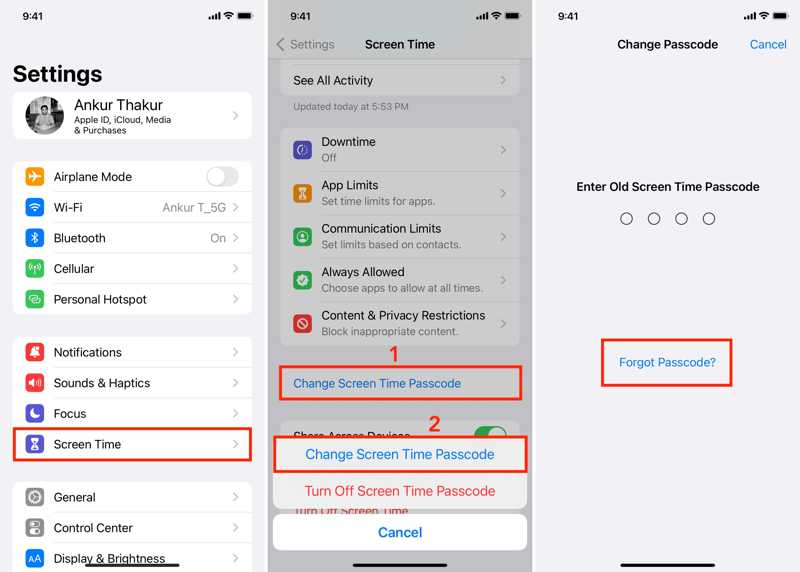
Step 1. Open your Settings app.
Step 2. Navigate to Screen Time.
Step 3. Scroll down and tap the Change Screen Time Passcode option.
Step 4. Choose Change Screen Time Passcode on the confirmation dialog.
Step 5. Tap the Forgot Passcode link when prompted to enter the passcode.
Step 6. Authenticate with your Apple Account password.
Step 7. Next, type in a new passcode and confirm it.
Step 8. Now, you can turn off Screen Time in your Settings app with the new passcode.
Part 5: How to Get Rid of Screen Time on iPhone Without Data Loss
If you forgot your Apple Account password and Screen Time passcode, it is difficult to get rid of Screen Time on your iPhone. Fortunately, Apeaksoft iFoneKit iOS Unlocker can help you resolve this problem. Plus, the straightforward interface simplifies the process.

Downloaded by over 1,000,000 users
- Remove Screen Time from iPhone or iPad without the passcode.
- Don't require your Apple ID password.
- Protect your data during the process.
- Offer bonus features, like removing the Apple ID.
- Work for a wide range of iPhones and iPad devices.
Secure Download
Secure Download

How to Get Rid of Screen Time on Your iPhone
Step 1. Install iPhone Unlocker
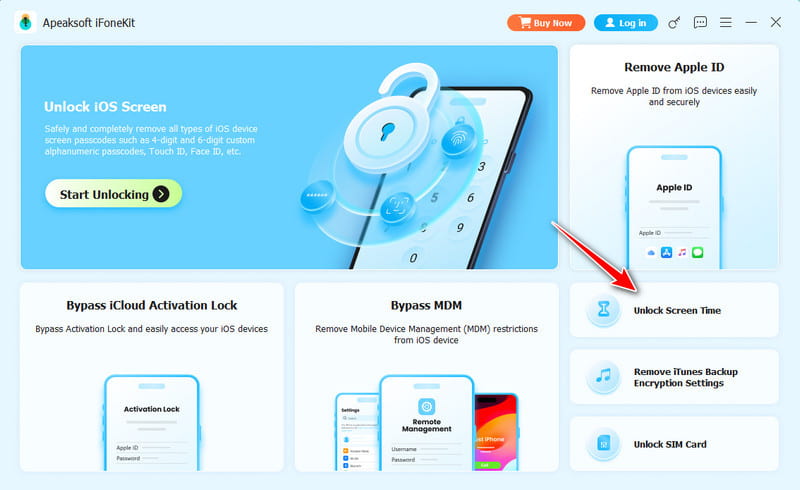
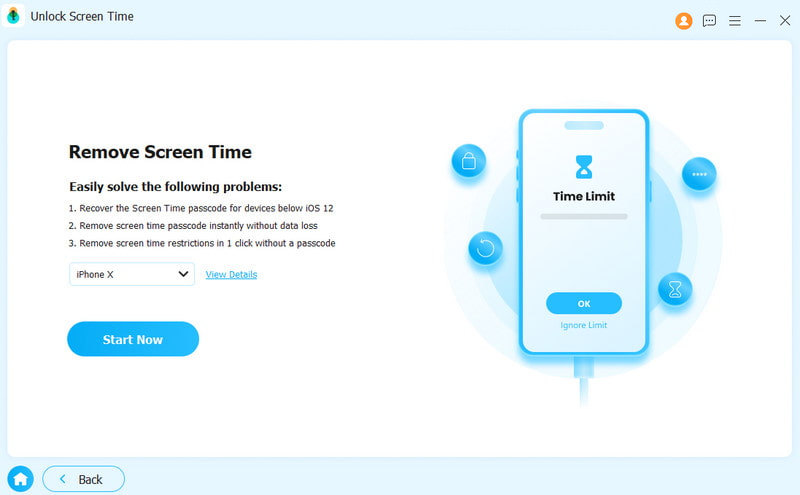
Launch the iPhone Screen Time unlocking software once you install it on your PC. It is compatible with Windows 11 to XP. There is another version for Mac OS X 10.7 or above. Choose the Unlock Screen Time mode to continue.
Step 2. Connect to your device
Link your iPhone to your PC with a Lightning cable and make sure to trust your computer. Choose how your Screen Time pass code is set. Once your device is detected, click the Start Now button to proceed.
Step 3. Get rid of Screen Time
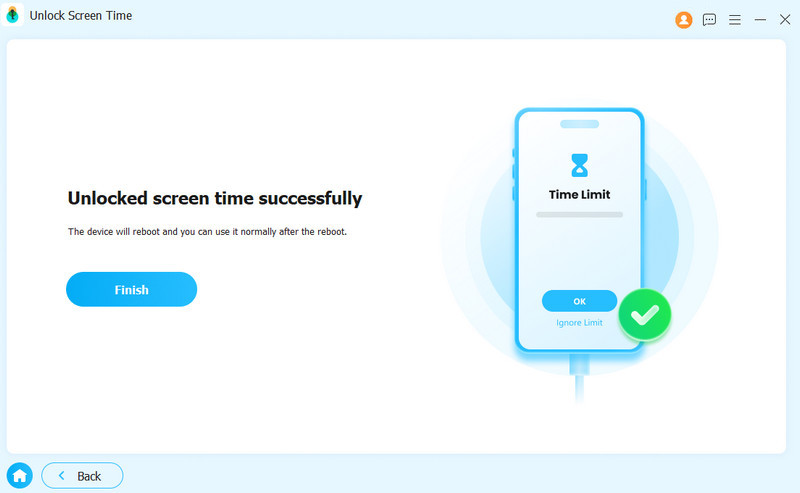
Next, follow the onscreen instructions to disable Find My iPhone on your device. Then, the software will begin removing the Screen Time passcode automatically. When it is done, disconnect your iPhone. Go to the Settings app, choose Screen Time, and tap Turn Off App & Website Activity to get rid of Screen Time on your iPhone directly.
Conclusion
This guide explained and demonstrated how to get rid of Screen Time on your iPhone or iPad in various situations. You can complete the job on your or your child's device with your Screen Time passcode. If you forgot your passcode, you can reset it with your Apple ID password first and then turn off Screen Time. Apeaksoft iFoneKit iOS Unlocker is the ultimate solution to unlock Screen Time from your device without any restrictions or technical skills.
 Apeaksoft iFoneKit
 Unlock all types of iOS passwords from iPhone, iPad and iPod.
Secure Download
Secure Download
Related Articles




