


What to Do If Your iPad Touch Screen Is Not Working

"My iPad Pro has been working just fine, but just a minute ago it stopped responding to touch. I tried restarting it with Siri, but nothing happened. Any ideas on how to fix this?" Whether your iPad screen freezes, lags, or stops reacting, you cannot unlock your device or use any feature. The cause can range from software glitches to hardware faults. This article shares effective solutions to fix an iPad touchscreen not working.
PAGE CONTENT:
Part 1: Why is the iPad Touch Screen Not Working
Before walking through the solutions, let's discuss the reasons first. When an iPad touchscreen just stops working, it usually comes down to a handful of causes. The main causes of this error include:
- 1.Outdated software and apps.
- 2.Improper screen protector and phone case.
- 3.Your iPad is too hot or cold.
- 4.Moisture on your hands.
- 5.Insufficient storage.
- 6.Software glitches.
- 7.Hardware damage.
Part 2: What to Do If the iPad Touch Screen Is Not Working
Solution 1: Remove Screen Protector
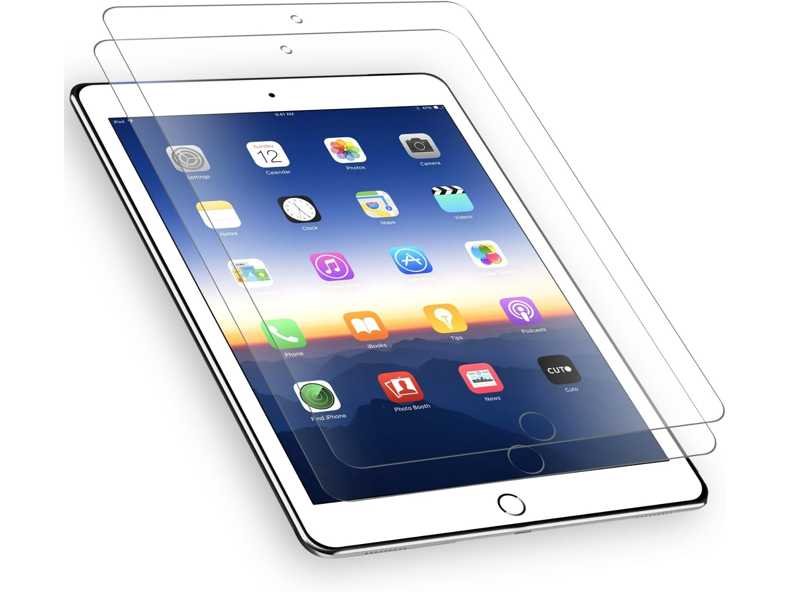
iPad is an advanced smart device; however, the display is vulnerable like other digital screens. It makes sense that many users use a case and a screen protector to extend the life of their device. However, unauthorized or improper cases and protectors can lead to your iPad touchscreen not working. The solution is simple: remove the improper case and screen protector.
Solution 2: Force Restart iPad
A simple solution to restart your iPad with not working touchscreen is a force restart. That allows you to regain access to your device without losing data. Moreover, all apps in the background will be closed and quit.
For an iPad without a Home button
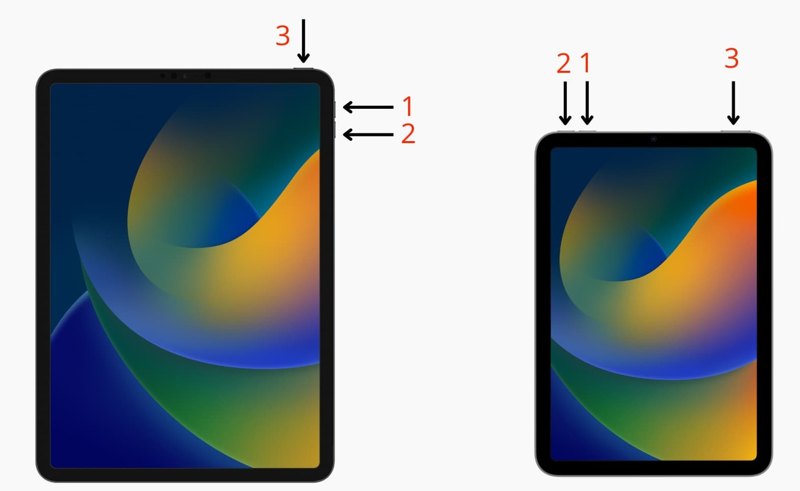
Press and quickly release the Volume Up button.
Press and quickly release the Volume Down button.
Press and hold the Top button until you see the Apple logo.
For an iPad with a Home button
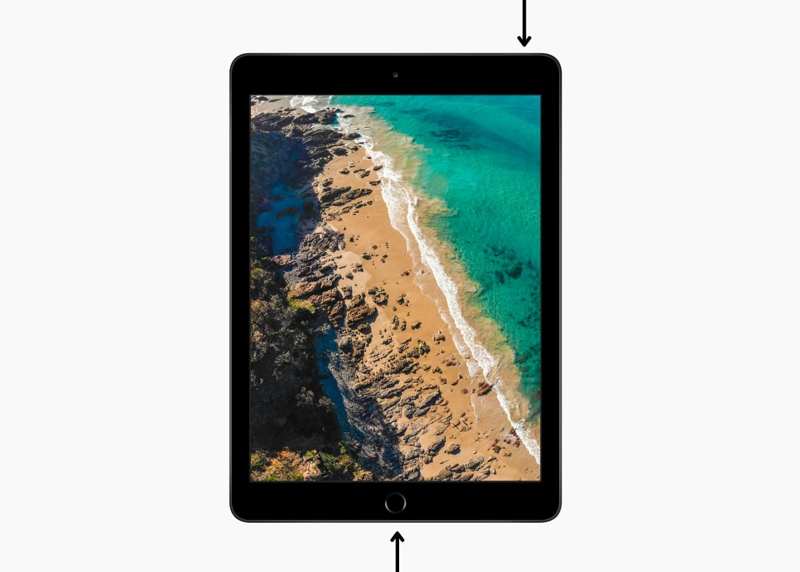
Press and hold the Home + Sleep/Wake buttons together.
Once the Apple logo appears, release the buttons.
Now, you can unlock your screen.
Solution 3: Use the iPad Properly
As a digital device, you must use an iPad in the proper environment, not too cold and not too hot. If your device becomes hot and the iPad touchscreen is not working, stop using it and wait for it to cool down.
Moreover, you must interact with your iPad with clean fingers or an authorized pencil. Make sure that your fingers are not moist or dirty.
Solution 4: Update Software and Apps
As mentioned previously, outdated software and apps can trigger a wide range of errors, including your iPad touchscreen not working. Fortunately, you can get rid of the problem by keeping your iPadOS and apps up to date.
Update Software
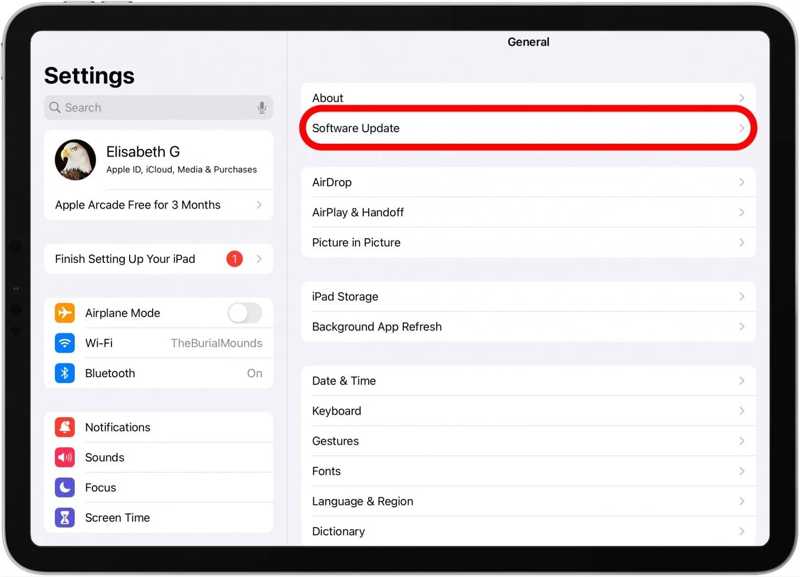
Step 1. Open the Settings app from your home screen.
Step 2. Go to the General tab and choose Software Update.
Step 3. If an update is available, tap the Download and Install button.
Step 4. Follow the onscreen instructions to update iPadOS.
Note: If you wish to install a big update, tap the Update Now button on the Software Update screen. Read the terms and conditions, tap Agree, and hit Agree again.
Update Apps
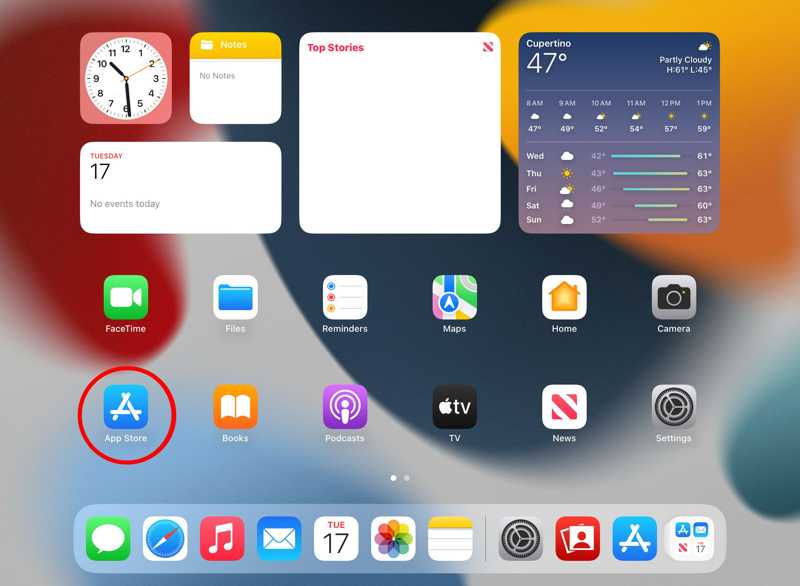
Step 1. Run the App Store app.
Step 2. Tap on your profile.
Step 3. Press your screen and pull down the screen to refresh updates.
Step 4. Next, tap the Update All button to update all apps.
Note: If you wish to update a specific app, tap the Update button next to the app icon.
Solution 5: Free up Space
iPad storage is limited. If your iPad touchscreen is not working, you'd better manage your storage and free up space. Insufficient storage will slow down the performance of your device and cause your screen to freeze. Follow the steps below to manually remove unwanted files. If you want to make it faster, you can use dedicated software to erase your iPhone or iPad.
Step 1. Go to the Settings app.
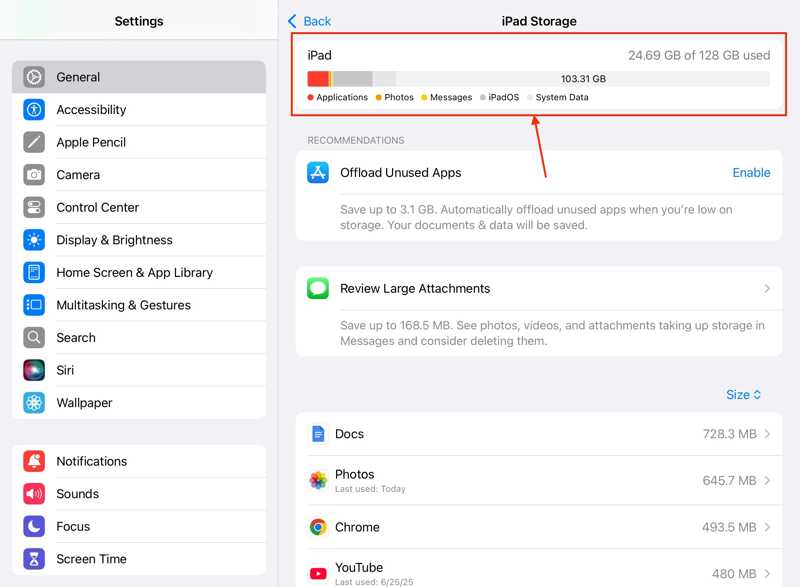
Step 2. Choose the General tab and tap iPad Storage.
Step 3. Check the storage and the large apps.
Step 4. Tap a useless app, and tap the Delete App button.
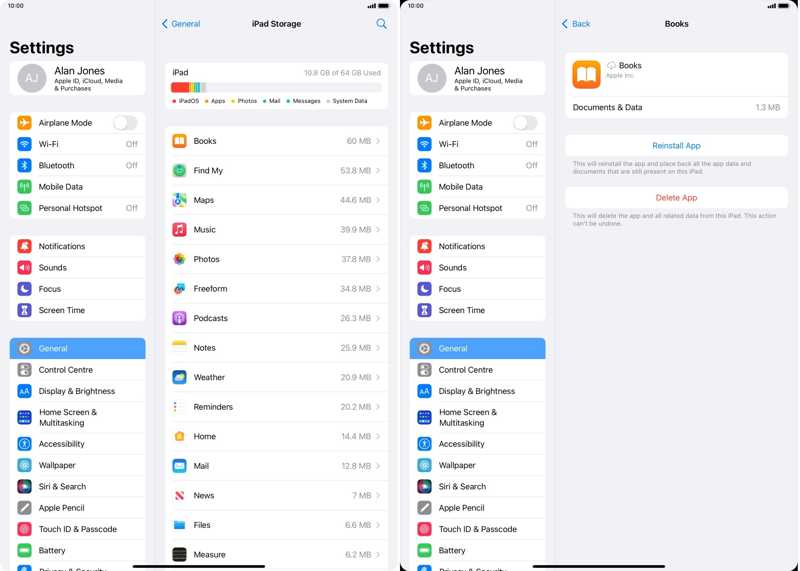
Step 5. If prompted, choose Delete App to confirm it.
Part 3: How to Restart iPad When Touch Screen Is Not Working
If your iPad touchscreen is not working and you can't unlock it, it is difficult to restart your device. Fortunately, Apeaksoft iFoneKit can help you resolve this problem. It is able to remove the lock screen from your iPad and useless data without any restrictions.

Downloaded by over 1,000,000 users
- Bypass iPad lock screen without a passcode.
- Work for digit passcodes, Face IDs, and Touch IDs.
- Available to an unavailable and disabled iPad.
- Offer bonus features, like MDM bypassing.
- Support the latest editions of iPadOS.
Secure Download
Secure Download

How to Restart iPad When Touchscreen Is Not Working
Step 1. Install iPad Unlocker
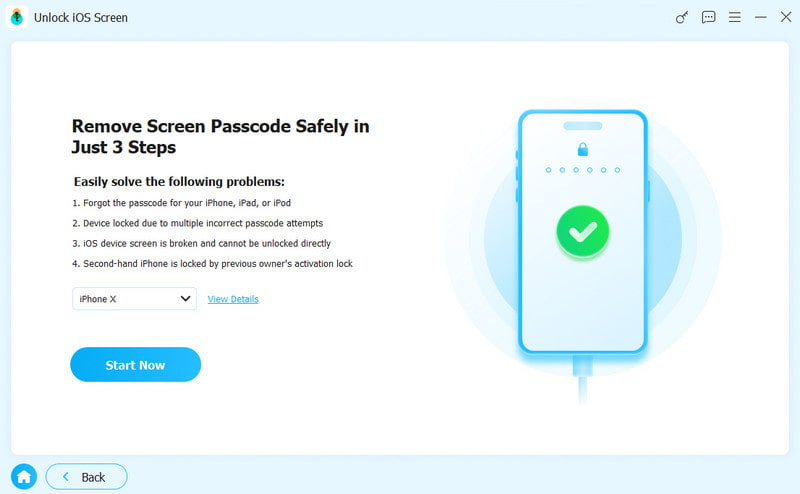
Launch the iPad unlocking software once you install it on your PC. There is another version for Mac. Connect your iPad to your PC with a Lightning cable. If prompted, tap Trust on your iPad screen to trust this PC. Choose the Unlock iOS Screen mode to continue.
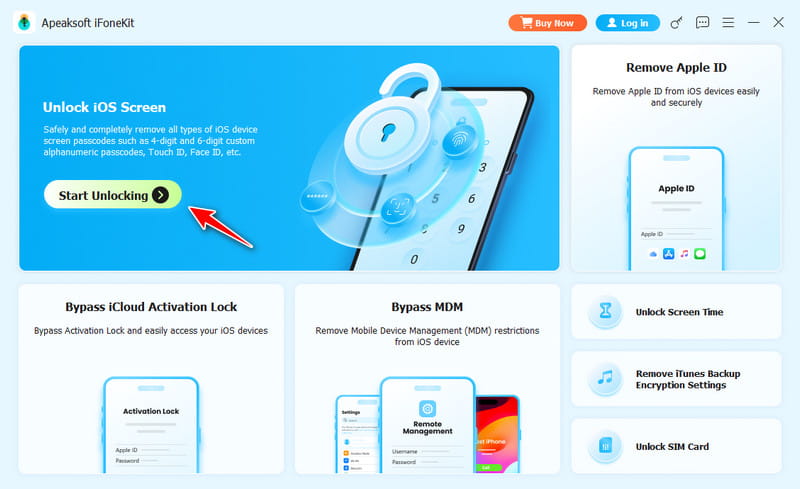
Step 2. Download the firmware
As long as your iPad is detected, click the Start Now button to start downloading the firmware. Wait for the process to finish.
Step 3. Restart your iPad
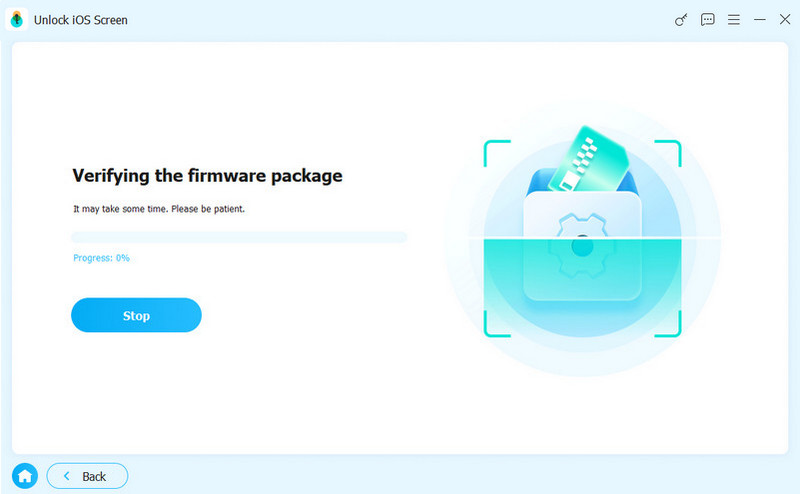
Next, click the OK button on the confirmation dialog after the firmware is downloaded. Then, click the Confirm Again button to verify the firmware. After firmware verification, the software will initiate unlocking your iPad automatically. When it is done, your iPad will restart, and the touchscreen should work again.
Note: The process will erase your data, and you can restore a backup to avoid data loss.
Further Reading
Conclusion
This article explained what to do if your iPad touchscreen is not working due to various factors. You should learn the main causes. More importantly, our proven solutions can help you get rid of the stuck touchscreen on your iPad. If the common solutions are unavailable, Apeaksoft iFoneKit can help you bypass the lock screen on your iPad and regain access.
 Apeaksoft iFoneKit
 Unlock all types of iOS passwords from iPhone, iPad and iPod.
Secure Download
Secure Download
Related Articles




