


What Is Joyoshare iPasscode Unlocker and How to Use It

The security measures are essential to protect your data and privacy on your iPhone or iPad. However, it will become a challenge when you forgot your lock screen passcode. Fortunately, there are a few iPhone unlocking programs, such as Joyoshare iPasscode Unlocker. It can remove the security measures on iOS devices without restrictions. Before you download the paid software, you can learn about it by following our unbiased review to make the best decision.
PAGE CONTENT:
Part 1: Joyoshare iPasscode Unlocker Review
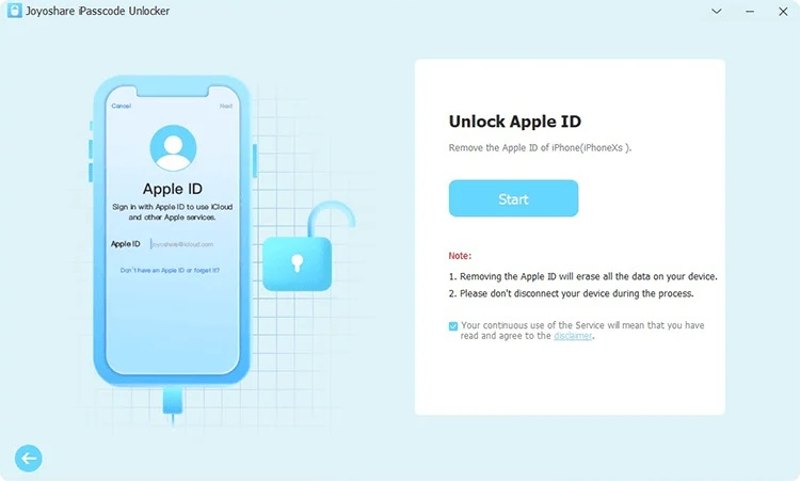
As mentioned previously, Joyoshare iPasscode Unlocker is a dedicated iOS unlock program for iPhone, iPad, and iPod. The one-stop unlocking software can ideally help you remove Apple ID without a password, get rid of MDM profiles, unlock screen locks, and bypass Screen Time without data loss.
Core Features of Joyoshare iPasscode Unlocker
- 1.Unlock an iOS device without a passcode.
- 2.Work for digit passcodes, Face IDs, and Touch IDs.
- 3.Available on Windows XP and later, macOS 10.8 and later.
- 4.Compatible with a wide range of iOS devices.
- 5.Remove Apple ID from iOS devices.
- 6.Unlock Screen Time passcode without data loss.
- 7.Remove MDM profiles from the iPhone directly.
- 8.Come with a user-friendly interface.
Unbiased Review of Joyoshare iPasscode Unlocker
- It works for all four types of screen locks on iOS devices.
- The user-friendly interface makes it easy to use.
- Joyoshare iPasscode Unlocker delivers bonus features.
- Unlocking the Apple devices with the software is 100% safe.
- It lacks some features, like unlocking the SIM lock.
- It is unavailable for the latest editions of iOS.
- The software is unavailable on the official website.
Is Joyoshare iPasscode Unlocker Free?
Yes, Joyoshare iPasscode Unlocker is free to download. However, it is not freeware. The prices start from around $9.99 for a lifetime license. The lifetime license costs between $9.99 to $24.99. The full unlock process requires a paid license with a monthly plan starting at $30.95 for up to 5 devices on one computer.
Part 2: How to Use Joyoshare iPasscode Unlocker
Step 1. Download Joyoshare iPasscode Unlocker and install it on a computer.
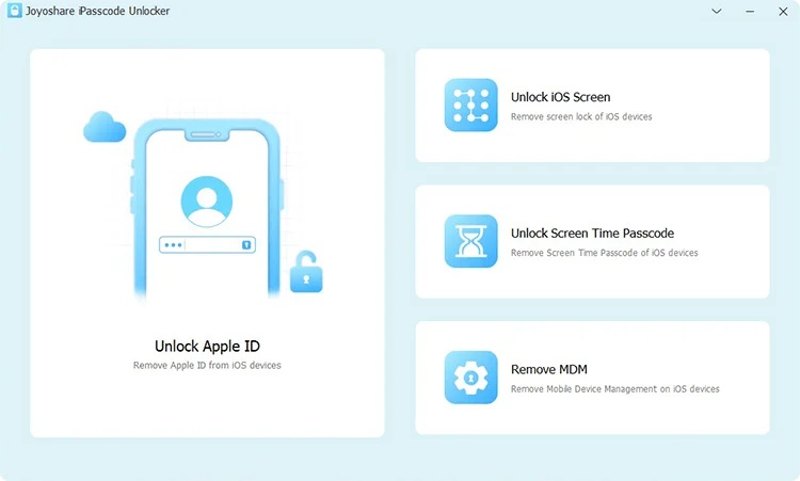
Step 2. Open the software from your desktop.
Step 3. Connect your locked iPhone or iPad to the computer with a USB cable.
Tips: Make sure that you have installed the latest version of iTunes on your computer.
Step 4. Once the software recognizes your device, click the Start button.
Tips: If your device is not detected, follow the onscreen instructions to boot it into DFU mode.
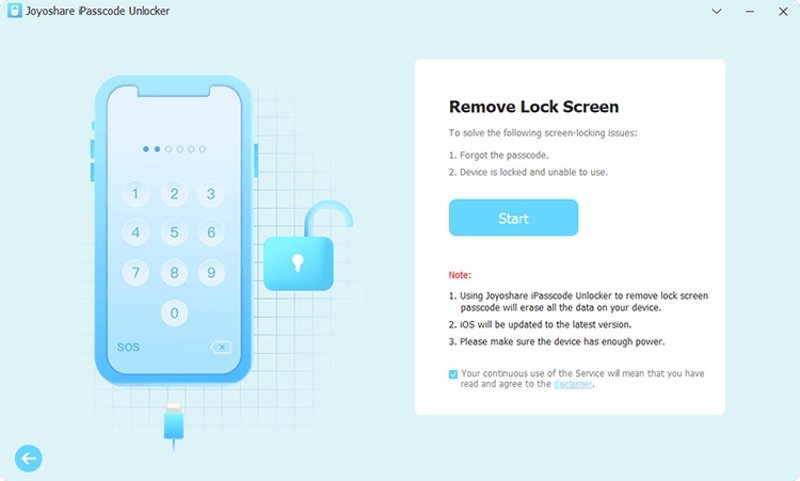
Step 5. Then, the software will load your device information.
Step 6. Check them and click the Download button to download the firmware for the iOS device.
Step 7. After the firmware is downloaded, click the Unlock button.
Step 8. After the process comes to an end, your iPhone passcode will be removed.
Part 3: A Powerful Alternative to Joyoshare iPasscode Unlocker
While Joyoshare iPasscode Unlocker is a simple way to unlock an iPhone, it is unavailable for all devices. If you need an alternative solution, Apeaksoft iFoneKit iOS Unlocker is a good option. It supports almost all iPhone and iPad models. Plus, the intuitive design makes it a good option for beginners.

Downloaded by over 1,000,000 users
- Regain full access to an iPhone without a passcode.
- Unlock 4-digit and 6-digit passcodes, Face IDs, and Touch IDs.
- Remove the Apple ID from an iOS device in minutes.
- Bypass Screen Time or MDM without losing data.
- Work for the latest versions of iOS and iPadOS.
Secure Download
Secure Download

How to Use Joyoshare iPasscode Unlocker Alternative
Step 1. Connect to your iPhone
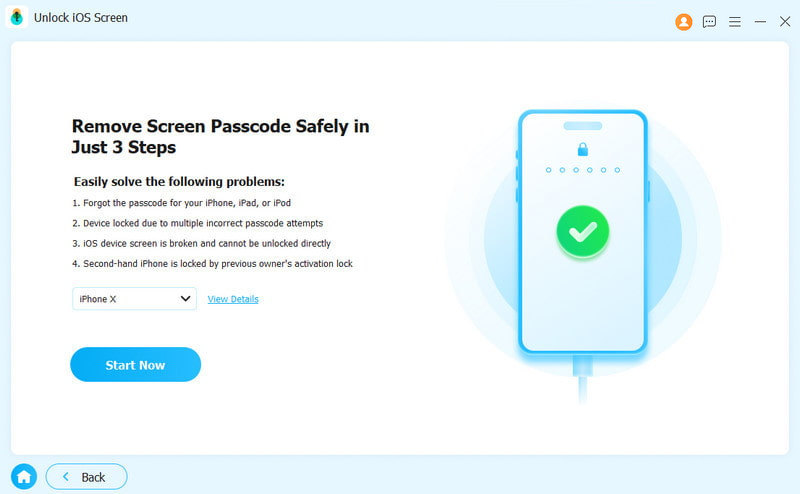
Launch the alternative to Joyoshare iPasscode Unlocker after installing it on your PC. There is another version for Mac. Choose the Unlock iOS Screen mode. Connect your iPhone to your PC with a Lightning cable. If prompted, tap Trust on your screen to trust this PC.
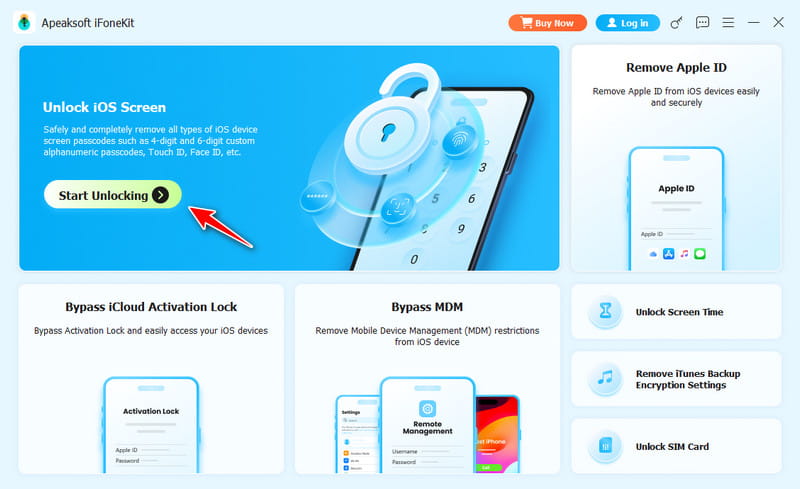
Step 2. Download the firmware
Once your device is detected, click the Start Now button to begin downloading the firmware. It may take a while, depending on your internet connection.
Step 3. Unlock your iPhone
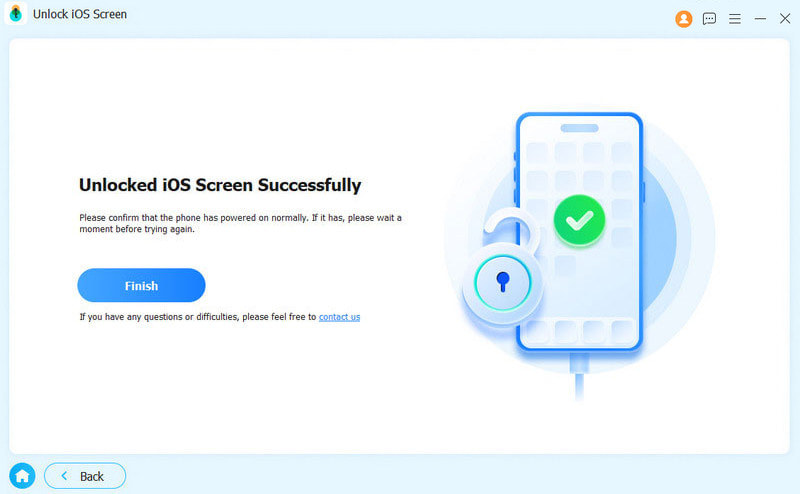
The confirmation dialog will pop up after the firmware is downloaded. Read the notification and click OK. Then, click the Confirm Again button to verify the firmware. After verification, the software will automatically initiate unlocking your device.
Further Reading
Conclusion
This article reviewed Joyoshare iPasscode Unlocker, one of the best unlocking programs for iPhone, iPad, and iPod. Now, you should learn what it can do, its benefits and downsides, and other information. Furthermore, you can follow our detailed steps to use the software to unlock your device quickly. We also recommended an alternative solution, Apeaksoft iFoneKit iOS Unlocker. It is easier to use and delivers a higher success rate. If you need a powerful alternative solution, it is a good option.
 Apeaksoft iFoneKit
 Unlock all types of iOS passwords from iPhone, iPad and iPod.
Secure Download
Secure Download
Related Articles




