


How to Temporarily or Permanently Remove Face ID on iPhone

Apple has introduced advanced technologies into iPhones. The Face ID, for example, allows users to access their iOS devices, services, and apps without entering the lock screen passcode. However, more and more users are concerned about the security risk of biometric technology. Furthermore, Face ID is inconvenient in some cases, such as when a hat, mask, sunglasses, or other coverings cover your face. This guide outlines multiple ways to temporarily or permanently remove Face ID on your iPhone.
PAGE CONTENT:
Part 1: How to Permanently Remove Face ID on iPhone
Can you remove the second Face ID on iPhone? No. In fact, you cannot find an option to delete Face ID. Alternatively, you can get rid of Face ID on your device by resetting it. Here are the steps below:
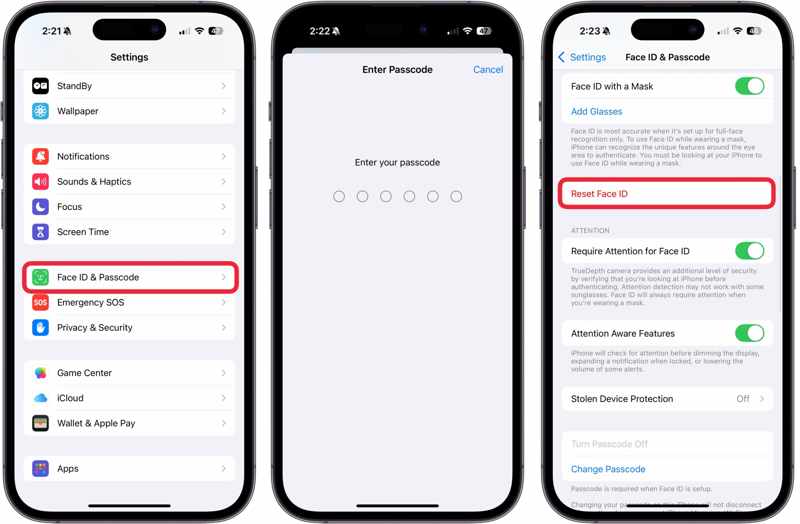
Step 1. Open the Settings app on your iPhone.
Step 2. Go to Face ID & Passcode.
Step 3. Enter your iPhone passcode.
Step 4. Tap the Reset Face ID button to confirm it.
Part 2: How to Temporarily Remove Face ID on iPhone
In addition, you can temporarily remove Face ID on your iPhone. Furthermore, you have multiple ways to complete the job. Bear in mind that you need to unlock your iPhone with your passcode.
Way 1: How to Remove Face ID on iPhone by Disabling It
The iPhone allows users to remove Face ID temporarily. Moreover, you can remove Face ID for iPhone unlock, App Store, payments, autofill, and specific apps. This method requires your iPhone passcode.
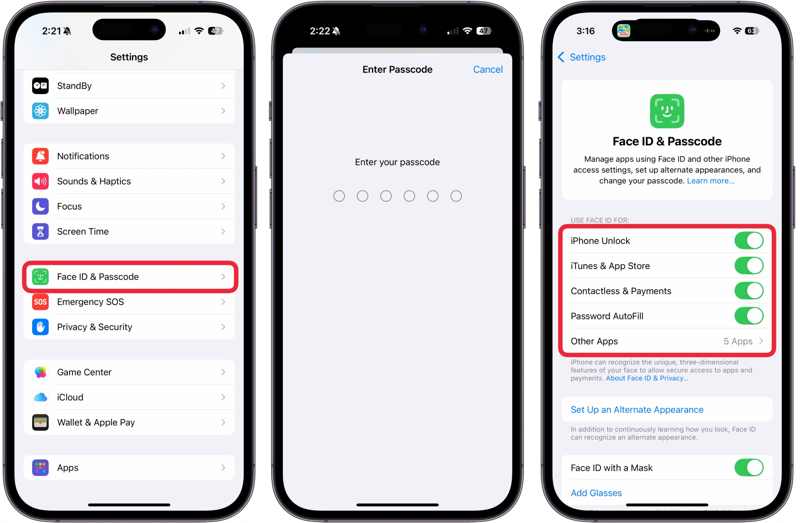
Step 1. Go to Face ID & Passcode in your Settings app.
Step 2. Enter your iPhone passcode.
Step 3. Toggle off iPhone Unlock under the USE FACE ID FOR section.
Step 4. If you want to remove Face ID for a specific service, turn off the switch.
Step 5. If you wish to remove Face ID for apps, tap Other Apps, and toggle off the switches.
Way 2: How to Remove Face ID on iPhone on the Power-Off Screen
Another way to temporarily remove Face ID on your iPhone is the power-off screen. You can enter the power-off screen and will be asked to unlock your device with your passcode, but not Face ID.
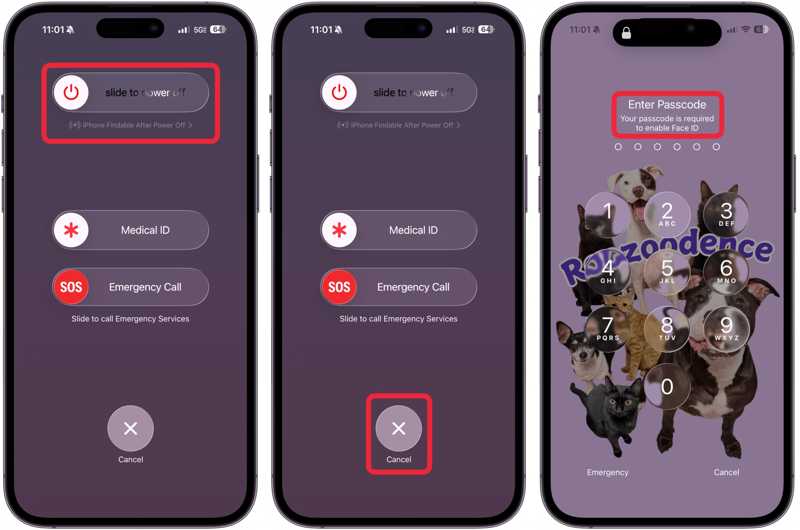
Step 1. Press and hold one of the Volume buttons + the Side button together.
Step 2. Release the button combination when the power-off screen appears.
Step 3. Tap the Cancel button at the bottom.
Step 4. Then, you will be asked to enter a passcode.
Note: The next time you unlock your iPhone, you can still use Face ID.
Way 3: How to Remove Face ID on iPhone via Siri
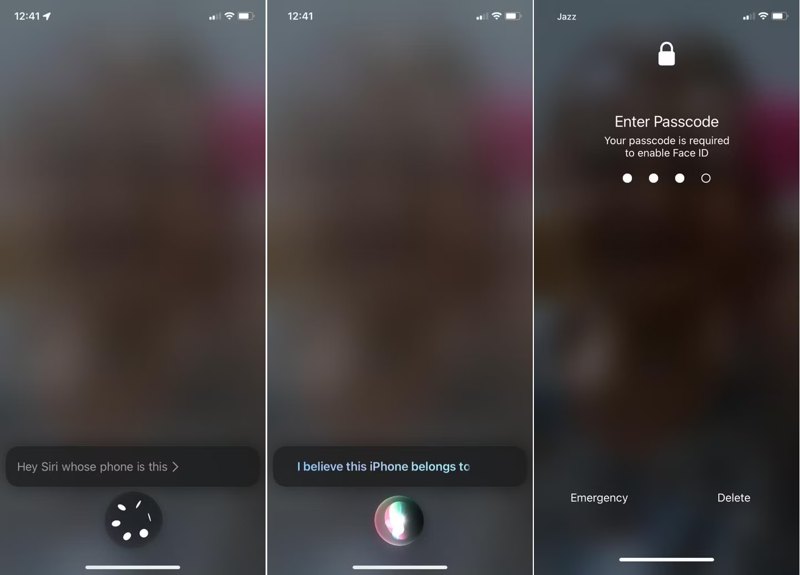
A quick, temporary way to remove Face ID on your iPhone is to use Siri. This way is available when it is inconvenient to touch your iPhone screen. Remember that this way just turns on Face ID for one time.
With your iPhone locked, say: Hey Siri, whose phone is this. Siri will display your contact card and temporarily turn off Face ID. You need to enter your iPhone passcode to unlock your device.
Part 3: How to Remove Face ID Without a Passcode
As mentioned previously, you need your passcode to remove Face ID. If you wish to remove Face ID and passcode on iPhone after forgetting your passcode, try Apeaksoft iFoneKit iOS Unlocker. It lets you remove all screen locks from your iOS device without restrictions. Plus, the user-friendly design makes it easy to use.

Downloaded by over 1,000,000 users
- Remove Face ID and passcode in three steps.
- Don't require your screen passcode or Apple ID password.
- Available for locked and disabled iOS devices.
- Support a wide range of iPhones and iPad devices.
Secure Download
Secure Download

How to Remove Face ID and Passcode on Your iPhone
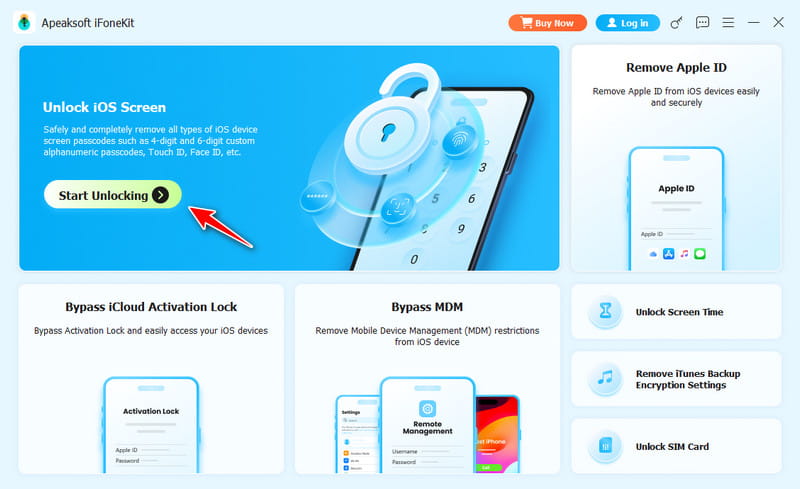
Step 1. Install iFoneKit
Launch the Apple ID removal software after you install it on your computer. It is compatible with Windows 11/10/8/7/XP/Vista and macOS 10.7 or above. Choose the Remove Apple ID mode.
Step 2. Download the firmware
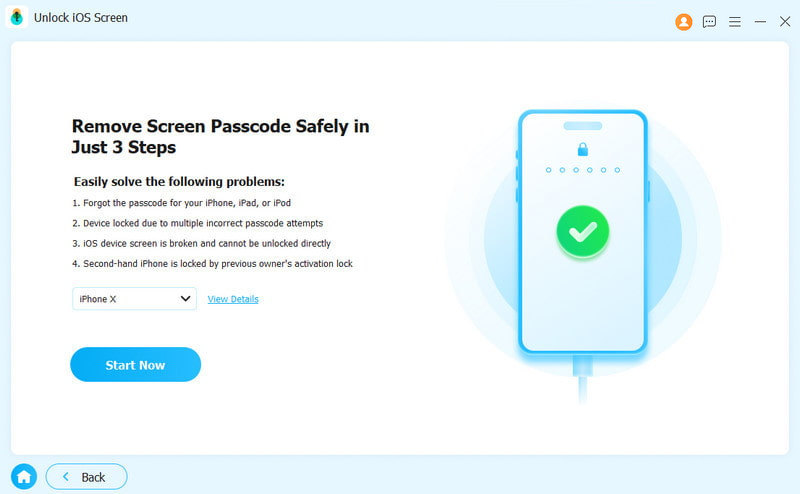
Connect your iPhone to your computer with a Lightning cable. Once your device is recognized, the software will load your iPhone information. Next, click the Start Now button to begin downloading the firmware.
Step 3. Remove Face ID and passcode
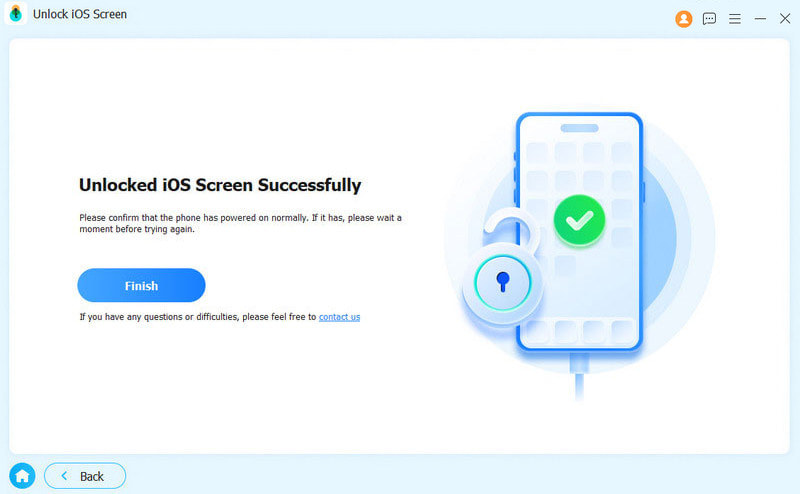
When the download finishes, click the OK button on the confirmation dialog. Next, hit the Confirm Again button to verify the firmware. Then, the software will initiate the removal of Face ID and the passcode.
Conclusion
This guide shared five ways to remove Face ID on your iPhone in various situations. You can completely get rid of Face ID on your device and unlock your iPhone with a passcode. Moreover, there are several methods to disable your device's biometric ID temporarily. Apeaksoft iFoneKit iOS Unlocker enables you to erase Face ID from your device without any restrictions.
 Apeaksoft iFoneKit
 Unlock all types of iOS passwords from iPhone, iPad and iPod.
Secure Download
Secure Download
Related Articles




