


How to Turn Off Face ID on iPhone Temporarily and Permanently

Face ID provides a convenient way to unlock your iPhone, log in to important platforms, and complete payments. However, for security concerns, you may want to turn off Face ID on iPhone.
This blog provides the most comprehensive guide to disabling Face ID on iPhone temporarily or permanently under different scenarios.
PAGE CONTENT:
Part 1: What is Face ID
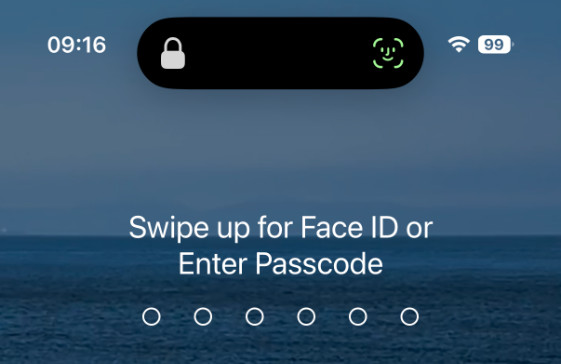
Face ID is Apple's official facial biometric security feature. It is an alternative way to unlock your screen besides traditional screen passcodes. According to Apple, the TrueDepth camera system uses advanced facial recognition technology to unlock the screen lock, authenticate apps, authorize payments, and enable automatic password filling. Compared to traditional passwords, Face ID offers a faster and more convenient way to ensure your device's security.
Part 2: Why Should You Turn OFF Face ID
Face ID is convenient and efficient to use, but in certain special situations, turning off this feature can help avoid some issues and protect personal privacy.
- 1.Protect personal privacy: When you lend your phone to someone else, or other people get your iPhone in an illegal way, you can prevent them from directly unlocking it by scanning your face, thereby better safeguarding private content.
- 2.Prevent unlocking by similar faces: Although Apple states that the probability of a random person unlocking your iPhone with Face ID is less than 1 in 1,000,000, there is still a chance of a false match in certain situations, such as with identical twins, siblings with very similar facial features, or children under 13 whose facial features are still developing.
- 3.Avoid accidental Face ID authentication for payments: Most of us may experience such a case, when making a purchase, Face ID may complete authentication immediately before you notice that you selected the wrong item. Disabling Face ID can help prevent accidental payments and avoid such inconvenience.
- 4.Prefer passcode authentication over Face ID: Some users may prefer traditional passcode authentication over Face ID due to personal preferences or privacy concerns.
- 5.Face ID is not working.
Part 3: How to Turn OFF Face ID on iPhone
Scenario 1: How to Temporarily Disable Face ID on Your iPhone
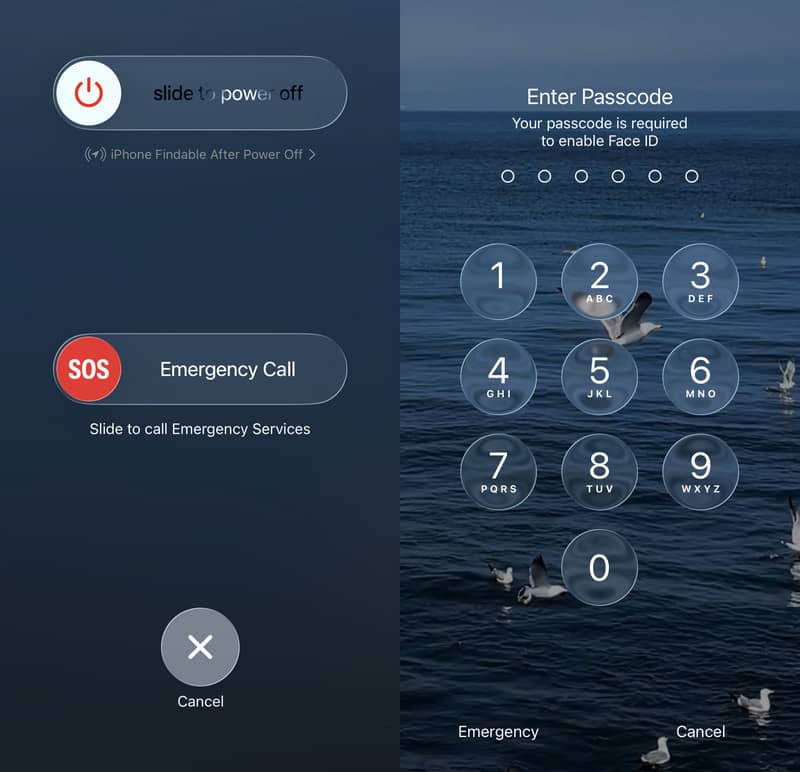
Temporarily disabling Face ID is a built-in system privacy feature that allows you to quickly prevent Face ID authentication. You don't need to make any manual adjustments to any settings or data reset. After you unlock your iPhone with a passcode, Face ID will be enabled again.
Step 1. Press and hold any volume key along with the power button to wake up the shutdown slider.
Step 2. Click Cancel to exit the shutdown screen.
Step 3. Then, you will return to the lock screen with Face ID disabled. Now you can only unlock the device using the lock screen passcode.
Scenario 2: How to Permanently Disable Face ID for Screen Lock
Permanently disabling Face ID on iPhone will cover scenarios such as unlocking, downloading, payments, password autofill, and app access. This change cannot be automatically restored and is suitable for users who do not want to use Face ID over the long term.
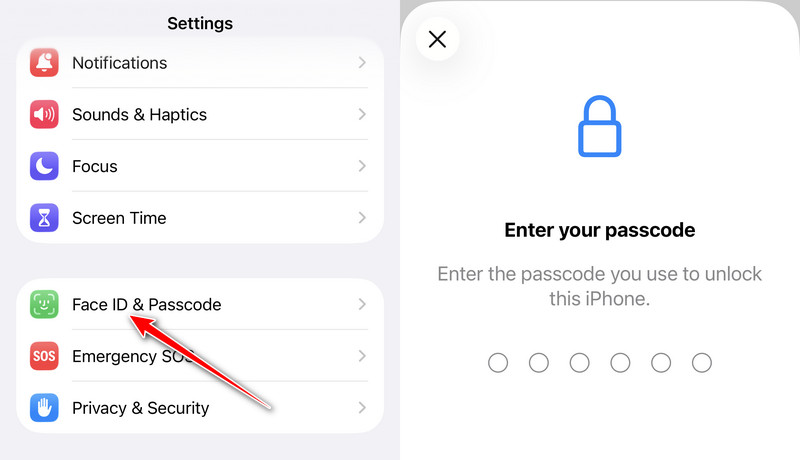
Step 1. Open Settings on your phone and go to Face ID & Passcode.
Step 2. Enter your passcode to complete identity verification.
Step 3. Turn off all Face ID-related options based on your needs here, including iPhone Unlock, iTunes & App Store, Contactless & Payments, and Password AutoFill.
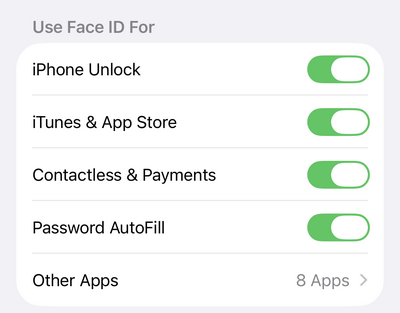
Step 4. If you want to turn off Face ID or apps, you can click Other Apps here. Then, you can select the specific app and toggle it off on the next page.
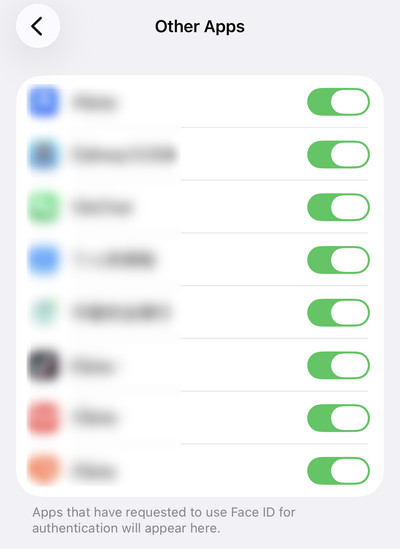
After completing the setup, all Face ID features will be disabled, and you can only unlock your device with a passcode.
Scenario 3: How to Turn OFF Face ID for Specific Photos and Safari
Some apps will require Face ID for an extra layer of privacy protection, such as the hidden album in Photos, private browsing in Safari, and more. If you prefer to access these features without Face ID, you can follow the guide below to turn off Face ID with ease.
Turn OFF Face ID for Photos
Step 1. Open Settings and swipe to the bottom. Click Apps.
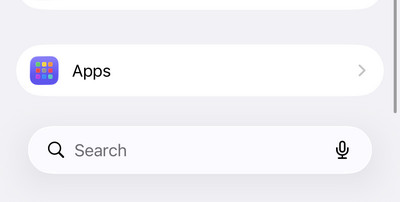
Step 2. Find Photos from the app list.
Step 3. Toggle off Use Face ID on the following page.
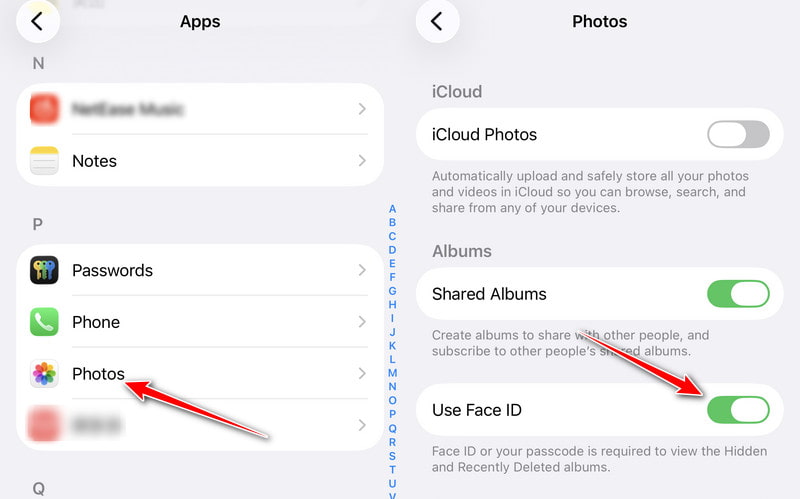
Step 4. Then, you can view your hidden album or deleted photos without Face ID authentication.
Turn OFF Face ID for Safari
Step 1. Open Settings, click Apps, and find Safari.
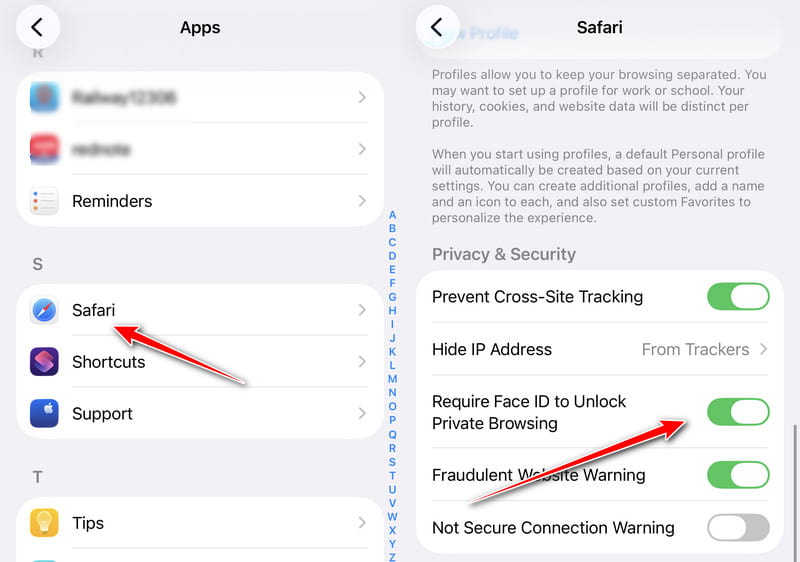
Step 2. Toggle off Require Face ID to Unlock Private Browsing to turn off Face ID for private browsing.
Step 3. Then, when you open a private browsing page in Safari, you don't need to verify your Face ID.
Part 4: What Happens After Disabling Face ID
Disabling Face ID will not delete facial data already stored on your iPhone or affect the normal use of your device. It will only change the verification method.All activities, such as unlocking the phone, downloading applications, making online payments, and automatically filling in passwords, that previously relied on Face ID for automatic verification, now require manual password entry. The changes include:
- You need to enter your passcode to unlock your iPhone.
- Apps that support Face ID authentication, such as banking apps and password managers, will require you to enter your password manually or use another verification method.
- After turning off Face ID, you cannot confirm Apple Pay payments with Face ID.
- …

Downloaded by over 1,000,000 users
- Unlock your iPhone when Face ID doesn't work.
- Get into your iPhone when you forget the passcode.
- Access a disabled iPhone after multiple wrong passcode attempts.
- Turn off Face ID without Face ID.
- Support all popular iPhone models and iOS versions.
Secure Download
Secure Download

Conclusion
Learning how to turn off Face ID on iPhone can help you adjust the verification method according to your own needs. Whether temporarily turning off Face ID or permanently, or disabling Face ID in a specific function, you can easily complete them through the system settings.
In addition, if you cannot turn off Face ID and forget your screen passcode, you can use Apeaksoft iFoneKit iOS Unlocker to regain access to your device.
 Apeaksoft iFoneKit
 Unlock all types of iOS passwords from iPhone, iPad and iPod.
Secure Download
Secure Download
Related Articles




