


How to Unlock a Disabled iPad With or Without iTunes

"My iPad has been disabled as I forgot the password and entered it incorrectly many times. How can I unlock my device? Can anyone help me?" Getting an iPad disabled can be a frustrating experience, especially if you rely on it for work, entertainment, keeping in touch with friends, accessing social media, and more. This guide shares proven methods to unlock a disabled iPad and the detailed workflows.
PAGE CONTENT:
Part 1: Why Your iPad Is Disabled
As mentioned previously, multiple incorrect passcode attempts are the main cause why your iPad is disabled. According to Apple, you can input a wrong passcode 5 times. After 6 incorrect attempts, your iPad will become disabled temporarily. After 10 incorrect attempts, your iPad will be permanently disabled.
Part 2: How to Unlock a Disabled iPad with iTunes
Preconditions:
- 1.A computer and a USB cable.
- 2.The latest version of iTunes, if you are using Windows and macOS Mojave or earlier, or Finder if you are using macOS Catalina or later.
- 3.The associated Apple ID and password.
Step 1. Connect your iPad to a computer with a USB cable.
Step 2. Open iTunes or Finder, depending on your operating system.
Step 3. Put your iPad in Recovery Mode:
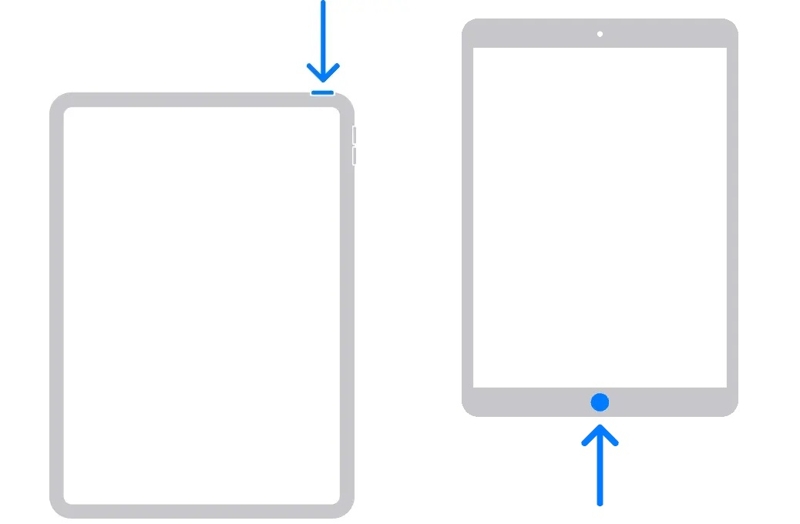
iPad without a Home button
Press and release the Volume Up button.
Do the same thing to the Volume Down button.
Press and hold the Side button until your iPad enters Recovery Mode.
iPad with a Home button
Hold down the Home + Side/Power buttons together.
When your iPad enters Recovery Mode, release the buttons.
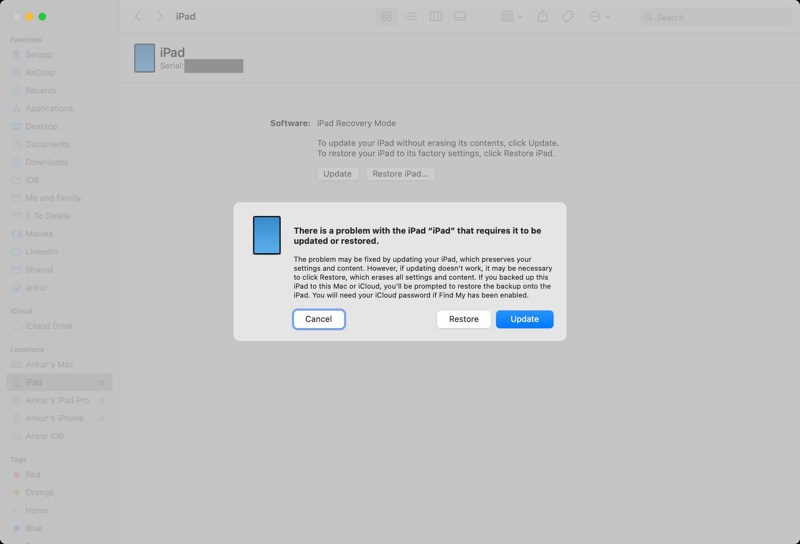
Step 4. Next, click the Restore button on the dialog to unlock the disabled iPad with iTunes or Finder.
Step 5. When it is done, your iPad will restart.
Note: The downside is that all your data will be removed.
Part 3: How to Unlock a Disabled iPad Without a Computer
Can you unlock a disabled iPad without iTunes? Yes. If your iPad runs the latest versions of iPadOS, you can erase your device on the Security Lockout screen. Plus, the Find My feature enables you to reset a disabled iPad remotely.
Option 1: Unlock a Disabled iPad by Erase iPad
Preconditions:
- 1.Your iPad runs iPadOS 15.2 or later.
- 2.Your Apple ID and password.
Step 1. Tap the Erase iPad button on the iPad Unavailable or Security Lockout screen.

Step 2. Read the warning and confirm it.
Step 3. Enter the associated Apple ID password.
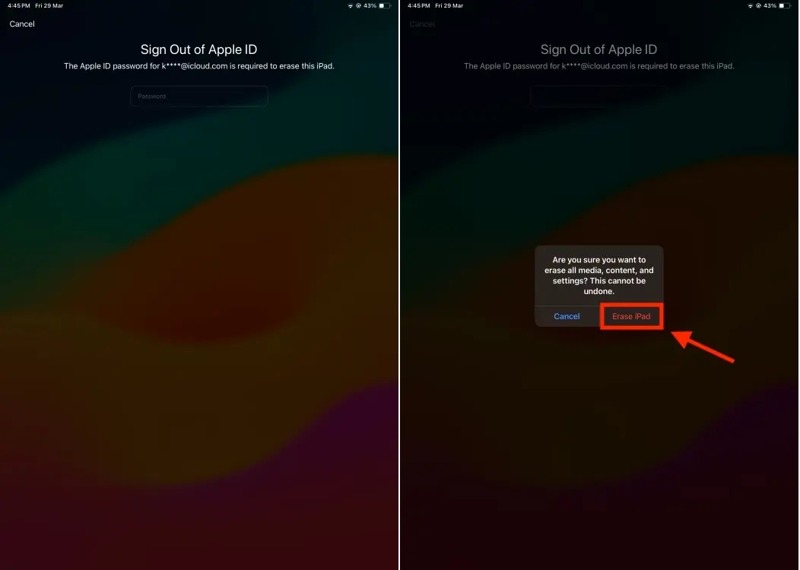
Step 4. Tap Erase to begin unlocking the disabled iPad without a computer.
Option 2: Unlock a Disabled iPad via Forgot Passcode
Preconditions:
- 1.Your iPad runs iPadOS 17 and above.
- 2.Associated Apple ID and password.
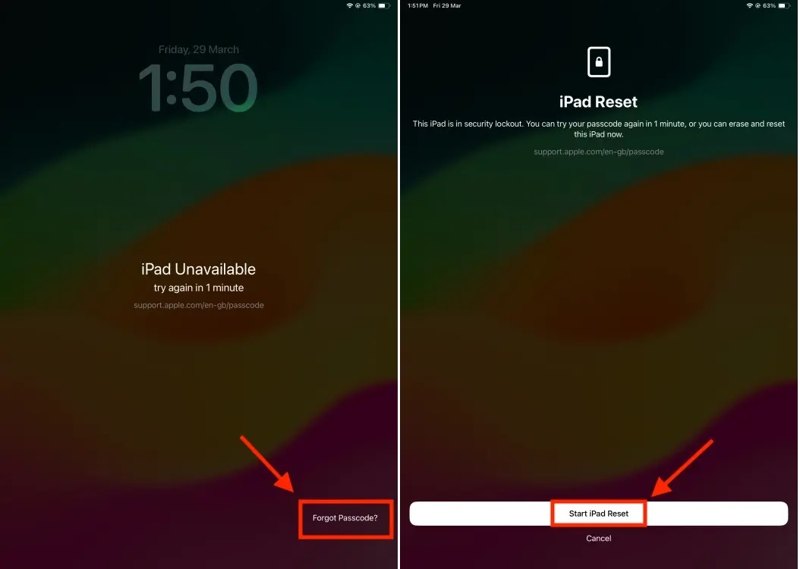
Step 1. If you have updated to iPadOS 17 or later, tap the Forgot Passcode button instead.
Step 2. Choose the Start iPad Reset option.
Step 3. Next, type in the associated Apple ID password.
Step 4. Finally, tap the Erase iPad button on the confirmation dialog.
Step 5. When it finishes, your iPad will restart and boot into the Hello screen.
Step 6. After unlocking the disabled iPad with Apple ID, set it up as a new device and restore your iPad from a backup if you have one.
Option 3: Unlock a Disabled iPad Online
Preconditions:
- 1.A stable internet connection.
- 2.A web browser.
- 3.Find My iPad has been enabled on your device.
- 4.Your Apple ID credentials.
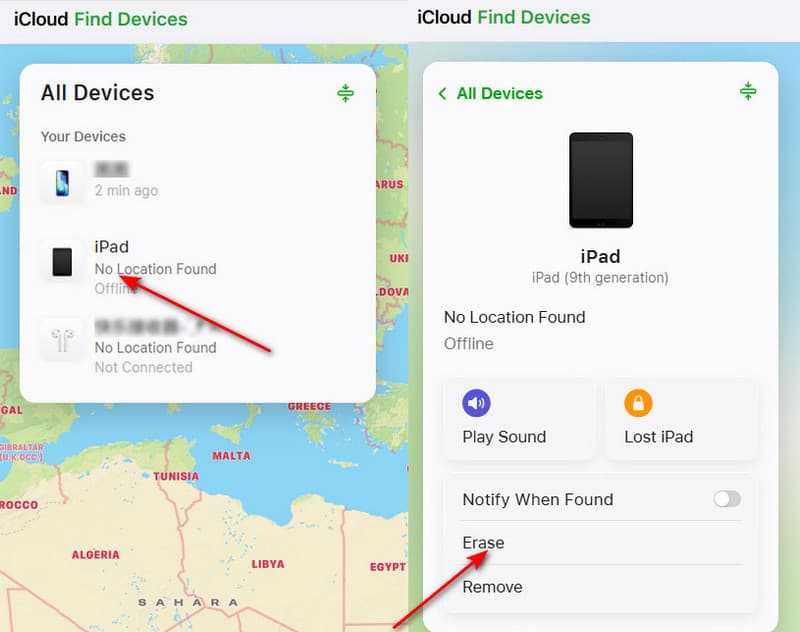
Step 1. To unlock a disabled iPad that is not in your hand, go to www.icloud.com/find in a browser.
Step 2. Log in with your Apple ID and password.
Step 3. Click and expand the All Devices option and choose your iPad.
Step 4. Once your iPad is tracked, click the Erase or Erase This Device button.
Step 5. Click Next to confirm your action.
Step 6. When prompted, enter your Apple ID password again.
Step 7. If your iPad is online, it will be unlocked immediately, but it will also be factory reset.
Option 4: Unlock a Disabled iPad in Find My
Preconditions:
- 1.Another Apple device.
- 2.The Find My app.
- 3.Your Apple ID and password.
- 4.You have turned on Find My iPad on your disabled iPad.
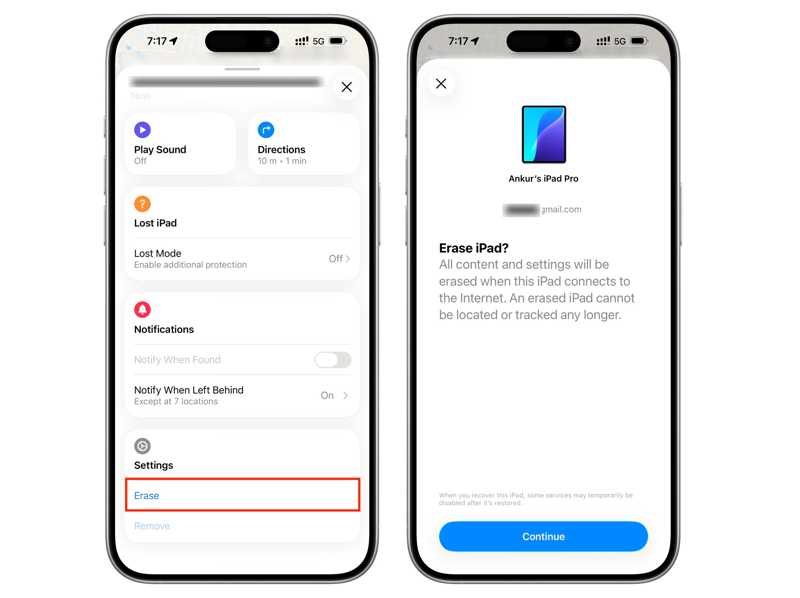
Step 1. Open the Find My app on another Apple device if you need to unlock a disabled iPad without iTunes.
Step 2. Make sure to sign in with your Apple ID and password.
Step 3. Go to the Devices tab and choose the disabled iPad.
Step 4. Expand the toolbar and choose Erase or Erase This Device.
Step 5. Read the warning and hit Continue.
Step 6. Enter your phone number and hit Erase.
Part 4: How to Unlock a Disabled iPad Without an Apple ID
Apeaksoft iFoneKit iOS Unlocker is the ultimate way to unlock a disabled iPad without Apple ID and password. It is able to remove the lock screen from any iPad without any restrictions or technical skills.

Downloaded by over 1,000,000 users
- Remove screen locks from an iPad quickly.
- Don’t require iPad passcode or Apple ID password.
- Work for locked and disabled iPad devices.
- Support almost all iPad models.
Secure Download
Secure Download

How to Unlock a Disabled iPad Without an Apple ID
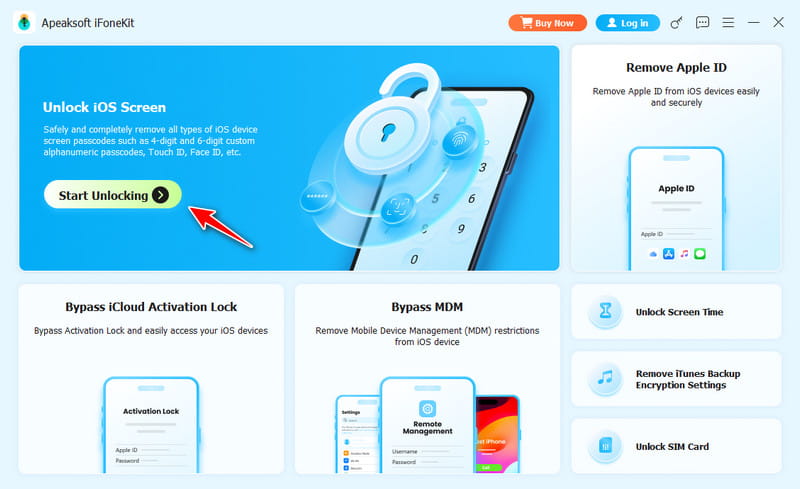
Step 1. Install iPad Unlocker
Start the iPad unlocking software after installing it on your PC. There is another version for Mac. Choose the Unlock iOS Screen mode.
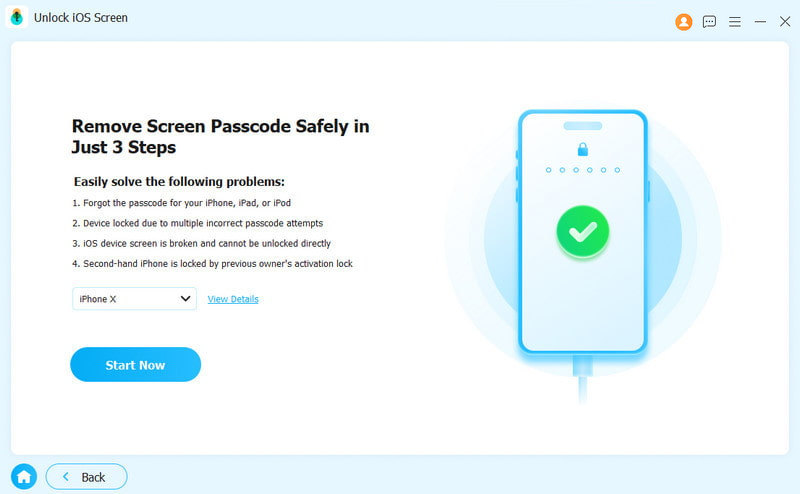
Step 2. Connect to your iPad
Plug your iPad into your PC with a Lightning cable. Once your device is detected, click the Start Now button to begin downloading the firmware.
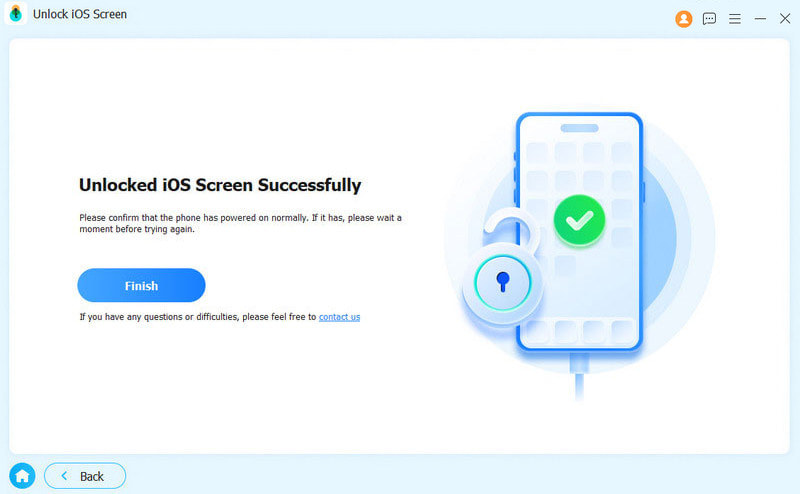
Step 3. Unlock your disabled iPad
After downloading, click the OK button, and then hit Confirm Again to verify the firmware. Next, the software will start unlocking the disabled iPad without an Apple ID.
Conclusion
This guide shared multiple ways to unlock a disabled iPad with or without iTunes. Moreover, we shared the preconditions for each way. You can pick the right way according to your situation and follow our detailed steps to regain access to your device. Apeaksoft iFoneKit iOS Unlocker is a powerful iPad unlocking program without any restrictions.
 Apeaksoft iFoneKit
 Unlock all types of iOS passwords from iPhone, iPad and iPod.
Secure Download
Secure Download
Related Articles




