


How to Unlock iCloud Account With or Without Password

As long as Apple detects security actions, like someone tries to hack into your iCloud account, you will be locked out of your data. According to Apple, your account can be locked due to password loss, an old account, issues related to Two‑factor authentication, and more. Anyway, Apple provides ways to unlock your account after it is locked or disabled. This guide shares the proven methods to unlock an iCloud account quickly.
PAGE CONTENT:
- Part 1: How to Unlock iCloud Account on iPhone
- Part 2: How to Unlock iCloud Account on Mac
- Part 3: How to Unlock iCloud Account Without Password
- Part 4: How to Unlock iCloud Account in Apple Support
- Part 5: How to Fix the Supplied iCloud Account that was Unable to Unlock this Volume
- Part 6: How to Unlock iCloud Account If Unable to Unlock It on iPhone
Part 1: How to Unlock iCloud Account on iPhone
An easy way to unlock an iCloud account is to reset the password on your iPhone or iPad. This way allows you to authenticate with your lock screen passcode. If you haven't set a passcode, you will be asked to authenticate with your current Apple Account password.
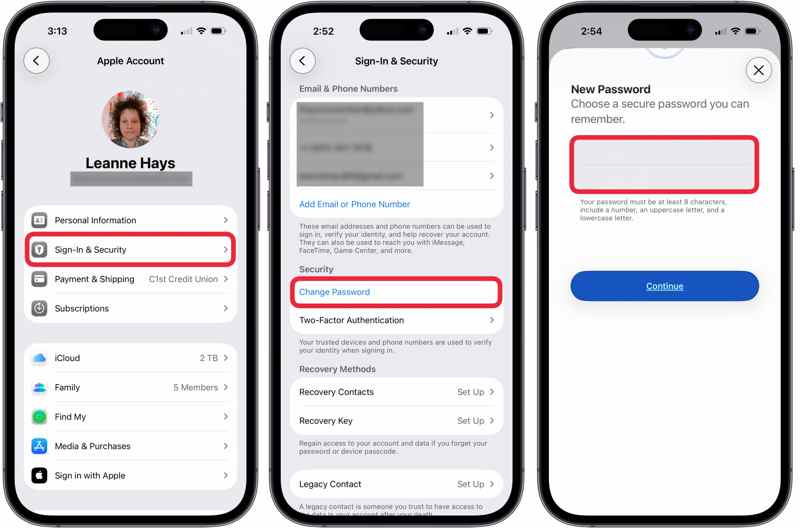
Step 1. Open the Settings app on your device.
Step 2. Tap on your profile.
Step 3. Go to the Sign-in & Security tab.
Step 4. Tap the Change Password button under the Security section.
Step 5. Enter your iPhone passcode to authenticate.
Step 6. Type in a new password, retype it, and tap Continue.
Step 7. Now, you can use your iCloud account as usual.
Part 2: How to Unlock iCloud Account on Mac
If you are using a MacBook, you can unlock an iCloud account in the System Settings app directly. The process requires you to authenticate with your login password. Here is how you can do it:
Step 1. Click the Apple menu.
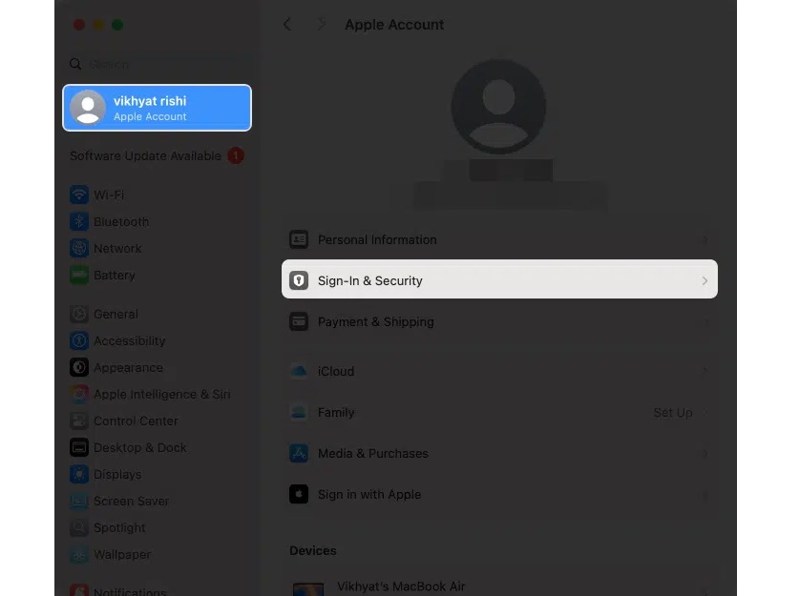
Step 2. Choose the System Settings or System Preferences option.
Step 3. Head to the Apple Account from the sidebar.
Step 4. Click the Sign-In & Security option.
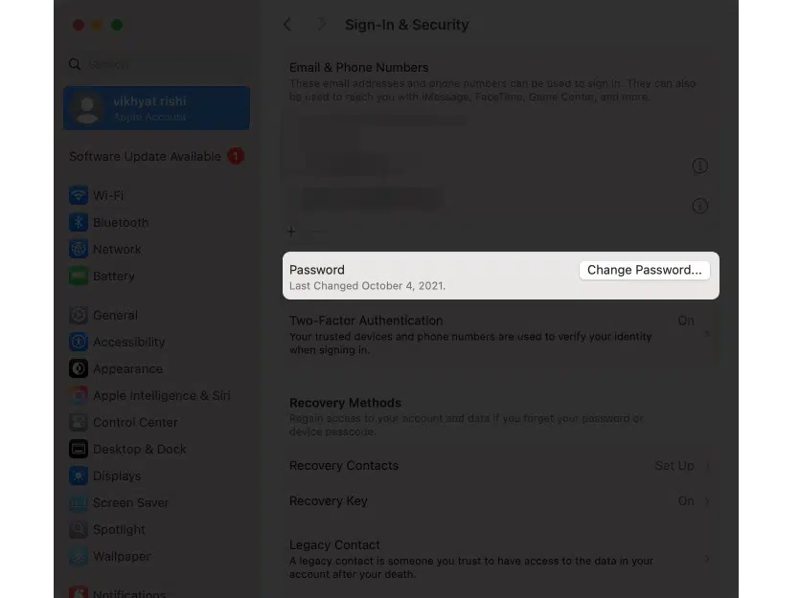
Step 5. Next, click the Change Password button.
Step 6. Enter your Mac password to proceed.
Step 7. Create a new password following the instructions.
Step 8. Verify it and click the Change button.
Part 3: How to Unlock iCloud Account Without Password
If you forgot your account password or your Apple device is inaccessible, you can unlock your iCloud account without a password on iForgot. It is the web page released by Apple for resetting an iCloud account password.
Step 1. Access iforgot.apple.com in a browser.
Step 2. Click the Reset Password button.
Step 3. Enter the phone number or email address linked to your iCloud account.
Step 4. Type in the Captcha code, and click Continue.
Step 5. Depending on your settings, you will get a few options to authenticate:
Option 1: Trusted Device
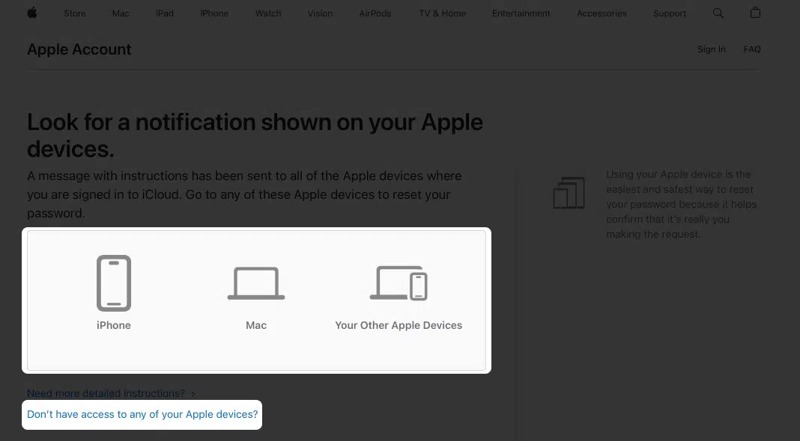
If you have set up Two‑factor authentication, choose a trusted device.
Turn to the device, and tap Allow on the notification.
Enter your lock screen passcode or login password.
Then, set a new password, verify it, and unlock your iCloud account.
Option 2: Recovery Key
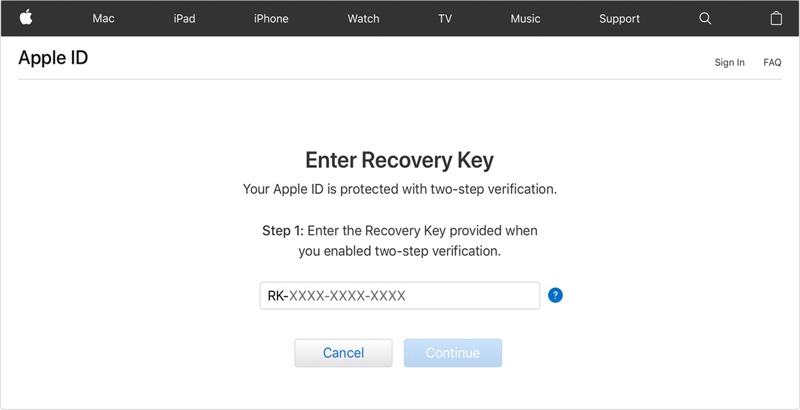
If you have enabled Recovery Key, enter the code to authenticate.
Then, leave a new password, enter it again, and confirm it.
Option 3: Email
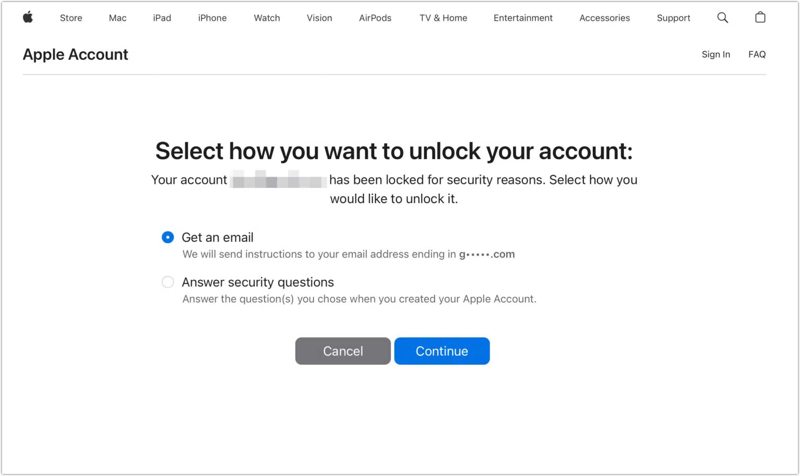
Select Get an email and click Continue.
Once you receive the confirmation email, read it and open the link.
Set a new password, retype it, and confirm unlocking the iCloud account.
Option 4: Answers Security Questions
Select Answer security questions and hit Continue.
Fill out your information, like your birthday.
Select a security question and enter the accurate answer.
Answer other questions.
Finally, create a new password for your iCloud account.
Part 4: How to Unlock iCloud Account in Apple Support
Another way to unlock an iCloud account is the Apple Support app. This way requires another iPhone or iPad. You can borrow an iOS device from a friend or family member. This way also requires you to authenticate with your phone number.
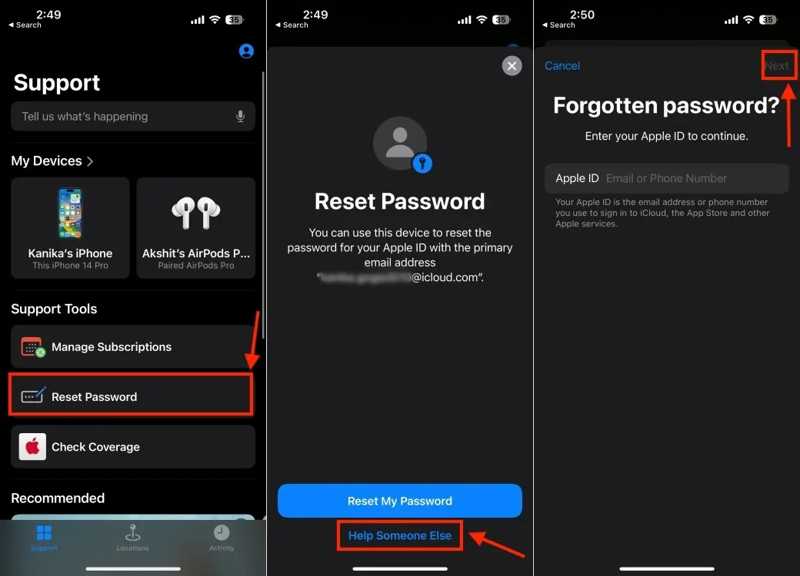
Step 1. Install the Apple Support app on a borrowed iPhone and open it.
Step 2. Tap the Reset Password option.
Step 3. Choose Help Someone Else.
Step 4. Enter your iCloud account and tap Continue.
Step 5. Input the trusted phone number and hit Continue.
Step 6. Tap Send code to [phone number].
Step 7. Type in the verification code you received.
Step 8. Enter a new password, enter it again, and tap Continue.
Further Reading
Part 5: How to Fix the Supplied iCloud Account that was Unable to Unlock this Volume
Some users reported that the error said the supplied iCloud account was unable to unlock this volume on their Mac. This error occurs when you type your password incorrectly multiple times and need to reset it. You can fix this error in the Recovery Mode.
Step 1. Power down your Mac and hold Command + R (Intel) or the Power button to enter Recovery Mode.
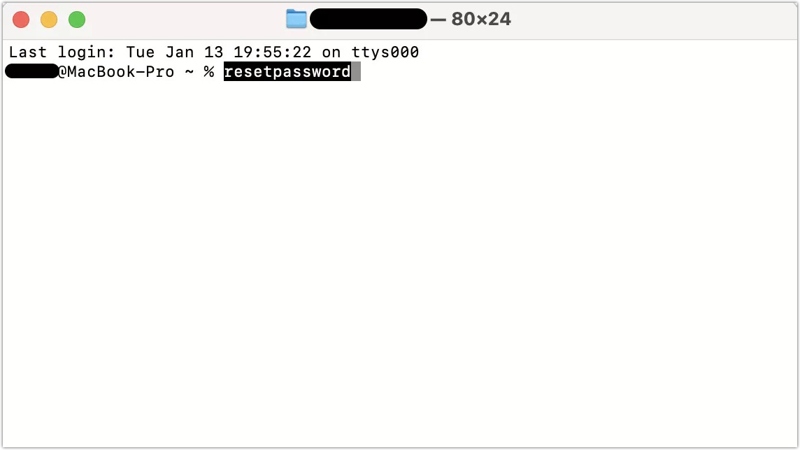
Step 2. Go to Utilities in the top menu and open Terminal.
Step 3. Type resetpassword and press the Return key on your keyboard.
Step 4. Select the option that applies to your situation and click Next.
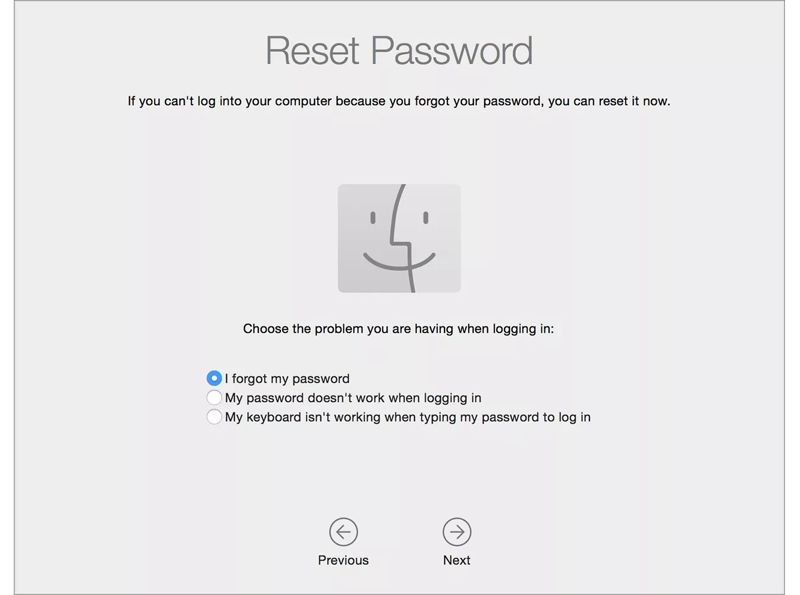
Step 5. Provide the required information and follow the instructions to reset your password.
Step 6. Click the Apple menu and choose Restart.
Part 6: How to Unlock iCloud Account If Unable to Unlock It on iPhone
A quick way to unlock an iCloud account is to remove the old account and set up a new one. From this point, we recommend Apeaksoft iFoneKit iOS Unlocker. It is able to remove the iCloud account from your iOS device without any restrictions.

Downloaded by over 1,000,000 users
- Remove iCloud account from iPhone or iPad quickly.
- Don't require a password during the process.
- Offer bonus features, like bypassing Screen Time.
- Compatible with the latest versions of iOS and iPadOS.
Secure Download
Secure Download

How to Unlock iCloud Account on Your iPhone
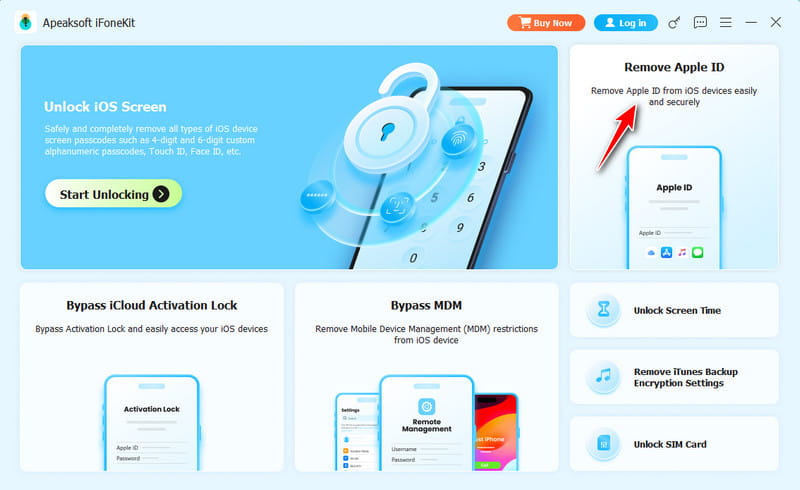
Step 1. Install the iCloud removal tool
Start the iCloud account removal tool after installing it on your computer. Choose the Remove Apple ID mode to continue.
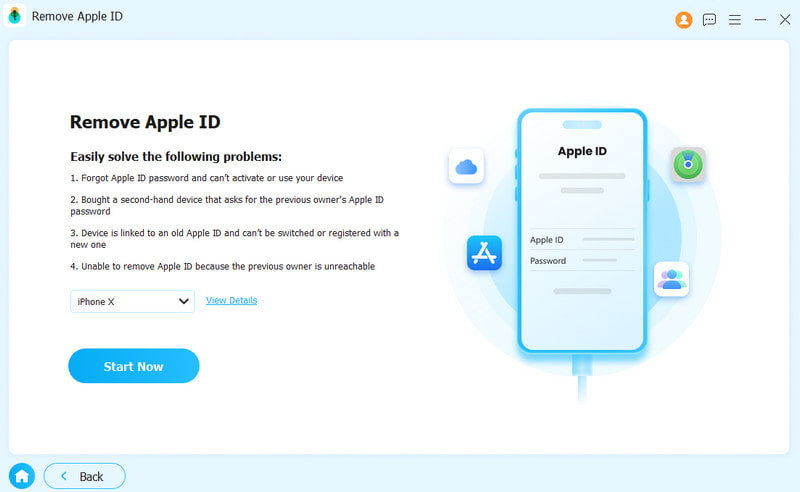
Step 2. Link to your iPhone
Plug your iPhone into your computer with a Lightning cable and make sure to trust this computer. Click the Start Now button once your device is detected.
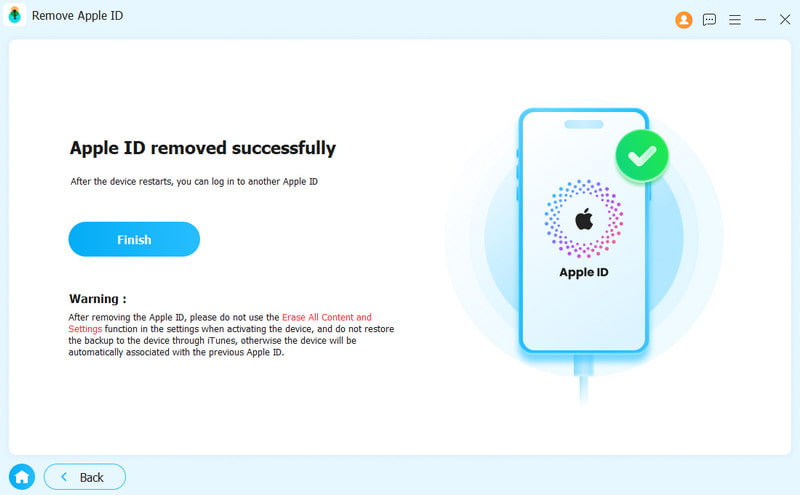
Step 3. Unlock iCloud account
If Find My is enabled, reset all settings on your device. Then, click OK and hit Confirm Again to initiate removing the iCloud account. If Find My is disabled, the software will start the process.
Conclusion
This guide explained how to unlock an iCloud account in various situations. You can pick an appropriate method and follow the detailed steps to reset the password and get your account unlocked. If you cannot unlock your account, Apeaksoft iFoneKit iOS Unlocker enables you to remove the old account and set a new one.
 Apeaksoft iFoneKit
 Unlock all types of iOS passwords from iPhone, iPad and iPod.
Secure Download
Secure Download
Related Articles




