

How to Quickly Unlock Your iPhone with Your Apple Watch

According to our research, iPhone users are more likely to have an Apple Watch. The wearable device is convenient to unlock doors, monitor health, check messages, make phone calls, and more. Furthermore, users can control and configure their wearable devices using iPhones. However, some users wonder if they can unlock an iPhone with an Apple Watch. This article intends to answer this question. More importantly, it shares more information about unlocking iOS devices.
PAGE CONTENT:
Part 1: Can You Unlock an iPhone with an Apple Watch
Apple keeps releasing innovative features in new updates. For instance, it launched a feature that allows users to unlock their iPhones with their Apple Watch when iOS 14.5 was released. In other words, you can unlock your iPhone without the passcode using your Apple Watch after setting it up.
Requirements of Unlocking iPhone with Apple Watch
- Your iPhone must support Face ID, including iPhone X and later.
- Your Apple Watch must be Series 3 or later.
- You have set up Face ID on your iPhone.
- Your iPhone must have been updated to iOS 14.5 or later.
- Your Apple Watch must run watchOS 7.4 and later.
- Your Apple Watch needs to be paired with your iPhone.
- Both iPhone and Apple Watch need to have Wi-Fi and Bluetooth enabled, but your devices don’t need to be connected to a network.
- You have set up the feature on your iPhone.
- You need to enable a passcode on your Apple Watch.
- When unlocking your iPhone with Apple Watch, your mouth and nose must be obstructed with something like a mask, or your eyes must be blocked by sunglasses.
The Scenarios When You Cannot Unlock an iPhone with an Apple Watch
- Purchase something from the Apple App Store.
- Unlock your iPhone for the first time since it was turned off.
- You don't wear your Apple Watch.
Is It as Secure as Face ID?
While you still need to scan your face when unlocking your iPhone with Apple Watch, it is not as secure as Face ID. Opening your iPhone with your Apple Watch can increase the risk. If you have sensitive data on your iOS device, you'd better consider whether you want to enable the Unlock with Apple Watch feature.
Part 2: How to Unlock iPhone with Apple Watch
In addition to unlocking the iPhone with the Apple Watch, this feature is available even if you wear sunglasses. Of course, you must configure this feature on your iPhone first. Here are the steps to set it up:
On iPhone
Step 1. Unlock your iPhone and go to the Settings app.
Step 2. Choose Wi-Fi and toggle on Wi-Fi.
Step 3. Go to the previous screen, tap Bluetooth, and toggle Bluetooth on.
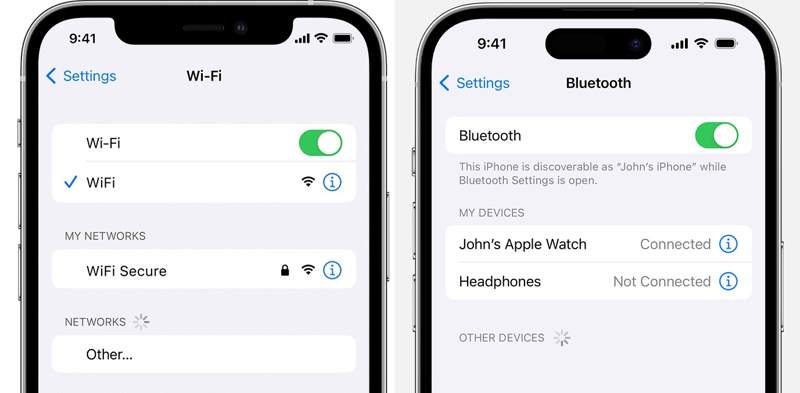
Step 4. Run the Watch app from the home screen.
Step 5. Choose Passcode, scroll down, and tap Wrist Detection.
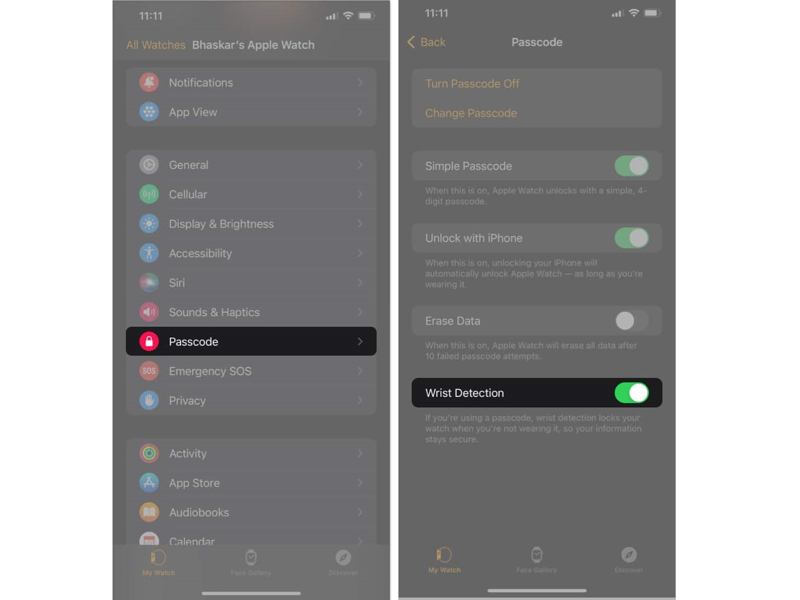
Step 6. Toggle on Wrist Detection.
Step 7. Switch to the Settings app.
Step 8. Go to Face ID & Passcode, and enter your passcode if prompted.
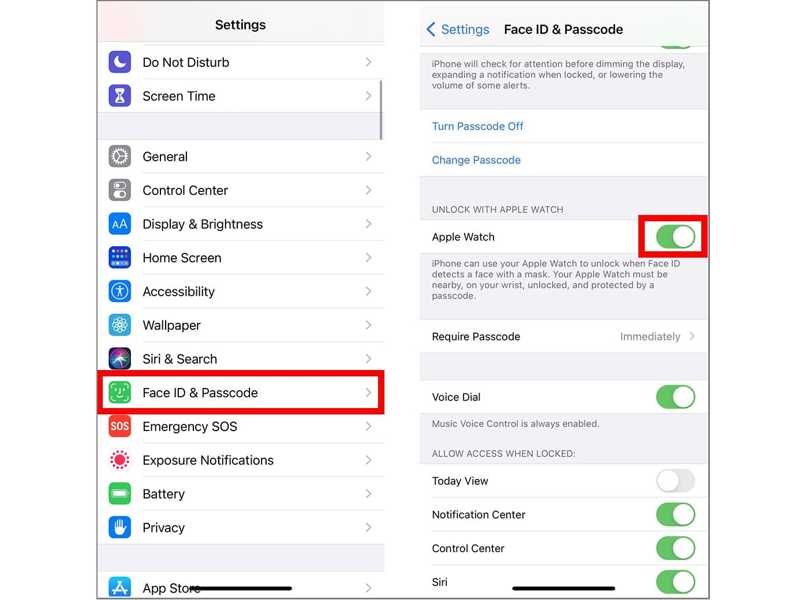
Step 9. Locate the UNLOCK WITH APPLE WATCH section and toggle on your Apple Watch.
On Apple Watch
Step 1. Press the Digital Crown button and choose Settings.
Step 2. Tap Wi-Fi and make sure to turn it on.
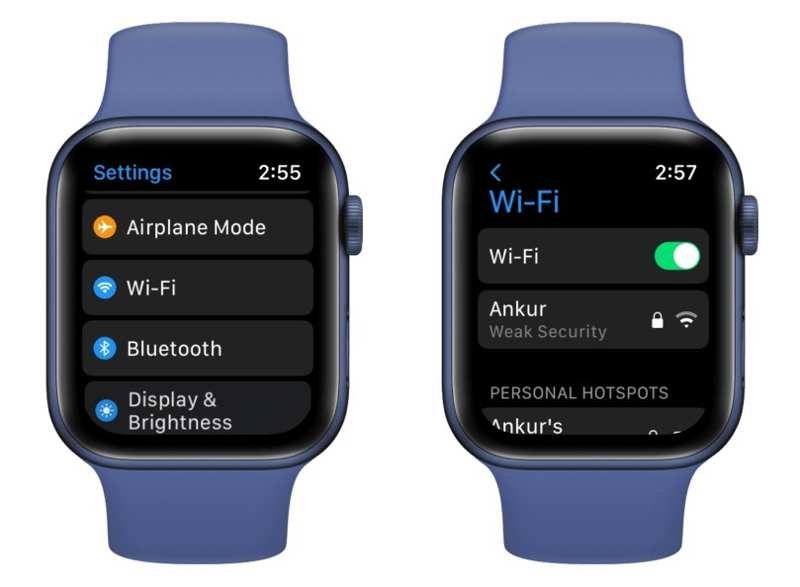
Step 3. Press the Back button, choose Bluetooth, and turn on Bluetooth.
Step 4. Back to the previous screen, choose Passcode, and tap Turn Passcode On.
Step 5. Enter a passcode if you don't have a passcode set on your watch.
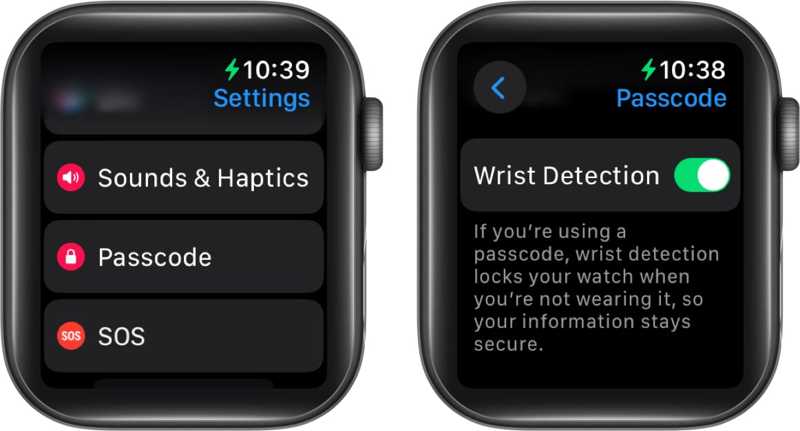
Step 6. Plus, toggle on Wrist Detection on the same screen.
Part 3: How to Fix Unlock with Apple Watch Not Working
If you have configured your iPhone and Apple Watch, but it doesn't work, you can try the fixes below to fix this problem. Then, you can unlock your iPhone with your Apple Watch directly.
Fix 1: Restart Your Devices
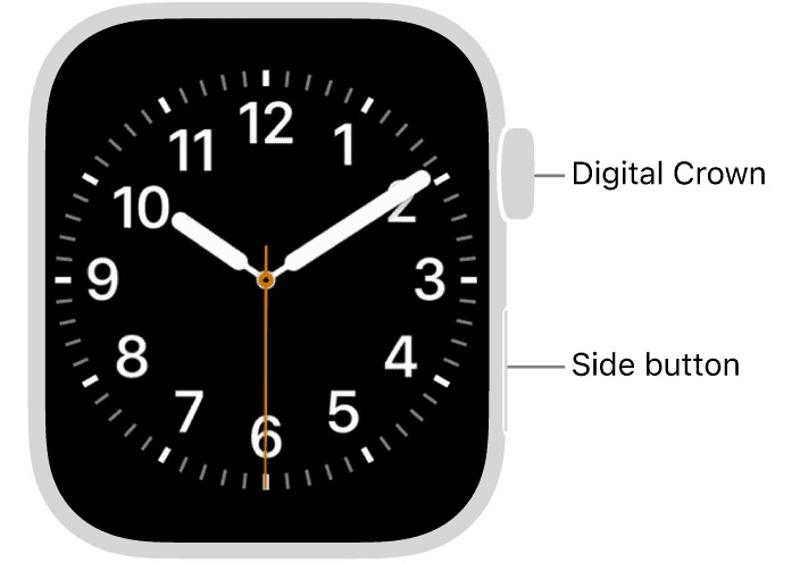
Step 1. Press and hold the Side button on your watch until you see the Power Off slider.
Step 2. Drag the slider to shut down your watch.
Step 3. Press and hold the Side button again until the Apple logo appears.
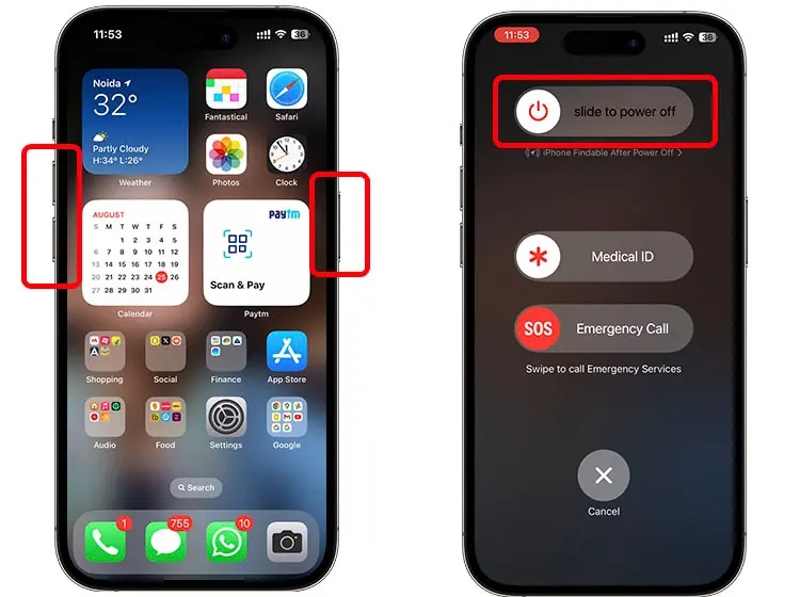
Step 4. Repeat the steps above on your iPhone.
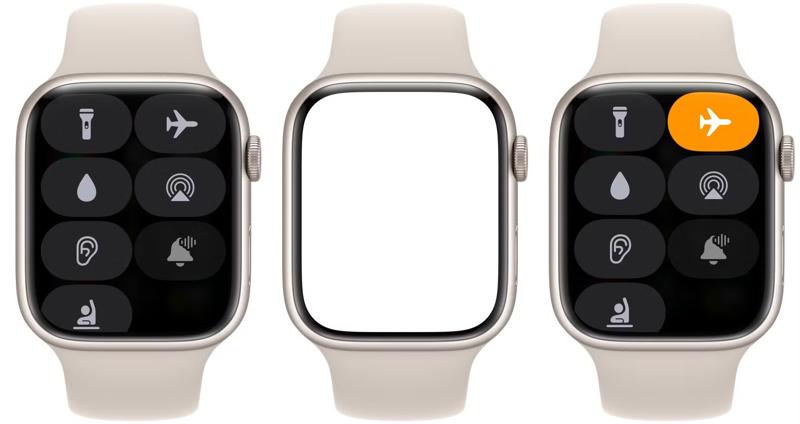
Fix 2: Enable and Disable Airplane Mode
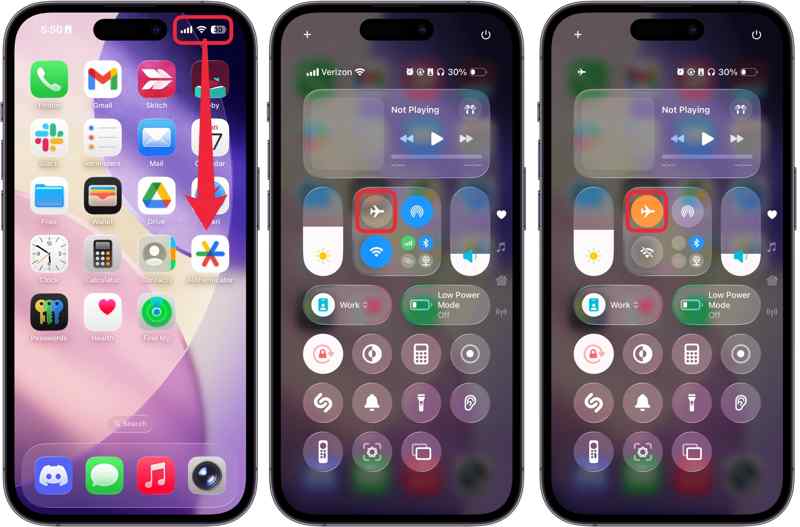
Press the Side button to enter the Control Center on your watch and tap the Airplane button to enable it. Then, tap the Airplane button again to turn it off. You also need to repeat the process on your iPhone.
Fix 3: Pair Apple Watch Again
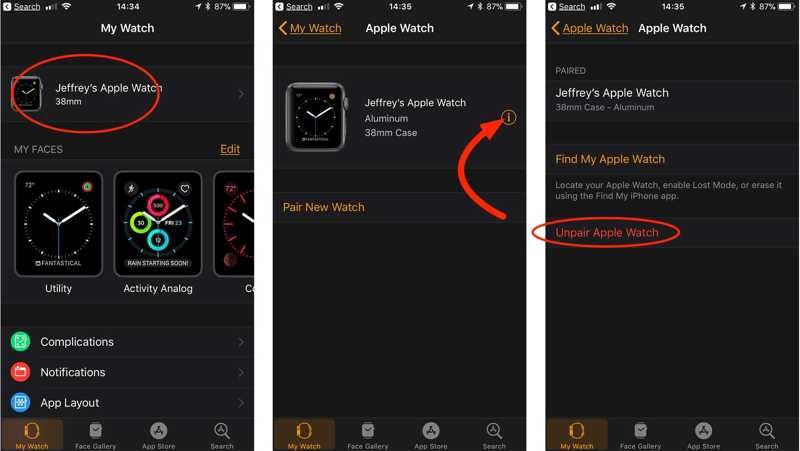
Step 1. Run the Watch app on your iPhone.
Step 2. Tap your watch, press the Info button, and choose Unpair Apple Watch.
Step 3. Put your Apple Watch on your wrist.
Step 4. Press and hold the Side button on your watch to turn it on.
Step 5. Open the Watch app on your iPhone.
Step 6. Tap Start Pairing.
Step 7. Next, press Start Pairing on your watch.
Step 8. Follow the onscreen instructions to pair your devices again.
Further Reading
Part 4: An Alternative Way to Unlock iPhone Without Passcode
Even if you don't have an Apple Watch, you can unlock your iPhone without the passcode. Apeaksoft iFoneKit is an ideal iOS unlocking program. It is able to remove any screen lock, including digit passcodes and biometric IDs. More importantly, the user-friendly interface makes it easy for beginners to learn.
A Quick Way to Unlock Your iPhone Without a Passcode or Apple Watch
- Unlock your iPhone without any restrictions.
- Work for digit passcodes, Face IDs, and Touch IDs.
- Available to locked and disabled iOS devices.
- Support the latest versions of iOS and iPadOS.
- Support the latest editions of iOS and iPadOS.
Secure Download
Secure Download

How to Unlock Your iPhone Without a Passcode
Step 1. Connect to your iPhone
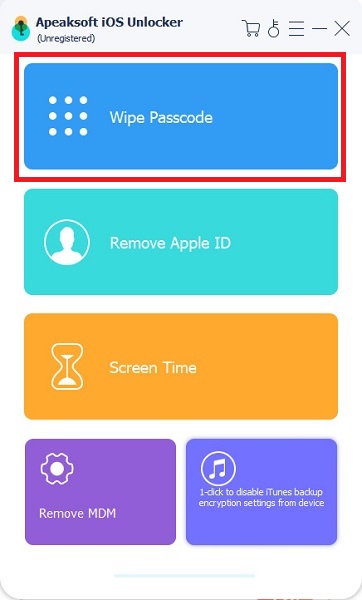
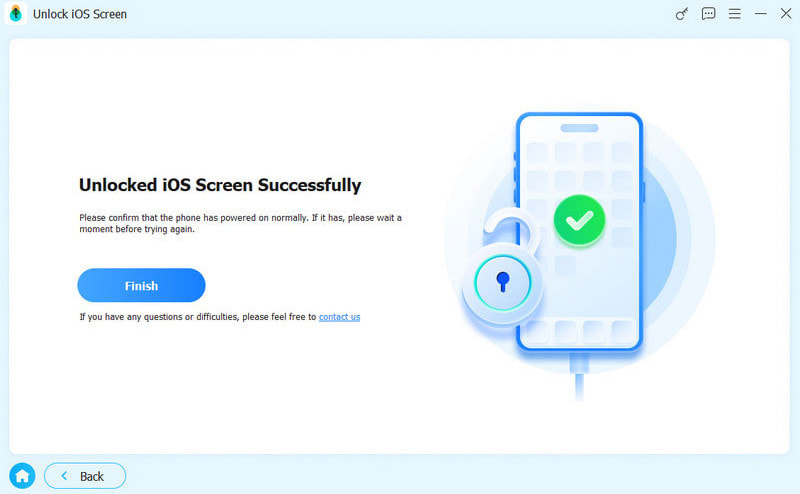
Start the iOS unlocking software after installing it on your computer. Connect your iPhone to your computer with a Lightning cable. Choose the Unlock iOS Screen mode to proceed.
Step 2. Download the firmware
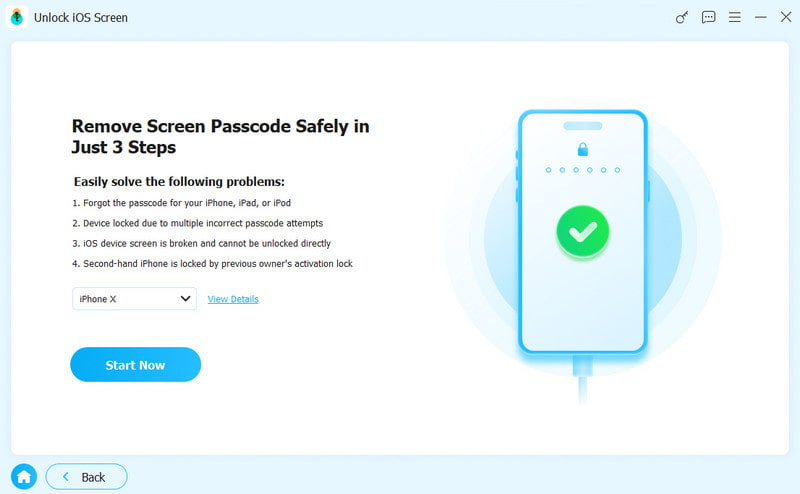
Click the Start Now button once your device is recognized. After the firmware is downloaded, click the OK button to confirm it.
Step 3. Download the firmware
Next, click the Confirm Again button to verify the firmware. When it is done, the software will automatically remove the screen locks on your iOS device.
Conclusion
This guide explained how to unlock an iPhone with an Apple Watch. You should learn the requirements if you want to use the unlock feature. Moreover, you can follow our steps to set up the unlock feature on your iPhone and Apple Watch. Apeaksoft iFoneKit is an alternative solution to unlock your iPhone without an Apple Watch or passcode without any restrictions.
Related Articles




