
Changing IMEI Numbers: Possibility, Risks, and Limits

Have you ever wondered whether it’s possible to change the IMEI number of your phone?
For some privacy reasons, however, some users may get curious if there is really no way to change the IMEI number of their mobile phone, and how to do it. If you are one of these users, you have come to the right place. This post provides a comprehensive introduction to the reasons and steps to change the IMEI number in your smartphone.
PAGE CONTENT:
Part 1: What Is an IMEI Number
What is an IMEI number? IMEI number is the abbreviation of International Mobile Equipment Identity number. The GSM network can use the IMEI number to identify valid devices for a stolen phone from accessing that network. It is available on a chip, and normally cannot be changed once the phone is in production.
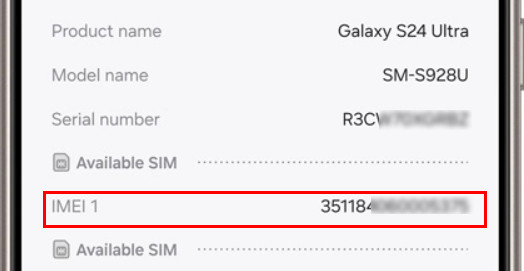
How to find the IMEI number? Usually, you can see it in the battery compartment of the smartphone. Of course, users can find the IMEI number within the phones by entering "*#06#" on the dial plate, or alongside other system information in the settings menu on the operating systems.
When and Why You Change the IMEI Number
Generally speaking, you are not supposed to change the IMEI number on your cell phone. But in the following conditions, maybe you can consider modifying the IMEI number:
- In authorized testing or R&D environments, IMEI may be temporarily changed for network and device functionality testing.
- Special groups may need to make their mobile phone unreachable or untraceable.
- You are going to fix the invalid IMEI number issue on all kinds of smartphones.
- To use the GLO BIS plan, you have to change the Android IMEI to the BlackBerry IMEI.
- To reset, update, or repair your smartphone.
- To get a new clean IMEI for your Android or other phones.
Part 2: Is It Possible to Change the IMEI Number
Can the IMEI number be changed? In reality, for modern smartphones, it is almost impossible. Modern devices store the IMEI information in a hardware-protected area that is partitioned by the chipset and security mechanisms. This area has always been locked by manufacturers and operators to prevent tampering, fraud, and network abuse. Ordinary users generally cannot modify it.
However, in some old Android devices, it is technically feasible because security protections were weaker and the IMEI was not strictly locked to secure hardware. During the development of the chip where the IMEI number is stored, the developers usually use a special tool to change it, and normally these SW are disconnected. Therefore, if you need to change the IMEI number, you can do so by injecting it into the underlying protocol stack when the stack is active.
Part 3: Risks of Changing the IMEI Number
Before moving on to how to change the IMEI number, we should discuss the risks of changing the IMEI number first.
Changing an IMEI number involves significant technical, legal, and safety risks, which users should fully understand before considering any modification.
Technical risks:
- Cellular signal loss and network inability.
- Unrecognized SIM card.
- Baseband corruption or permanent device failure (bricked phone), especially if NVRAM/EFS partitions are damaged.
- Possible inability to access emergency services.
Legal risks:
- Changing an IMEI is illegal or restricted in many countries.
- It may violate carrier terms and manufacturer warranties.
- Devices with modified IMEI may be blacklisted by operators.
Safety notice
Before making any modification to your IMEI number, please make sure to review the local laws and regulations, as well as the relevant provisions of your operator. Unauthorized changes may result in your device being unusable, invalidating the warranty, and potentially leading to serious legal consequences.
Part 4: How to Change IMEI number (Old Android Devices Only)
Before you start to modify the IMEI number on your cell phone, make sure you have prepared the following things:
- The IMEI number of your mobile device. If you are unable to find it, dial *#06# into the dialer, or find it on the receipt, the box.
- Other detail info about your smartphone, such as phone number, brand & model, account number & name.
Important Notes Before You Proceed
It is crucial to understand that not all the steps below apply to most modern smartphones. They are only relevant in very limited technical scenarios, typically involving:
- Older Android devices that run Android 5-7
- Phones powered by MediaTek (MTK) chipsets
- Devices with root access enabled
- Devices where the EFS/NVRAM partition is not locked or permanently protected
For newer Android versions and non-MTK devices, changing the IMEI number is generally not possible and may result in serious technical or legal consequences.
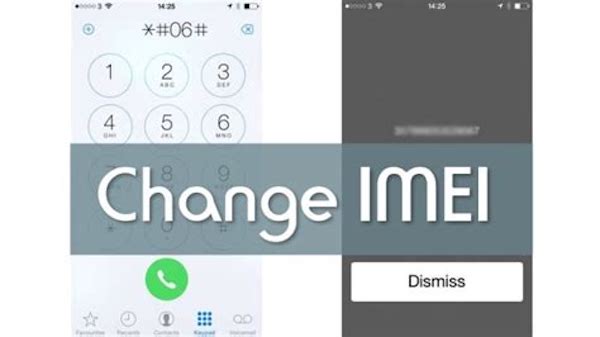
When everything is ready, let’s follow the step-by-step guide to change the IMEI number of your device. And this passage only takes an Android phone as an example.
Step 1. Launch Dial Plate
First of all, open the dial plate on your Android device, and then dial *#7465625# or *#*#3646633#*#*.
Step 2. Look for CDS info
Next, tap on Connectivity Option or Call Pad on the Android screen. Search for the detail info about CDS and then tap on it. And check for Radio info.
Step 3. Choose any IMEI number
You will get two options, such as IMEI-1 (SIM1) and IMEI-2 (SIM2), if your cell phone is a dual SIM device. Just choose the one that you are going to change the IMEI number OF. You are not allowed to change both IMEI numbers at the same time.
Step 4. Type in the new IMEI number
Enter the following code to change the IMEI number on your Android phone. Then you are able to replace IMEI-1 or IMEI-2 with your desired number, and hit on Send button.
AT +EGMR=1,7,"IMEI_1" and "AT +EGMR=1,10,"IMEI_2"
Now you have managed to change the IMEI number of your mobile phone successfully. In the same way, you are also supported to convert the Android IMEI number to any BlackBerry IMEI number.
Part 5: How to Back up Data for Android Before Changing the IMEI Number
Before you attempt to change the IMEI number on Android, the first and foremost step you need to take is to create an up-to-date backup of your device. This step is to prevent your important data and files on Android not being lost, even if the process fails or causes unexpected issues.
To securely back up your Android data, you can use a reliable backup tool such as Apeaksoft Android Data Backup & Restore.

Downloaded by over 1,000,000 users
- Backup and restore your Android data with one click.
- Back up many data types, such as photos, messages, etc.
- There is an encrypted mode to protect personal privacy.
- Selectively back up and restore your Android data.
Secure Download
Secure Download
Here are the detailed tips about how to back up your Android device before changing the IMEI number:
Step 1. Install and start Apeaksoft Android Data Backup & Restore
Download Apeaksoft Android Data Backup & Restore on your computer, and install it according to the instructions. Then launch this app, and choose one-click backup for your Android device.
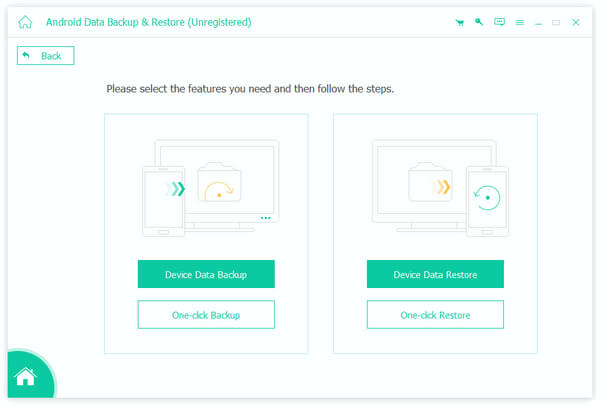
Step 2. Connect your phone to the PC
Connect your Android device to the computer via a USB cable. Once connected, this backup software will detect your cell phone automatically.
Step 3. Back up data and files
Next, tap on the Start button to launch the backup process. Just wait for a few seconds, and Android Data Backup & Recovery will do the rest for you.
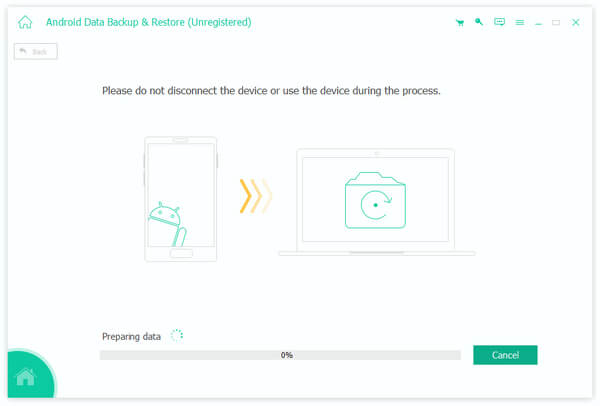
Now all your important data has been backed up to your computer. Simply follow the detailed steps in this tutorial to change the IMEI number on your Android device!
Conclusion
Now you’ve learned how to change IMEI number and its risks and premises. Now you are able to enjoy all kinds of benefits from transferring the IMEI number. Please be aware that changing the IMEI will erase your phone, so make sure to back up your data first.
 Apeaksoft Android Data Backup & Restore
 Back up and restore data selectively on Android devices.
Secure Download
Secure Download
Related Articles