

How to Fix Your iPhone Unable to Backup to iCloud or iTunes

"I suddenly cannot back up my iPhone after I update iOS. How can I resolve this problem?" It is well known that iOS is a closed operating system. Users cannot expand their storage capacity with SD cards. However, Apple had released a few ways to back up iPhone data before freeing up space. If you encounter the same problem, try our solutions to fix it and back up your data as usual.
PAGE CONTENT:
Part 1: Why You Unable to Back up iPhone
Your iPhone holds lots of information, from photos to videos, from contacts to messages. Backup iPhone ensures that you can restore your data when you accidentally delete important files or upgrade to a new device. The common factors why iPhone won't backup include:
- 1.Poor connection. Whether you back up your iPhone through Wi-Fi or a cable, a poor connection can interrupt the process.
- 2.Insufficient storage. iCloud provides 5GB of free storage for each account.
- 3.Outdated software.
- 4.Software glitches.
- 5.Your iPhone gets stuck on a specific screen.
Part 2: How to Fix iPhone Not Backup to iCloud
Solution 1: Use a Stable Internet
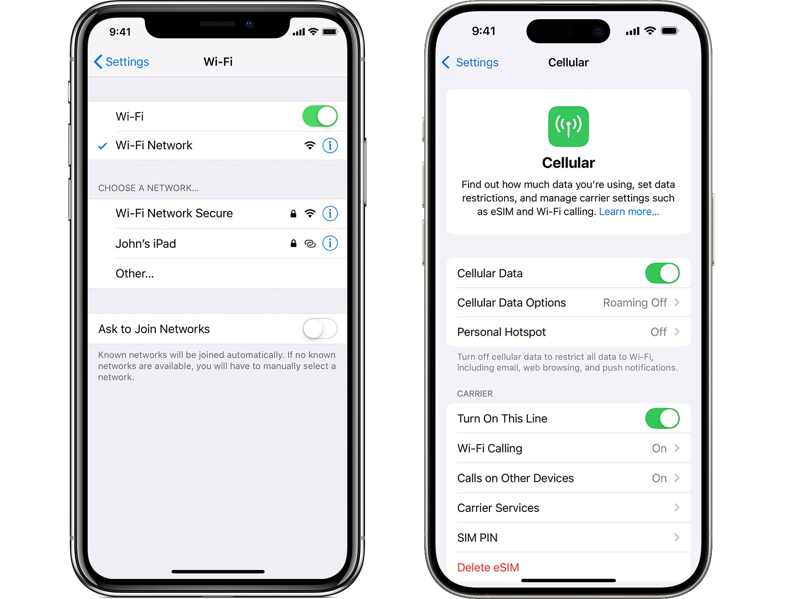
If your iPhone is unable to back up to iCloud while connected to Wi-Fi, the first thing to check is your network signal at the top of your screen. If it is stable, switch to cellular data or vice versa.
Solution 2: Free up iCloud Storage
If iPhone backup is not working due to insufficient storage, you can free up iCloud storage and delete old backup files. Bear in mind that iCloud backup files will be gone forever if you delete them.
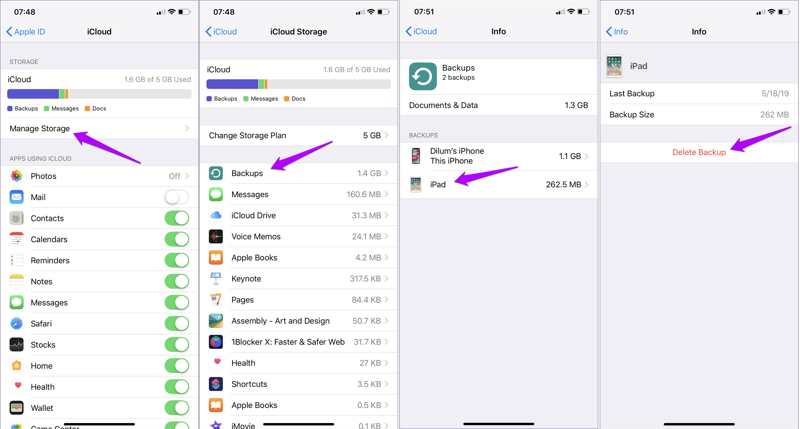
Step 1. Tap on your profile in Settings.
Step 2. Navigate to iCloud, Manage Storage, and Backups.
Step 3. Tap the unwanted device and hit Delete Backup.
Step 4. If prompted, confirm the deletion.
Solution 3: Manually Back up iPhone to iCloud
One easy solution to fix iPhone won't backup automatically is to perform a manual backup. This solution doesn't require extra software or hardware. After connecting to a network, try the steps below:
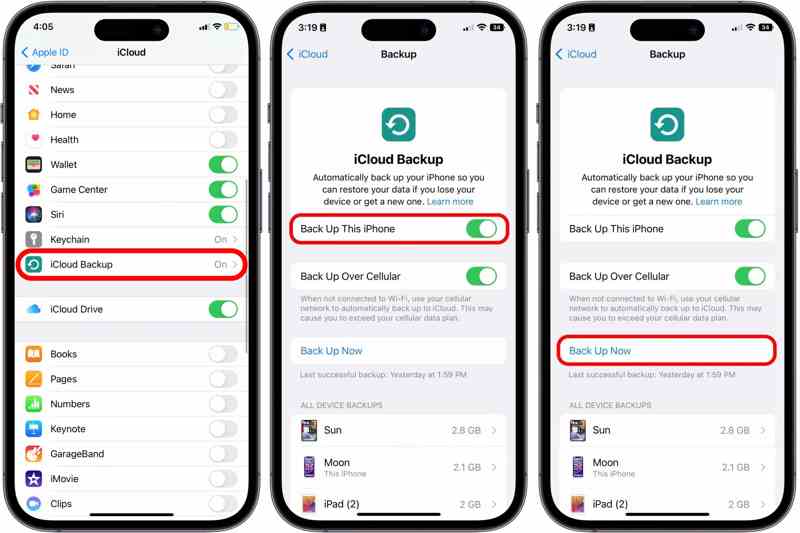
Step 1. Go to Settings and tap on your profile.
Step 2. Head to iCloud and iCloud Backup.
Step 3. Tap the Back Up Now button to initiate a backup.
Solution 4: Re-sign in to iCloud
Another solution to fix iPhone not backing up to iCloud is signing out of your account and logging in to it again. That can update your iCloud account and resolve the errors related to your account.
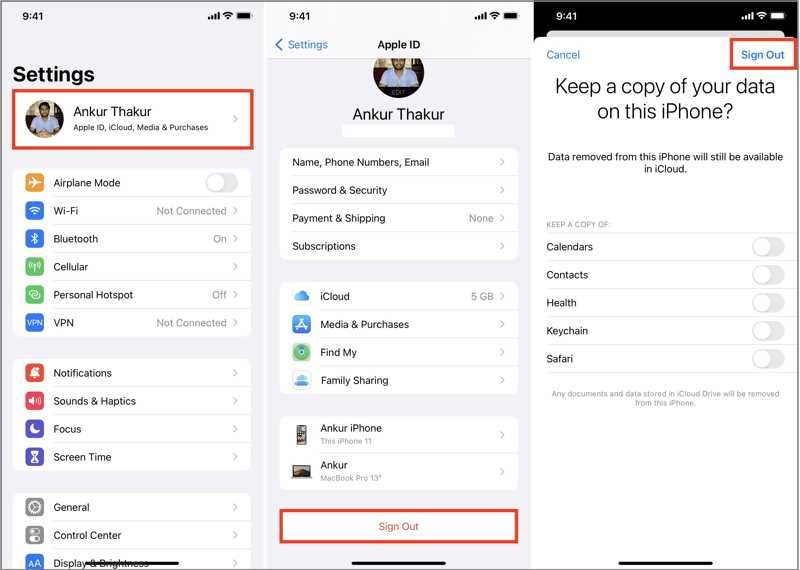
Step 1. Tap on your profile in Settings.
Step 2. Scroll down and tap Sign Out.
Step 3. If prompted, enter your Apple ID password.
Step 4. Decide whether to keep a copy of your data, and tap Sign Out.
Step 5. Next, sign in with your Apple ID and password. If you forget your Apple ID password, you should use the associated email address or phone number to reset it.
Part 3: How to Fix iPhone Not Back up to iTunes
Solution 1: Update iTunes
While Apple has stopped iTunes since macOS Catalina, it is still available on PCs and older versions of Mac. However, outdated editions of iTunes may lead to the iPhone unable to back up. Here are the steps:
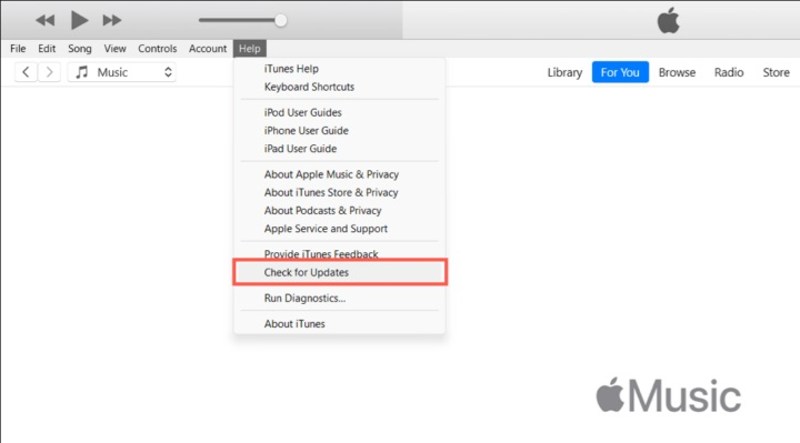
Step 1. Open iTunes from your desktop.
Step 2. Go to the iTunes menu on Mac or the Help menu on PC.
Step 3. Choose Check for Updates.
Step 4. If an update is available, install it immediately.
Solution 2: Check Compatibility
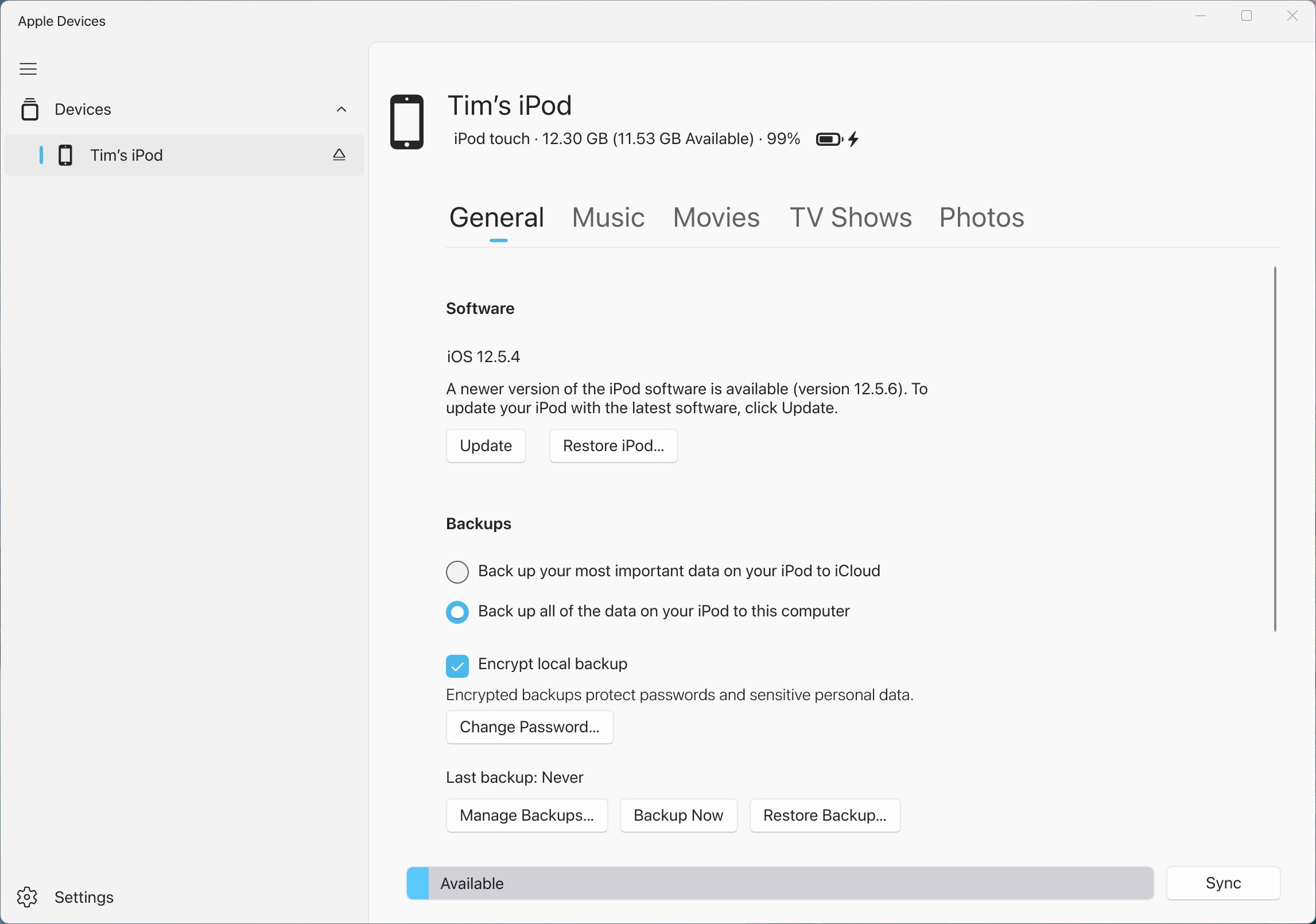
As mentioned previously, iTunes is unavailable on macOS Catalina or newer. If your iPhone won't back up to iTunes on new versions of macOS, use the Finder instead. Moreover, you can use the Apple Devices app to back up an iPhone to Windows 11/10.
Solution 3: Use Another Cable
If you cannot back up your iPhone and iTunes cannot detect your device, disconnect your device and connect it using the cable again. If the problem persists, check your cable and try another one.
Part 4: The One-stop Solution to Back up iPhone
Apeaksoft iOS Data Backup & Restore is a one-stop solution to back up your iPhone to a computer. It back up iPhone data through a physical connection when your iPhone won't back up to iCloud or iTunes.
One-stop Solution to Fix iPhone Unable to Back up
- Back up an iPhone or iPad to a computer with one click.
- Compatible with a wide range of data types.
- Restore your iPhone backup quickly.
- Support the latest versions of iOS and iPadOS.
Secure Download
Secure Download

How to Back up iPhone Without iTunes or iCloud
Step 1. Connect to iPhone
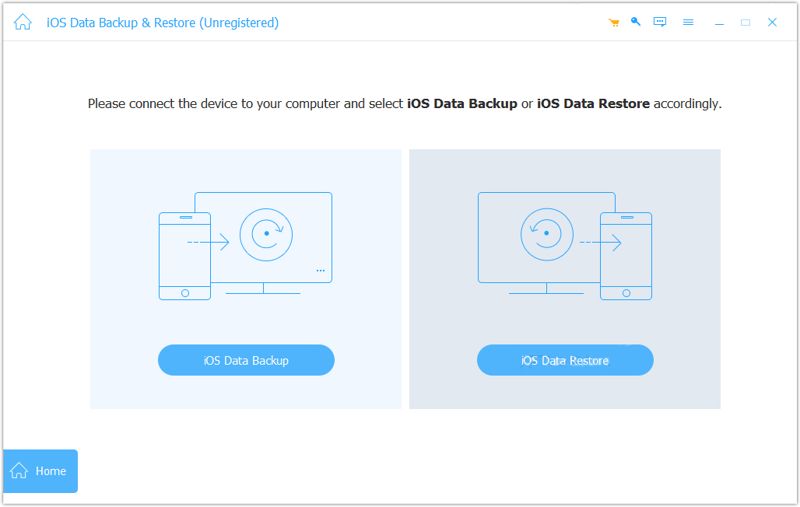
Launch the iPhone backup tool after installing it on your computer. Plug your iPhone into your computer with a Lightning cable. Click the iOS Data Backup button to proceed.
Step 2. Select data types
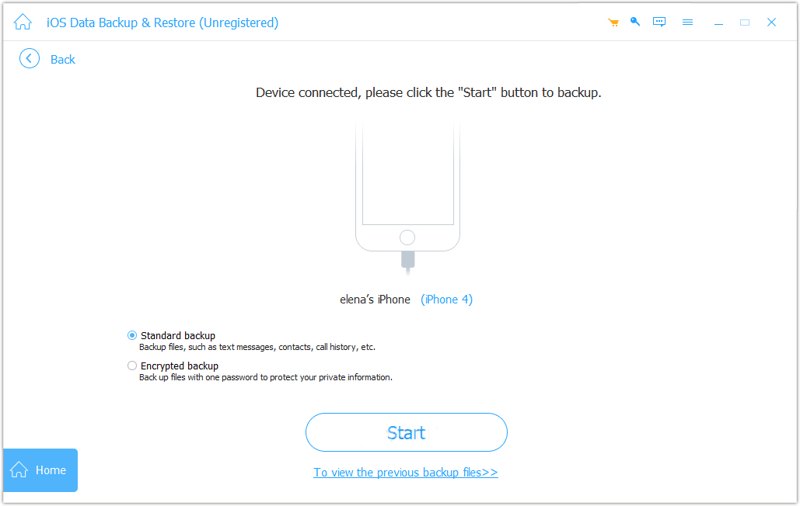
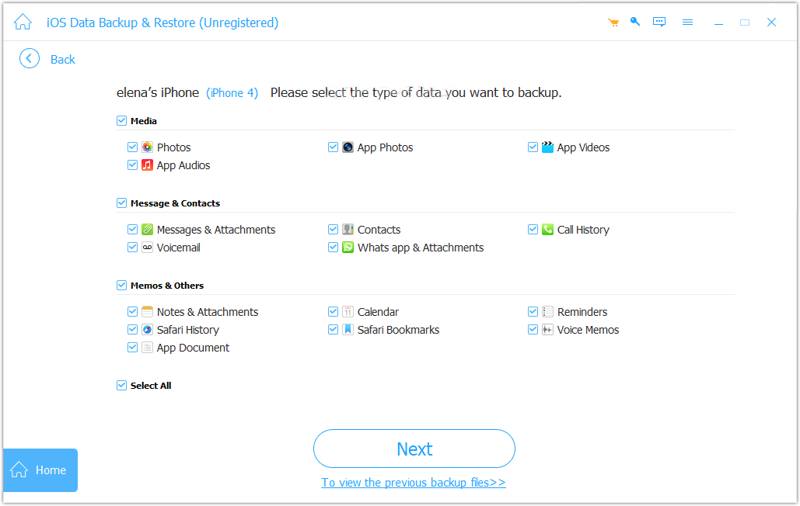
Select Standard backup and click the Start button. If you want to protect the backup, select Encrypted backup. Next, select the desired data types.
Step 3. Back up iPhone
Finally, click on the Next button to begin backing up your iPhone to the computer immediately.
Conclusion
Now, you should understand what you can do if your iPhone not backup to iCloud or iTunes. You can learn the common causes first. Furthermore, we provided verified solutions to fix this problem quickly. If the common solutions are unavailable, Apeaksoft iOS Data Backup & Restore allows you to back up your device smoothly.
Related Articles




