


What to Do If iPhone Says Support.Apple.com/iPhone/Restore

"My iPhone 16 suddenly gets stuck on support.apple.com/iphone/restore. How to get my iPhone out of the restore screen?" It is well known that iPhones are advanced mobile devices that just work. That is often true, but sometimes they simply fail. Restoring an iPhone is a practical troubleshooting solution, but your screen may get stuck on the restore screen. This article discusses how to get rid of the issue with proven solutions.
PAGE CONTENT:
Part 1: Why Does iPhone Say support.apple.com/iphone/restore
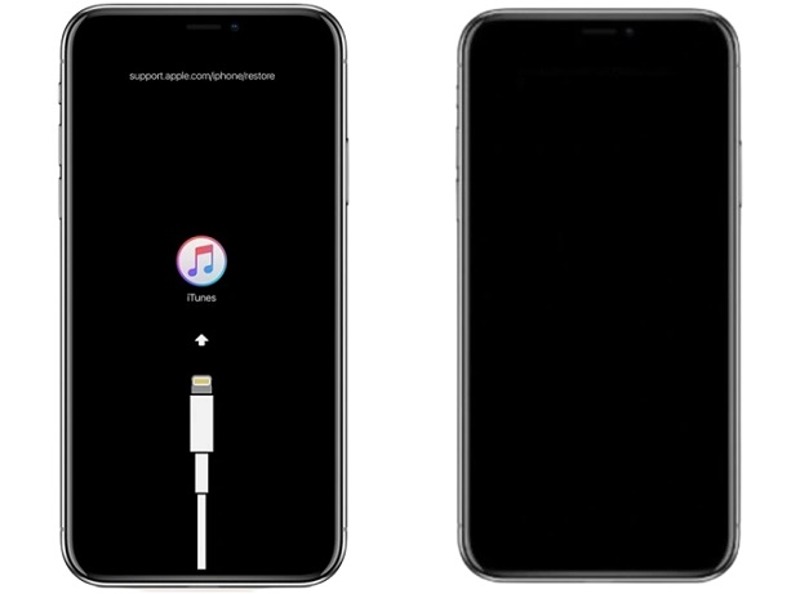
What does support.apple.com/iphone/restore mean? It means that your iPhone enters the Restore screen and waits for the next step. Sometimes, your iPhone gets stuck on the Restore screen when you update or restore your device.
Why does your iPhone say support.apple.com/iphone/restore? The main reasons include:
- 1.Your iPhone enters Recovery Mode.
- 2.The device firmware has crashed.
- 3.Something is wrong with the firmware.
- 4.Software glitches.
- 5.Hardware damage.
Part 2: 6 Solutions to Fix support.apple.com/iphone/restore
Solution 1: Restart Your iPhone
Restarting your iPhone is a simple solution to fix support.apple/iphone/restore. It closes all apps in the background, clears cache data, and refreshes your operating system. This solution won't damage the data on your device.
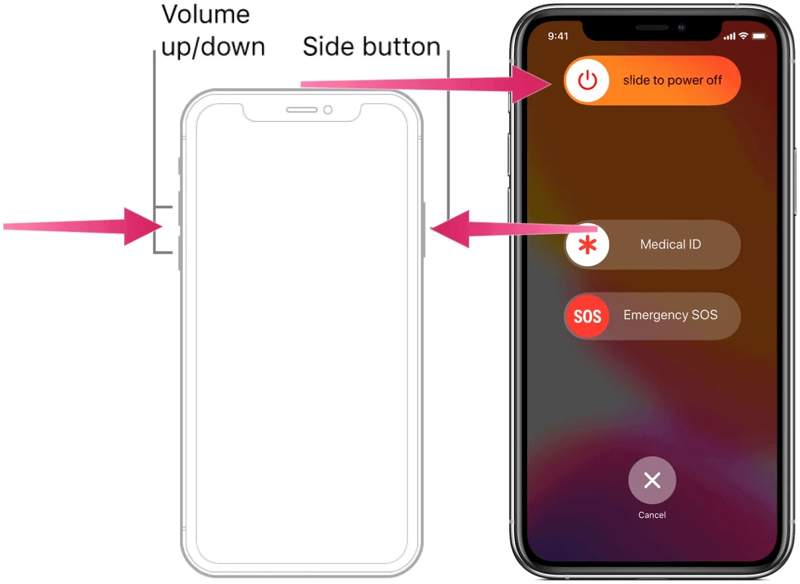
Step 1. On an iPhone with Face ID, hold one of the Volume buttons + the Side button together. On an iPhone without Face ID, hold down the Side/Power button.
Step 2. When the power-off screen appears, release the buttons or button.
Step 3. Move the slider to shut down your iPhone.
Step 4. A few minutes later, long-press the Side or Power button until you see the Apple logo.
Step 5. Now, check if your iPhone enters the standard screen.
Solution 2: Force Restart Your Device
If simply restarting your iPhone cannot fix support.apple.com/iphone/restore, you can try force-restarting. This solution lets you regain access to your device even if your iPhone screen gets stuck or frozen.
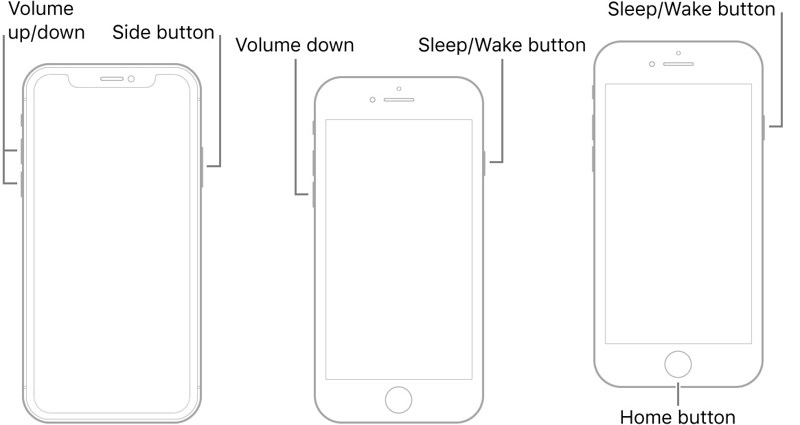
iPhone 8 and later
Press and quickly release the Volume Up button. Press and quickly release the Volume Down button. Hold down the Side button until the Apple logo is visible.
iPhone7/7 Plus
Hold down the Volume Down + Side buttons together. When you see the Apple logo, release the buttons.
iPhone 6s and earlier
Long-press the Home + Sleep/Wake buttons simultaneously.
Release the buttons once the Apple logo appears.
Now, your iPhone should boot to the lock screen.
Solution 3: Update iPhone with iTunes
Your iPhone may say support.apple.com/iphone/restore when the update fails. iTunes allows you to update your device with a computer. After updating, the Restore screen should disappear. Here are the steps:
Step 1. Connect your iPhone to a computer with a USB cable.
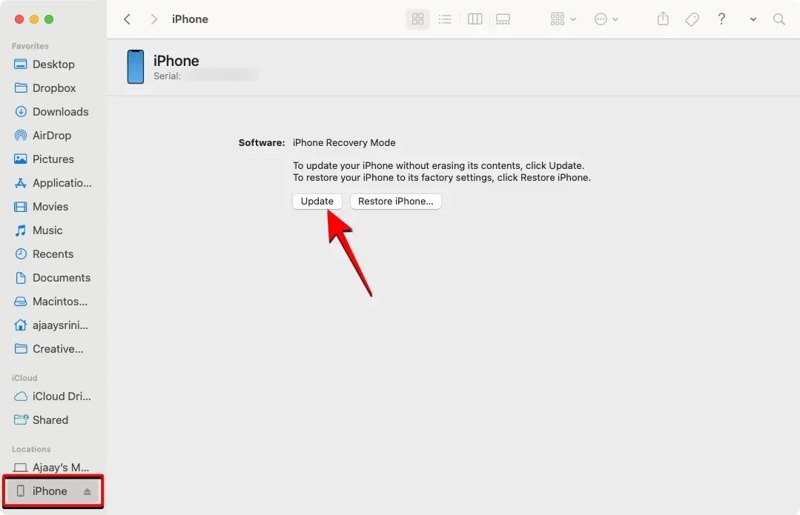
Step 2. Open the latest version of iTunes on Windows and macOS Mojave or earlier. Open Finder on macOS Catalina or later.
Step 3. Click the Phone button in iTunes or your iPhone name in Finder after your device is recognized.
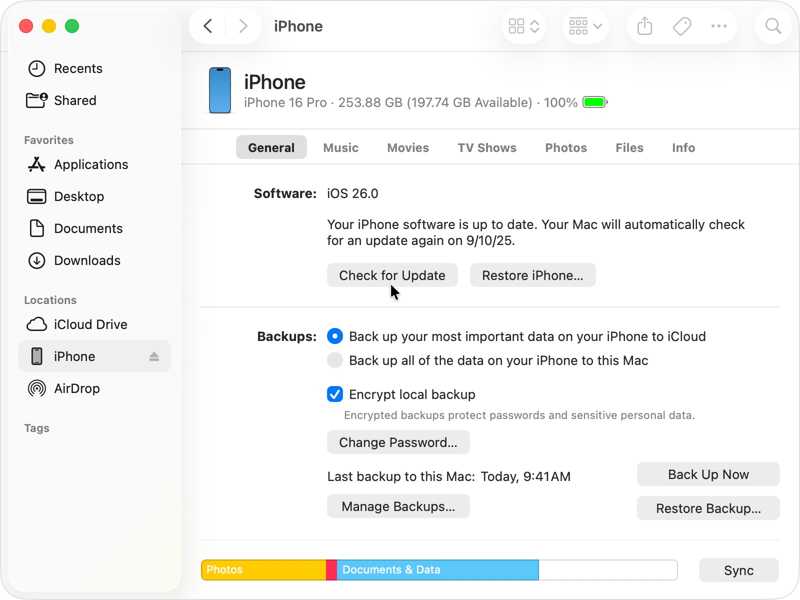
Step 4. Go to the Summary or General tab.
Step 5. Click the Check for Update button to search for updates.
Step 6. If an update is available, click Download and Update.
Step 7. Follow the onscreen instructions to install the update on your iPhone.
Solution 4: Restore iPhone in Recovery Mode
A more drastic solution to fix support.apple.com/iphone/restore is restoring your iPhone in Recovery Mode. The process will erase all data on your device and install the latest version of the software on your iPhone.
Step 1. Plug your iPhone into a computer with a compatible cable.
Step 2. Open iTunes or Finder according to your operating system.
Step 3. Put your device in Recovery Mode. The button combination is the same as force-restart.
Step 4. Once the Recovery Mode screen appears, release the button or buttons.
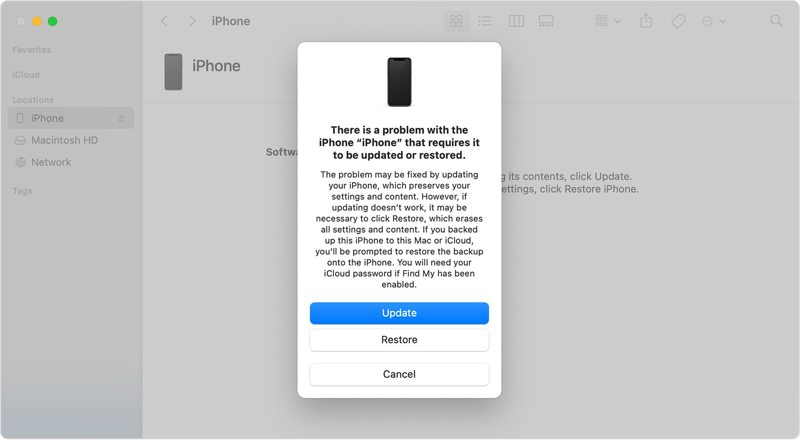
Step 5. A dialog will pop up if iTunes or Finder detects your iPhone in Recovery Mode.
Step 6. Click the Restore button to start restoring your device.
Solution 5: Try DFU Mode
DFU mode stands for Device Firmware Update mode. It is an ultimate solution to fix support.apple.com/iphone/restore. It is available if Recovery Mode is not working. It enables you to reinstall firmware on your device and fix serious software glitches.
Step 1. Use a compatible cable to connect your iPhone to your computer.
Step 2. Run iTunes or Finder.
Step 3. Put your device in DFU mode:
For iPhone 8 and newer
Quickly press and let the Volume Up button go. Do the same thing to the Volume Down button. Press and hold the Side button until your screen turns black. Keep holding the Side button and hold down the Volume Down button for 5 seconds. Then, release the Side button while keeping pressing the Volume Down button for another 10 seconds.
For iPhone 7/7 Plus
Hold both the Side + Volume Down buttons for 10 seconds. Release the Side button, but keep holding the Volume Down button for 5 seconds.
For iPhone 6s and earlier
Hold down the Home + Sleep/Wake buttons for 10 seconds. Release the Sleep/Wake button while keeping holding the Home button for another 5 seconds.
Step 4. If your screen is still black and iTunes or Finder detects your iPhone, you are in DFU mode.
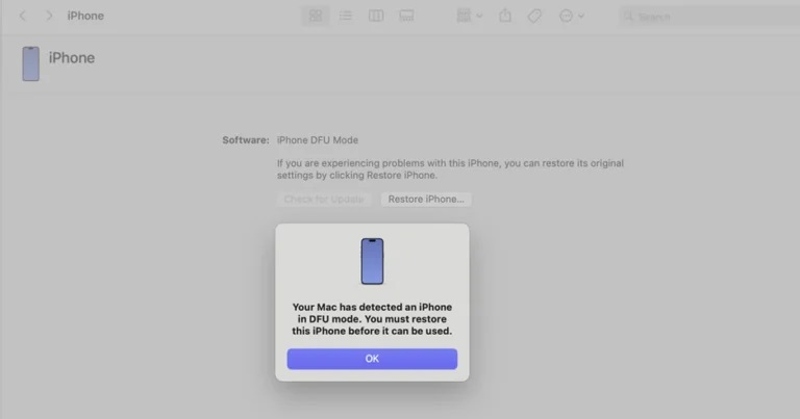
Step 5. Then, click OK and choose Restore iPhone.
Part 3: Bonus Tip: How to Recover Data After Fixing support.apple.com/iphone/restore
When your iPhone says support.apple.com/iphone/restore, the touchscreen is black, and you are locked out of your device. Moreover, your data may be lost during the troubleshooting process. Fortunately, Apeaksoft iPhone Data Recovery can help you recover your data even if you don't have a backup.

Downloaded by over 1,000,000 users
- Recover data from iPhone memory with 3 steps.
- Extract data from iCloud/iTunes backup without resetting the iPhone.
- Support a wide range of data types and formats.
- Preview lost data for selective recovery.
- Compatible with the latest editions of iOS and iPadOS.
Secure Download
Secure Download

How to Recover Data After Fixing support.apple.com/iphone/restore
Step 1. Scan your iPhone
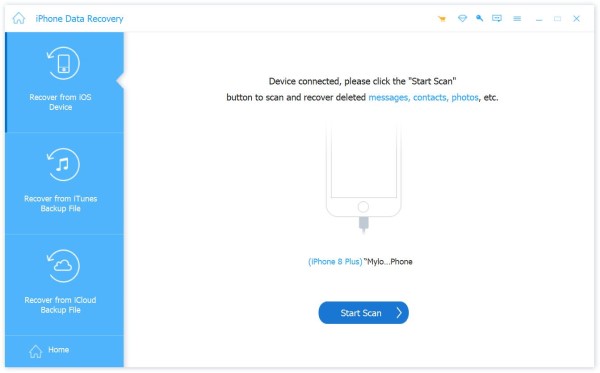
Open the iPhone data recovery software after installing it on your PC. There is another version for Mac users. Choose the Recover from iOS Device tab. Link your iPhone to your PC with a Lightning cable. Make sure to trust this PC and click the Start Scan button to begin looking for data on your iPhone memory.
Step 2. Preview your data
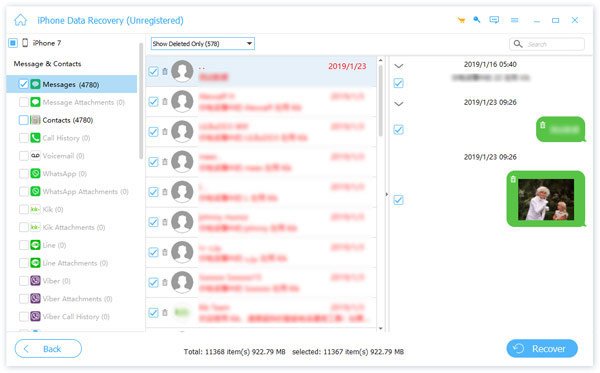
When data scanning is complete, you can preview your data by type. If you wish to recover photos, for example, select Photo Library, Camera Roll, and more. Now, you can view the files on your iPhone.
Step 3. Recover iPhone data
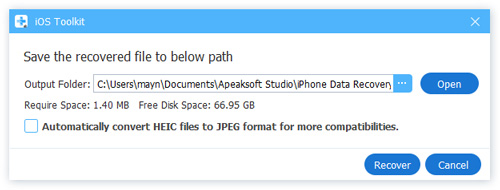
Select the files and items you want to retrieve and click the Recover button at the bottom right corner. Set an output folder in the dialog and click Recover again. When the process finishes, disconnect your iPhone, and you can find your iPhone data even if it says support.apple.com/iphone/restore.
Conclusion
This article explained why your iPhone says support.apple.com/iphone/restore. More importantly, you can learn the effective solutions to fix this problem on your iPhone without losing data. Chances are that your data may be inaccessible or lost during the process. Therefore, we recommended Apeaksoft iPhone Data Recovery to help you get back lost data from your iPhone memory, even if you haven't backed up your data before the error occurs.
 Apeaksoft iPhone Data Recovery
 Recover deleted or lost data from iOS Devices, iTunes, and iCloud backup.
Secure Download
Secure Download
Related Articles




