

How to Back up WhatsApp Data and Restore It Easily

Losing your chat history on WhatsApp can feel like losing a digital diary. Whether you're switching to a sleek new phone or just want peace of mind, it's very important and practical to master WhatsApp backup and restore.
This guide will offer everything you need to know about securing and recovering your data in WhatsApp, including the latest security updates and cross-platform transfers. You'll know how to back up and restore WhatsApp messages, photos, videos, and more data with ease.
PAGE CONTENT:
Part 1: How to Back up WhatsApp on Android and iPhone
WhatsApp doesn't store your messages on its own servers for privacy reasons. Instead, it relies on your personal cloud storage. You can use some popular cloud storage services, like Google Drive and iCloud, to back up WhatsApp in iPhone or Android phone.
Method 1: Back up WhatsApp with Google Drive (Android)
Step 1. Open the WhatsApp app and tap the More button on the top right side. Then, tap the Settings button.
Step 2. Tap Chats, and then select Chats Backup. Then, select your Google account.
Step 3. Then, tap the Back up button to start WhatsApp Chat backup.
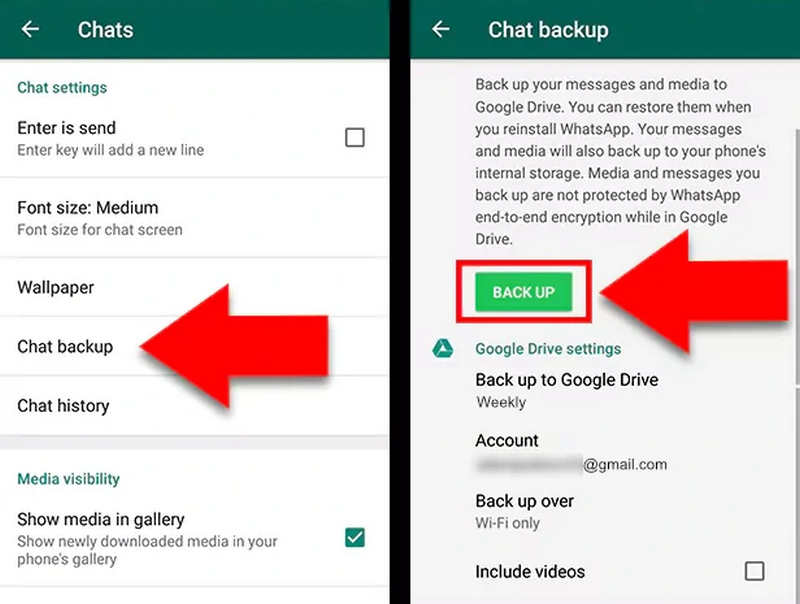
Tips: You can set the Back up to Google Drive frequency to Daily to minimize data loss. As of 2026, WhatsApp has introduced Storage Integrity checks to ensure your backups aren't corrupted before they upload.
Method 2: Back up WhatsApp to iCloud (iOS)
If you want to know how to back up WhatsApp images and messages after phone reset on iOS devices, then iCloud is a good choice. It can back up many types of info and data in your WhatsApp on iPhone.
Step 1. Open WhatsApp and go to Settings on the bottom right side.
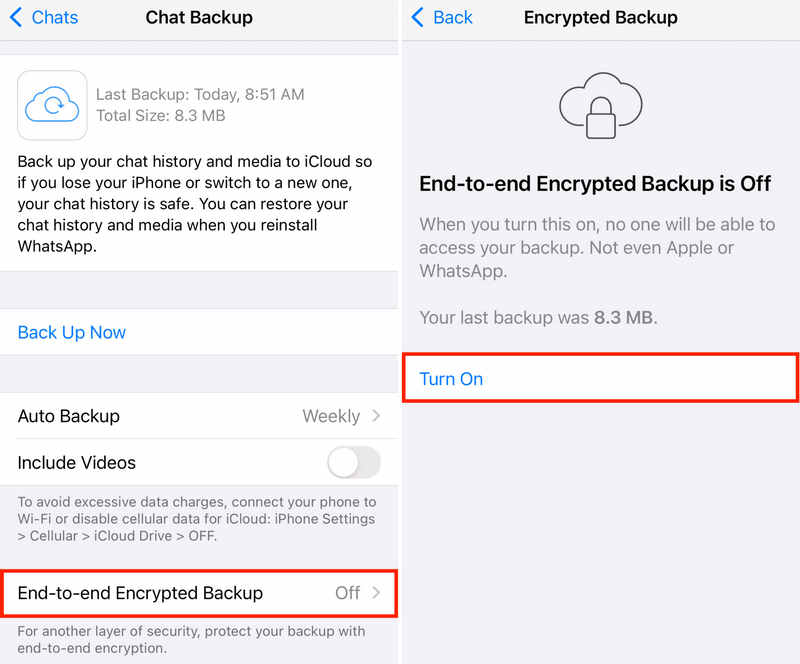
Step 2. Tap Chats, and then select Chats Backup. Then, tap the Back Up Now button. That's how to back up WhatsApp in iPhone 18 Pro/17/16.
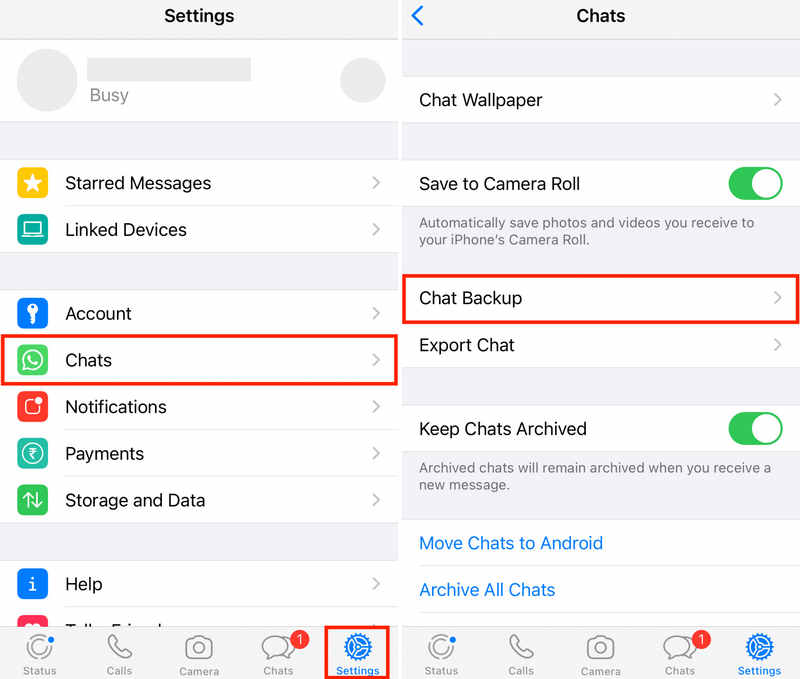
Tips: You can also select Auto Backup to Daily or Weekly for automated backup. You can also turn on End-to-end Encrypted Backup to protect your WhatsApp messages backup.
Part 2: How to Restore WhatsApp on Android and iPhone
If you have ever backed up WhatsApp with iCloud or Google Drive, then it is very easy to restore WhatsApp backup. You can uninstall and install WhatsApp again and follow the on-screen prompts to import WhatsApp backup easily.
Step 1. Uninstall WhatsApp and then install in again from the App Store or Google Play.
Step 2. Follow the on-screen guide to set up and log in to your WhatsApp account.
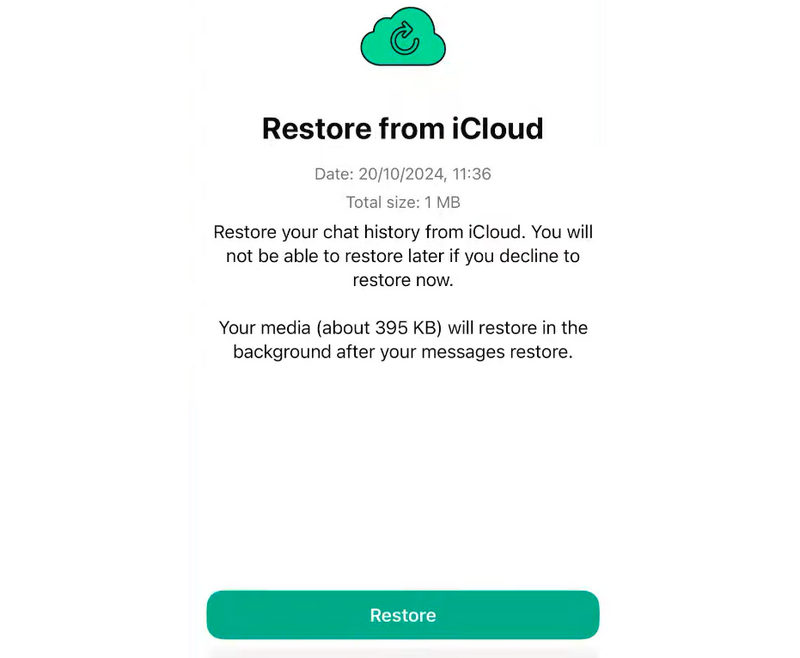
Step 3. WhatsApp will detect the backup on Google Drive or iCloud. Then, tap the Restore button to restore your WhatsApp data.
Step 4. Wait for the process to finish. Your messages will appear first, followed by media (photos/videos) in the background.
Part 3: The Easiest Tool to Back up and Restore WhatsApp on iPhone
How can you make WhatsApp backup and restore easy? Apeaksoft iOS Backup & Restore can help you. It is a very easy-to-use dedicated program to back up and restore data and info for iOS devices like iPhone and iPad. You can quickly back up and restore data without needing an internet connection, while keeping your data safe and sound.
Moreover, it can not only back up and restore WhatsApp messages and media, but also manage local videos, photos, contacts, messages, and more on your iPhone. You won't encounter data loss with this program.
A Quick Way to Duplicate an iPhone with One Click
- Connect your iPhone to your computer to back up and restore WhatsApp.
- Support messages, videos, images, and other media files in WhatsApp.
- Keep your WhatsApp data and info safe and protect your privacy.
- Work on all iPhone and iPad series and models.
Secure Download
Secure Download

How to Back up WhatsApp with Apeaksoft iOS Data Backup & Restore
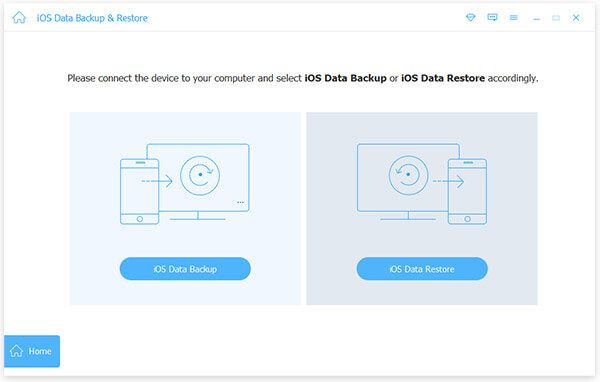
Step 1. Connect your phone
Download, install, and launch Apeaksoft iOS Data Backup & Restore. Connect your iPhone or iPad to your computer. Then, click the iOS Data Backup button.
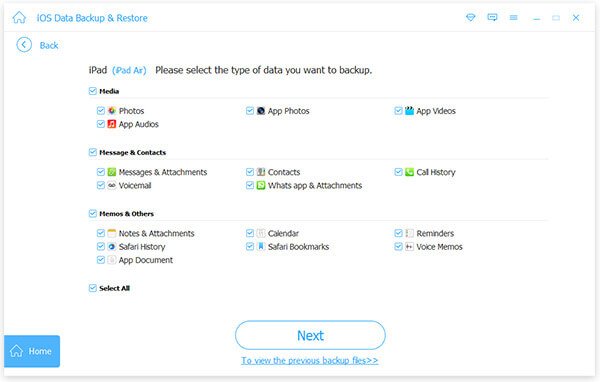
Step 2. Select WhatsApp
This program will detect your phone. After that, you should select Whatsapp & Attachments. Click the Next button.
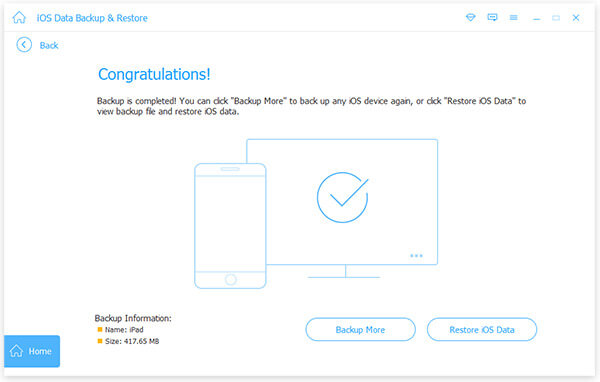
Step 3. Back up WhatsApp
If prompted, enter the passcode on your iPhone to start WhatsApp backup on your iPhone. For a while, it will successfully back up your WhatsApp data and info.
How to Restore WhatsApp Backup in Apeaksoft iOS Data Backup & Restore
Step 1. Connect your iPhone
To restore WhatsApp backup on your iPhone, you still need to connect your iPhone to your computer. Then, click the iOS Data Restore button.
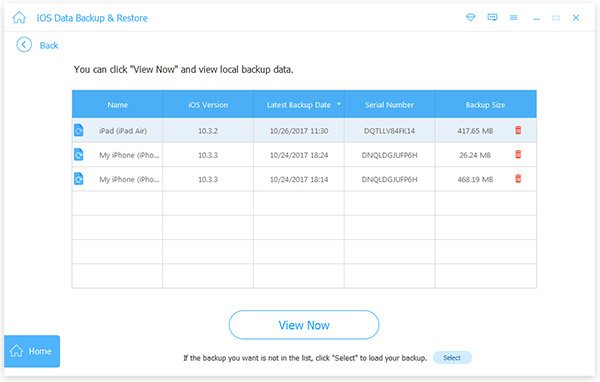
Step 2. Select Your Backup
You can see one or multiple backup histories here. Select one and click the View Now button.
Step 3. Restore WhatsApp Backup
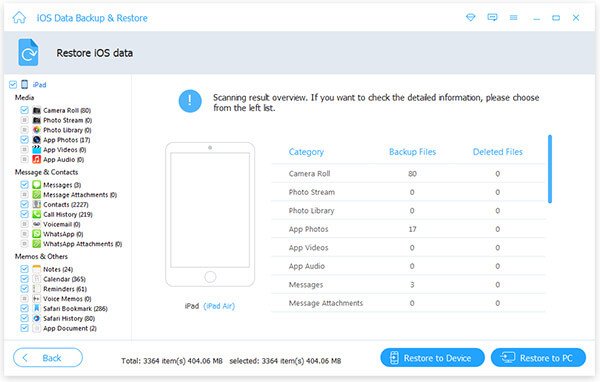
Then, you will see all backup files. Select WhatsApp and WhatsApp Attachments and click the Restore to Device button to import WhatsApp backup to your iPhone or iPad.
Part 4: Tips and Troubleshooting for WhatsApp Backup and Restore
1. Restore or Transfer WhatsApp Data from Another Phone
You can also restore WhatsApp backup on another phone with your iCloud or Google Drive backup. This method can also be used to transfer WhatsApp messages and media files from phone to phone.
2. Restore WhatsApp Backup on Android to iPhone or Vice Versa
If you want to import WhatsApp backup to a different OS, like from Android to iPhone, the methods above won't help. You can only use Move to iOS or QR scan methods to do that.
3. 2026 New Features in WhatsApp
WhatsApp supports end-to-end encryption to protect your WhatsApp backup.
A new 2026 update allows you to back up videos using high-efficiency codecs, saving up to 40% more space on your Google Drive or iCloud storage.
For those using the multi-account feature, you can now manage separate backup schedules for your personal and professional profiles within the same app.
Conclusion
This article tells you how to back up WhatsApp on iPhone and Android and how to restore backups. WhatsApp allows you to directly back up WhatsApp messages and media files to Google Drive or iCloud within the app. If you want to back up or restore WhatsApp without an internet connection, Apeaksoft iOS Data Backup & Restore is your good choice. It can also quickly back up and restore WhatsApp data without data loss.
Related Articles




