

How to Delete iCloud Account With or Without Password

It is well known that an Apple ID account plays a key role in the Apple ecosystem. Your iCloud account, for example, is linked to your Apple ID account. If you intend to get rid of the Apple ecosystem for some reason, you need to delete your iCloud account. Deleting your account is a permanent action and includes two stages. If you are sure, our guide will tell you how to complete the process.
PAGE CONTENT:
Part 1: How to Delete iCloud Account on iPhone/iPad
Once you erase your iCloud account, all your data synced to iCloud and iCloud backups will be removed. To get started, you must delete the account from all your Apple devices. You can delete it on your iPhone or iPad with or without a password.
How to Delete iCloud Account Without Password
If you forgot your Apple ID password, erasing your iCloud account will become difficult. Fortunately, Apeaksoft iOS Unlocker can help you resolve this problem. It is able to delete an account from any iOS device without a password or passcode.
A Quick Way to Delete an iCloud Account from an iPhone/iPad Without a Password
- Remove the iCloud account from your iOS device quickly.
- Available in various situations, including a disabled device.
- Offer bonus features, like bypassing MDM.
- Support the latest editions of iOS and iPadOS.
Secure Download
Secure Download

Here are the steps to delete an iCloud account without a password:
Step 1. Install iOS Unlocker
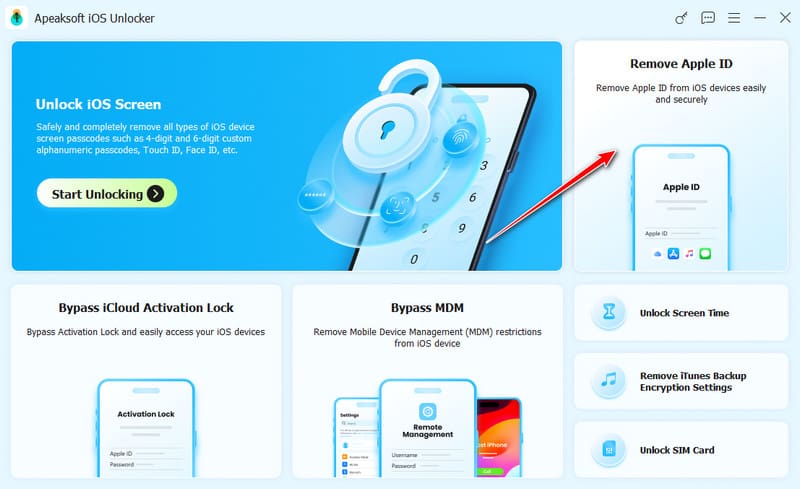
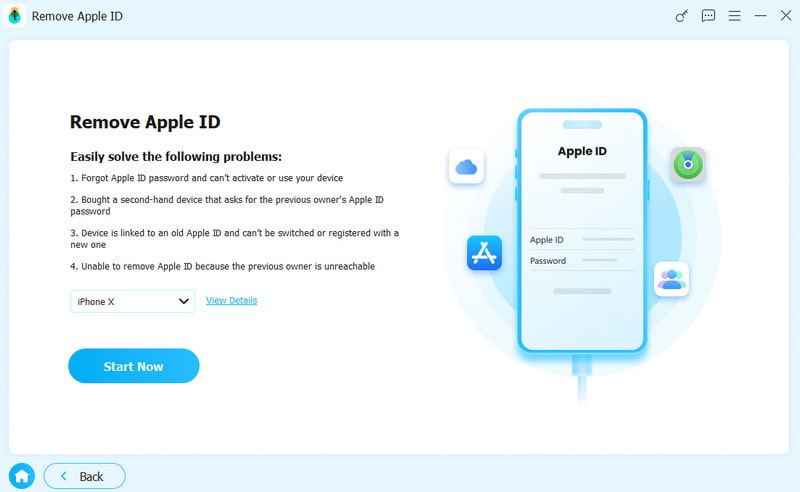
Launch the iOS unlocking software after installing it on your PC. There is another version for Mac. Connect your iPhone to your PC with a Lightning cable. If prompted, tap Trust on your screen to trust this PC. Choose the Remove Apple ID mode and click the Start Now button.
Step 2. Remove iCloud account
Situation 1: Find My is disabled
The software will remove your iCloud account automatically.
Situation 2: Find My is enabled
Open the Settings app on your iPhone, go to General, Transfer or Reset, Reset, and pick Reset All Settings. If you are not sure, follow the onscreen instructions to reset your device. Then, click OK on the confirmation dialog and confirm it again. When it is done, the software will start removing iCloud account from your iPhone immediately. During the process, keep your device connecting to your computer.
How to Delete an iCloud Account from an iPhone/iPad
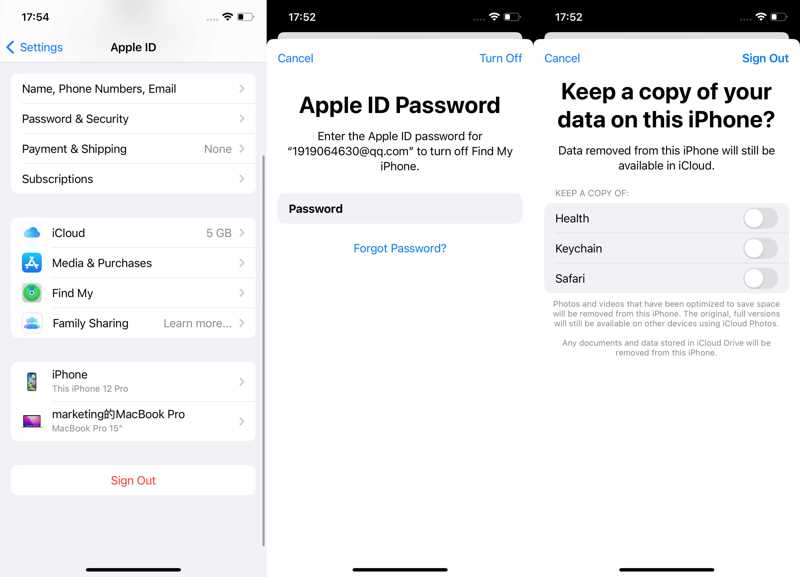
Step 1. Open the Settings app on your home screen.
Step 2. Tap on your profile.
Step 3. Scroll down and tap Sign Out.
Step 4. Input your Apple ID password.
Step 5. Select the data types you want to keep, and tap Sign Out again.
How to Delete iCloud Account on Another iPhone
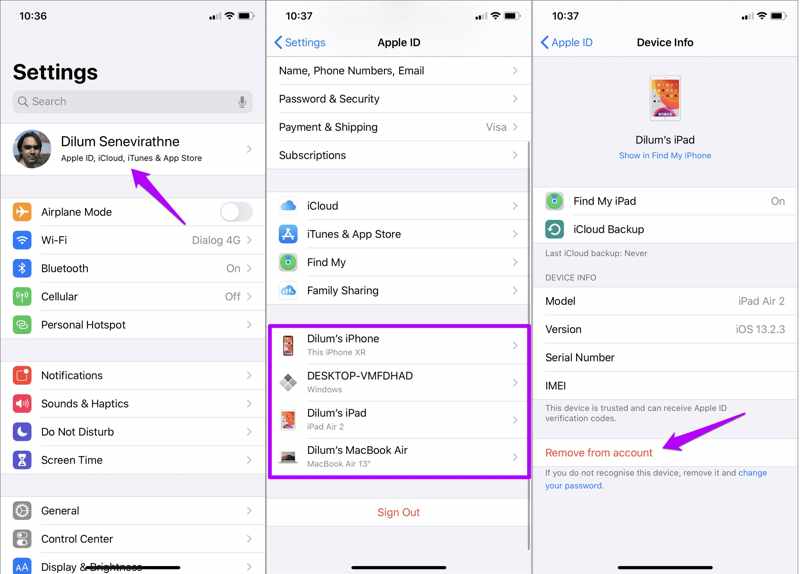
Step 1. If you use an iCloud account on multiple Apple devices, run the Settings app on another iPhone or iPad.
Step 2. Tap on your profile, and choose your iPhone at the bottom.
Step 3. Hit Remove from account.
Step 4. Choose Remove on the confirmation dialog.
Part 2: How to Delete iCloud Account from Mac
If you are using an iCloud account on your Mac, you also need to remove the iCloud account from your computer or laptop before permanently deleting it. Here are the steps to get rid of an iCloud account on a Mac:
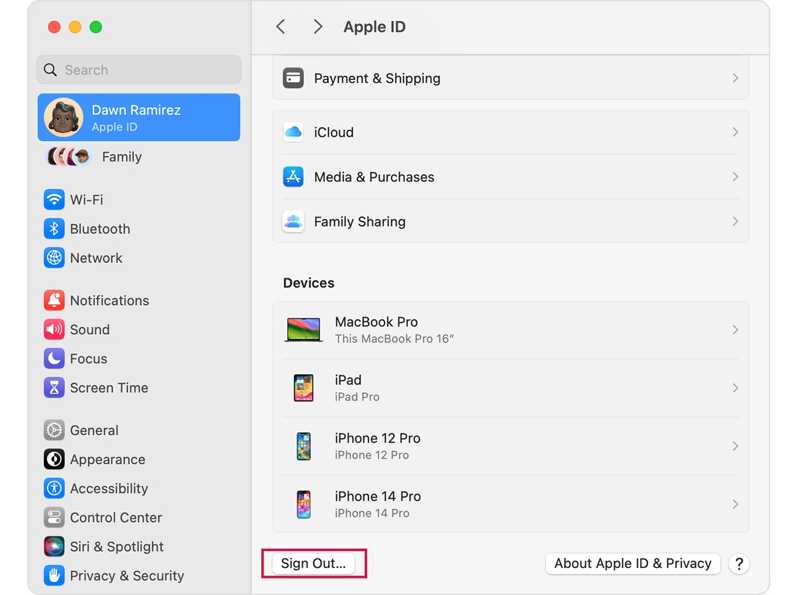
Step 1. Go to the Apple menu and choose System Settings or System Preferences.
Step 2. Click Apple ID on the sidebar.
Step 3. Scroll down and click the Sign Out button at the bottom.
Step 4. If prompted, enter your Mac login password or Apple ID password.
Step 5. Then, download the data you want to keep and confirm it.
Further Reading
Part 3: How to Erase an iCloud Account Remotely
Even if your iPhone or iPad is not in your hand, you can erase an iCloud account remotely. The prerequisite is that you have set up Find My iPhone or Find My iPad on your device. Moreover, your device must be online.
In Find My App
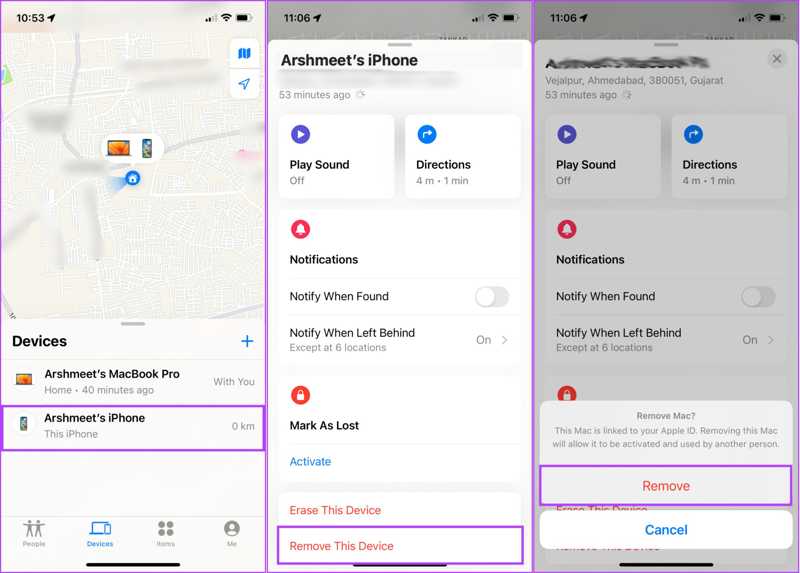
Step 1. Open the Find My app on an Apple device.
Step 2. Go to the Devices tab at the bottom and choose your device.
Tips: If you cannot find your device, tap +, choose Add AirTag, and add it.
Step 3. Tap and expand the bottom toolbar, and hit Remove This Device.
Step 4. If prompted, choose Remove on the pop-up.
On Find My Website
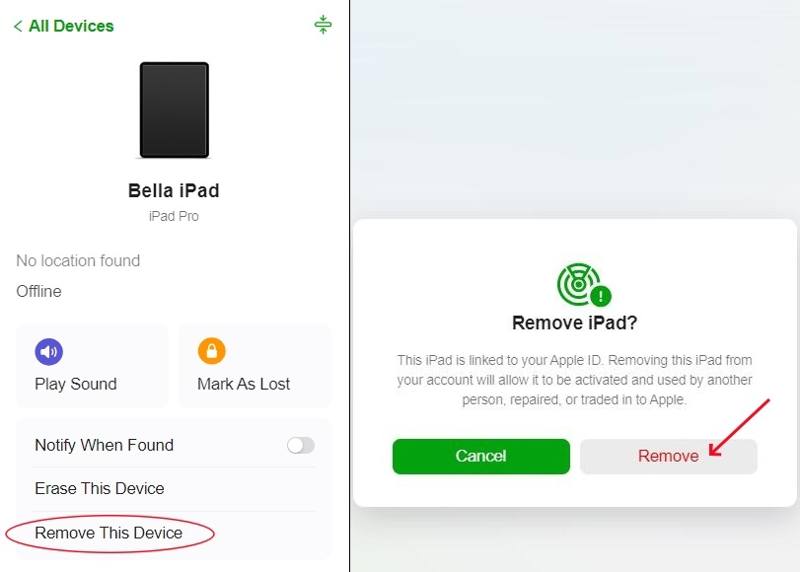
Step 1. Go to www.icloud.com/find in a browser and sign in with your Apple ID credentials.
Step 2. Choose your device from the All Devices option.
Step 3. Click the Remove This Device button.
Step 4. When prompted, click the Remove button on the alert dialog.
Part 4: How to Delete an Account from iCloud
After you delete an iCloud account from an iPhone, iPad, or a Mac, you have to request the deletion. When Apple receives your request, it will unlink your email address and release the iCloud space.
Step 1. Visit https://privacy.apple.com/ in a browser, and log in to your Apple ID and password.
Step 2. Press Continue on the Apple ID & Privacy page to proceed.
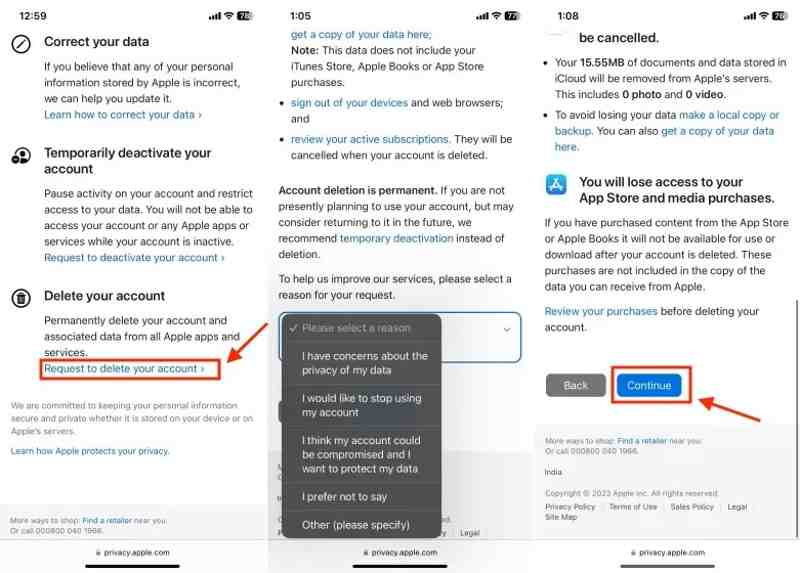
Step 3. Scroll down and choose Request to delete your account under Delete your account.
Tips: If you want to temporarily delete your iCloud account, choose Request to deactivate your account instead.
Step 4. Next, select a reason for your deletion from the drop-down menu, and hit Continue.
Step 5. Read the alert and hit Continue.
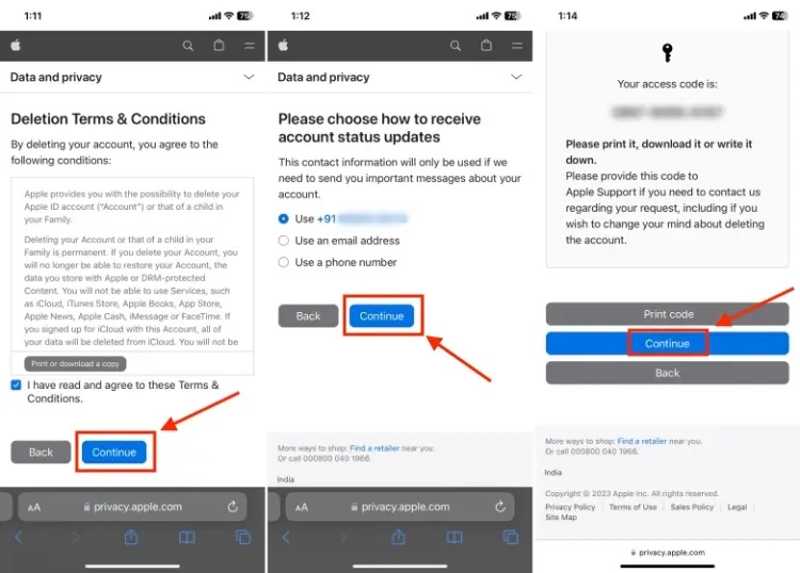
Step 6. Agree to the deletion Terms & Conditions, and press Continue.
Step 7. Select how to receive account status updates, and hit Continue.
Step 8. Remember the access code, and hit Continue.
Step 9. Type in the access code and press Continue.
Step 10. Finally, hit the Delete account button to confirm your action.
Note: After Apple receives your request, it may take up to 7 days to delete an iCloud account.
Conclusion
This guide explained how to remove an iCloud account. First of all, you need to remove your iCloud account from your iPhone, iPad, Mac, or online. After account removal, you can submit your request. Then, Apple will handle your request and permanently delete your account. Apeaksoft iOS Unlocker allows you to delete an account without a password.
Related Articles




