

How to Find and Delete Duplicate Photos on Mac Computer

According to our research, a Mac computer usually stores lots of photos, including iPhone photo backup, iCloud photos, and more. It makes sense that users find many duplicate photos on their MacBooks. They take up space and slow down Mac performance. Managing and deleting duplicate photos on your Mac is a good idea if you wish to free up space and improve performance. This article shares four effective ways.
PAGE CONTENT:
Part 1: A Quick Way to Delete Duplicate Photos on Mac
Apeaksoft Mac Cleaner is an easy way to find and delete duplicate pictures on macOS using AI technology. Even if the photos don’t use the same name, the application can identify them by analyzing the content and metadata.
A Quick Way to Find and Delete Duplicate Photos on Mac
- Find similar photos using AI technology.
- Delete multiple duplicate photos with one click.
- Offer bonus features, like find and delete old photos.
- Support macOS 10.11 and above.
Secure Download

How to Erase Duplicate Photos on Mac
Step 1. Install Mac Cleaner
Run the ideal duplicate photo finder on Mac after you install it on your computer. Click the Cleaner option in the home interface.

Step 2. Find duplicate photos
Choose the Similar Photo tool. Click the Scan button to begin finding duplicate photos on your MacBook. When it is done, click View to move on.
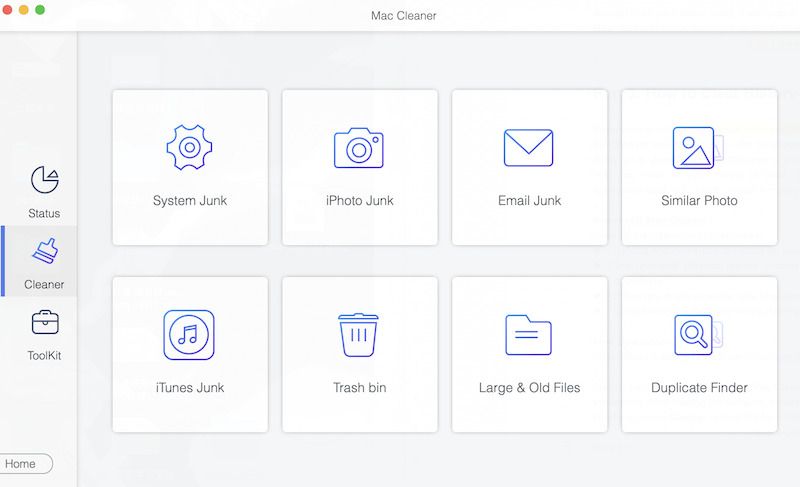
Step 3. Erase duplicate photos on Mac
Browse the duplicate photos, select unwanted files, and click the Clean button. If prompted, confirm your action.
Part 2: How to Delete Duplicate Photos on Mac in Photos
Since macOS Ventura, Apple has added a duplicate finder into the built-in Photos app. In addition to deleting duplicate photos, this feature merges all copies at once. It is only available for photos stored in the Photos app.
Step 1. Run the Photos app on your Mac.
Step 2. Click the Duplicates option under Utilities on the sidebar.
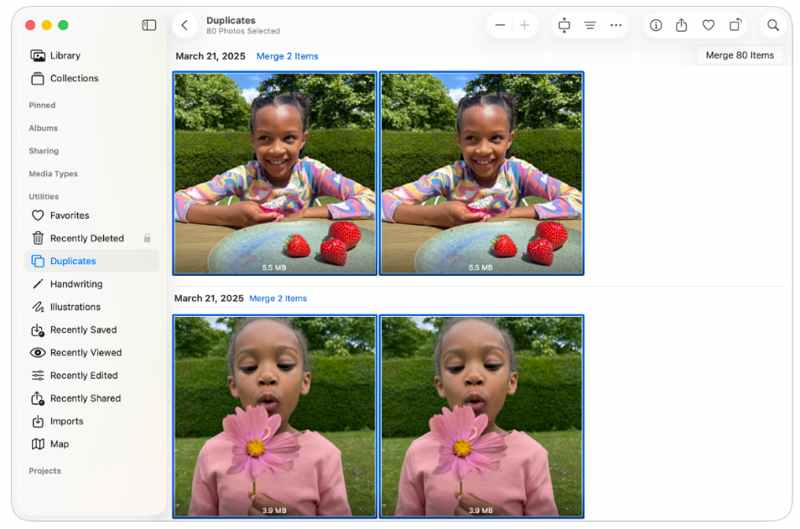
Step 3. Then, Photos will analyze your library and find duplicates.
Step 4. Press the Command key and select unwanted photos.
Step 5. Click the Merge N Items button at the top.
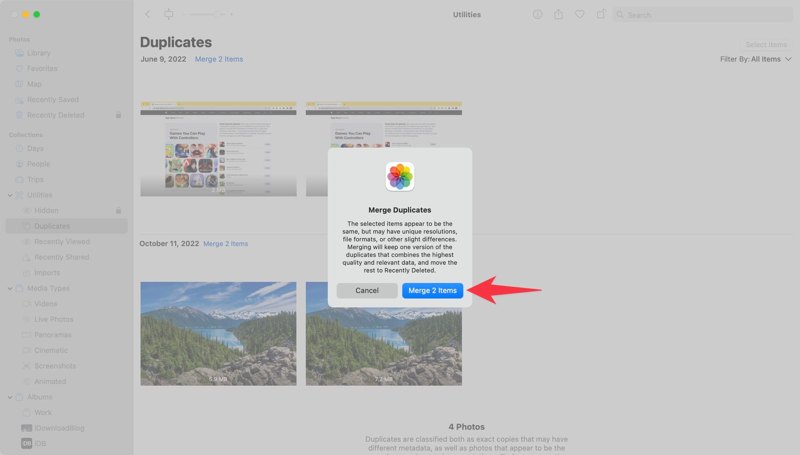
Step 6. Finally, click Merge N Items on the confirmation dialog.
Tips: If you just want to remove duplicates in Mac Photos, select the copies, right-click on a selected file, and choose Delete N Photos.
Part 3: How to Delete Duplicate Photos on Mac via Smart Album
If you wish to eliminate duplicate photos on Mac manually, the Smart Album in the Photos app is a good option. It allows you to add filters to compare similar photos, such as filename, metadata, and other criteria.
Step 1. Go to the File menu in the Photos app.
Step 2. Choose New Smart Album.
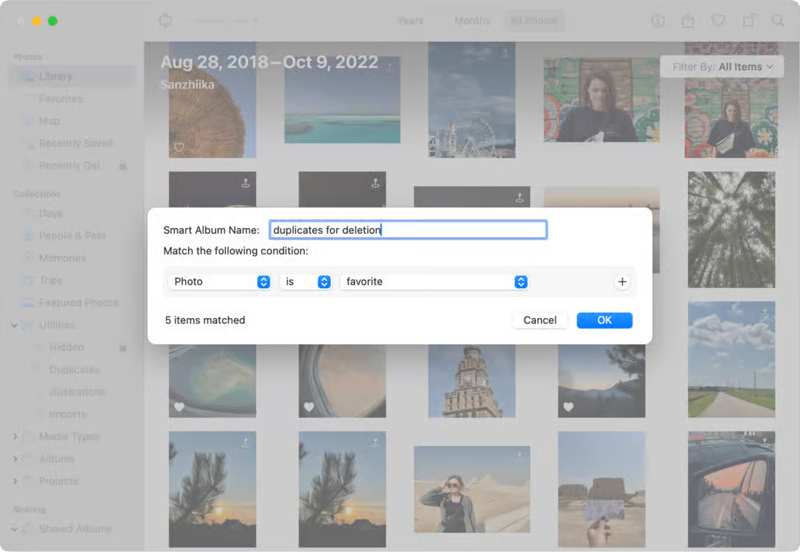
Step 3. Name it and set the filter. If you want to add more filters, click the + button and set it.
Step 4. Click OK to continue.
Step 5. Next, select the unwanted pictures.
Step 6. Right-click on one selected photo and choose Delete N Photos.
Step 7. On the confirmation dialog, click Delete.
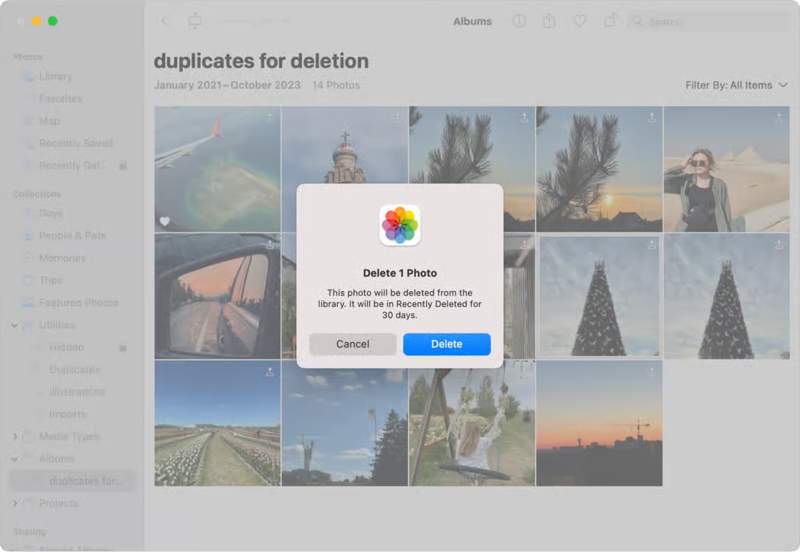
Step 8. Then, go to the Recently Deleted album from the sidebar.
Step 9. Remove the duplicated photos or click Delete All to empty the Recently Deleted album.
Further Reading
Part 4: How to Remove Duplicate Photos on Mac by Smart Folder
Both the Duplicates and Smart Albums are only able to delete duplicate images in Mac Photos. If you want to manage duplicate pictures in other locations on your Mac, the Smart Folder feature can be helpful. To find the copies, you must set up this duplicated photo cleaner properly.
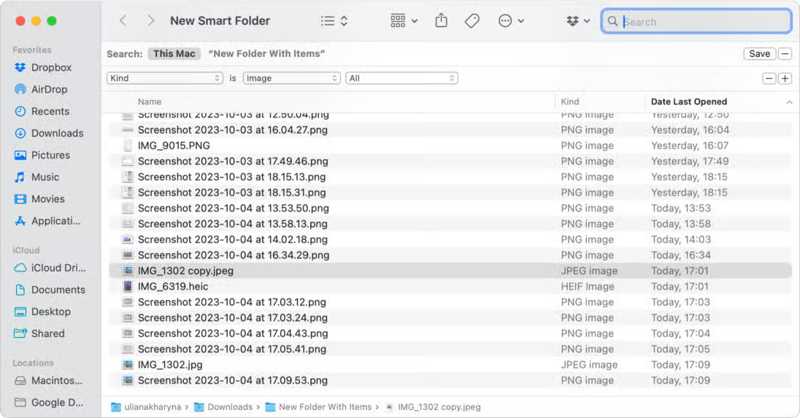
Step 1. Open the Finder app from your Dock bar.
Step 2. Go to the File menu and choose New Smart Folder.
Step 3. Select This Mac or a specific disk next to Search.
Step 4. Click Add at the top right corner.
Step 5. Expand the first drop-down option and pick Kind.
Step 6. Next, switch to Image in the second drop-down option.
Step 7. Then, click the column to sort all pictures on your Mac, such as Name.
Step 8. Press the Command key while clicking on each duplicate image you want to delete.
Step 9. Right-click on a selected photo and choose Move to Trash.
Step 10. Finally, click the Trash folder on the Dock bar and choose Empty Trash.
Conclusion
This guide shared four ways to delete duplicates in Photos on Mac and other locations. The Duplicates feature in the Photos app can find copies in the library. Furthermore, the Smart Album allows you to manually organize and remove duplicate photos in your library. For photos not in your library, you can try the Smart Folder feature. Apeaksoft Mac Cleaner is an advanced option to find duplicate photos, streamline the photo library, and free up space. The intuitive design makes it a good option for beginners.
Related Articles




