Why Apple ID Is Greyed out and How to Fix the Error

"I am unable to access the details of my own Apple Account on my iPhone. It is greyed out and doesn't let me do anything on it. How to access this and make it active?" When you sign up for an iOS device, you need to log in to an Apple Account to access Apple services. After your device is restricted, your account will be greyed out and unable to be changed. This article helps you fix Apple ID greyed out.
PAGE CONTENT:
Part 1: Why Is My Apple ID Grayed out
Before discussing the solutions, let's talk about why the Apple ID turns greyed out. Understanding the main causes can help you choose the right solution and address this problem effectively.
- 1.You use multiple Apple IDs to download or update apps.
- 2.Your account is deactivated or suspended.
- 3.MDM controls your iPhone.
- 4.You set up Restrictions on your iPhone.
- 5.Your iPhone gets stuck.
Part 2: How to Fix My Apple ID Grayed out
Solution 1: Allow Apple ID Change
One reason why the Apple ID is greyed out in Settings is that you have set up Restrictions. Then, you are not allowed to change your Apple ID or tap on your account. In other words, you cannot edit this option.
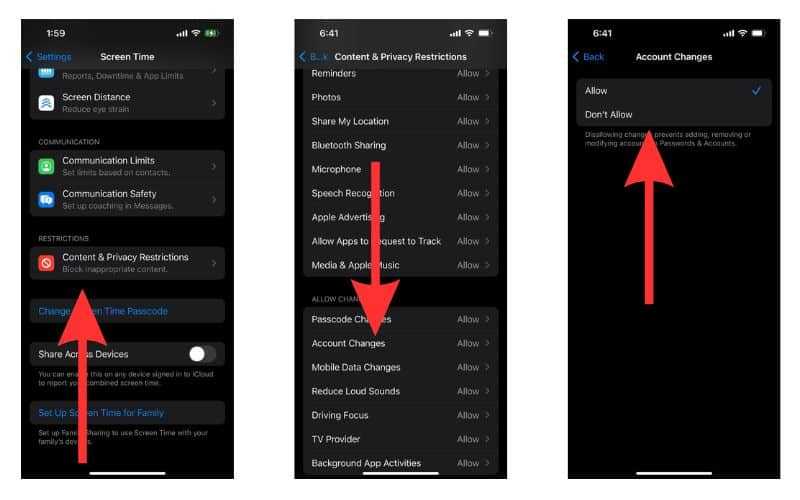
Step 1. Open the Settings app on your iPhone.
Step 2. Choose the Screen Time option.
Step 3. If prompted, enter your Screen Time passcode.
Step 4. Tap Content & Privacy Restrictions.
Step 5. Scroll down and find the Account Changes option.
Step 6. Choose Allow.
Solution 2: Restart Your iPhone
While restarting your iPhone is a simple solution, it can address a wide array of basic glitches, including when your Apple ID is greyed out, and your iPhone gets stuck. Moreover, this solution won't erase any data.
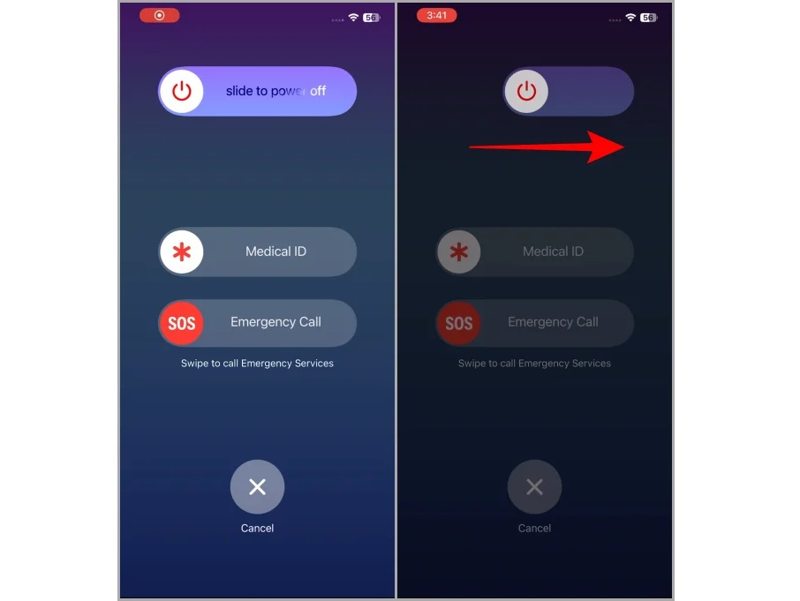
Step 1. Long-press the Side or Power button on an iPhone without Face ID. For an iPhone with Face ID, hold down one of the Volume buttons and the Side button together.
Step 2. When the power-off screen appears, release the button or buttons.
Step 3. Move the slide to shut it down.
Step 4. Next, hold down the Side or Power button until the Apple logo appears.
Solution 3: Check Apple Server Status
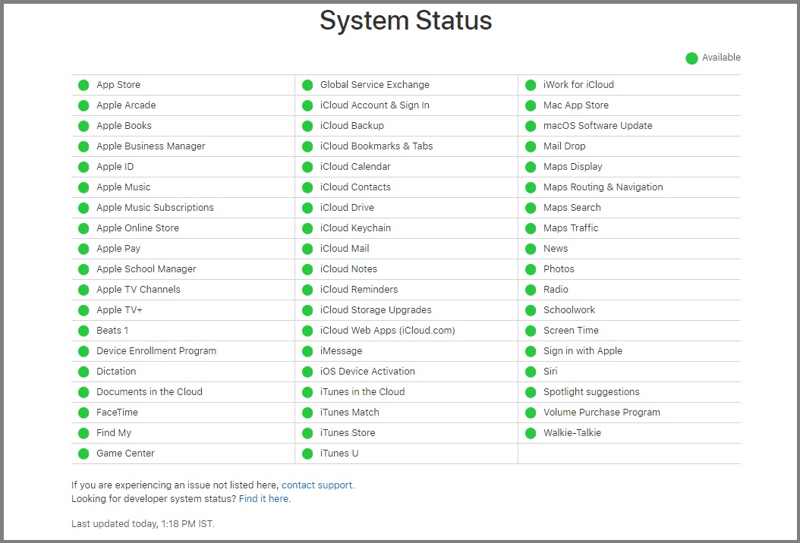
When you intend to change your Apple Account, you actually interact with Apple servers. If the Apple servers are down, the Apple ID Sign Out button turns grey and cannot be changed.
Go to https://www.apple.com/support/systemstatus/ in a browser and check the status of the relevant servers. If any item is marked with a yellow or red icon, wait for it to work again.
Solution 4: Remove Account from Family Sharing
If you join Family Sharing, your account may be restricted by the organizer. Then, Apple ID is greyed out in Settings. If you want to change your account, you have to remove your account from Family Sharing.
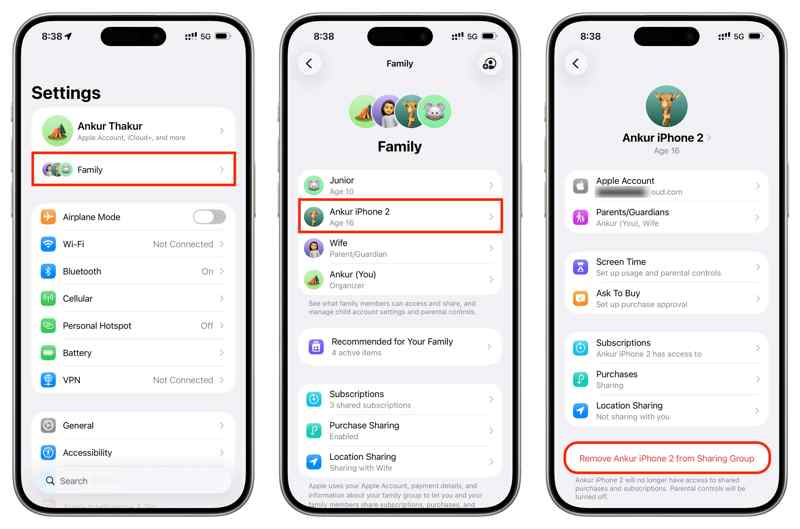
Step 1. Run the Settings app on the organizer's device.
Step 2. Tap Family and choose your iPhone.
Step 3. Next, tap the Remove [your name] from Sharing Group button.
Step 4. If prompted, confirm it.
Solution 5: Reset All Settings
A more drastic solution to fix the Apple ID greyed out on iPhone is to reset all settings. This option will restore settings to factory defaults. Nevertheless, it won't interrupt the current data on your device.
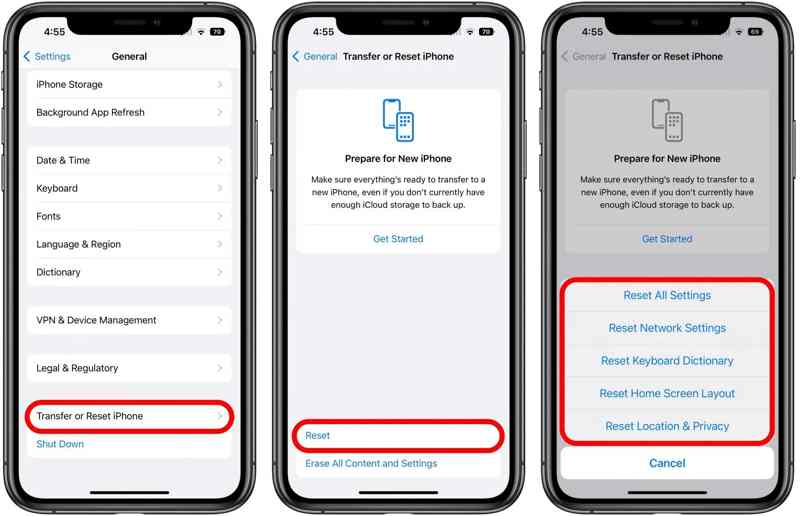
Step 1. Go to General in your Settings app.
Step 2. Choose Transfer or Reset iPhone.
Step 3. Tap Reset, then select Reset All Settings.
Step 4. When prompted, enter your passcode.
Part 3: One-stop Solution to Fix Apple ID Grayed out
A one-stop solution to fix the Apple ID greyed out is Apeaksoft iFoneKit iOS Unlocker. It can remove a locked or disabled Apple Account from your iPhone or iPad without any restrictions, such as a password.

Downloaded by over 1,000,000 users
- Remove the malfunctioning Apple Account from your iPhone.
- Won't require your password or iPhone passcode.
- Easy to use and complete the process in 3 steps.
- Support the latest editions of iOS and iPadOS.
Secure Download
Secure Download

How to Fix Apple ID Greyed out on Your iPhone
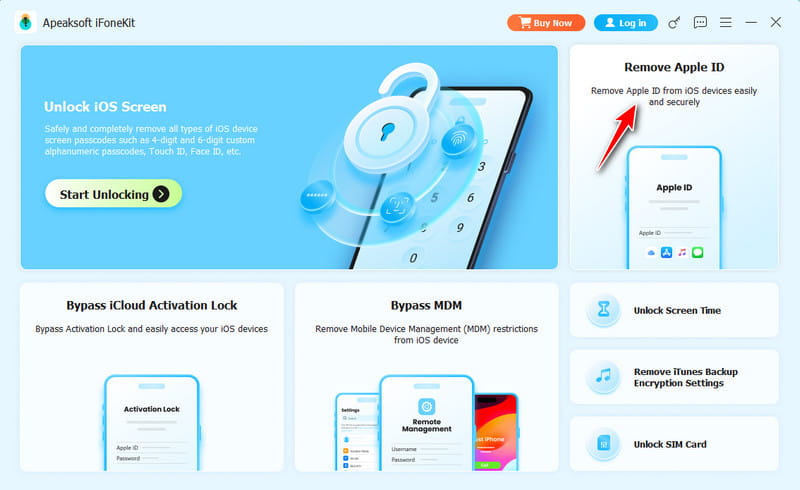
Step 1. Install Apple ID removal software
Run the Apple ID removal software after installing it on your computer. It is compatible with Windows 11/10/8/7/XP/Vista and macOS 10.7 or above. Choose the Remove Apple ID mode.
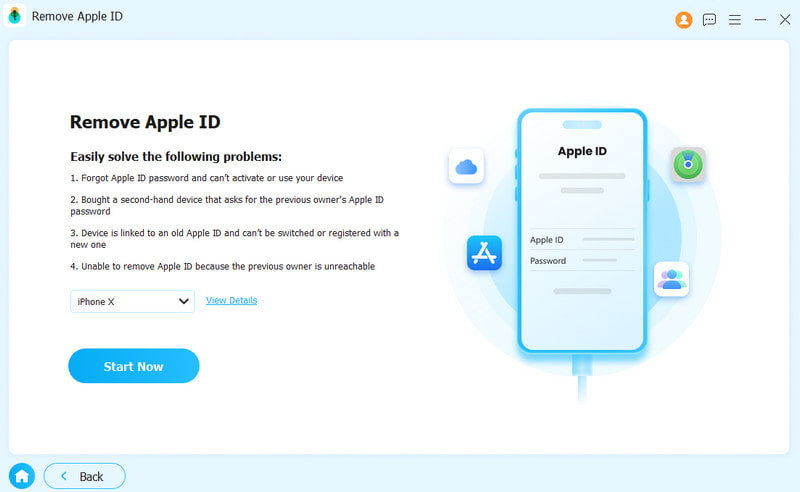
Step 2. Connect to your iPhone
Link your iPhone and computer with a Lightning cable. The software will then immediately detect your device. Click on the Start Now button to proceed.
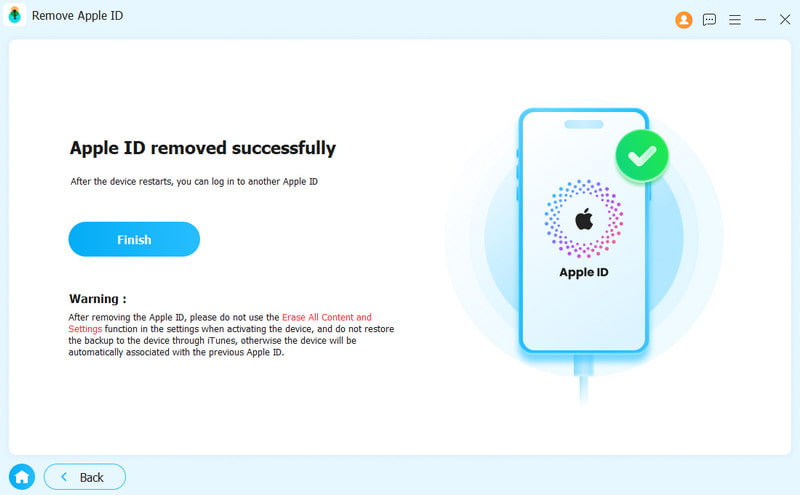
Step 3. Remove Apple ID
If Find My is enabled, reset all settings on your iPhone. Next, click OK, and hit Confirm Again to begin removing the Apple ID.
If Find My is disabled, the software will initiate the removal of the Apple ID.
Further Reading
Conclusion
This article explained why my Apple ID is greyed out and how to fix it quickly. The causes are not complicated. More importantly, you can choose the right solution and resolve the issue. Apeaksoft iFoneKit iOS Unlocker helps you fix this problem with one click.
 Apeaksoft iFoneKit
 Unlock all types of iOS passwords from iPhone, iPad and iPod.
Secure Download
Secure Download
Related Articles