


Why Your Apple ID Is Locked and How to Fix This Issue

"I am trying to get into my old Apple account from years ago, but I couldn’t remember the password, so I put in the email, and it said the account is locked and cannot be used. How can I open a locked Apple ID?" Apple might lock an account if it detects insecure actions. Then, you will be locked out of Apple services, iCloud backup, and more. This article shares how to regain access to your account after it is locked.
PAGE CONTENT:
Part 1: Why Is My Apple ID Locked
Apple ID works as a digital passport in the Apple ecosystem. Apple locks an account when it detects activity that indicates fraud or a violation of the security terms. The common reasons why my Apple ID is locked include:
- 1.Multiple failed password attempts.
- 2.Use of suspicious payment methods.
- 3.Failed Two-factor Authentication, such as unusual location changes.
- 4.Violations of the Apple Media Services Terms and Conditions.
- 5.Apple account information was entered incorrectly too many times.
- 6.Payment issues are linked to your Apple ID.
- 7.Software glitches.
Part 2: How to Open a Locked Apple ID
Even if your Apple ID has been locked for security reasons, you can unlock your account. In fact, you have multiple solutions to regain access to your account. We list the proven solutions below:
Solution 1: Reset Apple ID Password on iForgot
Step 1. Go to https://iforgot.apple.com/ in a browser.
Step 2. Click Reset Password.
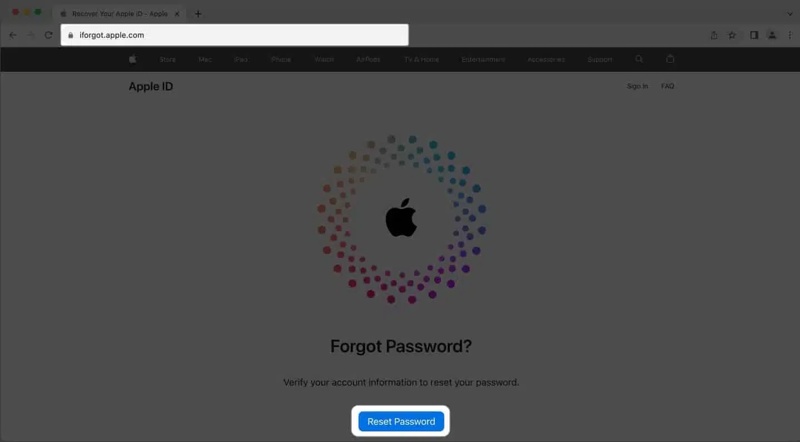
Step 3. Type in your Apple ID email, complete the captcha, and click Continue.
Step 4. Input your phone number and hit Continue.
Step 5. Check your phone number and click Send Code.
Step 6. Enter the verification code you received and hit Continue.
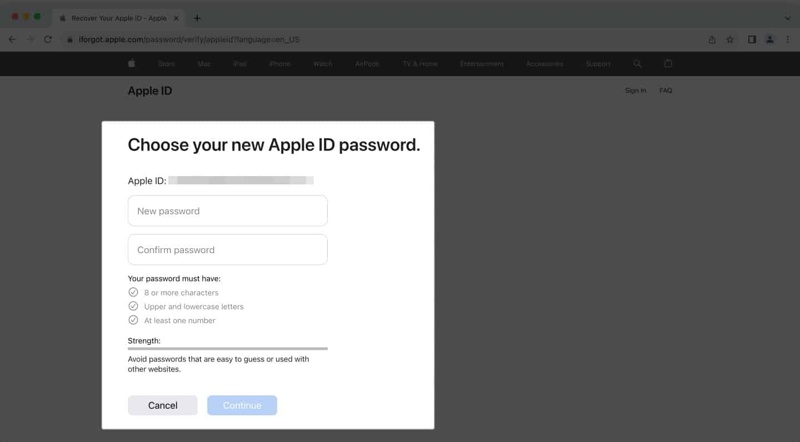
Step 7. Type a new password, confirm it, and press Continue.
Note: In addition to a phone number, you can also verify your ownership using a trusted device, a verification key, an email address, or security questions. After resetting your password, update it on all your Apple devices to resolve the error that your Apple ID is locked for security reasons.
Solution 2: Change Apple ID Password
Precondition: You have turned on Two-factor Authentication for your Apple ID
On an iPhone
Step 1. Open the Settings app on your iPhone.
Step 2. Tap on your profile.
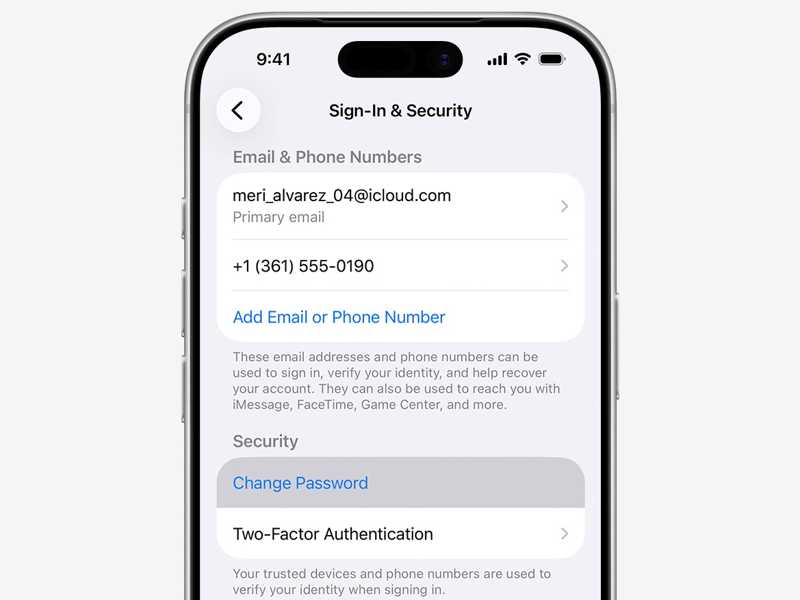
Step 3. Navigate to Sign-In & Security.
Step 4. Click the Change Password button.
Step 5. Enter your iPhone passcode to proceed.
Step 6. Type in a new password and input it again.
Step 7. Finally, confirm the change.
On a Mac
Step 1. Click the Apple menu.
Step 2. Choose System Settings or System Preferences.
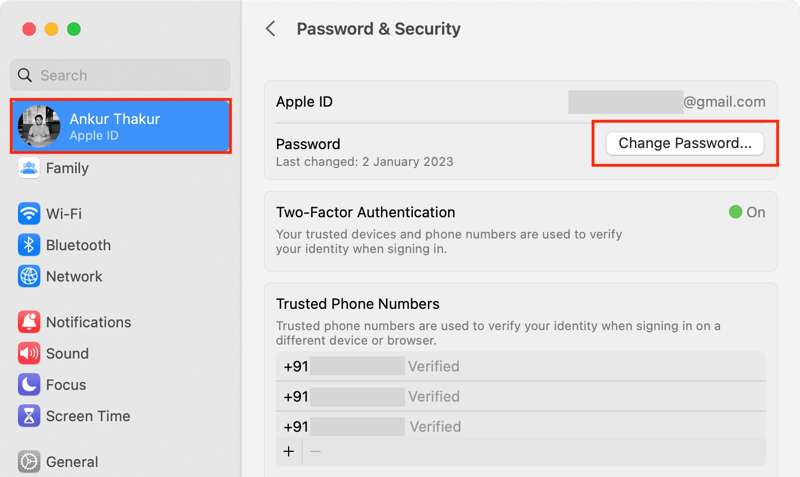
Step 3. Click Apple ID and press the Change Password button.
Step 4. Make a new password, confirm it, and hit Continue.
Step 5. Choose Sign Out Other Devices or Don’t Sign Out, depending on your situation.
Step 6. Then, access the locked Apple ID.
Solution 3: Unlock Apple ID via Apple Support
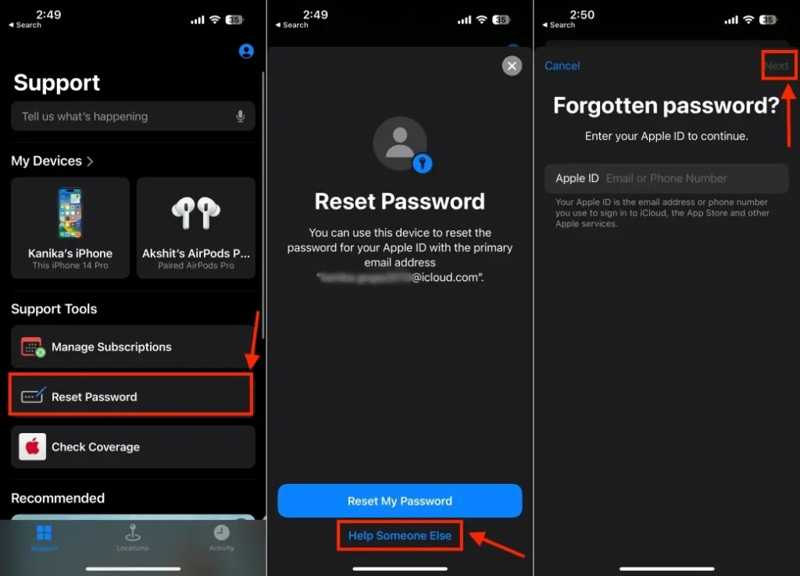
Step 1. Run the Apple Support app on a borrowed iPhone or iPad.
Step 2. Locate the Support Tools section and tap Reset Password.
Step 3. Tap the Help Someone Else button at the bottom.
Step 4. Enter your Apple ID email and tap Next.
Step 5. Input your phone number to receive the verification code.
Step 6. Then, type the code to proceed.
Step 7. Create a new password and verify it.
Step 8. At last, confirm opening the locked Apple ID.
Further Reading
Solution 4: Update Payment Methods
Step 1. If you are locked out of your Apple ID because your payment methods are outdated, open the Settings app on your iPhone.
Step 2. Tap on your profile, and choose Payment & Shipping.
Step 3. Tap the Edit button at the top right corner.
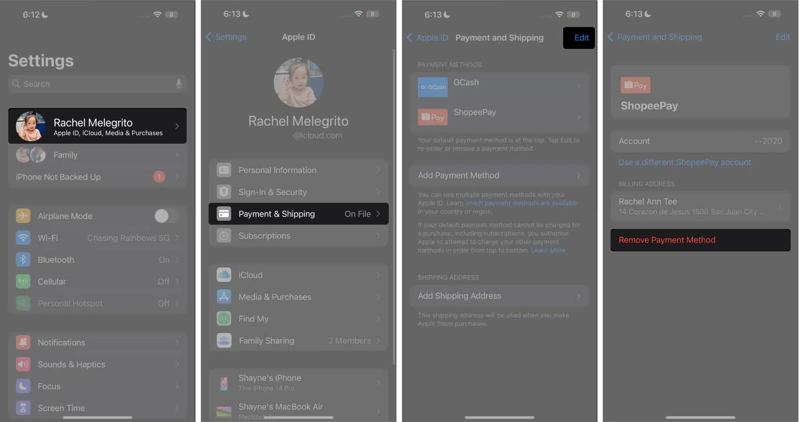
Step 4. Press the Delete button next to the outdated payment method and choose Delete.
Step 5. Next, choose Remove on the confirmation dialog.
Step 6. Then, tap the Add Payment Method button.
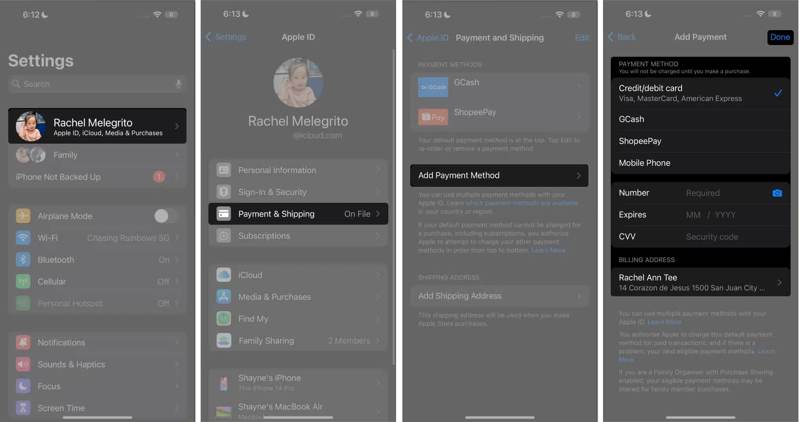
Step 7. Choose the payment method and fill in the details.
Step 8. Tap Done at the top of the screen to complete the process.
Solution 5: Sign out of Apple ID and Sign in Again
Step 1. If you are locked out of your Apple ID because your account information is outdated, go to your Settings app.
Step 2. Tap on your profile, and then tap the Sign Out button at the bottom.
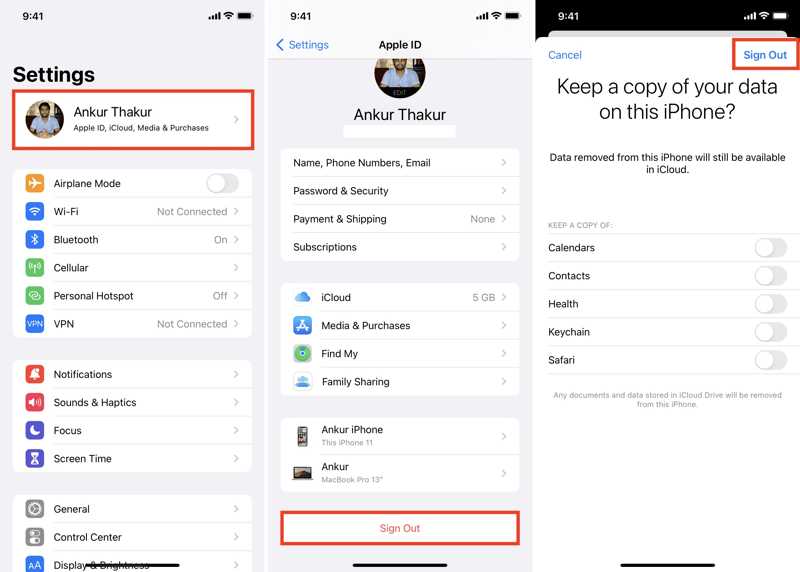
Step 3. When prompted, enter your Apple ID password, then tap Turn Off to disable Find My iPhone.
Step 4. Choose the data types you want to keep and hit Sign Out.
Step 5. Restart your iPhone.
Step 6. Next, tap Apple Account in your Settings app.
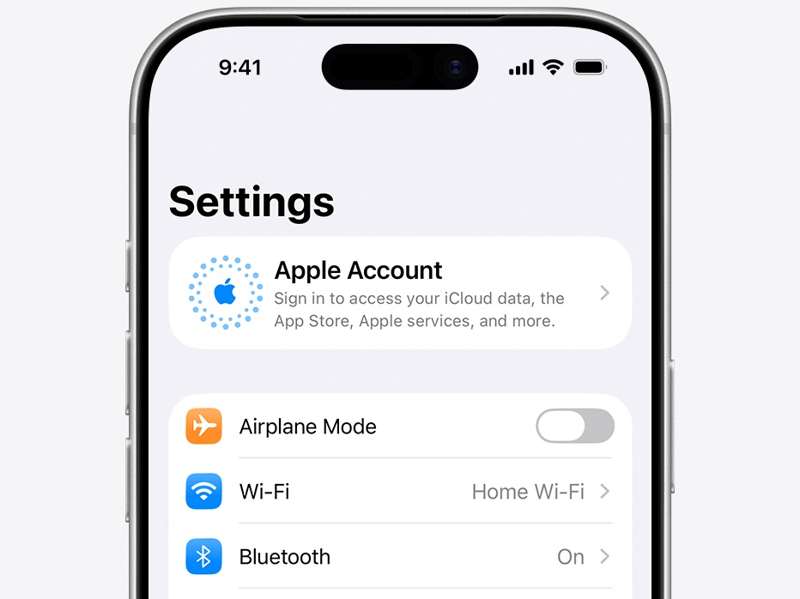
Step 7. Choose Sign in Manually, and enter your Apple ID and password.
Step 8. Now, check if your Apple ID is unlocked.
Bonus Tip: How to Prevent Being Locked out of an Apple Account
- 1.Keep your Apple Account safe. Don’t give the associated email address and password to anyone.
- 2.Log in to your Apple ID through authorized websites and devices. You’d better not use your Apple ID credentials for third-party services and websites.
- 3.Use a strong Apple Account password.
- 4.Set up extra security measures for your Apple Account, such as Two-factor Authentication.
- 5.Maintain the password reset channel, like Recovery Key.
- 6.Write down your Apple ID password, or use a password manager to keep your password safe.
Part 3: Ultimate Solution to Unlock a Locked Apple ID on iPhone/iPad
If your Apple ID is still locked after performing the solutions above, you can try an alternative solution: Apeaksoft iFoneKit iOS Unlocker. It is able to remove the locked Apple ID and password from your iOS device. Then, you can log in to another account or make a new Apple ID.

Downloaded by over 1,000,000 users
- Remove your Apple ID account in three steps.
- Don’t require your iPhone passcode or Apple ID password.
- Work for locked and disabled Apple IDs.
- Support the latest editions of iOS and iPadOS.
Secure Download
Secure Download

How to Remove the Locked Apple ID from Your iPhone
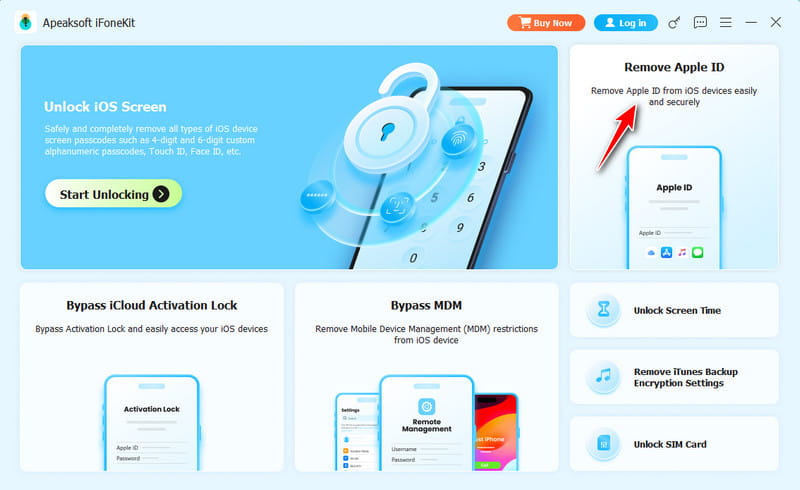
Step 1. Install iFoneKit
Start the Apple ID removal software as long as you install it on your PC. There is another version for Mac. Choose the Remove Apple ID mode to continue.
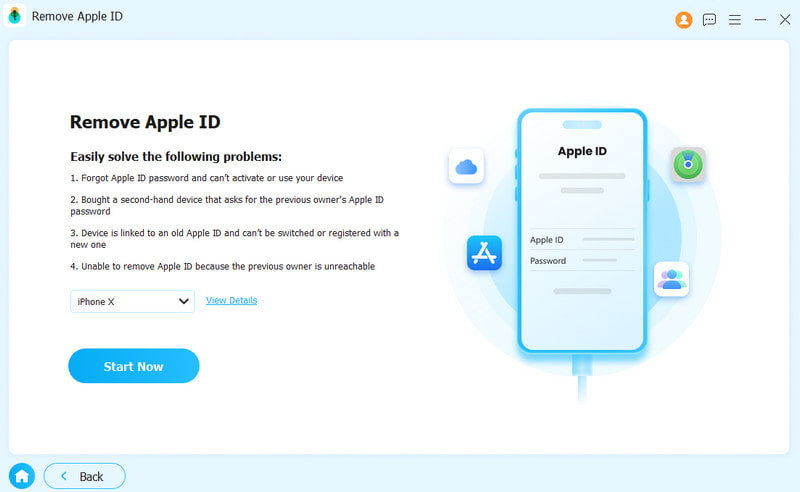
Step 2. Connect to your iPhone
Link your iPhone to your PC with a Lightning cable. The software will automatically detect your iPhone. Click on the Start Now button.
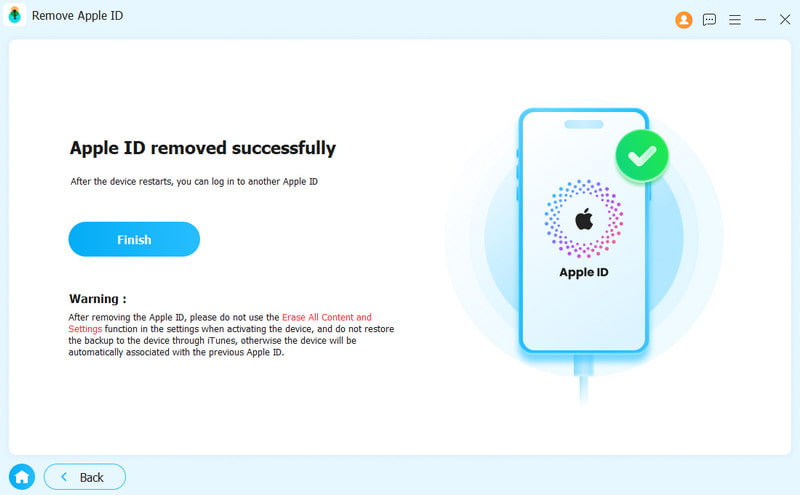
Step 3. Remove Apple ID
If Find My iPhone is disabled, the software will begin removing the locked Apple ID from your device immediately.
If Find My iPhone is enabled, follow the onscreen instructions to reset all settings on your device. Then, click the OK button and hit Confirm Again to initiate the removal process.
Conclusion
This guide explained what to do if the Apple ID is locked on an iPad or iPhone. Now, you should understand the main causes of this problem. More importantly, you can try our solutions to regain access to your account and use Apple services as usual. If the common solutions are unavailable, try Apeaksoft iFoneKit iOS Unlocker. It helps you remove the locked Apple account from your iOS device. Then, you can log in to another account.
 Apeaksoft iFoneKit
 Unlock all types of iOS passwords from iPhone, iPad and iPod.
Secure Download
Secure Download
Related Articles




