Easily Fix Why Can't I Change My Apple ID Password

It is incredibly frustrating when you are locked out of your own account, or you simply want to update your security, and your iPhone just won't let you. You tap through the settings, try to change things up, and boom, an error message poos up: Cannot Reset Password, or the option is completely grayed out.
If you are currently suffering from can't change password for Apple ID on your screen, don't wory. You are definitely not alone. Thousands of users run into this exact brick wall every day.
In this easy guide, we will break down exactly why can't I change my Apple ID password, what is causing the glitch, and the simple step-by-step methods you can use to fix it right now.
PAGE CONTENT:
Part 1: Why Can't I Change My Apple ID Password? (The Common Causes)
Here are the most common reasons behind the can't change Apple ID password headache:
- Screen Time Restrictions are Turned On: This is the number one culprit. If you or a parent turned on Screen Time limits, it might be blocking changes to your accounts and passwords.
- Poor Internet Connection: Changing an Apple ID password requires a super secure, stable connection to Apple's servers. A shaky Wi-Fi or weak cellular data connection will cause the process to fail.
- Apple Servers are Down: Sometimes, the problem isn't you at all, it's Apple. If their system servers are undergoing maintenance, password resets will temporarily stop working, and you'll see the can't change password for Apple ID prompt.
- Outdated iOS System: Running a very old version of iOS can cause weird glitches where certain security settings refuse to load or save.
- Account is Locked for Security: If there were too many wrong password attempts recently, Apple might temporarily freeze your account settings to protect you from hackers.
Part 2: Quick Checks for Can't Change Apple ID Password
Before moving to the more advanced troubleshooting steps, let's rule out the basic "can't change Apple ID password" issues. Try these quick fixes first:
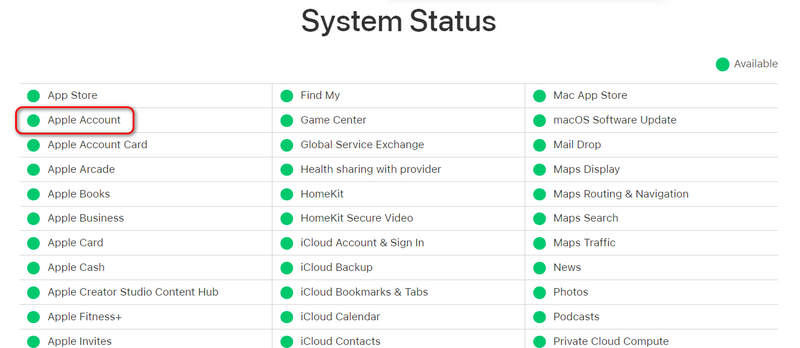
1. Check Apple's System Status
Before changing anything on your phone, make sure Apple's backend is working properly.
- 1.Go to a web browser and search for the Apple System Status page.
- 2.Look for Apple Account.
- 3.If the dot next to it is red or yellow, Apple is having server issues. You just need to wait a few hours until they fix it on their end. If it is green, the problem is on your device.
2. Test Your Internet Connection
A weak network can easily trigger the why can't I change my Apple ID password issue.
- 1.Turn off your Wi-Fi and switch to Cellular Data, or vice versa.
- 2.Try opening a webpage or playing a video on YouTube to see if your internet is loading quickly.
- 3.If your connection is slow, restart your router or turn on Airplane Mode for 10 seconds, then turn it off to refresh your network.
Part 3: How to Fix the "Can't Change Apple ID Password" Issue
If your internet is fine and Apple's servers are green, use these proven methods to unlock your account settings.
Method 1. Turn Off Screen Time Restrictions (Most Popular Fix)
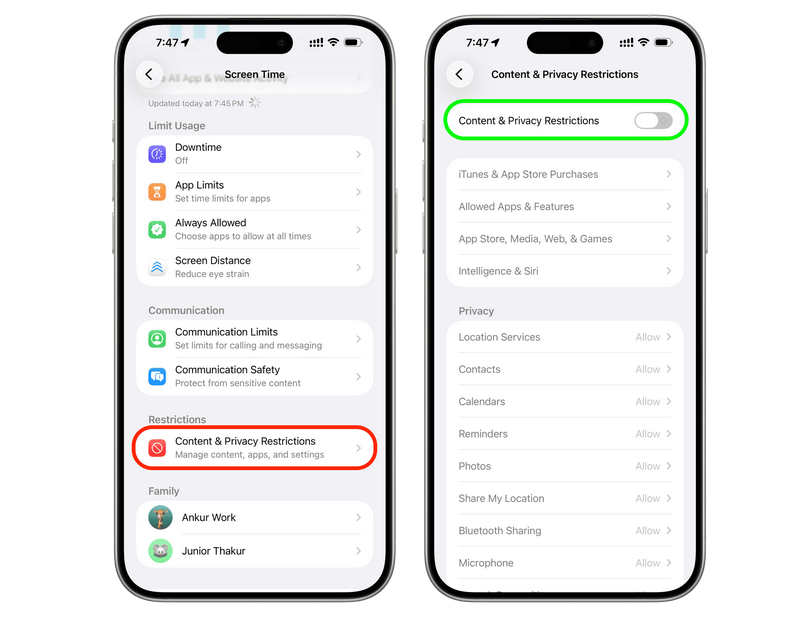
If you go to your iPhone Settings, tap your name at the top, and find that the password options are grayed out or unclickable, Screen Time is almost certainly blocking you. Here is how to disable this restriction to fix can't change password for Apple ID:
Step 1. Open the Settings app on your iPhone or iPad.
Step 2. Scroll down a bit and tap on Screen Time.
Step 3. Scroll down to the bottom and tap on Content & Privacy Restrictions.
Step 4. Look down the list until you find the Allow Changes section.
Step 5. Tap on Account Changes and make sure it is set to Allow. (If it was set to Don't Allow, that is exactly why you couldn't change your password!). When you make changes in Screen Time, you may need to enter the Screen Time password.
Bonus: Cannot Remove Screen Time?
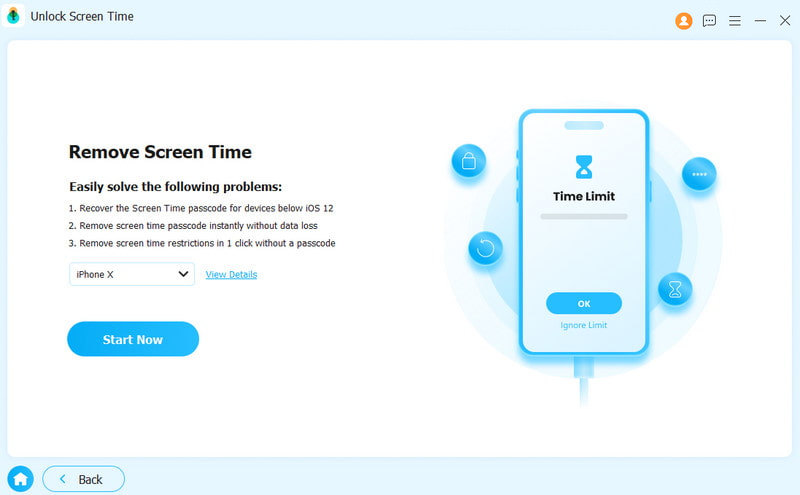
However, sometimes, you cannot remove the Screen Time restrictions. That's because the establishment doesn't give you enough rights to do that, or you are a child or a student. In that case, how can you remove Screen Time to deal with the "can't change Apple ID password" problem? You should use Apeaksoft iFoneKit iOS Unlocker. It can one-click remove all types of Screen Time restrictions, no matter who set it on your iPhone. You only need to connect your iPhone to a computer and then turn it on. Wait for a few seconds, and then you will have your iPhone free from controls.
Step 1. Download, install, and launch Apeaksoft iFoneKit iOS Unlocker on your Windows or Mac computer. Connect your iPhone to your computer.
Secure Download
Secure Download
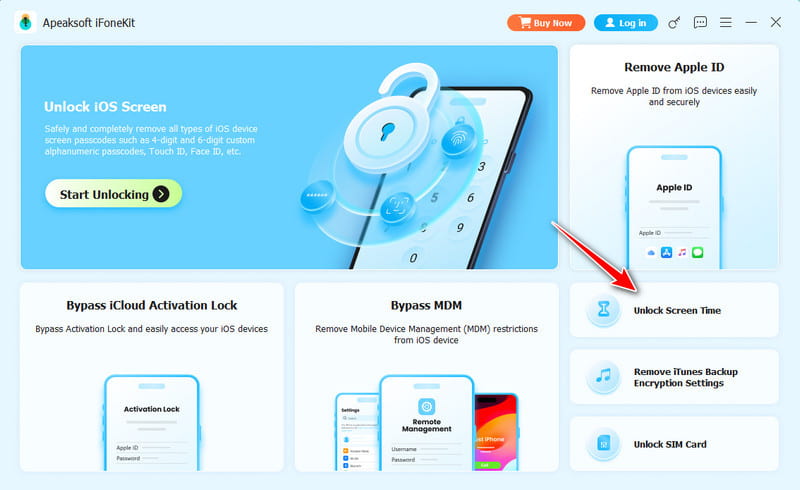
Step 2. On the main interface of Apeaksoft, click the Unlock Screen Time button.
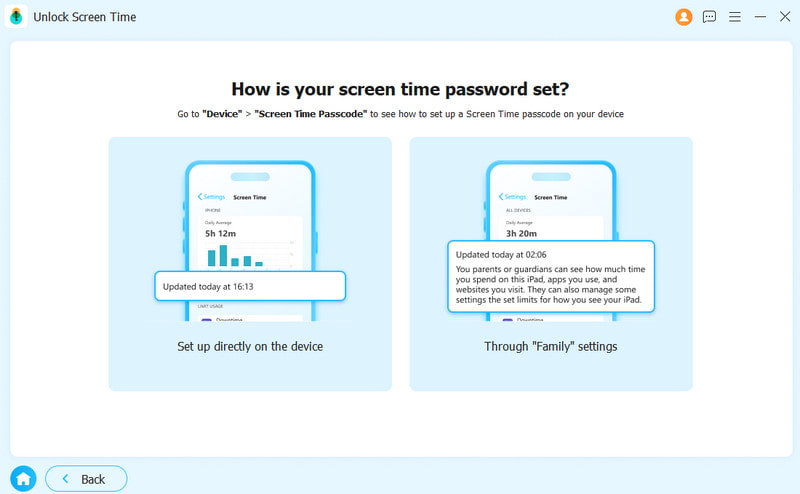
Step 3. Now, select how your Screen Time is set. If it's set yourself, choose the left option. If it's set by others, like your parents, choose the right option.
Step 4. Finally, click the Start Now button to quickly and directly remove Screen Time. Then, you'll fix the "can't change Apple ID password" issue.
Method 2. Restart Your iPhone
Sometimes your phone's software just gets confused. A restart clears out temporary system glitches without deleting any of your photos or messages. This could fix the canot change password for Apple ID issue.
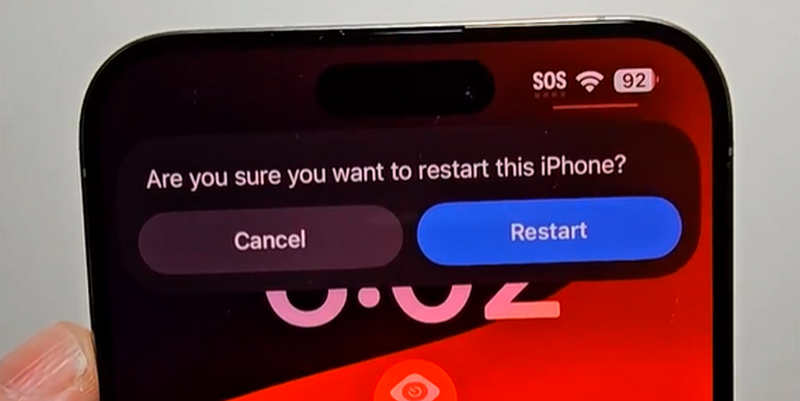
Once your iPhone boots back up, go straight back to your settings and see if you can change your password now.
Method 3. Update Your iOS Version
If your phone is running on an outdated system, it might conflict with Apple's latest security requirements. Updating your software can quickly solve this.
Step 1. Connect your iPhone to a good Wi-Fi network and plug it into a charger.
Step 2. Open Settings and tap on General.
Step 3. Tap on Software Update.
Step 4. If an update is available, tap Update Now or Update Tonight.
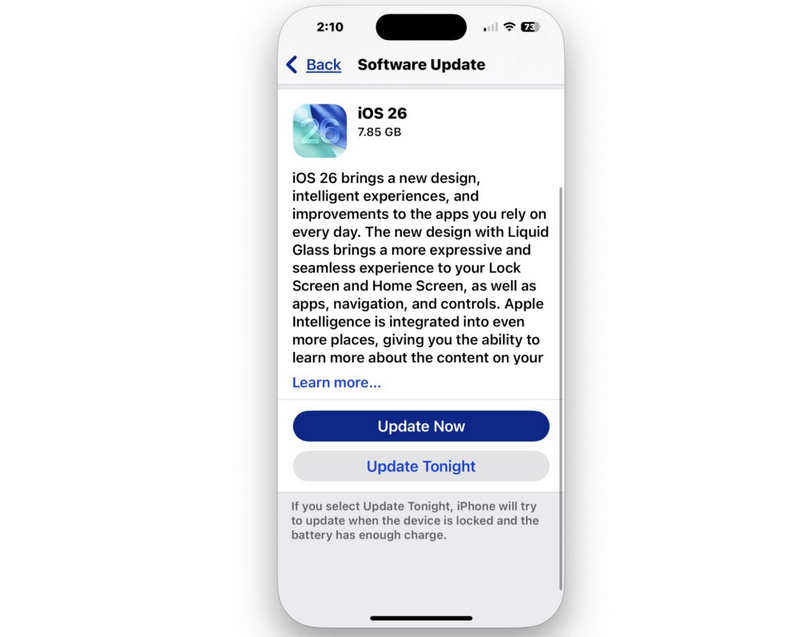
Once the update finishes, your system will be refreshed, which often fixes the can't change Apple ID password error loop.
Further Reading
Part 4: Alternative Ways to Reset Your Apple ID Password
If you still can't change password for Apple ID through the normal iPhone settings menu, don't worry. There are a few alternative pathways Apple provides to let you reset things safely.
Way 1. Use the "iforgot" Web Page
If your phone is completely acting up, you can perform a clean reset using a web browser on a computer or any mobile device.
Step 1. Open your web browser and go to iforgot.apple.com. Tap Reset Password.
Step 2. Type in your Apple ID email address (the email you use for your account).
Step 3. Enter your phone number associated with the account to confirm your identity.
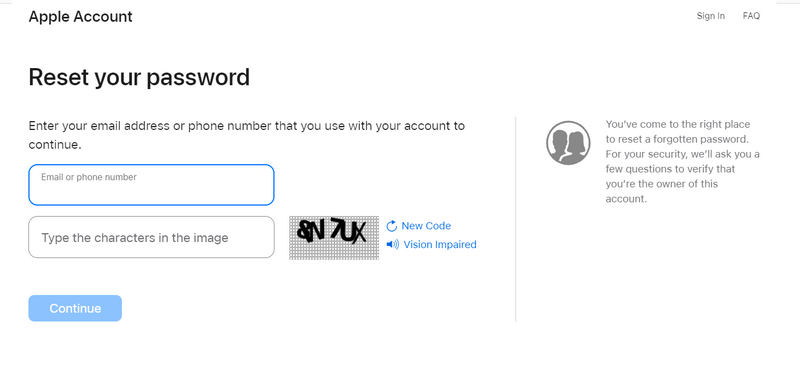
Step 4. A notification will be sent to your iPhone, iPad, or Mac. Tap Allow on your device screen, and you will be allowed to type in a brand-new password right then and there.
Way 2: Use Account Recovery (The Last Resort)
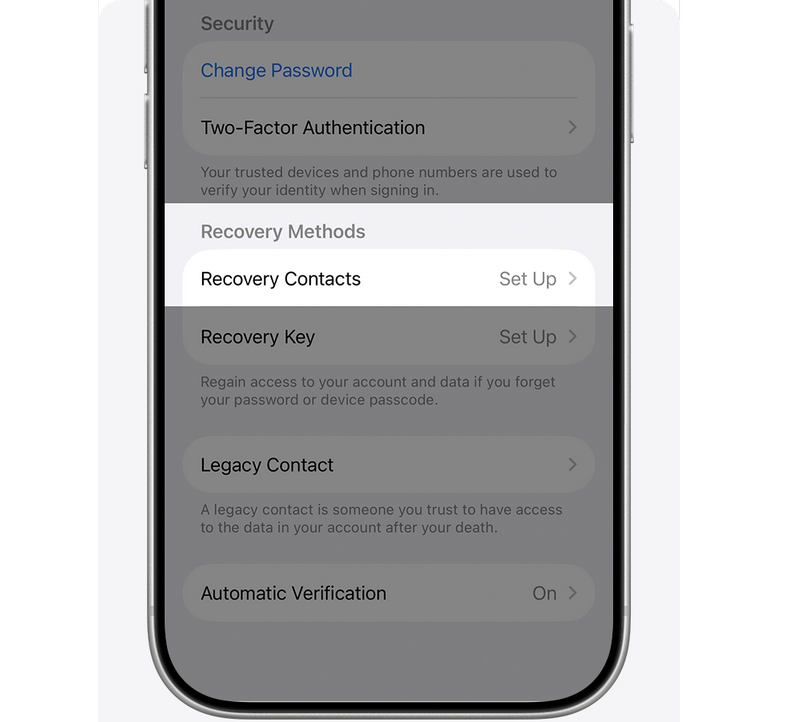
If you tried everything above and you are still asking why can't I reset my Apple ID password because you don't have access to your trusted phone number or email, your final option is Account Recovery.
Step 1. Go to Settings to try to log into your Apple ID.
Step 2. Pretend you don't know the password, and then you will get option to use Account Recovery.
Step 3. Ensure to turn off other devices that signed in to your Apple ID during account recovery.
Step 4. Apple will call you in 72 hours if your account recovery is successful. When you get a text or an automated phone call, follow the instructions to regain access to your Apple ID. Then, you can eternally fix the can't change password for Apple ID issue.
Conclusion
Dealing with a can't change Apple ID password issue is annoying, but it is almost always easy to solve. In 90% of cases, simply turning off the Screen Time account restrictions or doing a quick force restart gets everything working again perfectly. If you fail to deal with Screen Time, Apeaksoft iFoneKit iOS Unlocker is your finally resort. It can easily remove all types of Screen Time passcodes and restrictions, and you will be free to do any change on your iPhone or Apple ID.
 Apeaksoft iFoneKit
 Unlock all types of iOS passwords from iPhone, iPad and iPod.
Secure Download
Secure Download
Related Articles