Why Face ID Is Not Working and How to Fix This Issue

"I updated my iPhone 11 to iOS 18, and Face ID is not working. I cannot even open some apps that need Face ID. How can I fix this problem?" When your iPhone refuses to recognize your face, you need to turn it on with the passcode. It means that you have to enter your passcode repeatedly. This guide explains why my Face ID is not working and how to fix this problem quickly.
PAGE CONTENT:
Part 1: Why Is My Face ID Not Working
It is well known that Face ID works with both hardware and software. After setting up on a compatible device, you can scan your face to access it directly. Let's discuss why your Face ID is not working on your iPhone first.
- 1.The TrueDepth camera is damaged or blocked.
- 2.Your iPhone has not been unlocked for more than 38 hours, you just turned it on, or it's just charging.
- 3.Your iPhone is locked remotely.
- 4.You bring up the Emergency SOS screen.
- 5.Your iPhone gets stuck on the lock screen.
- 6.Outdated software.
- 7.Software glitches.
Part 2: What to Do If Face ID Is Not Working
Fix 1: Clean the TrueDepth Camera
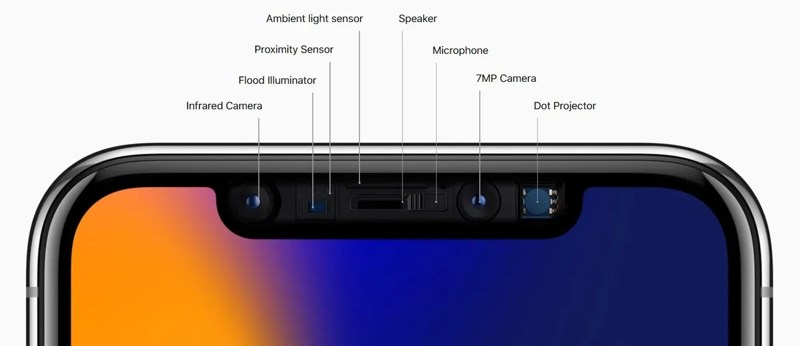
When your Face ID suddenly stops working, check the relevant hardware. Use the soft cloth to clean the front camera. If you are using a screen protector on your iPhone, remove it or make sure it doesn't block your front camera.
Fix 2: Restart Your iPhone
A simple troubleshooting solution is restarting your iPhone. That can fix basic software glitches, like Face ID not working on your device. This solution can close all background apps, clear the cache, and unfreeze your device.
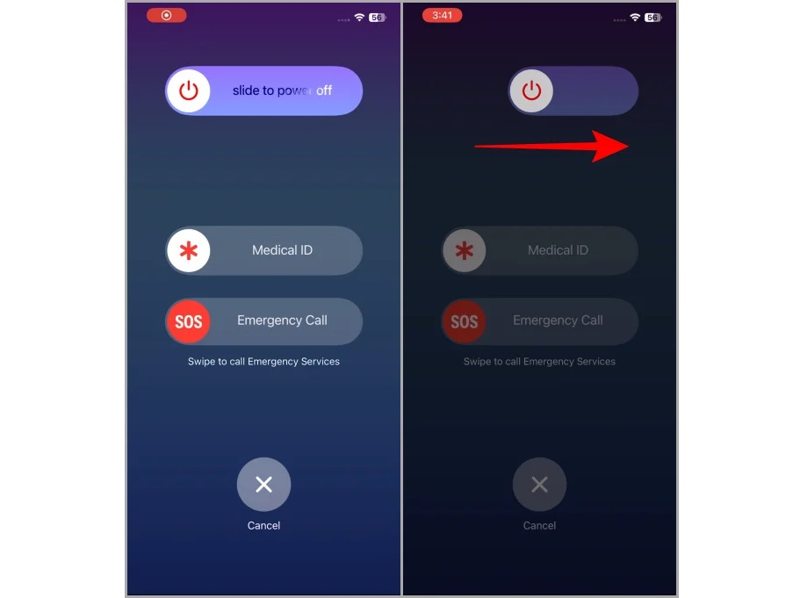
Step 1. Hold down one of the Volume buttons + the Side button together to trigger the power-off screen.
Step 2. Move the slider to shut down your device.
Step 3. A few minutes later, hold down the Side button until the Apple logo appears.
Fix 3: Disable Stolen Device Protection
If you want to use Face ID on your iPhone, you need to set it up. However, an incorrect setup can prevent Face ID from working with Stolen Device Protection. Therefore, you need to check the relative settings on your iPhone.
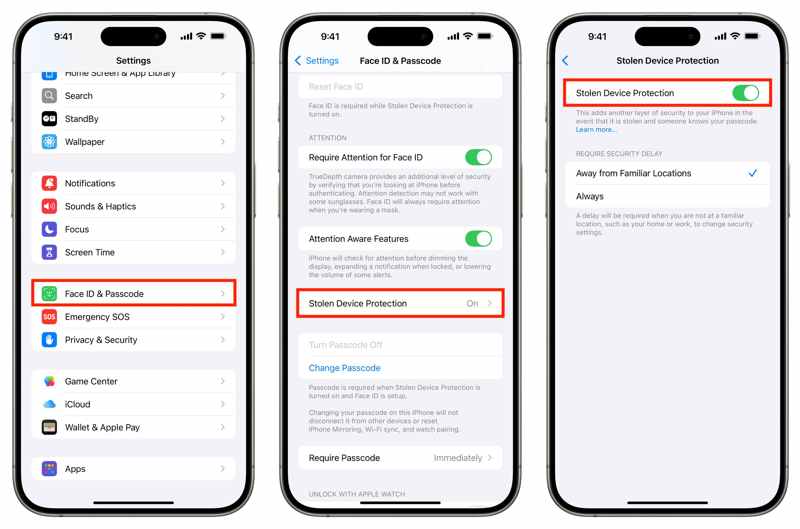
Step 1. Run your Settings app.
Step 2. Choose Face ID & Passcode.
Step 3. Enter your iPhone passcode.
Step 4. Ensure iPhone Unlock is enabled.
Step 5. Scroll down and tap Stolen Device Protection.
Step 6. Toggle off Stolen Device Protection.
Fix 4: Disable Face ID and Enable Again
Another solution to fix Face ID setup not working on your iPhone is re-enabling Face ID. This solution won't delete your Face IDs, but requires your iPhone passcode. Here are the steps to re-enable Face ID:
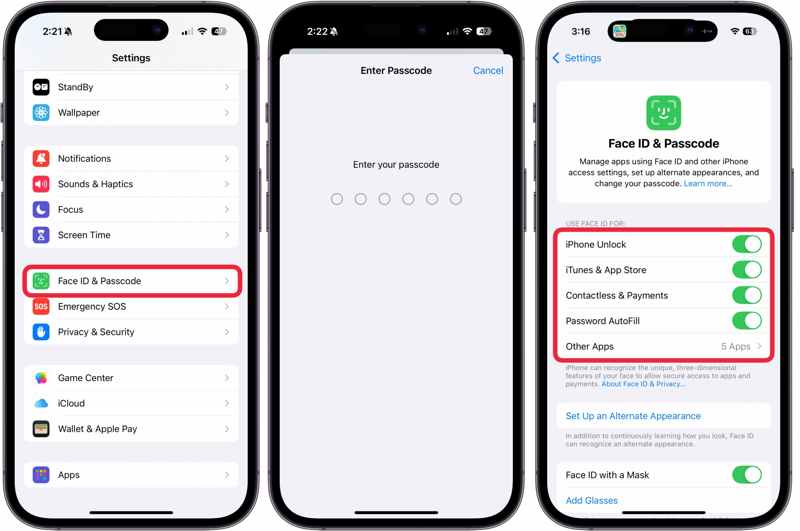
Step 1. Go to Face ID & Passcode in your Settings app.
Step 2. Enter your iPhone passcode.
Step 3. Locate the Use Face ID For section.
Step 4. Then, toggle on the scenarios and services you want to use Face ID.
Step 5. For example, if iPhone Unlock is enabled, turn it off, then toggle it on again.
Fix 5: Set up an Alternate Face ID
With a facial recognition scan, Face ID can learn your face and update the representation. If Face ID is not working with sunglasses or a mask, you can set up an alternate Face ID. Apple allows users to add two Face IDs on an iPhone.
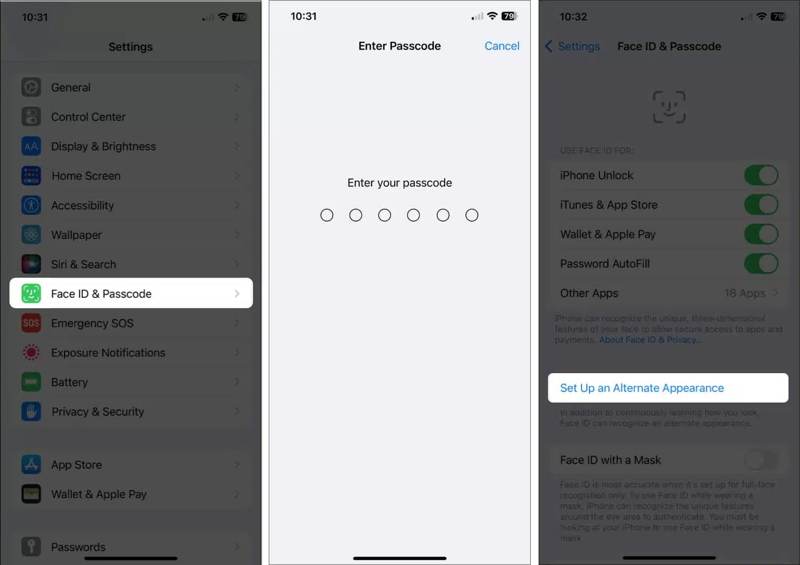
Step 1. Go to Face ID & Passcode in the Settings app.
Step 2. Input your iPhone passcode.
Step 3. Tap the Set Up an Alternate Appearance button.
Step 4. Follow the onscreen instructions to add your face.
Note: When setting up the second Face ID, choose Use Face ID with a Mask to unlock your device with a mask. If you wish to use Face ID with glasses, tap Add Glasses, then follow the onscreen instructions to complete the process.
Fix 6: Reset Face ID
A drastic solution to fix iPhone Face ID not working is resetting Face ID. That will completely remove Face ID on your iPhone or iPad. Then, you have to set up Face ID again on your iPhone. Here is the basic process:
Step 1. Go to Settings from the home screen.
Step 2. Choose Face ID & Passcode and enter your iPhone passcode.
Step 3. Tap the Reset Face ID button.
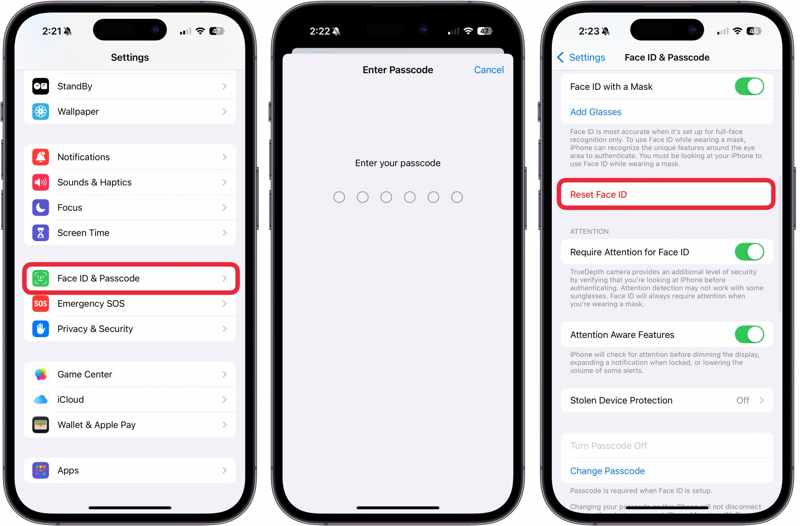
Step 4. Restart your iPhone.
Step 5. Then, go back to the Face ID & Passcode settings screen.
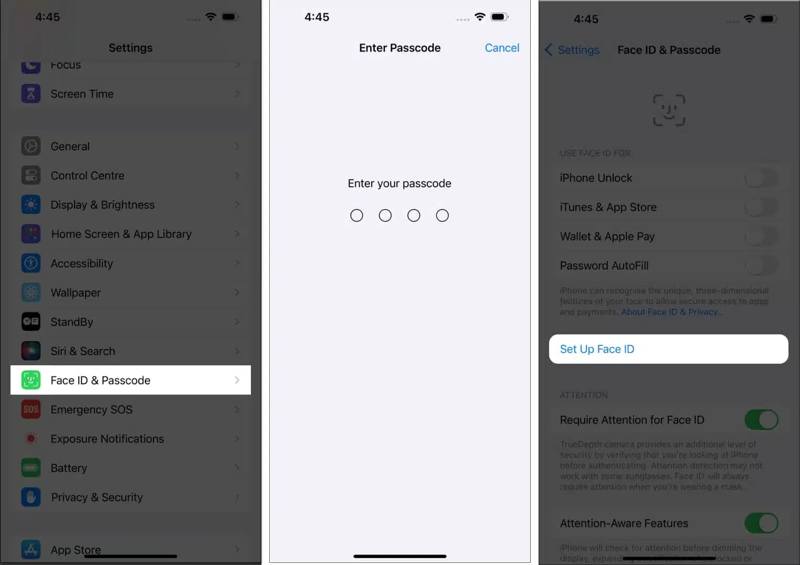
Step 6. Tap Set up Face ID and follow the instructions to re-enroll your face.
Fix 7: Update Software
Some iPhone users reported that Face ID stopped working after an update, especially after updating to a beta version of iOS. According to experts, you'd better update to the standard software version on your iPhone.
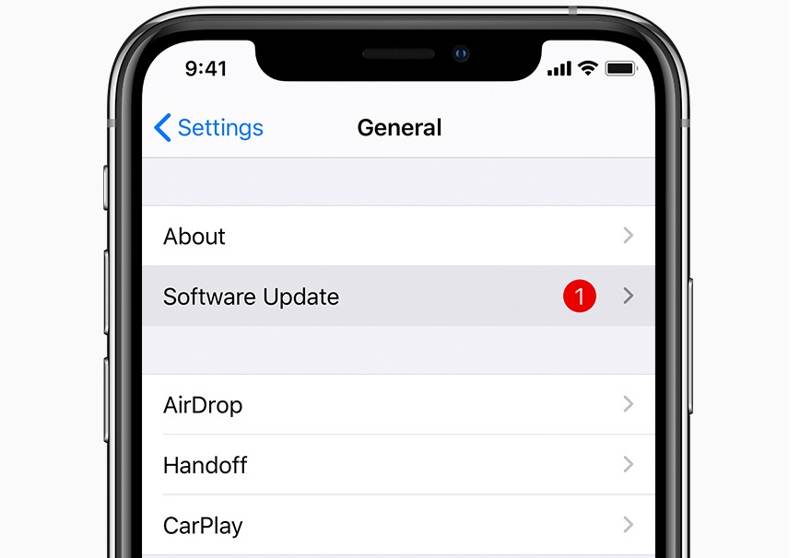
Step 1. Run your Settings app.
Step 2. Navigate to General and choose Software Update.
Step 3. If an update is available, tap the Download and Install button.
Step 4. When it is done, check if your Face ID is working on iOS 26/27 Beta or another version.
Part 3: How to Fix Face ID Not Working in One Click
The common solutions work in most cases. However, they might be unavailable. Fortunately, Apeaksoft iFoneKit iOS Unlocker can help you quickly fix Face ID not working on your iPhone. It is able to remove the malfunctioning Face IDs from your iOS device without your iPhone passcode. The user-friendly design makes it available to beginners.

Downloaded by over 1,000,000 users
- Remove the malfunctioning Face ID from your iPhone or iPad.
- Don't ask you to enter your iPhone passcode or Apple ID password.
- Work for locked and disabled iOS devices.
- Support almost all iPhone and iPad models.
Secure Download
Secure Download

How to Fix Face ID Not Working on Your iPhone
Step 1. Install iFoneKit
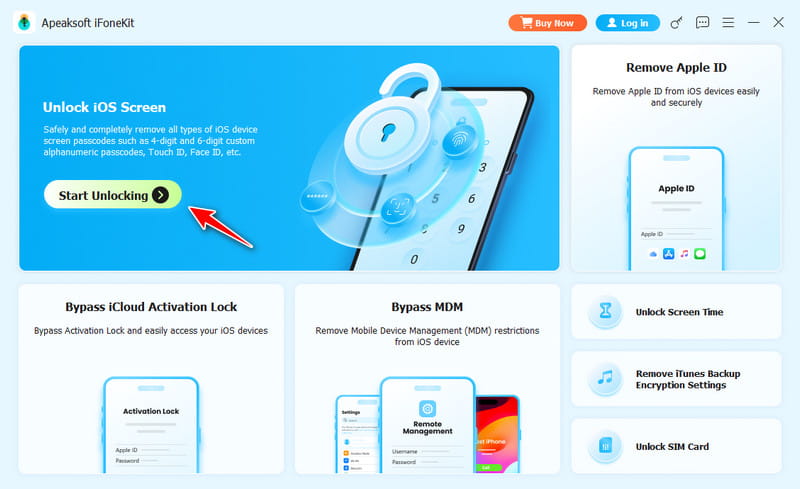
Launch the Face ID removal software once you install it on your PC. It is compatible with Windows 11/10/8/7/XP/Vista. There is another version for macOS 10.7 or above. Choose the Unlock iOS Screen mode to continue.
Step 2. Download firmware
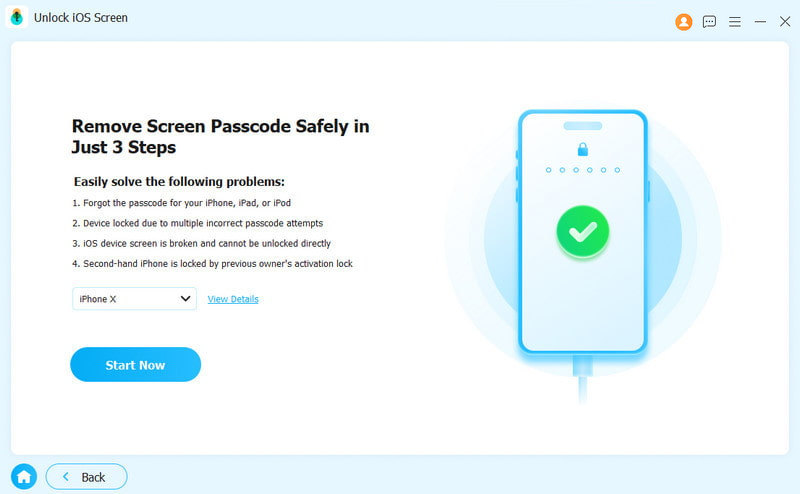
Connect your iPhone to your PC with a Lightning cable. Once the software detects your iPhone, the device information will be loaded. Confirm it and click the Start Now button to begin downloading the firmware package.
Step 3. Remove Face ID
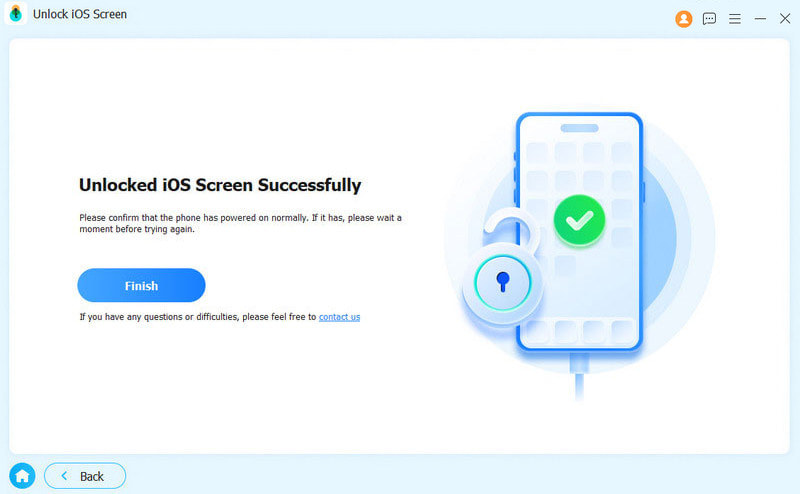
When the download finishes, click the OK button on the confirmation dialog. Then, hit Confirm Again to verify the firmware. As long as firmware verification is complete, the software will begin removing screen locks on your iPhone, including your Face ID. When it is done, disconnect your iPhone and set up Face ID again.
Conclusion
This article explained what to do if your Face ID is not working on your iPhone. You can learn the main factors that lead to this problem. More importantly, you can pick the right solution and follow our steps to make your Face IDs work normally. If the common solutions are unavailable, try an ultimate solution: Apeaksoft iFoneKit iOS Unlocker. It can remove the malfunctioning Face IDs and lock screen passcode from an iOS device without any restrictions.
 Apeaksoft iFoneKit
 Unlock all types of iOS passwords from iPhone, iPad and iPod.
Secure Download
Secure Download
Related Articles