

What You Should Do If Find My iPhone Becomes Grayed out

What You Should Do If Find My iPhone Becomes Grayed out
“The Find My iPhone option is grayed out, and it will not allow me to share my location or sign out. How can I fix this problem?” Find My iPhone is an essential security measure on iOS devices. It links to your Apple ID account and turns on Activation Lock automatically. Furthermore, it allows you to track your iPhone's location and erase your device remotely. If Find My iPhone is grayed out, follow our solutions to fix this problem on your own.
PAGE CONTENT:
Part 1: Why Find My iPhone Grayed out
The Find My iPhone is far more than a feature to track your device. If this feature is locked or disabled, you cannot turn it on or off. The common reasons why Find My iPhone is grayed out include:
1. Something is wrong with your Apple ID account.
2. Find My iPhone is restricted.
3. iCloud Terms and Conditions need to be accepted after the software update.
4. Your iPhone is locked by MDM.
5. Software glitches.
Part 2: How to Fix Find My iPhone Grayed out
Solution 1: Disable Restrictions
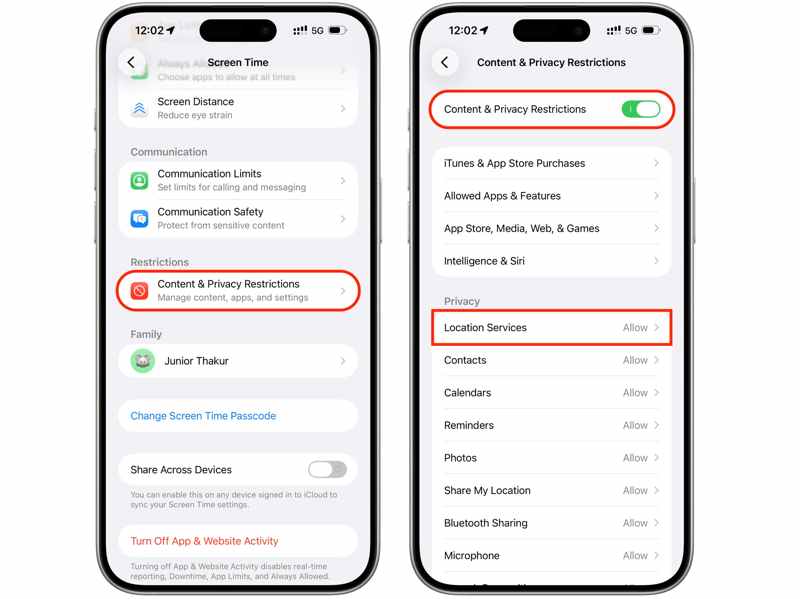
If you have set up Screen Time and turned on restrictions, Find My iPhone will gray out. The solution is simple: turn off restrictions on your device or remove restrictions for Location Services.
Step 1. Open the Settings app on your iPhone.
Step 2. Choose Screen Time and enter your Screen Time passcode.
Step 3. Next, tap Content & Privacy Restrictions.
Step 4. Now, you have two options:
Toggle off Content & Privacy Restrictions to completely disable restrictions.
If you want to keep Content & Privacy Restrictions on, tap Location Services under Privacy, and choose Allow.
Solution 2: Sign out and Back into Apple ID
As mentioned previously, Find My iPhone works with your Apple ID account. Whether you need to turn on Find My iPhone or turn it off, you need to enter your Apple ID credentials. If you can't turn off Find My iPhone due to greyed out, you can log in to your account.
Step 1. Run your Settings app.
Step 2. Tap on your profile picture.
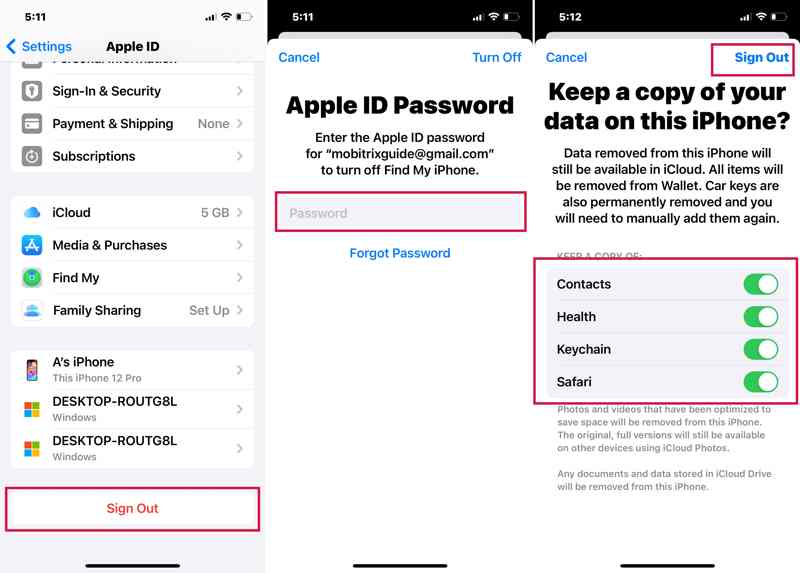
Step 3. Scroll down and tap the Sign Out button at the bottom.
Step 4. If prompted, enter your Apple ID password to turn off Find My iPhone.
Step 5. Tap Turn Off on the top ribbon.
Step 6. Then, select the data types to keep, and tap the Sign Out button again.
Step 7. Restart your iPhone.
Step 8. Go to the Settings app.
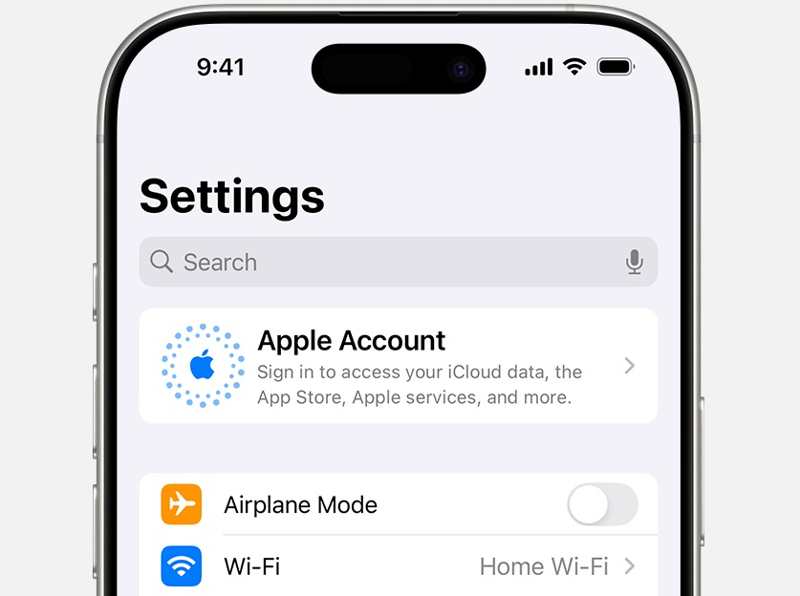
Step 9. Tap Apple Account, and choose Sign in Manually or Use Another Apple Device.
Step 10. Type in your Apple ID and password again.
Solution 3: Re-activate iCloud
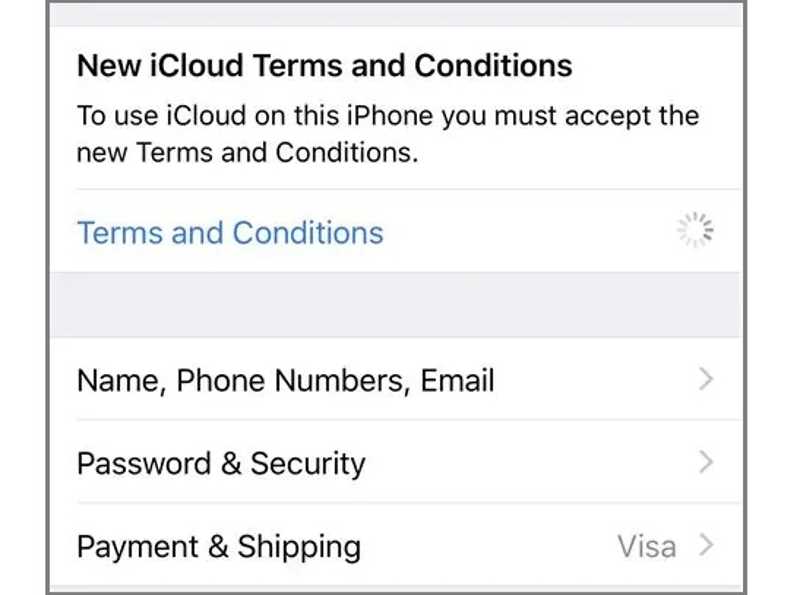
If Find My iPhone is grayed out and cannot be turned off after an iOS update, chances are that iCloud’s terms and conditions have been updated, too. You need to agree to the new terms and apply iCloud to your device.
Step 1. Go to the Settings app from your home screen.
Step 2. Tap on your profile and check the notification.
Step 3. Press Terms and Conditions under New iCloud Terms and Conditions.
Step 4. Follow the onscreen instructions to agree to the terms and conditions.
Step 5. Locate Find My iPhone to see if you can turn it off now.
Solution 4: Check for MDM
MDM or Mobile Device Management is used to control mobile devices enrolled. If your iPhone is enrolled by an organization, you can't turn off greyed-out Find My iPhone. To turn off Find my, you have to remove the MDM.
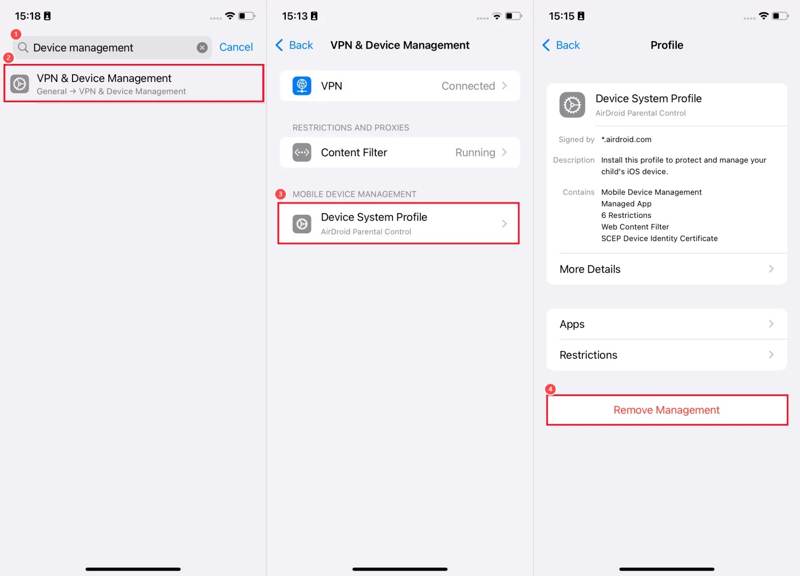
Step 1. Run your Settings app.
Step 2. Navigate to General and VPN & Device Management.
Step 3. Tap on the MDM profile under MOBILE DEVICE MANAGEMENT.
Step 4. Next, tap the Remove Management button.
Step 5. Enter the administrator password if prompted.
Step 6. Now, turn off Find My iPhone.
Solution 5: Reset All Settings
A serious solution to fix Find My iPhone greyed out is to completely reset all settings on your device. That will bring your settings to the factory status, including turning off Find My iPhone. Here are the steps:
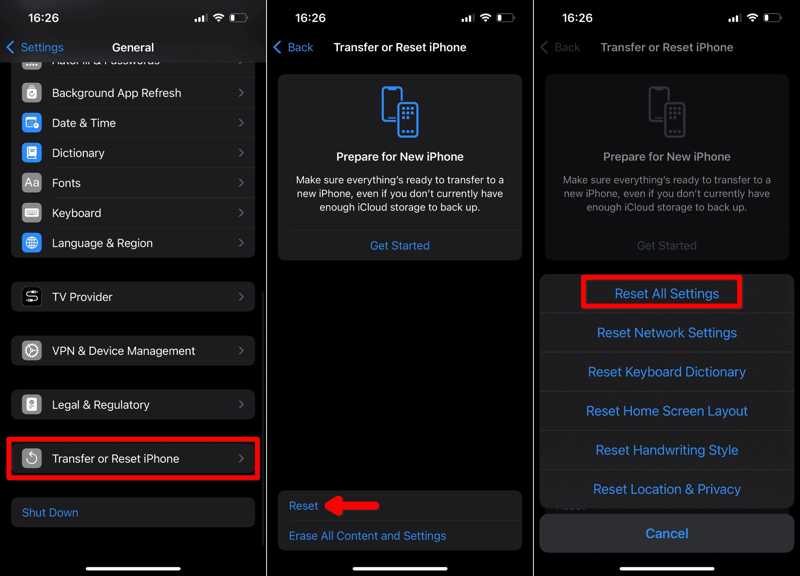
Step 1. Head to the General tab in your Settings app.
Step 2. Tap Transfer or Reset iPhone, and pick Reset.
Step 3. Choose Reset All Settings.
Step 4. If prompted, type in your Apple ID password or iPhone passcode.
Step 5. Then, tap Reset All Settings on the confirmation dialog.
Step 6. Next, try turning off Find My iPhone again.
Part 3: One-stop Solution to Fix Find My iPhone Grayed out
If the solutions above are unavailable, you should try Apeaksoft iOS System Recovery. It is able to detect software glitches and bugs on your iPhone, so that you can fix it, such as Find My iPhone grayed out.
One-stop Solution to fix Find My iPhone Grayed out
- Detect software issues on an iOS device automatically.
- Fix a wide range of software glitches with one click.
- Upgrade or downgrade iOS.
- Support the latest models of iPhone and iPad.
Secure Download
Secure Download

How to Fix Find My iPhone Grayed out
Step 1. Connect to your iPhone
Install the iOS System Recovery software on your PC or Mac and launch it. Connect your iPhone to your computer with a Lightning cable. If prompted, tap Trust on your screen to trust your computer. Choose iOS System Recovery, and click Start Now under System Repair. Click the Start button to scan software issues.
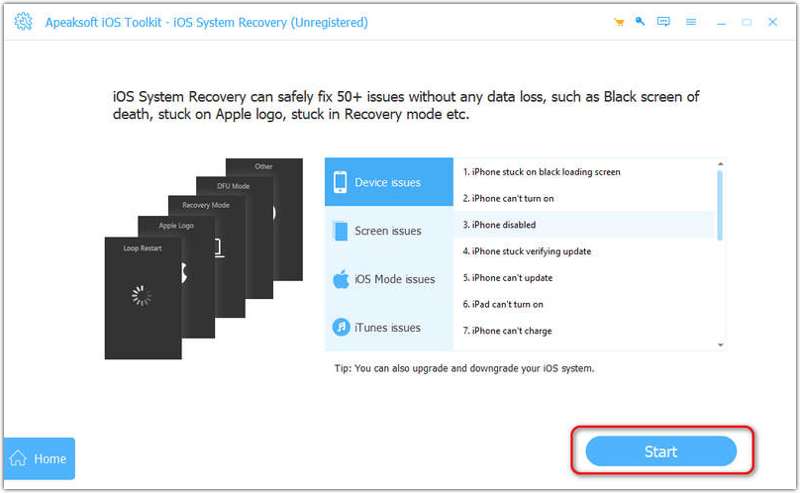
Step 2. Select a mode
Then, click the Free Quick Fix link to fix software errors quickly. If it is ineffective, click Fix. Select the Standard Mode or Advanced Mode, and hit Confirm.
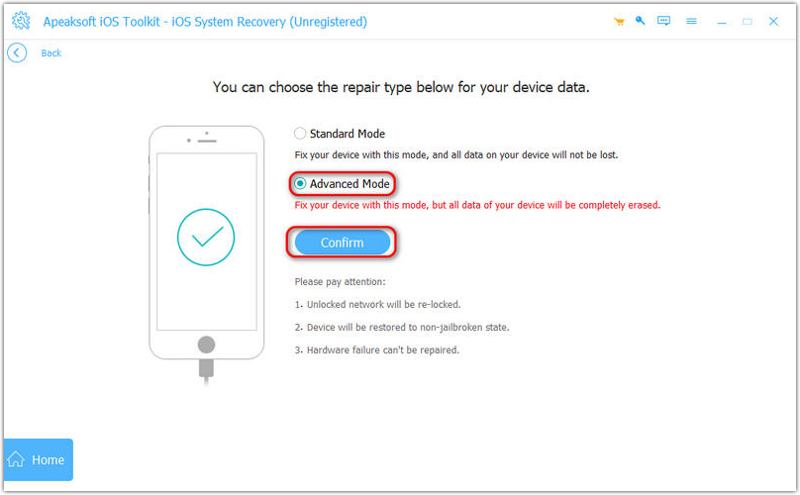
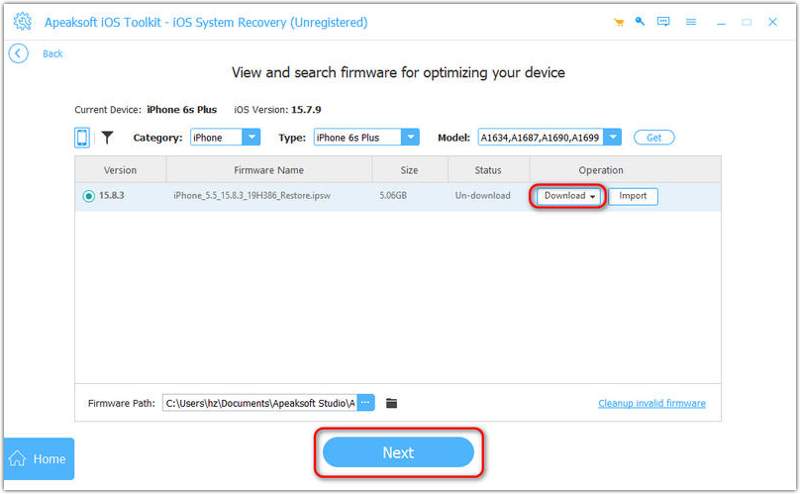
Step 3. Fix Find My iPhone greyed out
Check your device information. Next, download the proper version of the firmware. Finally, click the Next button to begin fixing software issues.
Conclusion
This article discussed why Find My iPhone greyed out. More importantly, we listed the proven solutions to fix this problem quickly. The common solutions may be unavailable in some cases. Apeaksoft iOS System Recovery enables you to get rid of various software issues quickly.
Related Articles
Is your iPhone suddenly unable to play videos? Don't panic, Here you can troubleshoot the problem and quickly restore a smooth playback.
If iOS update problems occur on your iPhone, don’t worry! Here you can learn multiple proven solutions to fix it quickly.
If your iPhone gets stuck in Recovery Mode, don’t panic! Follow our verified solutions to fix the problem and regain access.
iPhone iTunes restore not working? Check this detailed tutorial to learn why and how to fix iTunes could not restore the iPhone because an error occurred!



