

Why Is Find My iPhone Not Working? Reasons and Fixes

There is a specific kind of problem that sets in when you can't find your iPhone. You reach for your iPad or a friend's phone, open the Find My app, but only to find nothing. Maybe the location is old, or perhaps it says No Location Found. When Find My iPhone not working becomes your reality, it’s not just an inconvenience - it's a security risk.
Whether you are tracking a lost iOS device or trying to see where a family member is, location glitches is very upsetting. In this guide, we will dive deep into why is Find My iPhone not working and provide actionable solutions to get your tracking back on track.
PAGE CONTENT:
Part 1: Why Is Find My iPhone Not Working?
Before diving into solutions, it is important to understand the essential requirements for the Find My service. If any of these are missing, you will find yourself asking, "why does Find My iPhone not work?" If Find My can work, the following requirements should be fulfilled, :
iCloud is Active: You must be signed in with your Apple ID.
Find My is Enabled: The Find My feature must be toggled on in your settings.
Power & Internet: Your iPhone usually needs battery life and a connection to Wi-Fi or Cellular data (though the Find My Network can help with offline devices in some cases).
Location Services: Location service must be allowed for the app.
Part 2: How to Fix Find My iPhone Not Updating Location
Way 1. Check Your Internet Connection
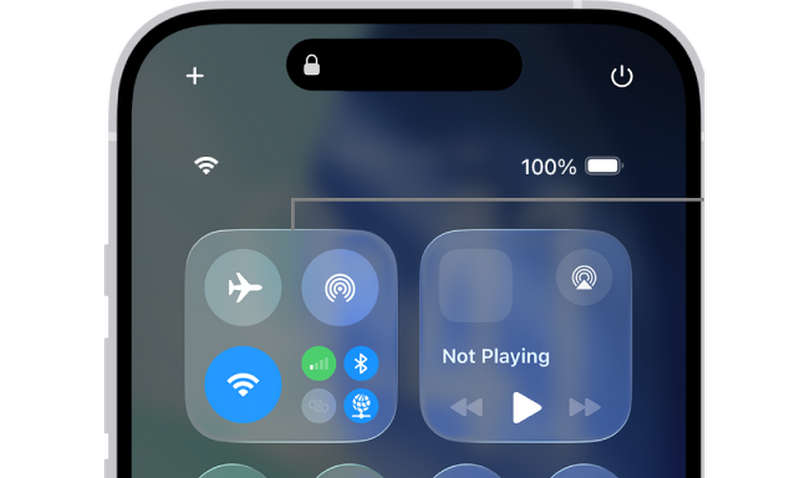
The most frequent answer to why is Find My iPhone not updating is a poor network. If your Wi-Fi is poor, you can switch to cellular data.
Another trick is turning off and on Airplane Mode for 10 seconds. It will refresh the connection.
Way 2. Verify Date and Time Settings
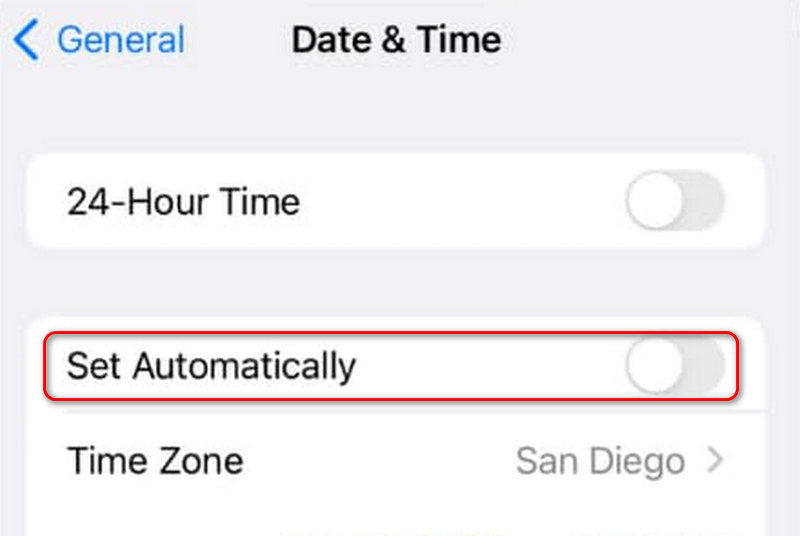
Apple's encryption and syncing services rely heavily on time stamps. If your phone's clock is even a few minutes off, it can cause the Find My sync to fail.
Step 1. Go to Settings. Tap the General button. Then, select Date & Time.
Step 2. Ensure that Set Automatically is turned on.
Part 3: Why is Find My iPhone Not Showing Location
If the map in Find My is completely blank or says No location found, you are dealing with a permissions or hardware issue. Here is why is Find My iPhone not showing location for many users:
1. Disabled Location Services: You might have accidentally turned off GPS to save battery.
Step 1. Navigate to Settings, and then tap the Privacy & Security button. Then, select Location Services.
Step 2. Ensure that Location Services is turned on. Scroll down to select Find My.
Step 3. Ensure that Find My is set to While Using the App.
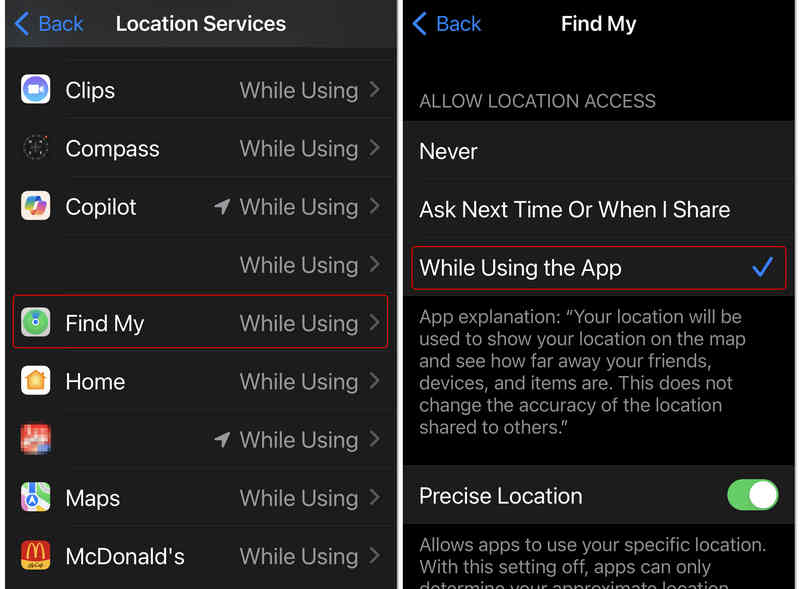
Note: In newer versions of iOS, Apple introduced Precise Location. If this is off, the app might only show a general city-wide radius rather than a specific house. In the Find My location settings (from the step above), ensure Precise Location is turned on.
Part 4: Why is Find My iPhone Not Updating Someone's Location
If you are wondering why is Find My iPhone not updating someone's location, the issue might not be on your phone, it's likely on theirs.
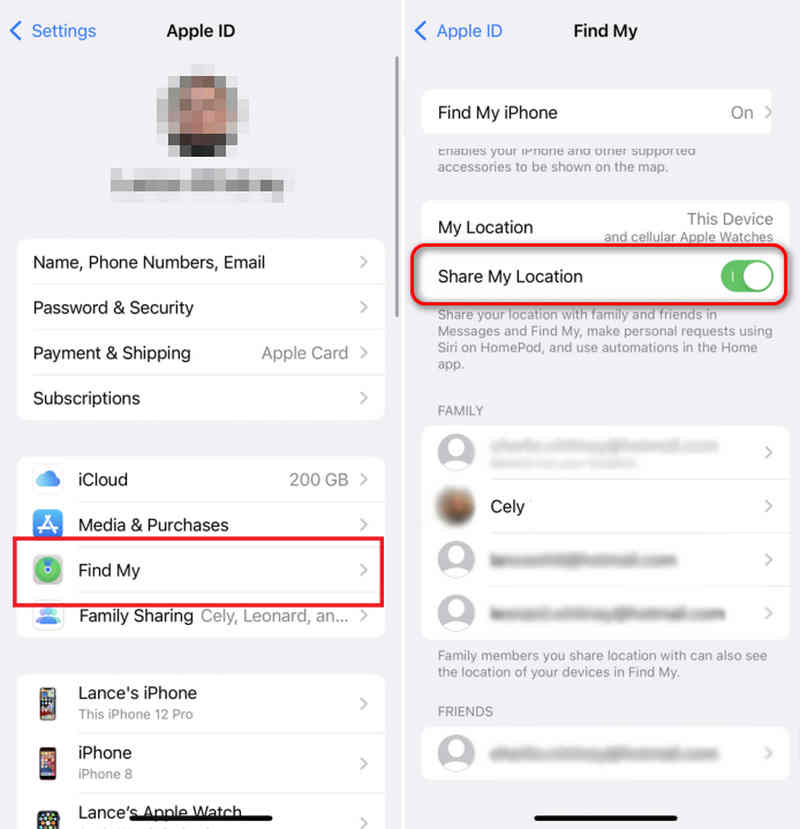
1. They Have Share My Location Turned Off
Privacy is a priority for Apple. If your friend accidentally toggled off their sharing, they will appear as Location Not Available.
Solution: If you want to fix this Find My iPhone not working problem, you can ask them to check Settings, and then tap Their Profile, select Find My, and turn on Share My Location.
2. The Notification Trick (A Pro Tip)
Maybe they leave their phones somewhere still without movement, so that you think that Find My is not working. You can set a notification feature for their devices' movement.
Step 1. In the Find My app, tap the person whose location is stuck.
Step 2. Tap the Notifications button. Then, select Add.
Step 3. Set a notification for when they leave or arrive at a location. This way, it pings their device for a fresh update immediately.
Part 5: Advanced Fix to Solve Find My iPhone Not Working
If all the methods above cannot help, maybe you should fix system and software errors to entirely fix your iPhone. After that, you'll fix the internet, GPS, and screen issues. Then, you can fix Find My iPhone not working easily.
Apeaksoft iOS System Recovery is the right tool you can use. It can fix all types of system errors and mistakes on your iPhone or iPad. You will use Find My to protect your device or track your family without any restriction.
Fix System Errors That Cause Find My iPhone Not to Work
- Connect your iPhone or iPad to computer to fix all system problems.
- Solve system, screen, stuck, and more issues on your iOS devices.
- Help you upgrade or downgrade iOS versions easily.
- Support the latest iPhone and iOS (support iPhone 18 Series and iOS 26/27).
Secure Download
Secure Download

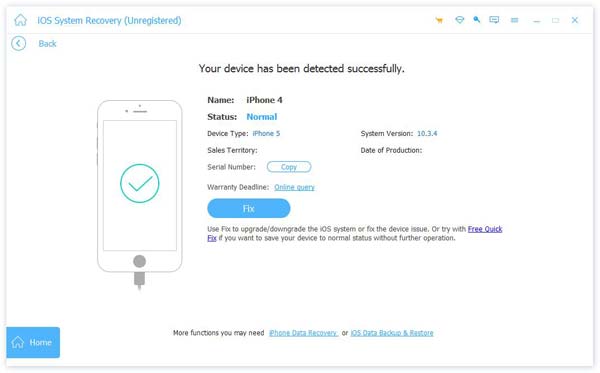
Step 1. Download, install, and launch Apeaksoft iOS System Recovery. Connect your iPone to your computer. Then, select System Repair and click the Start button.
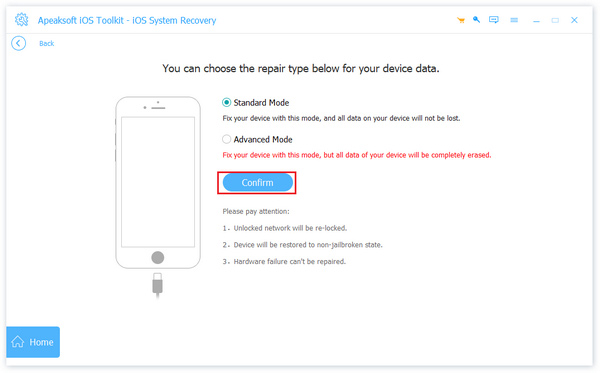
Step 2. You can select between two fix modes: Standard Mode and Advanced Mode. They both can repair system errors like Find My iPhone not working. The Advanced Mode can deeply fix all issues and factory reset your iPhone. Select your desired mode and click the Confirm button.
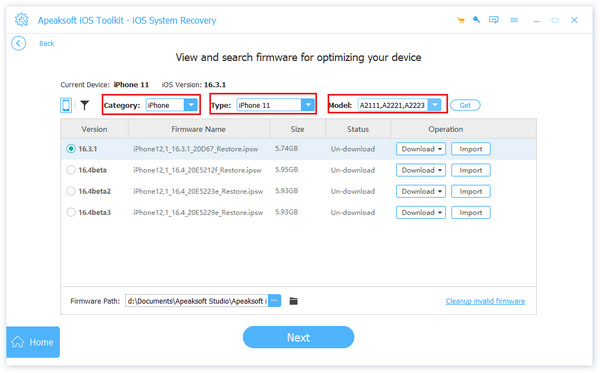
Step 3. Here, you can select a desired iOS version and then click the Next button to fix software problems on your iPhone. It will also fix Find My iPhone not working.
Conclusion
Why is Find My iPhone not working? This article has deeply explained this problem and offers you corresponding solutions. You can check the network and location services to fix this problem. If your iPhone has severe system issues and cannot fix Find My iPhone not working, Apeaksoft iOS System Recovery is your final solution. It can deeply repair all software and system errors, glitches, and mistakes. You will use Find My seamlessly without problems.
Related Articles




