


Guide to iPhone Passcode Requirements: What You Need to Know

Have you ever looked at your iPhone and wondered why it suddenly demands your PIN? Or maybe you are tired of typing it in every single time you open your screen. Understanding your iPhone passcode requirement can save you time, protect your private data, and give you peace of mind.
You don't need to be a tech genius to master your phone's security. In this guide, we will break down everything about iPhone passcode requirements, how to change your settings, and how to keep your apps locked tight.
PAGE CONTENT:
Part 1: Why Does My iPhone Keep Asking for a Passcode?
Apple is very strict about security. Even if you use Face ID (facial recognition) or Touch ID (fingerprint scanning), there are certain moments when an iPhone requires passcode entry to be mandatory.
The most common reason people see this is after turning their phone off and on again. You will always see a message stating that your passcode is required when your iPhone restarts.
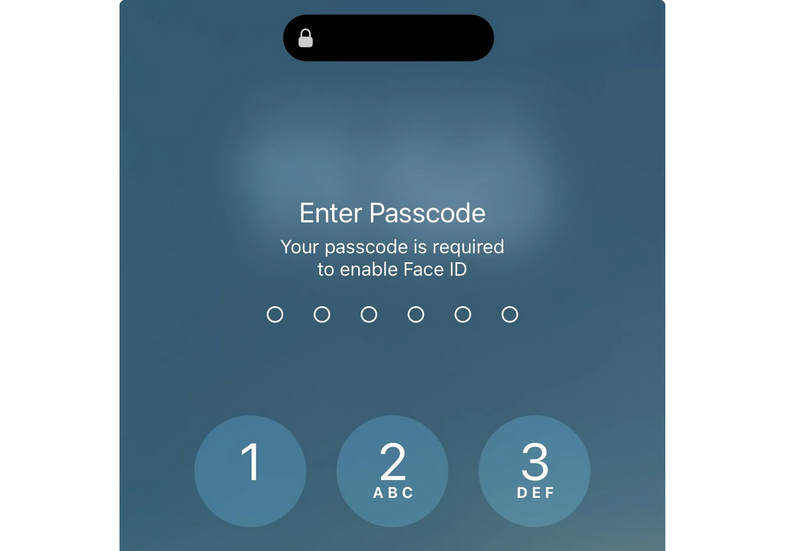
Other situations where your iPhone will force you to type your passcode:
- You haven't used your passcode to unlock the phone in the last 6.5 days, and Face ID/Touch ID hasn't been used in the last 4 hours.
- The phone receives a remote lock command via iCloud.
- There have been five unsuccessful attempts to use Face ID or Touch ID.
- You trigger the Emergency SOS feature.
- You need to transfer data from your iPhone to your computer.
These iPhone passcode requirements are built into the iOS system to make sure that if someone steals your phone, they can't just bypass your security features.
Part 2: How to Customize Your Passcode Requirement for iPhone
You don't have to stick with the default settings of iPhone passcode requirement pop-ups. You can change how long your phone waits before it locks itself. If you want to adjust the passcode requirement for iPhone, follow these simple steps:
- 1.Open the Settings app (the gray gear icon).
- 2.Scroll down and tap Face ID & Passcode (or Touch ID & Passcode on older iPhones).
- 3.Scroll down and look for Require Passcode.
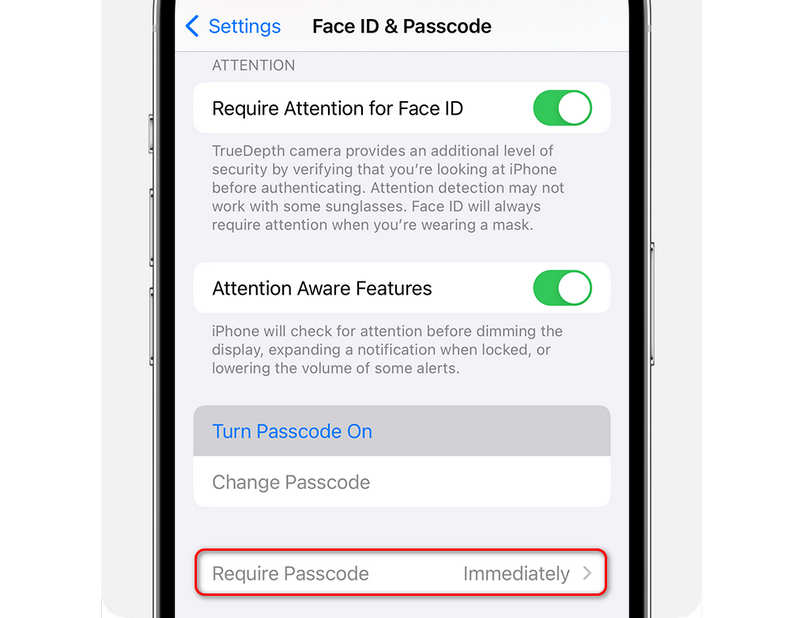
Here, you can choose how quickly your phone locks up after the screen goes black. You can choose options like Immediately, After 1 minute, After 5 minutes, or even After 4 hours.
Important Note: If you use Face ID or Apple Pay, Apple forces the iPhone to require passcode immediately only option for safety reasons. If you notice that you cannot select a longer delay time, it is because Face ID is turned on. To change the delay, you would have to turn off Face ID completely, which we do not recommend!
Further Reading
Part 3: Tips for iPhone Passcode Customization
Actually, there are many fun facts about the iPhone passcode requirements when you do some operations. You can check some facts and helpful tips when using the iPhone passcode.
| Goal | Where to Go in Settings | What it Does |
| Change Lock Time | Settings > Face ID & Passcode > Require Passcode | Controls how long before the screen locks. |
| Reboot Security | Auto-triggered when the phone turns on | Ensures your passcode is required when the iPhone restarts. |
| Lock Individual Apps | Long-press an app icon on the home screen | Prevents friends or kids from opening specific apps. |
| Change Code Length | Settings > Face ID & Passcode > Change Passcode | Allows you to switch between 4-digit, 6-digit, or letter codes. |
Bonus: How to Remove Forgotten iPhone Screen Passcode
You've learned how to manage iPhone passcode requirements. However, there is a radical situation: what if you've forgotten your screen passcode? Don't worry; Apeaksoft iFoneKit iOS Unlocker can help you. This powerful and easy-to-use program can easily remove screen passcodes, Face IDs, and Touch IDs on your iPhone and iPad. Just feel free to connect your iOS device to your computer and do the unlocking process without a hassle.

Downloaded by over 1,000,000 users
- Connect your iPhone to your PC or Mac to remove screen locks.
- One-click remove all iPhone passcode requirements on your device.
- Help you remove MDM profiles and Screen Time restrictions on iOS devices.
- Easily remove forgotten iTunes backup passwords on your device.
Secure Download
Secure Download

Conclusion
This article explains the reasons for iPhone passcode requirements. You can also learn to customize the iPhone passcode requirement frequency. Although there is Face ID, the screen passcode is still very important because it is often used to protect your data and privacy.
If you forget the screen passcode on an iPhone, you can use Apeaksoft iFoneKit iOS Unlocker to one-click remove all types of screen passcodes, Touch IDs, and Face IDs. You can feel free to regain access to your iPhone and iPad.
 Apeaksoft iFoneKit
 Unlock all types of iOS passwords from iPhone, iPad and iPod.
Secure Download
Secure Download
Related Articles




