

How to Get Your iPhone out of Recovery Mode Quickly

It is well known that Recovery Mode is a significant feature on iOS devices for troubleshooting. When an iPhone cannot update or restore in the standard mode, you can put it in Recovery Mode and complete the job. However, you cannot access your iPhone or iPad once it is in Recovery Mode. The good news is that you can get your iPhone out of Recovery Mode. This tutorial shares proven methods and demonstrates the workflows.
PAGE CONTENT:
- Part 1: How to Get iPhone Out of Recovery Mode by Restarting iPhone
- Part 2: How to Take an iPhone out of Recovery Mode via Force Restart
- Part 3: How to Exit iPhone Recovery Mode with Updating or Restoring
- Part 4: How to Take an iPad out of Recovery Mode Using DFU Mode
- Part 5: One-stop Solution to Exit iPhone Recovery Mode
Part 1: How to Get iPhone Out of Recovery Mode by Restarting iPhone
One easy way to exit Recovery Mode on your iPhone is restarting your device. That completely powers off your iOS device. Once you turn it back on, your iPhone will boot into the standard mode. The prerequisite is that your device is still working.
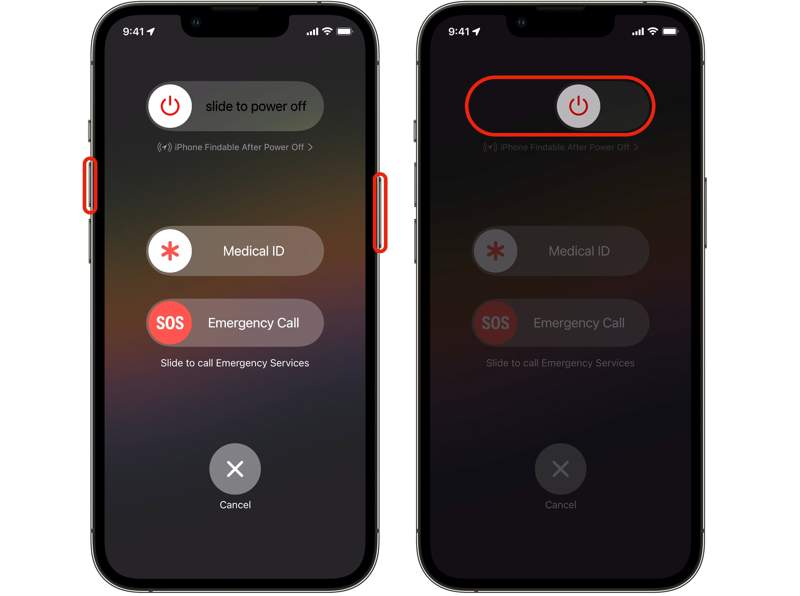
Step 1. Disconnect your iPhone if you have connected it to a computer.
Step 2. For iPhone X and later, press and hold either Volume button and the Side button together. For iPhone 8 and earlier, long-press the Side, Top, or Sleep/Wake button.
Step 3. When you see the power-off screen, release the button or buttons.
Step 4. Move the slider to shut down your device.
Step 5. A few minutes later, hold down the Side, Top, or Sleep/Wake button until you see the Apple logo.
Part 2: How to Take an iPhone out of Recovery Mode via Force Restart
If simply restarting your device is not working, you can take your iPhone out of Recovery Mode by force restarting. It can work even if your iPhone or iPad screen gets stuck in Recovery Mode and is unresponsive. After unlinking your device from your computer, force restart your device using the right button combination:
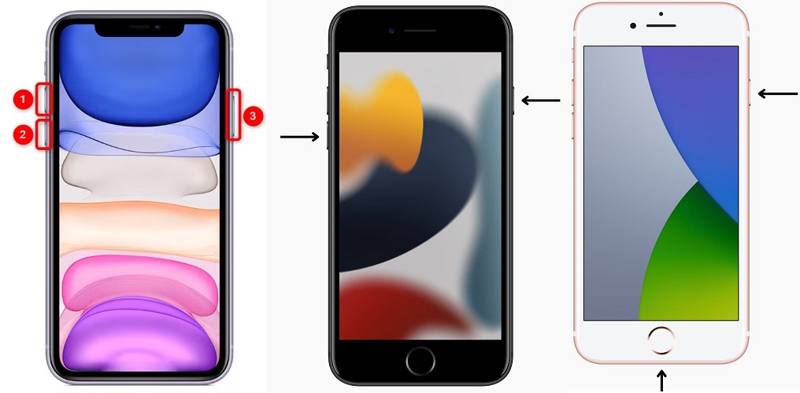
For iPhone 8 or later, iPad without a Home button
Quickly press and release the Volume Up button.
Quickly press and release the Volume Down button.
Long-press the Side button until you see the Apple logo.
For iPhone 7/7 Plus
Hold down the Volume Down + Side buttons together.
Release the buttons when the Apple logo appears.
For iPhone 6s or earlier, iPad with a Home button
Hold down the Home + Sleep/Wake buttons simultaneously.
When the Apple logo pops up, let the buttons go.
Once your iPhone powers on, it will enter the standard mode.
Part 3: How to Exit iPhone Recovery Mode with Updating or Restoring
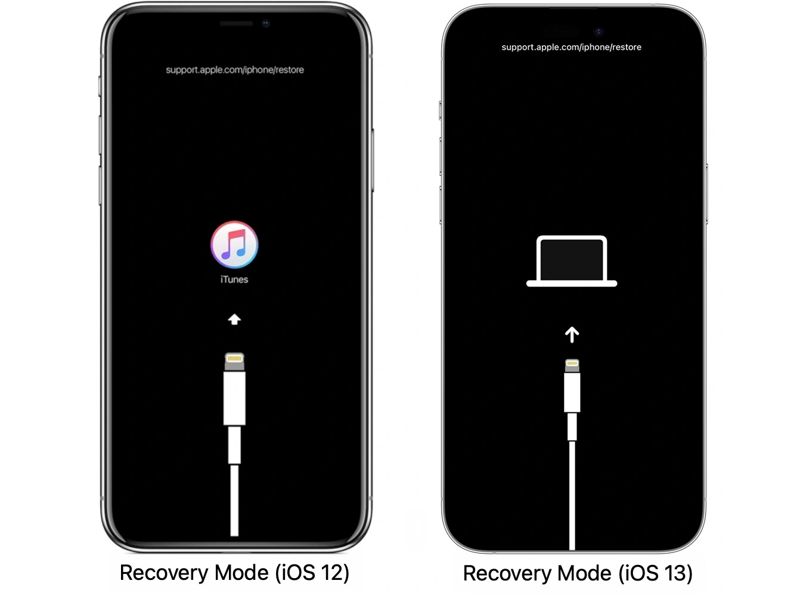
When troubleshooting, you need to put your iPhone or iPad in Recovery Mode. After updating or restoring your device, your iPhone will restart and boot into the standard mode. Therefore, you can exit iPhone Recovery Mode after updating or restoring your iPhone from iTunes or Finder.
Step 1. When you see your iPhone in Recovery Mode, connect it to your computer.
Step 2. Open the latest version of iTunes on Windows and macOS Mojave or earlier. For macOS Catalina or later, run Finder.
Step 3. Once iTunes or Finder detects your device in Recovery Mode, a dialog will pop up.
Step 4. Click the Update button if you want to update your iPhone to the latest version of iOS. Or hit Restore to restore your device to the factory settings.
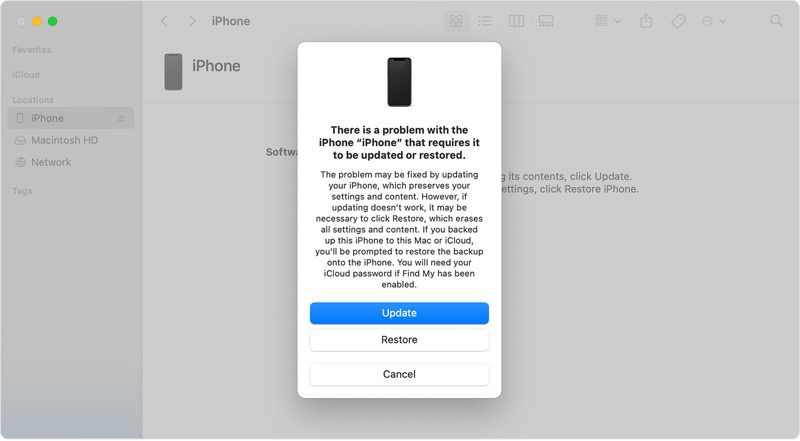
Tips: Restoring your iPhone will erase all data on your device.
Step 5. When the process finishes, your iPhone will exit Recovery Mode.
Part 4: How to Take an iPad out of Recovery Mode Using DFU Mode
Sometimes, iTunes or Finder cannot detect your iPad or iPhone in Recovery Mode. The alternative way to take your iPad out of Recovery Mode is the DFU mode. DFU stands for Device Firmware Update. It is the deepest type of restoring your device.
Step 1. Connect your iPad or iPhone to your computer with a USB cable
Step 2. Put your device in DFU mode:
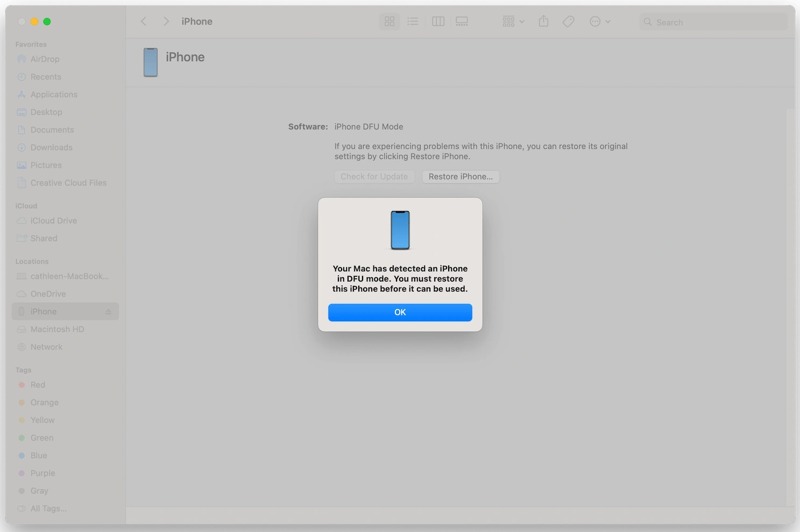
On iPad without a Home button, iPhone 8 or later
Quick-press the Volume Up button and release it.
Do the same thing to the Volume Down button.
Long-press the Side button until the screen goes black.
Next, long-press the Volume Down button while continuing to hold the Side button.
5 seconds later, release the Side button while keeping holding the Volume Down button until your device shows up in iTunes or Finder
On iPhone 7/7 Plus
Hold the Side + Volume Down buttons together for 8 seconds.
Then, release the Side button while continuing to press the Volume Down button.
When your device appears in iTunes or Finder, let the Volume Down button go.
On iPad with a Home button, iPhone 6s or earlier
Hold down the Sleep/Wake + Home buttons for 8 seconds.
Then, release the Sleep/Wake button while keeping holding the Home button until your device appears in iTunes or Finder.
Step 3. Then, follow the onscreen instructions to restore your device.
Step 4. When it is done, your iPad or iPhone will not come out of Recovery Mode.
Part 5: One-stop Solution to Exit iPhone Recovery Mode
If the methods above are unavailable, you have to exit iPhone Recovery Mode using a powerful tool, such as Apeaksoft iOS System Recovery. It is able to detect software issues on your device and troubleshoot quickly.
The Best Way to Exit iPhone Recovery Mode
- Quit Recovery Mode on iPhone or iPad quickly.
- Equip a user-friendly interface.
- Upgrade or downgrade the iOS version.
- Support the latest version of iOS and iPadOS.
Secure Download
Secure Download

How to Exit iPhone Recovery Mode
Step 1. Connect to your device
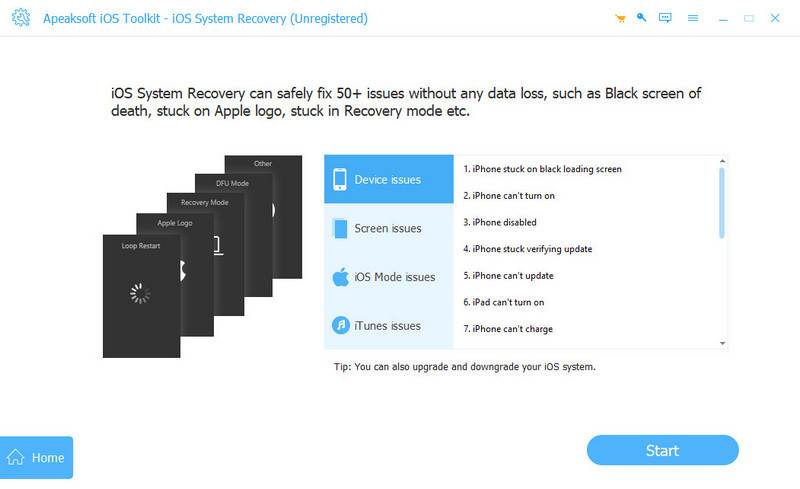
Start the best iOS repairing software after installing it on your computer. Plug your iPhone or iPad into your computer with a Lightning cable. Choose iOS System Recovery, and click Start to move on.
Step 2. Check device information
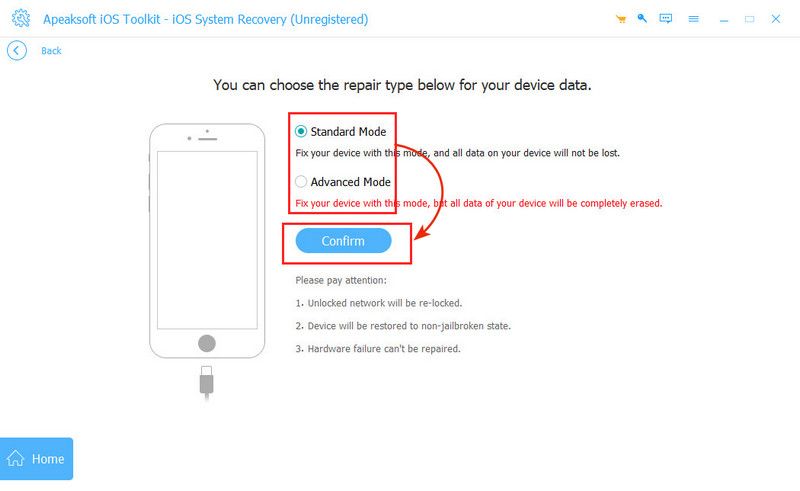
Click the Fix button, and select a mode: Standard Mode or Advanced Mode. Hit the Confirm button. Then, fill out your device information.
Step 3. Take the iPhone out of Recovery Mode
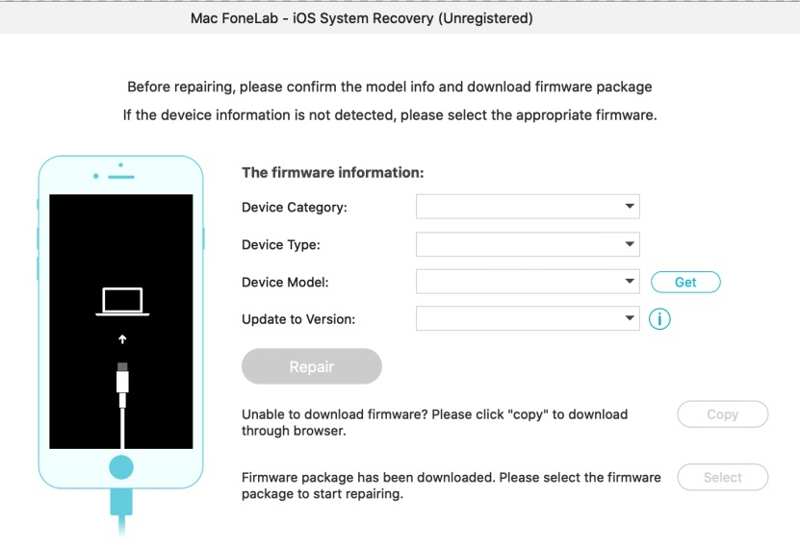
Make sure to select a proper version of iOS and click the Repair button. Once the firmware is downloaded, the software will repair your device and take it out of Recovery Mode.
Conclusion
Our guide explained how to exit Recovery Mode on your iPhone or iPad. You can simply restart or force restart your device to enter the standard mode. Or you can use iTunes or Finder to complete the update or restore. Then, your device will boot into the standard mode. Apeaksoft iOS System Recovery is the easiest way to get your device into the standard mode after troubleshooting.
Related Articles
If it says unable to Activate when activating iPhone, follow our solutions to fix this problem and activate your device quickly.
Encountering iPhone Error 4013? Learn step-by-step fixes, including recovery mode, iTunes update, or safe one-click repair without losing data in this post
If you see the message said support.apple.com/iphone/restore, don’t worry! Here are multiple solutions to help you fix it.
This tutorial explains the proven methods to get your photos off a broken iPhone or iPad even if you haven’t back up your device.



