

How to Fix iCloud Photos Not Syncing on iPhone 16/15

Apple’s iCloud Photos feature makes it easy to keep your pictures and videos safe, organized, and accessible across all your devices. Whether you take a snapshot on your iPhone, edit an image on your iPad, or download a photo on your Mac, iCloud ensures everything stays up to date everywhere. However, you may encounter iCloud Photos not syncing. Even after so many attempts, you still cannot sync your photos to iCloud.
This issue is really exhausting. Don't worry, however, this article will explain this issue and show you proven ways to solve photos not syncing to iCloud easily on your iPhone and iPad, and even Mac.
PAGE CONTENT:
Part 1: Common Causes of iCloud Photos Not Syncing
1. Poor or Unstable Internet Connection: Since iCloud relies entirely on Wi-Fi or cellular data, a weak connection may stop new photos from uploading to iCloud Photos.
2. Low iCloud Storage Space: If your iCloud plan does not have enough storage, your photos won't sync to iCloud. In that case, you need to upgrade to a premium iCloud plan if you want to keep using iCloud Photos.
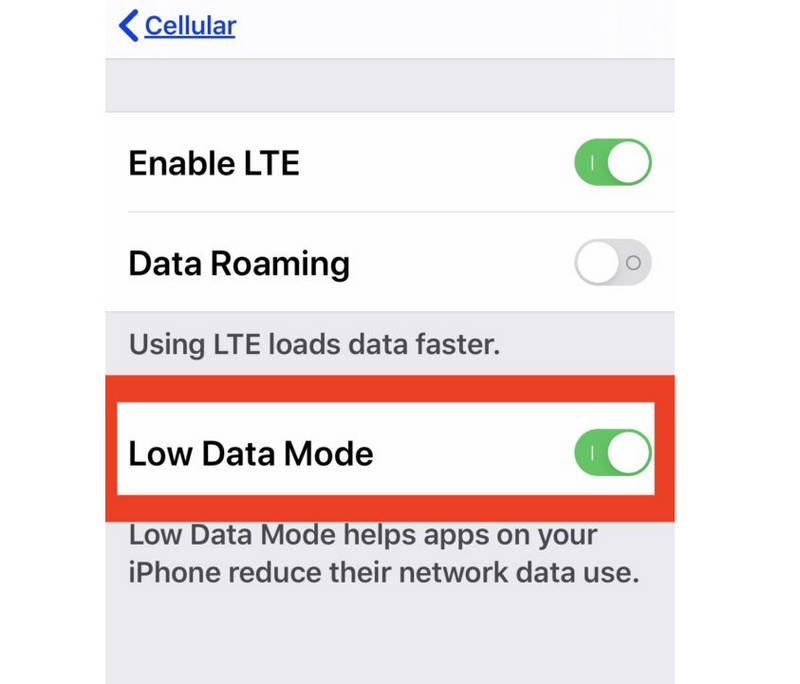
3. Special iOS Device Conditions: If your iPhone is in Low Power Mode, Low Data Mode, Optimizing Battery Power, or other modes that have restrictions, iCloud Photos will stop syncing. Don't worry, when your iPhone is out of the modes, iCloud Photos will continue to sync photos on your device.
4. Shared Library: If you have a shared library, the owner may have hit the storage limit. Therefore, you can move the photos to your personal library, and iCloud Photos may continue to sync the photos.
Part 2: How to Fix iCloud Photos Not Syncing
1. Check iCloud Sync Condition
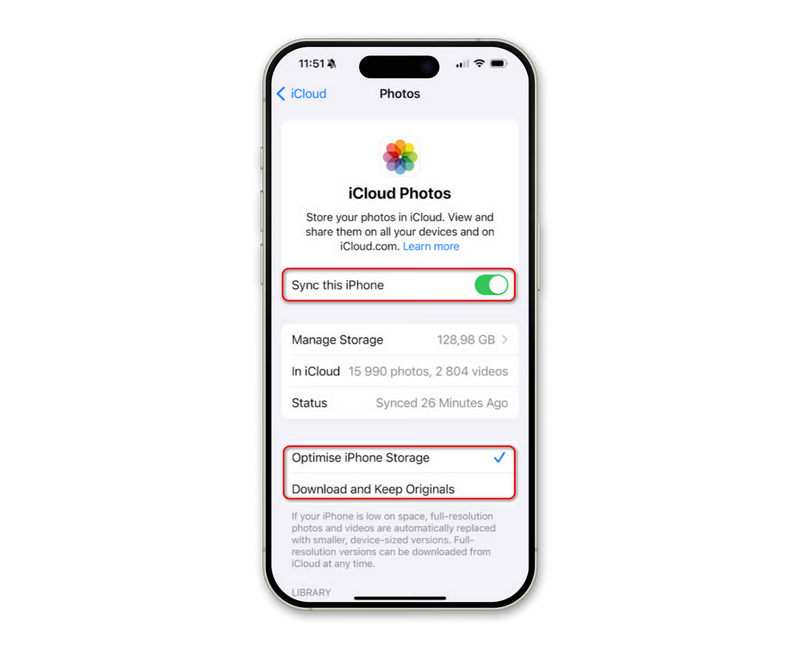
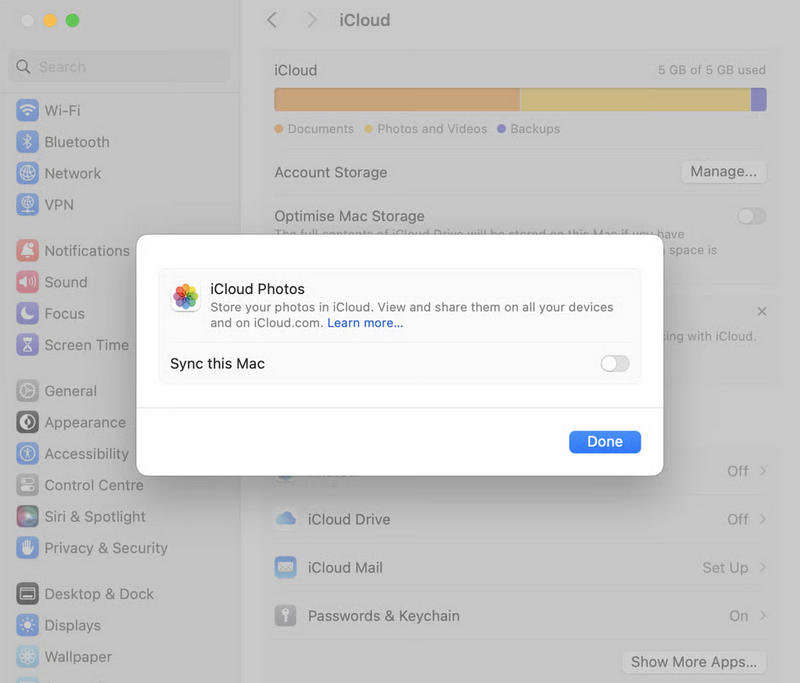
It's not difficult to sync photos to iCloud on your iPhone or Mac. To solve iCloud Photos not syncing, you may still need to check iCloud Sync to see if Photos is selected.
on iPhone or iPad:
Open Settings and tap your name (Apple ID) at the top. Then, go to iCloud, and select Photos. Ensure that you have turned on Sync this iPhone or Sync this iPad.
On Mac:
Click the Apple button in the top left corner. Then, click the System Settings button or System Preferences button. Then, click your Apple ID, and then select iCloud. Under Apps using iCloud, you should ensure that Photos is selected.
Note: If the iCloud Sync settings are correct, and there’s enough storage space, but iCloud Photos still doesn’t sync, you can check the methods below.
2. Turn Off Some Modes with Restrictions
As mentioned above, Low Power Mode, Low Data Mode, and more can stop iCloud Sync. Therefore, you need to turn them off. Note that if your iPhone has a low battery, you need to connect your device to a power supply. Then, check if you have solved iCloud Photos not syncing.
3. Restart Your iPhone or Mac
A simple restart can fix many system glitches that perhaps cause the iCloud Sync problem. You can restart your iPhone, iPad, or MacBook to see if your photos can sync normally to iCloud.
4. Update iOS or macOS
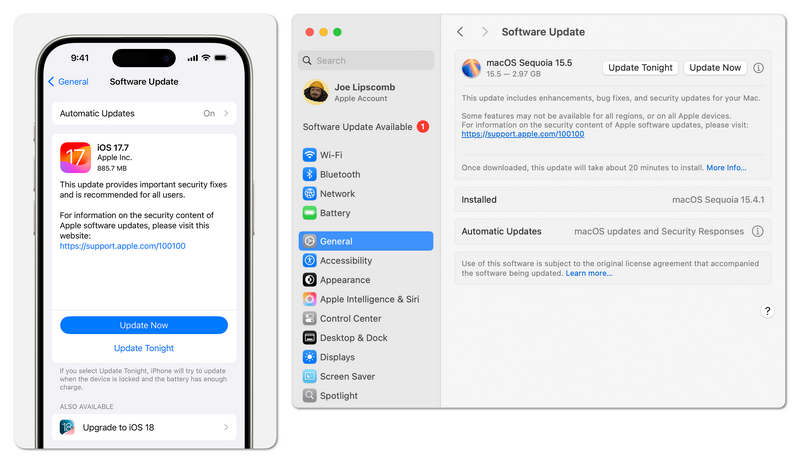
This is not an urgent solution. After all, restarting can fix system glitches, while updating iOS or macOS can also repair system errors on your old OS version. If your iPhone or Mac have severe system problems, maybe this is the ultimate way to fix your device and fix photos not syncing to iCloud.
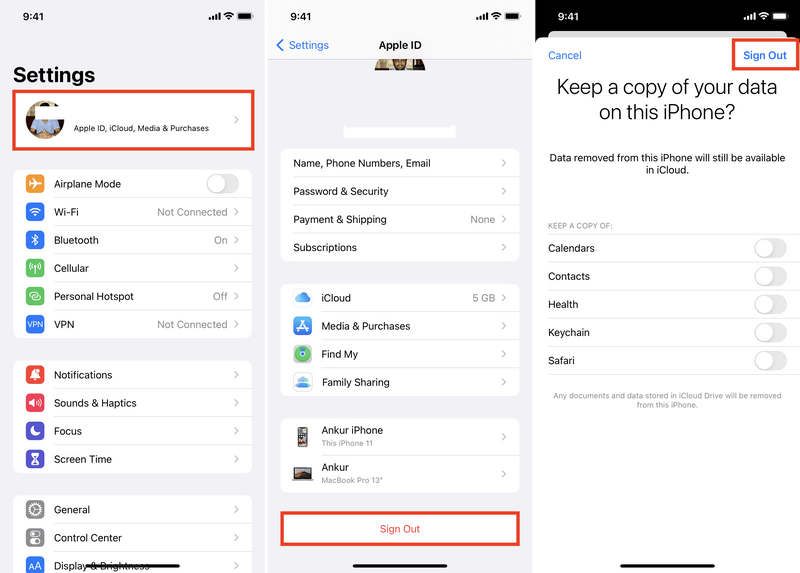
5. Sign Out and In iCloud Account (Apple ID)
You can also sign out of your Apple ID and sign in to it again to try fixing iCloud Photos not syncing. This method is also helpful when your iPhone can't back up to iCloud.
Step 1. Go to the Settings app on your iPhone and tap your profile. Slide down to tap the Log Out button. Enter your Apple ID password to confirm.
Step 2. Then, sign in to your Apple ID again. When it's done, check if photos can sync to iCloud normally.
Part 3: The Best Way to Sync Photos Between Apple Devices
If iPhone won't back up to iCloud, that is terrible because you cannot sync photos to iCloud, and you won't be able to check all your photos in iCloud. In that case, Apeaksoft iPhone Transfer can help you easily transfer photos between Apple devices or store all your photos in a storage. It will be very easy for you to manage and edit photos on your iPhone, iPad, and Mac, or Windows computer.
Easily Sync Photos Between Apple Devices
- Connect your iOS devices to sync photos between them.
- Sync photos between iOS devices and Mac computers.
- Allow you to sync photos between Apple devices and Windows computers.
- Support all Apple devices (including iOS 26 and macOS 26)
Secure Download
Secure Download

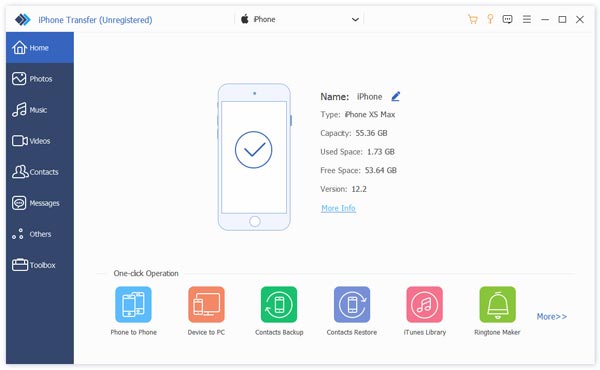
Step 1. Download and install Apeaksoft iPhone Transfer on your Windows or Mac computer and launch it. Connect your iPhone or iPad (maybe multiple iOS devices) to your computer.
Step 2. If you want to sync photos between iOS devices, you need to ensure that two iOS devices are connected to your computer. Then, just click the Phone to Phone button and select photos for transferring.
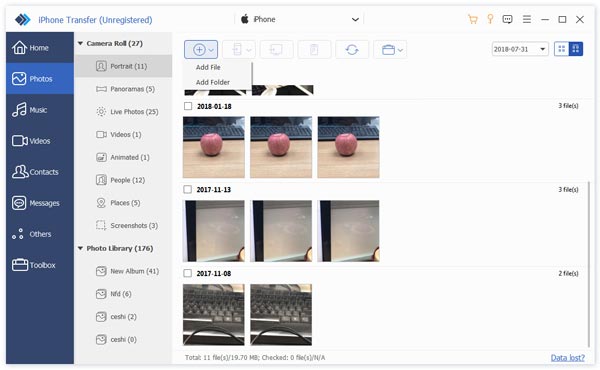
Step 3. If you want to sync photos on your Mac or Windows computer to your iPhone or iPad, you should choose the Photos tab on the left menu bar, and then click the Add button on the top left side. You can click the Add Files or Add Folder button to sync photos from computer to iPhone or iPad.
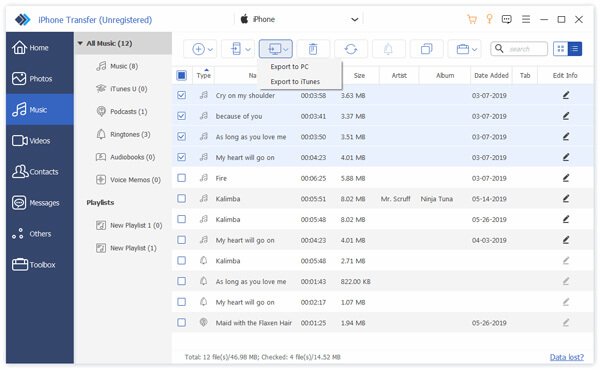
Step 4. On the contrary, if you want to sync photos from iPhone or iPad to your computer, just click the PC button on the top side, and then click Export to PC or Export to iTunes button.
Conclusion
It's easy to sync photos to iCloud. There is an official method to do that on your iPhone, iPad, or Mac. However, if you don't want to update to the latest iOS or your device cannot sync photos to iCloud, you can use Apeaksoft iPhone Transfer. It can help you easily and quickly sync photos between Apple devices and Windows computers.
Related Articles
To protect your data and enhance security, you can follow our step-by-step guide to change your iCloud password quickly.
If you forgot your iCloud password, here you can learn how to get your iCloud password recovery on iPhone, iPad, or online.
This article will show you how to move documents from iCloud to your Mac so you can use them without network restrictions.
Here are three effective approaches to restore your iPhone contacts from iCloud and get back the lost or deleted contacts.



