

Top Solutions for iPod Stuck on Apple Logo You Should Know

When your iPod Touch 4th generation is stuck on the Apple logo, many users tend to restart it or just leave it alone repeatedly, but these methods usually don't work. In fact, being stuck on the Apple logo sends more specific system signals, and by choosing the appropriate solution based on the symptoms, you can get your iPod back to the home screen in just a few minutes. This article will quickly help you understand the root cause of the problem and provide the most reliable way to fix it.
PAGE CONTENT:
Part 1. Why Your iPod Stuck on Apple Logo
Whether it's an iPod Touch 4th gen stuck on the Apple logo in older models, or a new device suddenly freezing on the startup screen, these issues usually stem from a disruption in the system boot sequence. To more quickly find the appropriate fix, you first need to identify the possible triggering causes:
System Update
Power outages, unplugging, or network interruptions during firmware updates or system restores can prevent system files from being fully written, causing a common instance of an iPod stuck on the Apple logo.
System File Corruption
If internal boot files are damaged, caches are corrupted, or jailbreak remnants occupy system resources, the iPod stays on the Apple logo for an extended period and fails to enter the home screen.
Unexpected Shutdown
When the system suddenly shuts down during a critical operation, the next startup might fail the self-check process, which can repeatedly cause the Apple iPod to get stuck on the Apple logo.
Old Model Hardware Read/Write Failures
Issues like the iPod classic being stuck on the Apple logo are sometimes related to abnormal hard drive read/write, but in most cases, they can still be fixed through software without immediately considering hardware repair.
Firmware Loading Failure
When the system cannot successfully load the firmware after completing the self-check, the device will repeatedly attempt to start and remain on the logo screen.
Part 2. Best 5 Fixes for iPod Stuck on Apple Logo
Before officially starting the repair, you can quickly understand the difficulty, success rate, and data safety of different methods, which can help you determine the solution that best suits you.
| Method | Success Rate | Difficulty | Risk of Data Loss | Suitable Users |
| Apeaksoft iOS System Recovery | ⭐⭐⭐⭐⭐ (Highest) | Low | No Risk | Users who want to safely recover without dealing with commands |
| Force Restart iPod | ⭐⭐⭐ | Low | None | Users who want to try the quickest method |
| Recovery Mode | ⭐⭐⭐⭐ | Medium | Possible | Users who can accept reinstalling the system |
| DFU Restore | ⭐⭐⭐⭐ | High | Relatively High | Users with severely damaged systems or repeated failures |
Apeaksoft iOS System Recovery
If you want to solve the iPod stuck on Apple logo problem most safely and stably, Apeaksoft iOS System Recovery is usually the most time-saving option. It can repair the firmware and restore the system structure without erasing any data.
Fix iPod Stuck on Apple Logo Issue Without Data Loss
- Supports data-free repair, without affecting photos, music, or settings on the iPod.
- Automatically matches device models and firmware to prevent users from entering incorrect commands.
- High repair success rate, providing stable support for all models.
- Clear and intuitive interface, allowing completion without any technical knowledge.
Secure Download
Secure Download

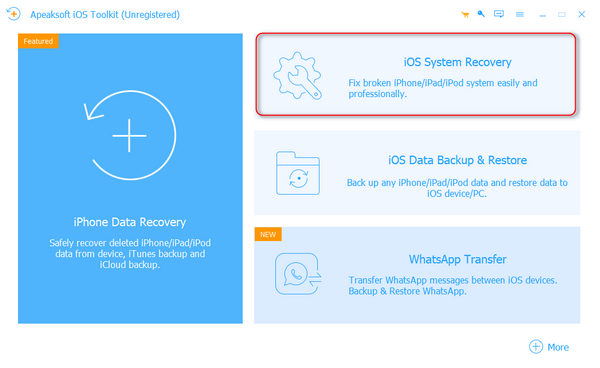
Step 1. Install and open Apeaksoft iOS System Recovery, and connect your iPod to the computer. On the main interface, select iOS System Recovery.
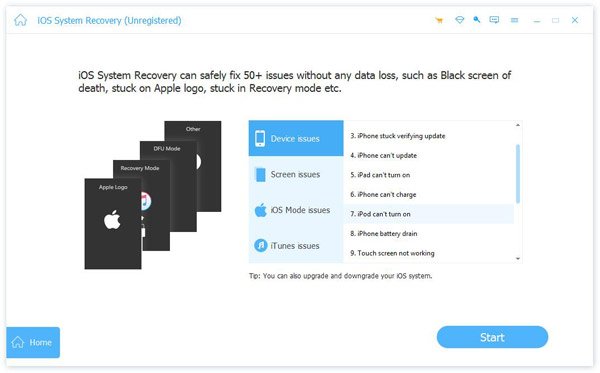
Step 2. The device will be detected by the system automatically, and you can see that the issue of the iPod being stuck on the Apple logo is within the scope that this software can fix. Click Start.
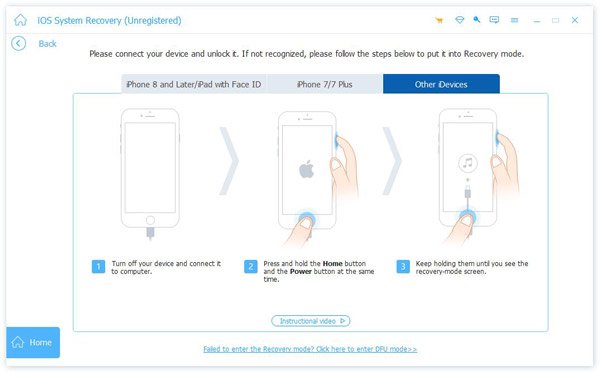
Step 3. Follow the detailed instructions on the page to put your iPod into recovery mode, making subsequent operations easier.
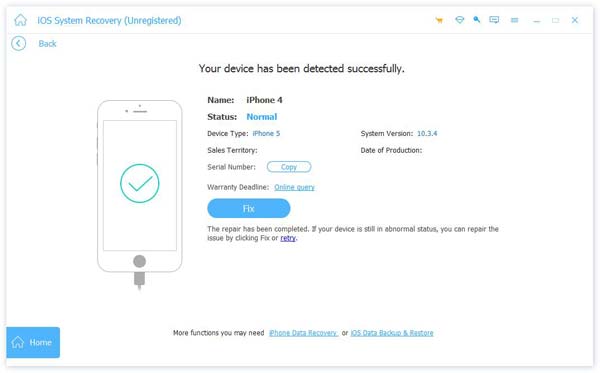
Step 4. The program will display the detected model information; if it is correct, click Fix. If it is incorrect, you can manually modify the corresponding information.
Step 5. The system will automatically download the matching firmware and perform the repair. Once completed, your device will restart.
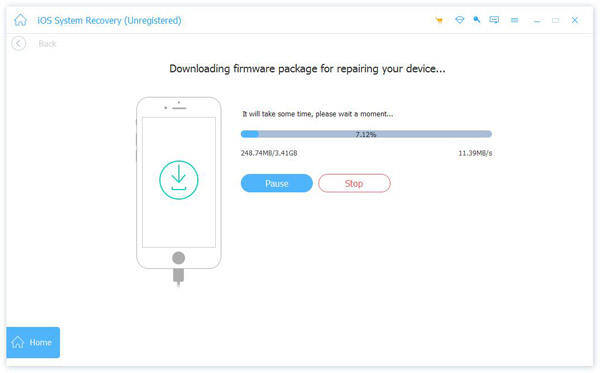
After the repair is finished, in most cases, the iPod will go directly to the home screen and no longer be stuck on the Apple logo.
Force Restart iPod
If the screen has just frozen, performing a forced restart is one of the simplest solutions. It can reset some temporary caches and allow the system to try the startup process again.
- • For most models: Press and hold the Home and Power buttons simultaneously for about 10 seconds until the screen goes black and then lights up again.
- • For some newer models: Press and hold the Volume button and the Power button.
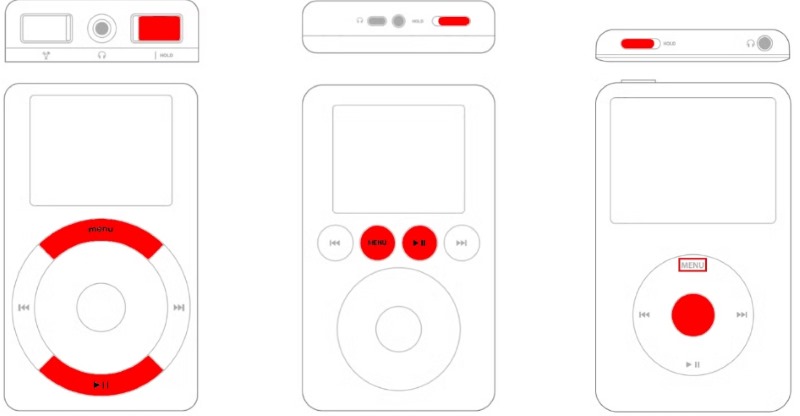
Although this method is simple, it has a limited effect on issues caused by system file corruption. If the problem is simply due to insufficient iPod storage, you can directly delete songs from the iPod to free up memory.
Use Recovery Mode
If a forced restart cannot resolve the issue of the iPod being stuck on the Apple logo, you can try entering Recovery Mode and reinstalling the iOS system.
Step 1. Connect the iPod to your computer and open iTunes.
Step 2. Hold down specific buttons to put the device into recovery mode; the combination varies depending on the model.
Step 3. On the computer, select Update to try replacing only the system files.
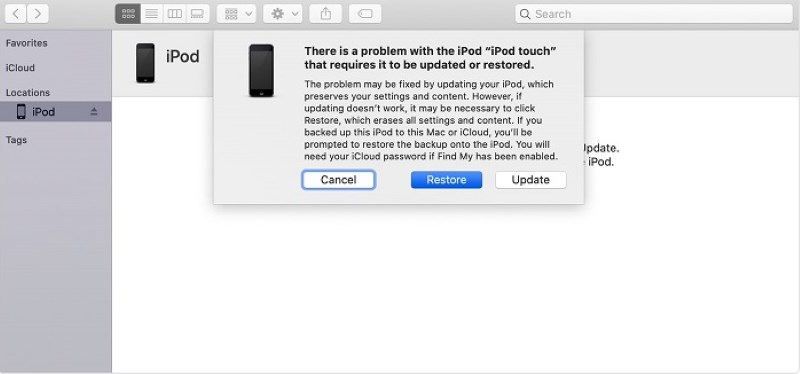
Compared to a forced restart, this step can fix system-level issues, but there is still a small chance of data loss. Therefore, to be safe, you can transfer iPod music to the computer for backup.
DFU Restore iPod
When Recovery Mode cannot fix the issue, DFU mode can bypass the entire startup process and directly rewrite the firmware, making it the ultimate method for dealing with a stubborn iPod stuck on the Apple logo. It skips system checks and can handle deeper system damage.
Step 1. Press and hold the Power and Home buttons at the same time for 10 seconds. Then release the Power button, but continue holding the Home button for another 5–8 seconds.
Step 2. If the screen remains completely black, it indicates that you have successfully entered DFU mode. If you see the Apple logo, it means you are in Recovery Mode and need to try again.
Step 3. Once in DFU mode, select Restore in iTunes. Confirm the operation, and the system will rewrite the firmware and erase all content. After the restoration is complete, the iPod will restart automatically.
Part 3. FAQs About iPod Stuck on Apple Logo
My iPod is stuck on the Apple logo and won't move. Is the system broken?
Not necessarily. Most iPod stuck on Apple logo issues are just due to system files not loading correctly or an interrupted update. They can usually be fixed by restoring firmware, force restarting, or using professional tools, and this does not necessarily mean hardware damage.
If I don't know my iPod model, can it still be repaired?
Yes. Apeaksoft will automatically identify the model and match the firmware, so you don't need to select it manually, reducing the risk of mistakes.
What is the difference between DFU mode and Recovery Mode?
Recovery Mode tries to preserve your data, while DFU completely rewrites the firmware. DFU is a deeper level of recovery, suitable for serious system damage or repeated failures.
Conclusion
If you want to restore your device to normal in the shortest time possible without risking data loss, a tool that can reliably repair firmware would be a more dependable choice. Apeaksoft iOS System Recovery simplifies the process and improves the success rate, making it unnecessary to have a technical background to handle system issues. Whether your iPod is stuck on the Apple logo or continuously fails to start, as long as the computer can still recognize the system, there is still a great chance to repair it and restore it to a usable state fully.
Related Articles




