


How to Unlock a Disabled iPod Touch Without Passcode

Key Takeaways
- You can use iCloud to erase your iPod Touch and remove the lock screen, but this requires your Apple ID and password.
- If you forgot your iPod Touch passcode, you can connect the device to iTunes or Finder and restore it to unlock the lock screen.
- If your iPod Touch shows “iPod touch is disabled, connect to iTunes,” you will need to first put it into Recovery Mode, then restore it using iTunes or Finder.
- If Recovery Mode fails, you can try DFU Mode for a deeper system restore.
- If you are looking for a one-stop solution to unlock iPod Touch without a passcode, Apple ID, or iTunes, try Apeaksoft iFoneKit.
I purchased a second-hand iPod Touch at an estate sale, but I don't know the screen passcode. How can I unlock it?
This is a common issue with used devices when the previous owner's passcode is unavailable. In this guide, we'll explain how to unlock an iPod Touch without the passcode using different methods, including iTunes, Recovery Mode, and DFU Mode. Also, we will also introduce an all-in-one iPod Touch unlocking solution.
PAGE CONTENT:
- Quick Overview of the 5 Unlocking Solutions for iPod Touch
- Method 1: How to Unlock an iPod Touch Without Passcode [One-Stop Solution]
- Method 2: How to Unlock iPod Touch with iTunes/Finder
- Method 3: How to Unlock iPod Touch Using iCloud Find My
- Method 4: How to Unlock a Disabled iPod Touch in Recovery Mode
- Method 5: How to Restore a Disabled iPod Touch Using DFU Mode [Advanced]
Quick Overview of the 5 Unlocking Solutions for iPod Touch
| Method | Requires Apple ID | Required Computer | Data Loss | Difficulty | Best For |
| Apeaksoft iFoneKit | No | Yes | Yes | Easy | Users who want a quick and simple solution |
| iCloud | Yes | No | Yes | Easy | Users who have Find My enabled and remember Apple ID |
| iTunes/Finder | No | Yes | Yes | Easy | Users who have previously synced the device |
| Recovery Mode | No | Yes | Yes | Medium | iPhone/iPod is disabled or cannot be accessed |
| DFU Mode | No | Yes | Yes | Advanced | Recovery Mode fails |
Tips: As you can see from the comparison table above, all methods may result in data loss. Therefore, it is strongly recommended to back up your iPod Touch in advance.
Method 1: How to Unlock an iPod Touch Without Passcode [One-Stop Solution]
The iPod Touch runs an older version of iOS, which means some of the latest iOS unlocking methods are not compatible with the device. To unlock any iPod Touch without the passcode, a dedicated tool such as Apeaksoft iFoneKit is a good option. It is able to remove the iPod Touch passcode quickly. More importantly, it is pretty simple to use even for beginners.

Downloaded by over 1,000,000 users
- Unlock iPod Touch screen passcode easily in minutes.
- Supports 4-digit and 6-digit screen passcodes
- Supports Apple ID removal and other unlocking features.
- Works with all iPod Touch models and iOS versions.
Secure Download
Secure Download

How to Unlock an iPod Touch Without a Passcode
Step 1. Install the iPod Touch unlock tool
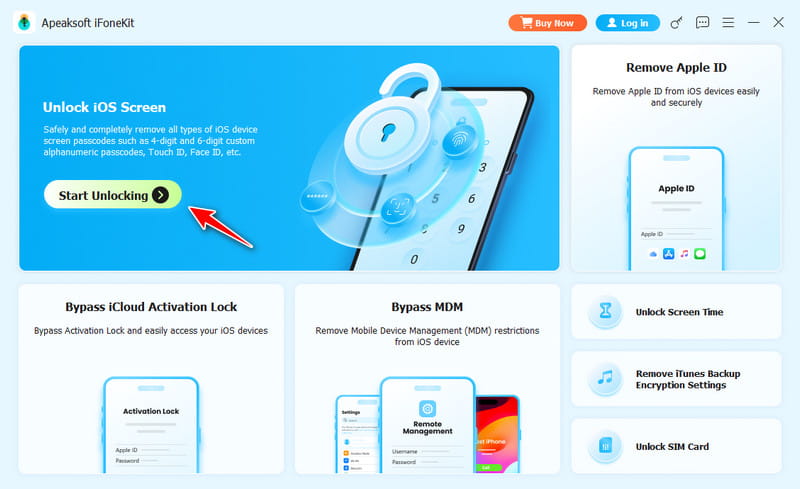
Start the best iPod Touch unlock tool after you install it on your computer. It is available on Windows 11/10/8/7/XP/Vista and Mac OS X 10.7 or above. Launch iOS Unlocker and choose the Unlock iOS Screen mode. Next, plug your iPod Touch into your computer with a compatible cable. If prompted, trust the computer.
Step 2. Download the firmware
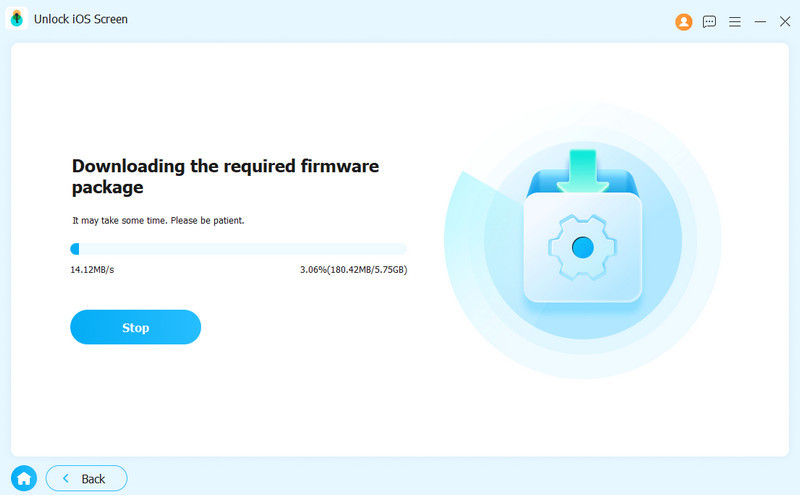
Then it will start downloading the firmware package. It may take a while depending on your network condition.
Step 3. Unlock your iPod Touch
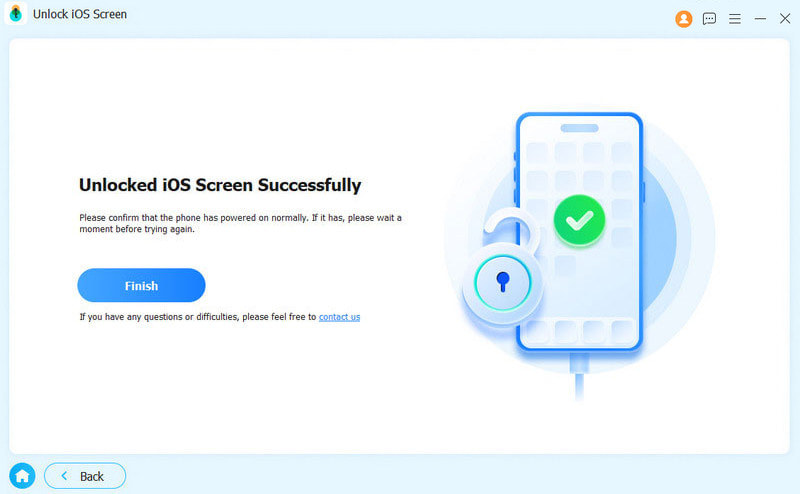
Confirm twice in the prompt window.
Method 2: How to Unlock iPod Touch with iTunes/Finder
If you have a computer, you can unlock your iPod Touch without the passcode using iTunes or Finder. The restore feature is able to wipe iPod screen locks and other data. The requirements include a computer, the latest version of iTunes/Finder, and a USB cable. This way will erase all your data, so you'd better make a backup.
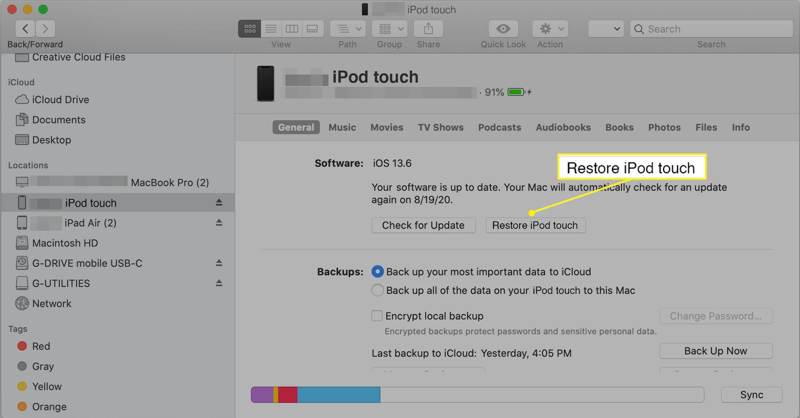
Step 1. Run iTunes on Windows and macOS Mojave or older. On macOS Catalina or above, run Finder.
Step 2. Connect the locked iPod Touch to your computer with a USB cable.
Step 3. Once your device is detected, click the Phone button at the upper left corner, and go to the Summary tab in iTunes. In Finder, click your iPod name on the left side, and go to the General tab.
Step 4. Click the Restore iPod button and follow the on-screen instructions to begin unlocking your iPod Touch.
Method 3: How to Unlock iPod Touch Using iCloud Find My
Find My is a tracked service for iOS devices developed by Apple. It is able to unlock your iPod Touch without the passcode. The prerequisite is that you have turned on Find My iPod Touch on your device. Plus, you should remember your Apple ID credentials. Then you can do it on the website or another Apple product.
How to Unlock iPod Touch Online
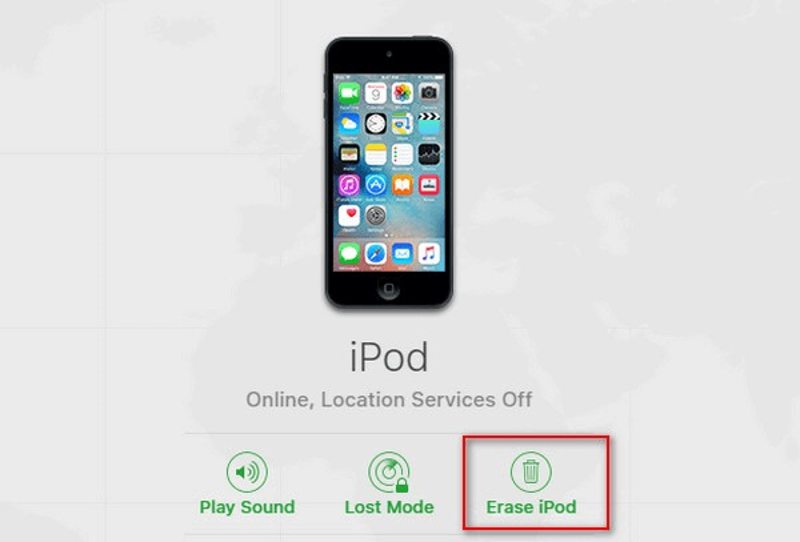
Step 1. Go to www.icloud.com/find in your web browser, and sign in with your Apple ID and password. If 2FA is enabled, enter the verification code.
Step 2. After Find My login, pull down the All Devices menu on the top of the screen, and choose your iPod Touch.
Step 3. Find My will track your device on the map. Then click the Erase iPod button. Enter your phone number, click Continue, leave your Apple ID password, and hit Erase to start unlocking your iPod Touch.
How to Unlock iPod Touch in Find My App
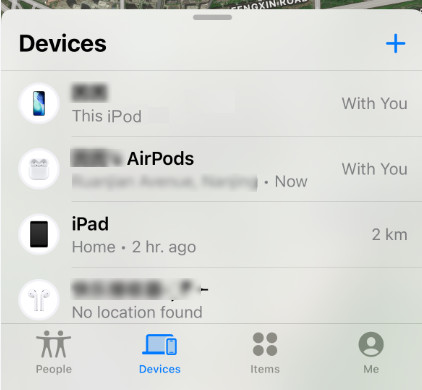
Step 1. Open the Find My app on another iOS device or a MacBook.
Step 2. Go to the Devices tab from the bottom. Choose your locked iPod Touch on the list. If you cannot find it, tap the Add button, and enter the associated Apple ID and password.
Step 3. Next, tap Erase This Device in the toolbar, input your phone number, tap Erase, enter your Apple ID password, and hit Erase to unlock your device.
Method 4: How to Unlock a Disabled iPod Touch in Recovery Mode
If your iPod Touch is disabled or has never been trusted by the computer, iTunes or Finder may not be able to recognize it normally. In these cases, you will need to put the device into Recovery Mode and restore it using a computer to remove the passcode.
Step 1. Launch iTunes or Finder depending on the operating system of your computer.
Step 2. Power off your iPod Touch. Keep pressing the Sleep/Wake button until the power-off screen appears. Then move the slider to shut down your device.
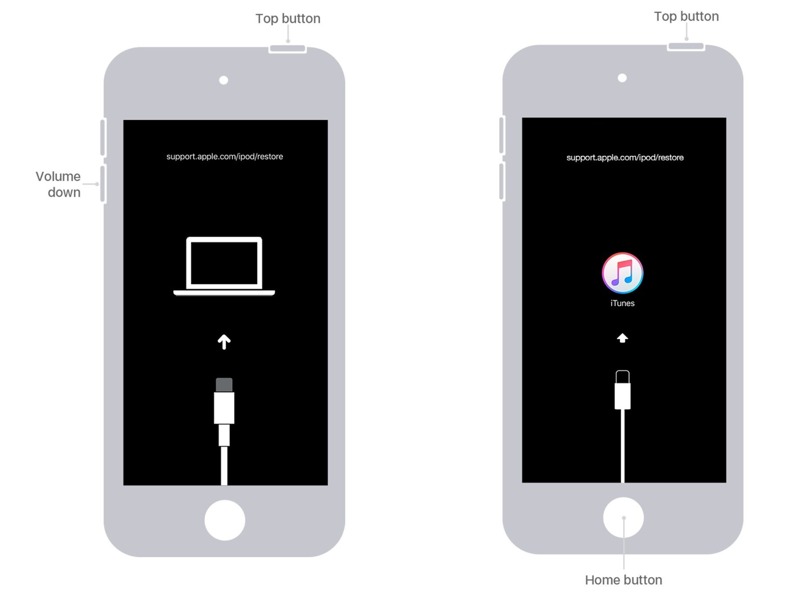
Step 3. Next, put your iPod Touch into Recovery Mode:
For iPod Touch 7, hold down the Sleep/Wake + Volume Down buttons at the same time until it enters Recovery Mode.
For iPod Touch 6 or earlier, hold down the Sleep/Wake + Home buttons simultaneously until the Recovery Mode screen appears.
Step 4. Connect the iPod Touch to your computer with a compatible cable.
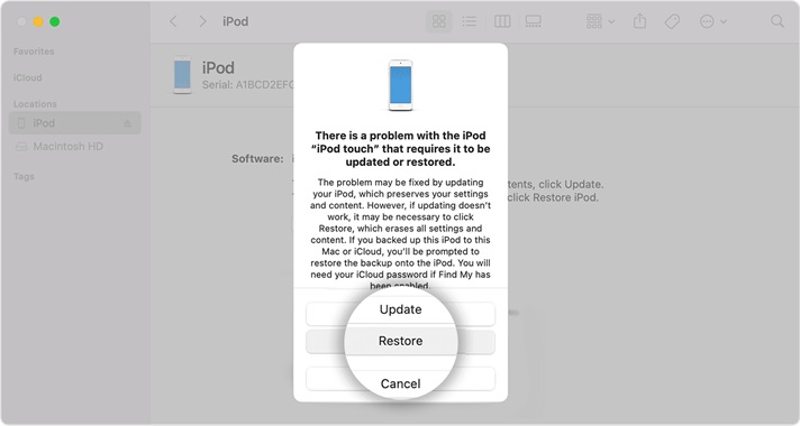
Step 5. As long as iTunes or Finder detects your device in Recovery Mode, it will pop up a dialog. Click the Restore button on the dialog to begin unlocking your iPod Touch immediately.
Method 5: How to Restore a Disabled iPod Touch Using DFU Mode [Advanced]
When Recovery Mode fails, DFU Mode can be used as a deeper restore method to fix a disabled iPod Touch and remove the passcode. Below are detailed steps:
Step 1. Turn off your iPod Touch and connect it to iTunes or Finder.
Step 2. Hold the Power and Home buttons together for about 10 seconds, release the Power button while continuing to hold the Home button until the screen turns black and the device is detected by iTunes/Finder to enter DFU Mode.
Step 3. A prompt will appear on iTunes or Finder. Click Restore to begin the restore process.
Conclusion
This guide demonstrated how to unlock the iPod Touch purchased at an estate sale. You can pick an appropriate method according to your situation and follow our steps to regain access to your device. Apeaksoft iFoneKit is the best way to wipe iPod screen locks with no restrictions. Moreover, it is simple to learn and use.
 Apeaksoft iFoneKit
 Unlock all types of iOS passwords from iPhone, iPad and iPod.
Secure Download
Secure Download
Related Articles




