


How to Reset Your Locked iPad With or Without iTunes

The security measures are essential to protect data and privacy on your iPad. However, if you forgot the lock screen passcode, you will be locked out of your device. That can be frustrating, especially when you factory reset your device right away. Even if you are locked out of your iPad, you can reset it using Recovery Mode, Security Lockout, Find My, and more. This guide demonstrates how to factory reset a locked iPad.
PAGE CONTENT:
Part 1: How to Reset a Locked iPad with iTunes
One easy way to reset a locked iPad to factory settings is to use iTunes or Finder. Since it is locked, you need to put the iPad in Recovery Mode. Then, you can reset it with the latest version of iTunes or Finder.
Prerequisites:
- 1.A computer and a USB cable.
- 2.The latest version of iTunes or Finder, depending on your operating system. For Windows and macOS Mojave or earlier, use iTunes. For macOS Catalina or later, use Finder.
- 3.The Apple Account and password are linked to your iPad.
Step 1. Connect the locked iPad to your computer with a USB cable.
Step 2. Put it in Recovery Mode:
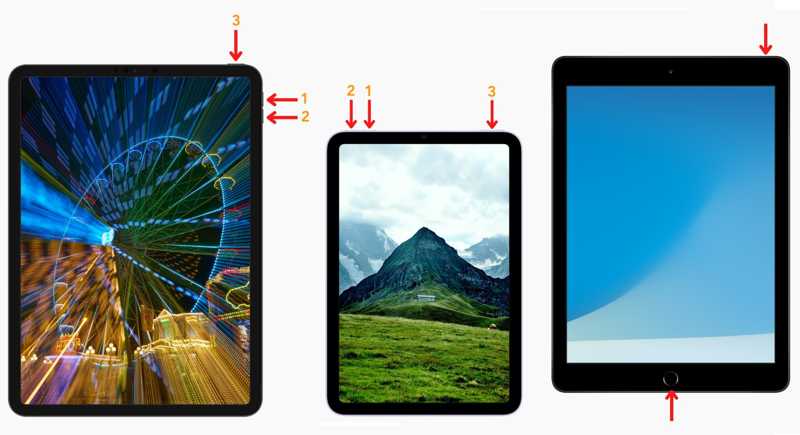
For an iPad without a Home button
Quickly press and release the Volume Up button.
Do the same thing to the Volume Down button.
Press and hold the Side button until you see the Recovery Mode screen.
For an iPad with a Home button
Hold down the Home + Sleep/Wake buttons together.
Once your iPad enters Recovery Mode, release the buttons.
Step 3. The iTunes or Finder should pop up automatically. If not, open it manually.
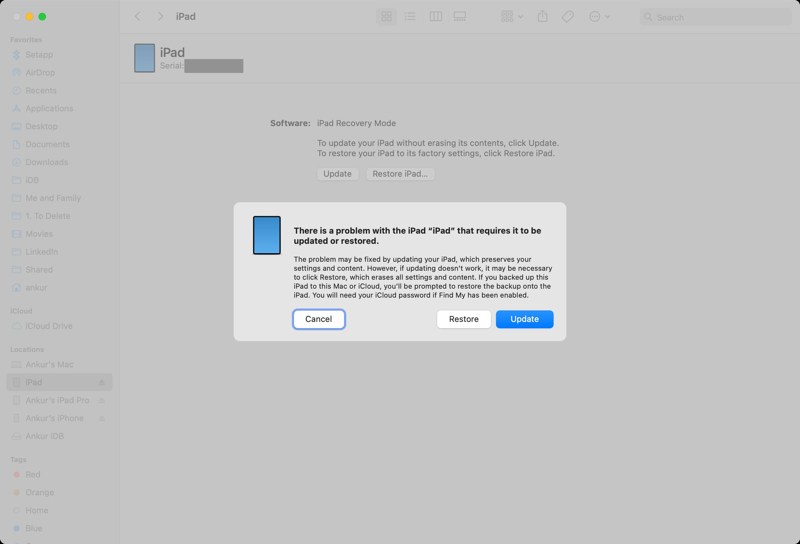
Step 4. Click the Restore button on the pop-up to begin resetting your locked iPad.
Note: If you have turned on Find My iPad, you need to offer the linked Apple Account and password to complete resetting an Activation-locked iPad when setting it up again.
Part 2: How to Reset a Locked iPad Without a Computer
If you need to reset an iPad that is locked without a computer, the Security Lockout feature is available. Apple added this feature to iPadOS 15.2 and above. It enables you to reset your device with the associated Apple Account password.
Prerequisites:
- 1.Find My iPad is enabled.
- 2.The Apple Account and password associated with your iPad.
- 3.Your iPad connects to Wi-Fi or cellular data.
On iPadOS 17 or later
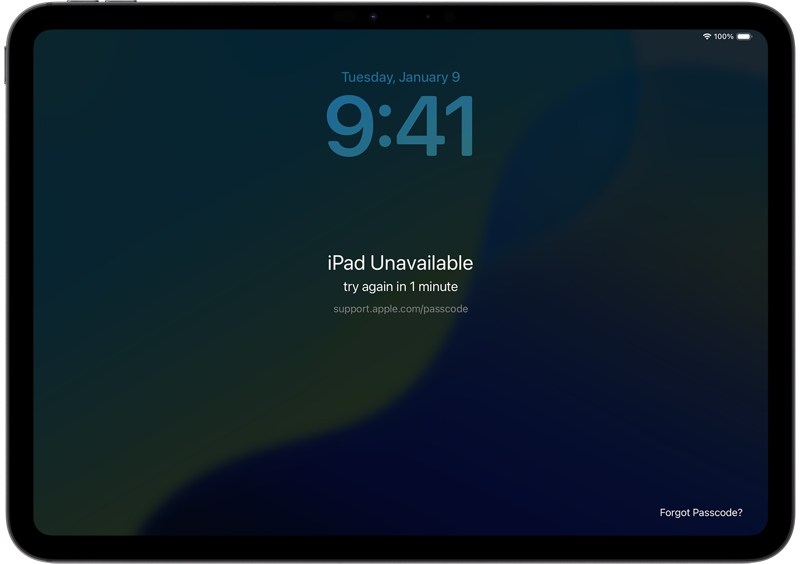
Step 1. Once you enter the iPad Unavailable screen, tap the Forgot Passcode button at the bottom right corner.
Step 2. Choose Start iPad Reset on the Security Lockout screen.
Step 3. Type in your Apple Account password to proceed.
Step 4. Then, tap the Erase iPad button to start resetting your device.
On iPadOS 15.2 or above
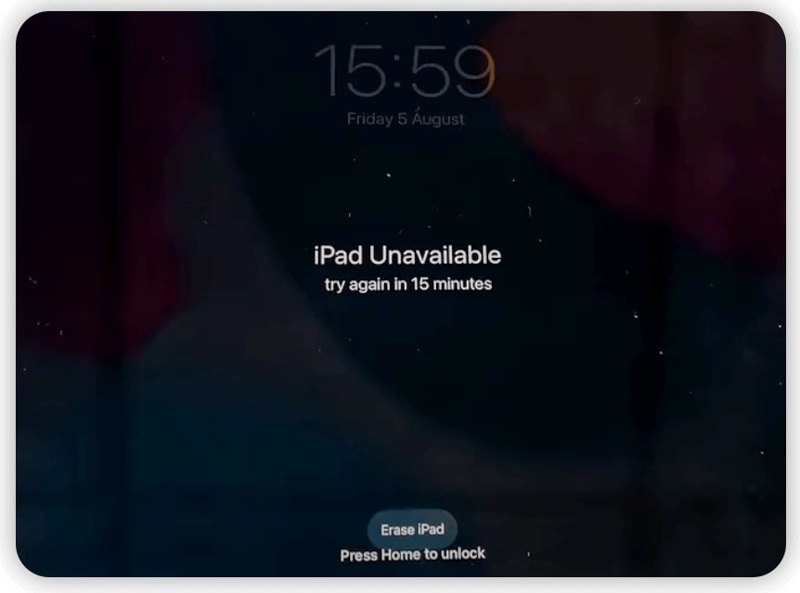
Step 1. Tap the Erase iPad button on the iPad Unavailable screen.
Step 2. Read the notification and tap Erase iPad again.
Step 3. Input the associated Apple Account password and hit Erase iPad.
Step 4. When resetting the iPad finishes, your device will restart in the Hello screen.
Further Reading
Part 3: How to Reset a Locked iPad Without iTunes
Apple’s new Find My is a quick way to reset a locked iPad without iTunes. This way is available if you have multiple Apple devices or can borrow another Apple device. Otherwise, you have to visit the web portal in a browser.
Prerequisites:
- 1.You have turned on Find My iPad.
- 2.You still remember your Apple Account and password.
- 3.Your iPad connects to a stable internet connection.
On the Web Portal
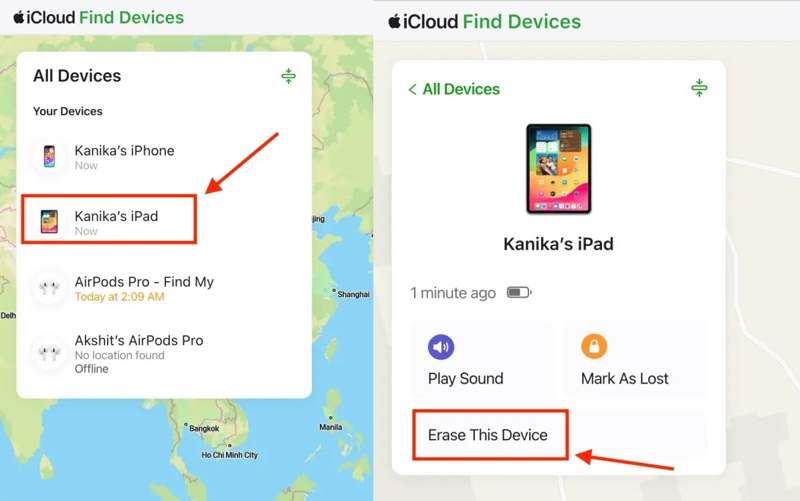
Step 1. Go to www.icloud.com/find in your browser.
Step 2. Log in with the linked Apple Account and password.
Step 3. Choose the locked iPad on the All Devices list.
Step 4. Click the Erase or Erase This Device button after your iPad is found.
Step 5. Read the notification and click the Next button.
Step 6. Enter the linked Apple Account password again.
Step 7. Click Erase to begin resetting the locked iPad.
On Find My App
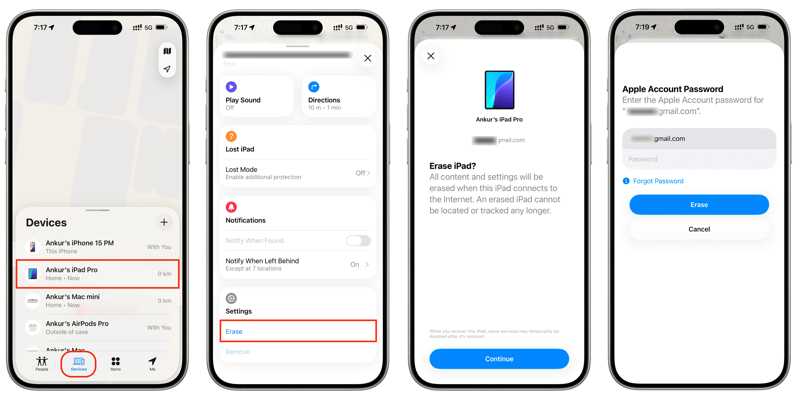
Step 1. Run the Find My app on another Apple device. You can install the app from the App Store for free.
Step 2. Sign in with your Apple Account and password.
Step 3. Go to the Devices tab and choose your iPad.
Step 4. Expand the toolbar and hit the Erase or Erase This Device button.
Step 5. Press Continue to confirm your action.
Step 6. Enter the trusted phone number and hit Erase.
Step 7. Finally, type in the associated Apple Account password and hit Erase again.
Part 4: How to Reset a Locked iPad Without Any Password
The ultimate way to reset a locked iPad is Apeaksoft iFoneKit iOS Unlocker. It lets you factory reset your device even if you forgot the lock screen passcode for your iPad. Plus, the intuitive interface makes it easy to use for beginners.

Downloaded by over 1,000,000 users
- Factory reset an iPad without a password quickly.
- Work for a disabled, locked, or frozen iPad.
- Complete a factory reset with three steps.
- Offer bonus features, like Apple ID removal.
- Compatible with the latest editions of iPadOS.
Secure Download
Secure Download

How to Reset a Locked iPad Without a Password
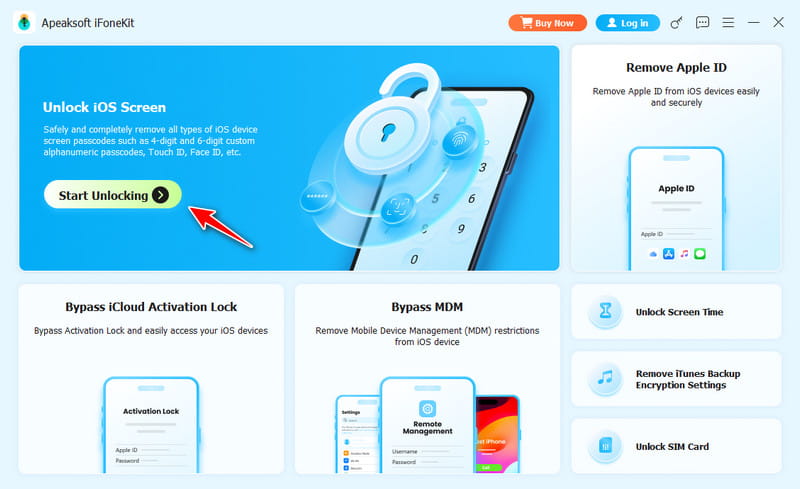
Step 1. Install iPad unlocker
Launch the iPad unlock software after installing it on your PC or Mac OS X. Choose the Unlock iOS Screen mode to proceed. To reset an Activation locked iPad, choose Bypass iCloud Activation Lock instead.
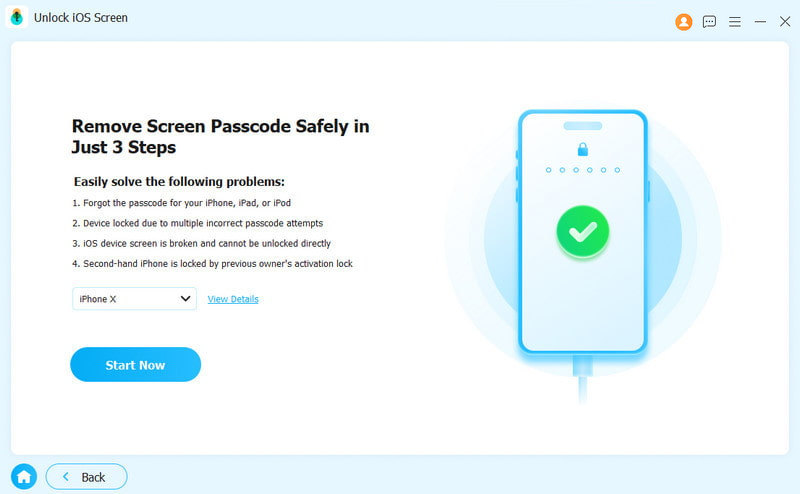
Step 2. Connect to your iPad
Link your iPad to your computer with a Lightning cable. Once the software detects your device, check your iPad information and click the Start Now button to start downloading the firmware.
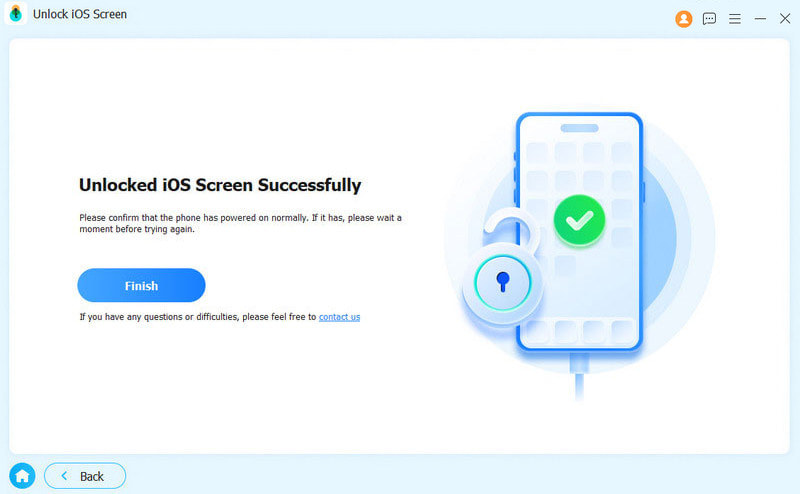
Step 3. Reset the locked iPad
After the confirmation dialog appears, click OK and then hit Confirm Again. Next, the software will initiate resetting your locked iPad automatically.
Conclusion
Now, you should learn multiple ways to factory reset a locked iPad in different situations. You can read the prerequisites for each way, pick an appropriate way, and follow the concrete tutorial to reset your device when you forgot the passcode. Apeaksoft iFoneKit iOS Unlocker is an easy way to complete the process quickly.
 Apeaksoft iFoneKit
 Unlock all types of iOS passwords from iPhone, iPad and iPod.
Secure Download
Secure Download
Related Articles




