


How to Efficiently Deactivate Your Apple ID Account

While the Apple ID plays a key role on iPhones, iPad devices, and Mac machines, you may want to temporarily or permanently leave the Apple ecosystem. According to Apple, users can delete or deactivate Apple accounts for various reasons. If you anticipate never needing your account again and want to deactivate your Apple ID on your iPhone, iPad, or Mac, follow our concrete tutorial.
PAGE CONTENT:
Part 1: Delete Apple ID vs. Deactivate Apple ID
Deleting an Apple ID refers to permanently erasing your Apple account, giving you control over your data and privacy. After account deletion, you will lose access to Apple services, data in iCloud, Apple transactions, and Apple Support.
Deactivating an Apple ID account allows you to get a little spending cash. This option temporarily closes your account while keeping your data and other elements intact. You can reactivate your account at any time.
Why do you need to deactivate your Apple ID? The main causes include privacy concerns, having multiple IDs, security issues, and more.
Part 2: Before Deactivating Apple ID
While deactivating your Apple ID won't erase your data, you'd better take some actions to avoid data loss. For example, you'd better back up your iPhone or iPad to a computer or back up your Mac to Time Machine.
Back up iPhone/iPad to a Computer
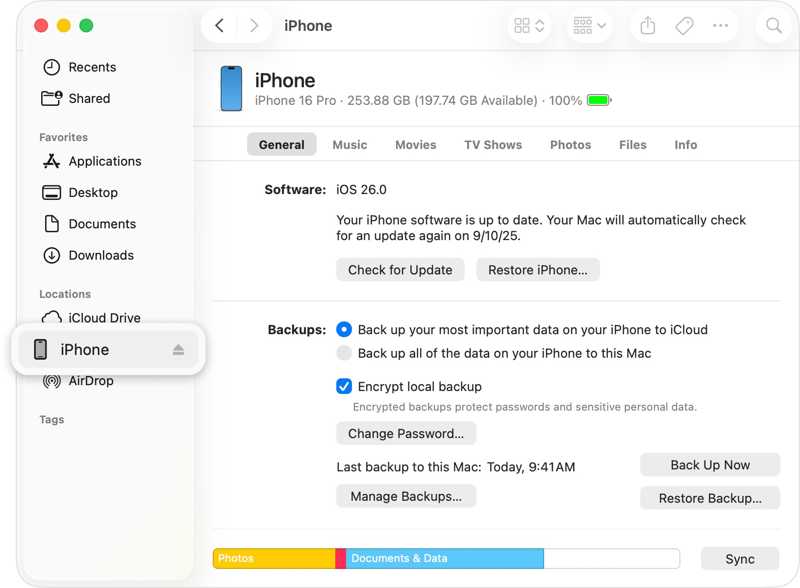
Step 1. Connect your iPhone or iPad to a computer with a USB cable.
Step 2. Open iTunes on Windows or macOS Mojave and earlier. Open Finder on macOS Catalina and later.
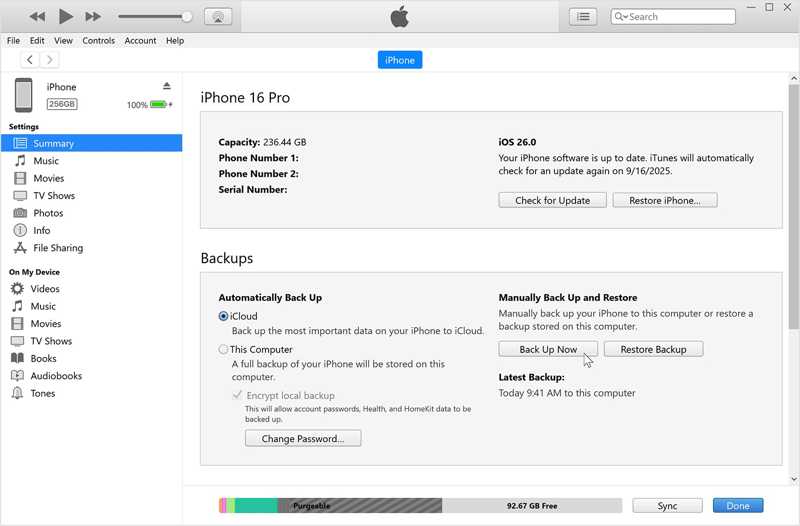
Step 3. Click the Phone button in iTunes and go to Summary. Click your device name in Finder, and head to General.
Step 4. Click the Back Up Now button in the Backups section.
Back up Mac to Time Machine
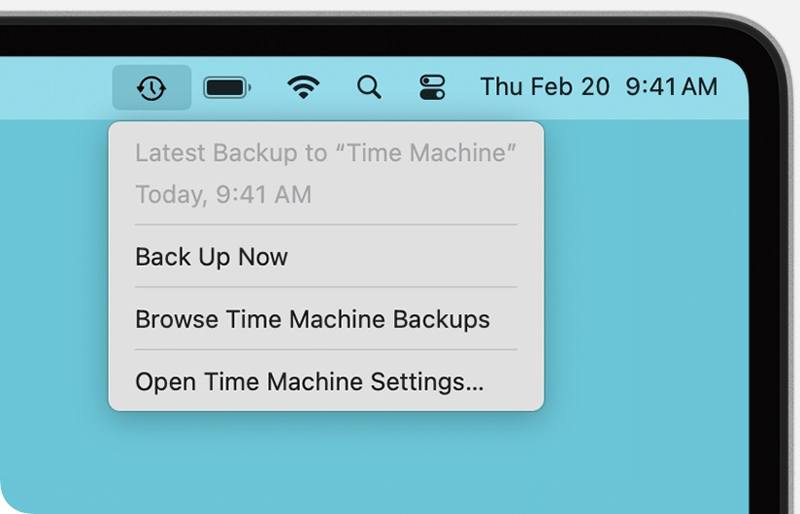
Step 1. Insert the backup external hard drive into your MacBook.
Step 2. Click the Time Machine button on the top menu bar.
Step 3. Choose Back Up Now to make a backup before deactivating your Apple ID.
Sign out of Apple ID on iPhone/iPad
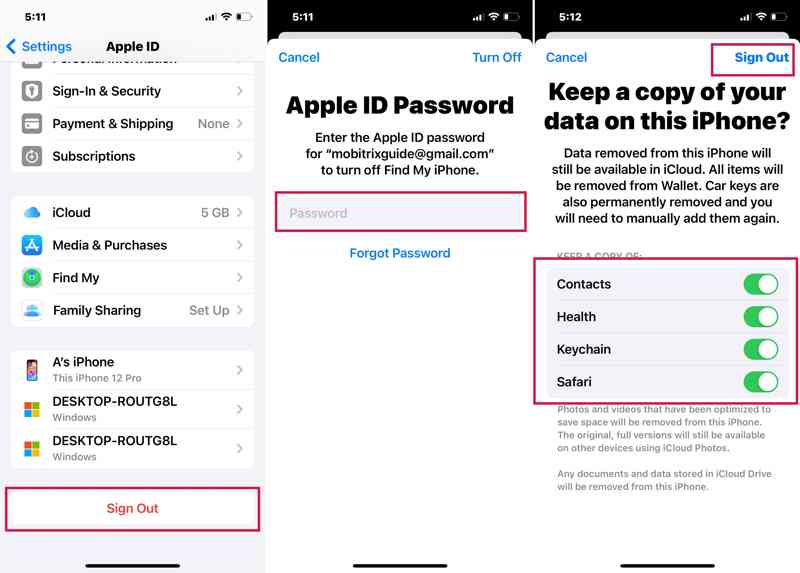
Step 1. Run the Settings app.
Step 2. Tap on your profile.
Step 3. Scroll down and tap the Sign Out button.
Step 4. Input your Apple ID password, and tap Turn Off.
Step 5. Choose data types to keep, and tap Sign Out.
Sign out of Apple ID on Mac
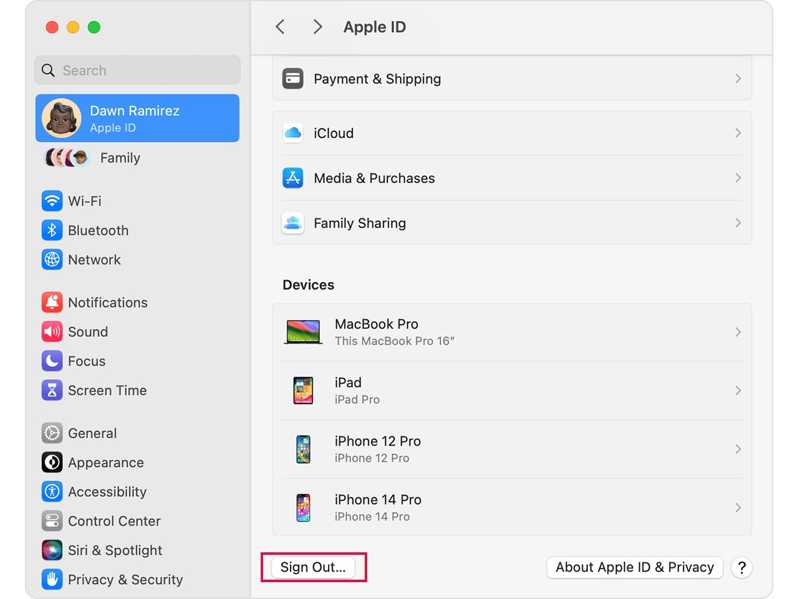
Step 1. Click the Apple menu.
Step 2. Choose System Settings or System Preferences.
Step 3. Click your Apple ID and press the Sign Out button.
Step 4. Follow the onscreen instructions to sign out of your account.
Part 3: How to Deactivate Apple ID
After backing up your Apple device and signing out of your account, you can deactivate your Apple ID. According to Apple, you must submit a request on Apple's Privacy website to close your account temporarily.
Step 1. Go to https://privacy.apple.com/ in a web browser.
Step 2. Input your Apple ID email or phone number and hit Continue.
Step 3. Enter your Apple ID password to log in to the account you want to deactivate.
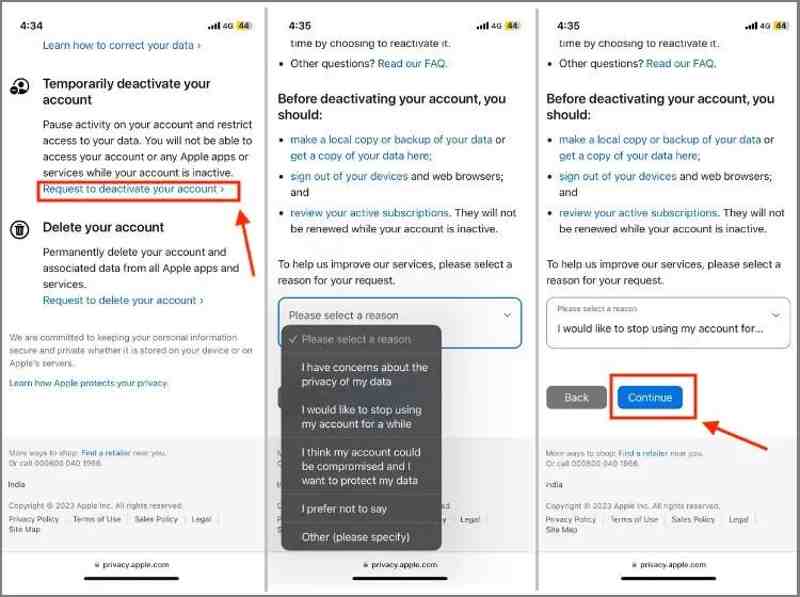
Step 4. Scroll down to the Temporarily deactivate your account section.
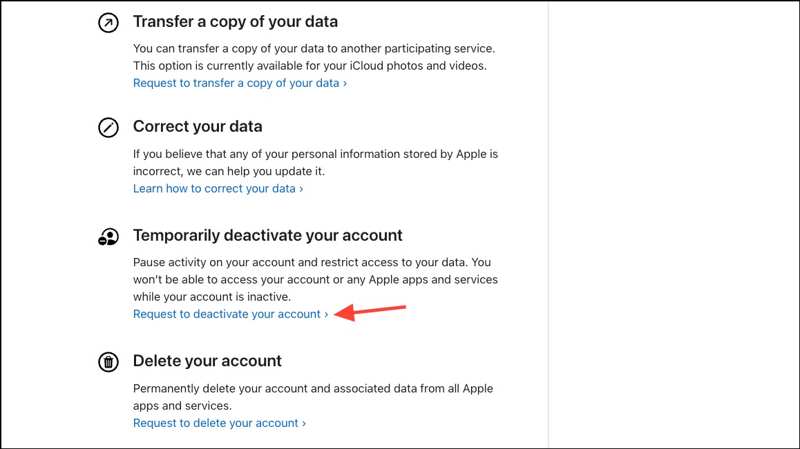
Step 5. Press the Request to deactivate your account link.
Step 6. Next, pick the correct reason from the drop-down option and click Continue.
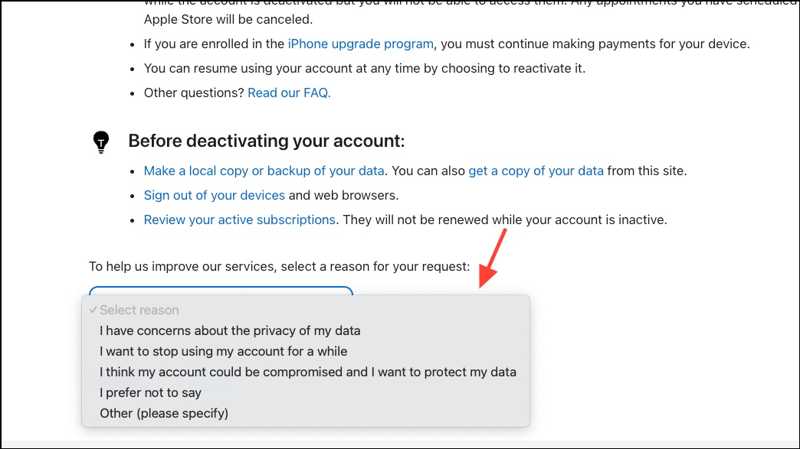
Step 7. Read the terms and conditions, agree to them, and hit Continue.
Step 8. Choose an email address or phone number to receive information.
Step 9. Save the access code and hit Continue.
Step 10. Enter the code and click Continue.
Step 11. Finally, click the Deactivate account button to submit the request.
Further Reading
Part 4: How to Remove a Deactivated Apple ID
If you forgot to sign out of your Apple ID before deactivating it, your iOS device may be locked. Fortunately, Apeaksoft iFoneKit iOS Unlocker can help you resolve this problem. It enables you to remove the old Apple ID from your iPhone or iPad without a password.

Downloaded by over 1,000,000 users
- Remove Apple ID from your iOS device in 3 steps.
- Don't require your iPhone passcode or Apple ID password.
- Work for deactivated, locked, and disabled Apple IDs.
- Support a wide range of iPhones and iPad devices.
Secure Download
Secure Download

How to Remove a Deactivated Apple ID from Your iPhone Without a Password
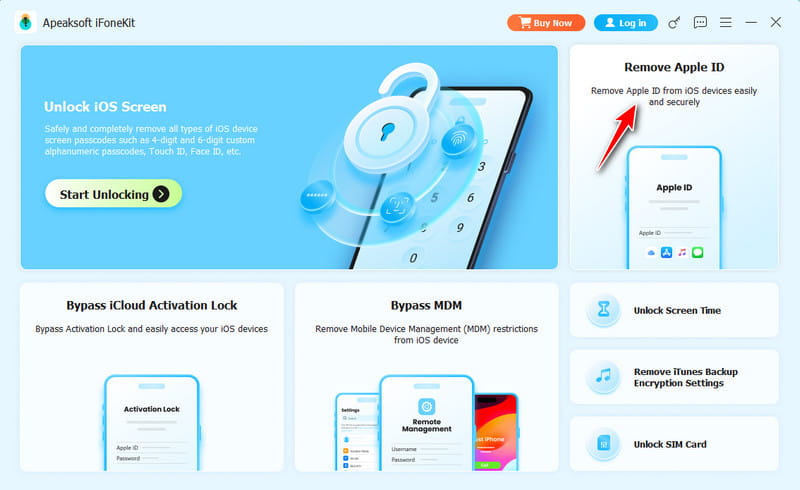
Step 1. Install iFoneKit
Download and install the Apple ID removal software on your PC or Mac and launch it from your desktop. Choose the Remove Apple ID mode.
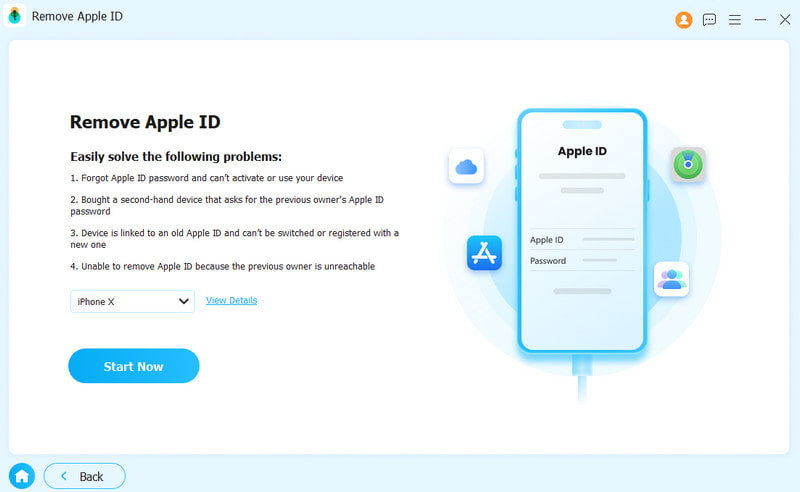
Step 2. Connect to your iPhone
Plug your iPhone into your computer with a Lightning cable. Once the software detects your device, click the Start Now button.
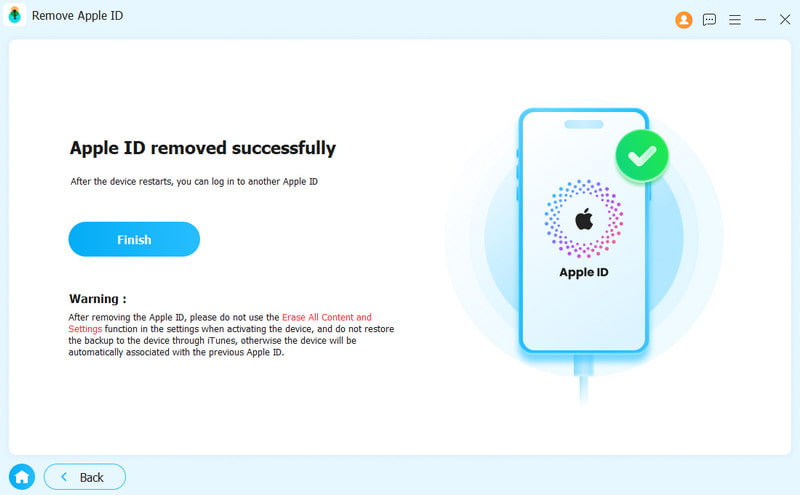
Step 3. Remove deactivated Apple ID
If Find My is disabled, the software will start removing the deactivated Apple ID immediately. If Find My is enabled, reset all settings. Click the OK button, and hit Confirm Again to initiate the process.
Conclusion
This guide explained how to deactivate your Apple ID on your iPhone, iPad, or Mac computer. You'd better back up your data before the process. Then, you can follow our steps to deactivate your account temporarily. Apeaksoft iFoneKit iOS Unlocker allows you to remove any Apple ID account from your iOS device without restrictions.
 Apeaksoft iFoneKit
 Unlock all types of iOS passwords from iPhone, iPad and iPod.
Secure Download
Secure Download
Related Articles




