


How to Reset Your iCloud Password With or Without Phone

If you are an Apple user, you will understand the value of your iCloud account and password. You cannot access iCloud backups or sync data across devices without the password. You also need the precious credentials to turn off Find My and iCloud Activation Lock on your iPhone or iPad. Resetting your iCloud password might be just the trick to gaining access again to your data. This guide shares eight proven methods.
PAGE CONTENT:
- Part 1: When You Need to Reset iCloud Password
- Part 2: How to Reset iCloud Password on Trusted Device
- Part 3: How to Reset iCloud Password with Phone Number
- Part 4: How to Reset iCloud Password with Email
- Part 5: How to Reset iCloud Password with Security Questions
- Part 6: How to Reset iCloud Password with Recovery Key
- Part 7: How to Reset iCloud Password from Recovery Contact
- Part 8: How to Reset iCloud Password on a Borrowed iPhone
- Part 9: How to Reset iCloud Password with a New Account
Part 1: When You Need to Reset iCloud Password
An iCloud password is the credentials you use to log in to iCloud. In fact, you log in to iCloud with your Apple Account and password. In other words, your iCloud password is the same as your Apple ID password. There are a few scenarios when you need to reset your Apple iCloud password:
- 1.You forgot your iCloud password.
- 2.Your iCloud password is locked or disabled.
- 3.You suspect that your iCloud account has been hacked.
- 4.Something is wrong with your iCloud credentials.
Part 2: How to Reset iCloud Password on Trusted Device
A trusted Apple device is an easy way to reset the iCloud password on an iPhone, iPad, or Mac. The precondition is that you have set up Two-factor Authentication for your iCloud account. This way requires your device login password.
Prerequisites:
- 1.You have enabled Two-factor Authentication.
- 2.You remember your iCloud account.
- 3.Your trusted device is accessible.
- 4.The passcode or login password for your trusted device.
On an iPhone/iPad
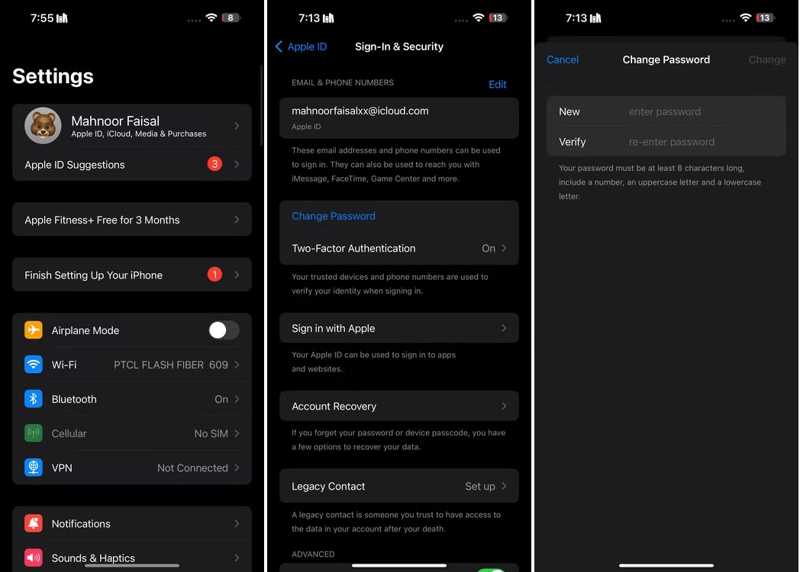
Step 1. Run the Settings app from your home screen.
Step 2. Tap on your profile.
Step 3. Go to Sign-In & Security.
Step 4. Tap the Change Password button.
Step 5. If prompted, enter your iPhone passcode.
Step 6. Enter a password, re-enter it, and tap Change.
On a Mac
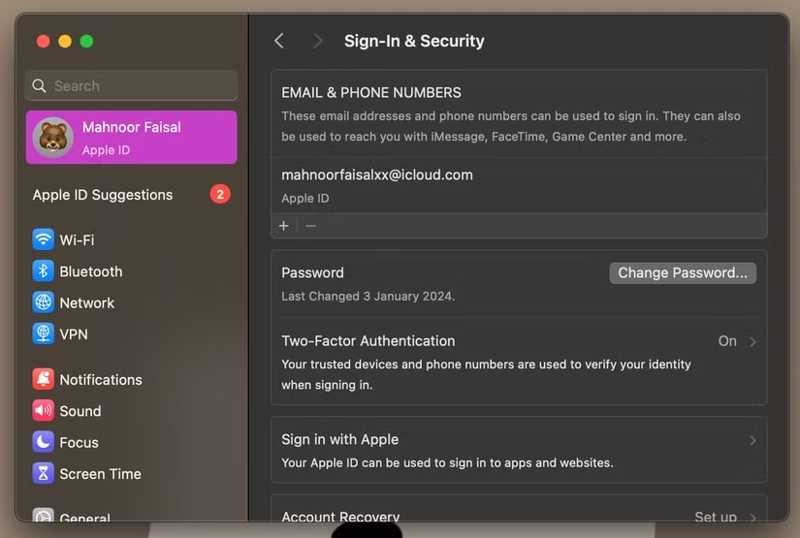
Step 1. Click the Apple menu on your Mac.
Step 2. Choose System Settings or System Preferences.
Step 3. Click your Apple ID or Apple Account.
Step 4. Choose Sign-In & Security and click Change Password.
Step 5. Enter your Mac login password.
Step 6. Make a new password, confirm it, and click Change.
Part 3: How to Reset iCloud Password with Phone Number
Without the trusted device, you can reset your iCloud login password with your phone number. This way is available if your trusted phone number is still in use. Moreover, you need to offer the necessary information.
Prerequisites:
- 1.Your trusted phone number is accessible.
- 2.Your iCloud account.
- 3.A stable internet connection.
Step 1. Go to iforgot.apple.com in a web browser and hit Reset Password.
Step 2. Enter the Apple ID associated with your iCloud.
Step 3. Type the characters in the image, and click Continue.
Step 4. When prompted, press the Don’t have access your iPhone link.
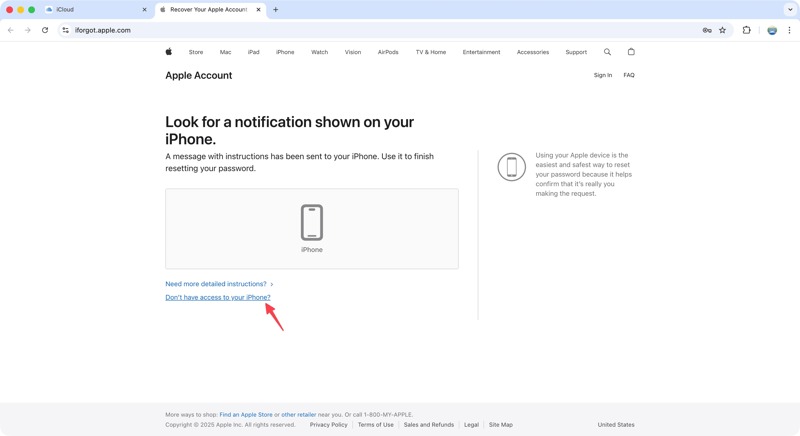
Step 5. Click the Cannot use any of these options link.
Step 6. Read the alert and click the Continue Anyway button.
Step 7. Check your phone number, then click Send code.
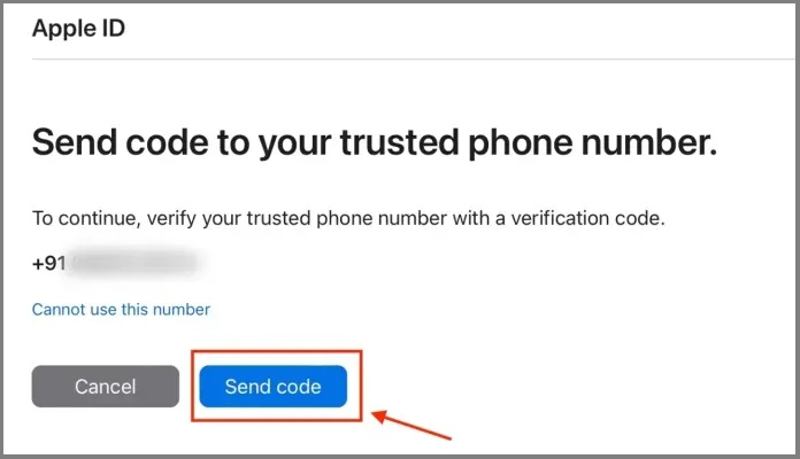
Step 8. Once you receive the verification code, enter it.
Step 9. Finally, reset your iCloud password with a new password.
Further Reading
Part 4: How to Reset iCloud Password with Email
Another way to reset your iCloud password is by using your email address if you haven’t set up Two-factor Authentication for your account. This way requires you to verify your ownership with the trusted email.
Prerequisites:
- 1.The associated email address is still in use.
- 2.A good internet network.
- 3.Your iCloud account.
Step 1. Access Apple’s iForgot website in a browser.
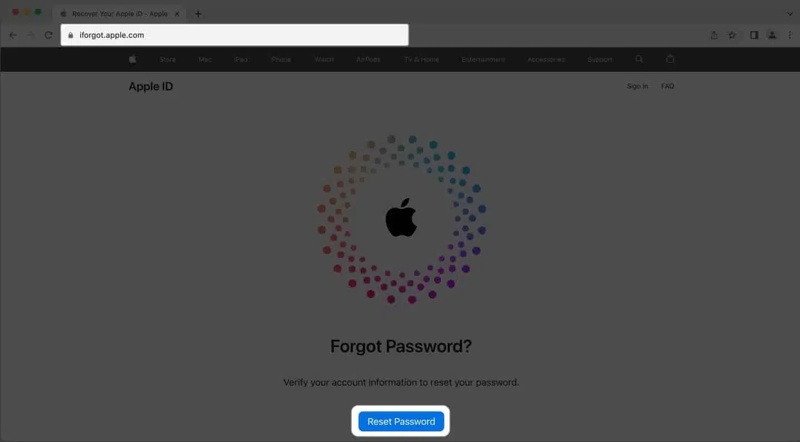
Step 2. Click the Reset Password button.
Step 3. Enter your email address and captcha code.
Step 4. Click the Continue button.
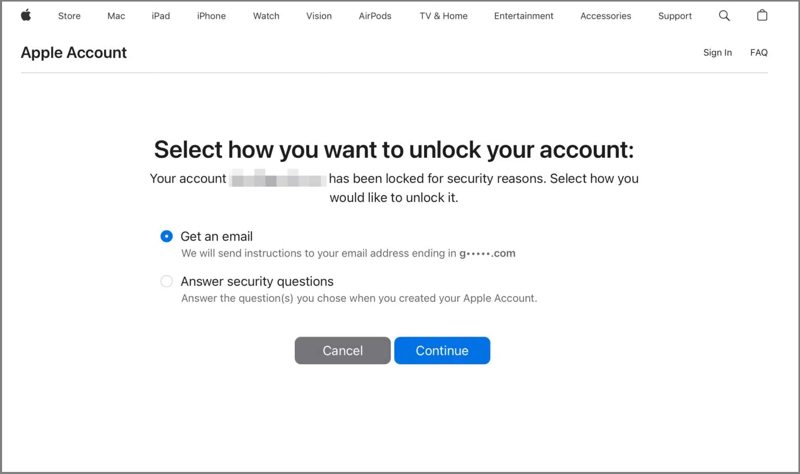
Step 5. Next, select Get an email and click Continue.
Step 6. Double-check your trusted email address and hit Continue.
Step 7. Open your email and look for the latest message from Apple.
Step 8. Click the Reset now or Reset your password link in the email.
Step 9. Complete the verification and enter the new password page.
Step 10. Make a new password, confirm it, and click Reset Password to finalize the change.
Part 5: How to Reset iCloud Password with Security Questions
If you stop using the trusted phone number, answering security questions is a good option to reset the iCloud password without a phone number. This way requires you to offer an accurate answer for each security question.
Prerequisites:
- 1.A stable Wi-Fi network.
- 2.A computer and a web browser.
- 3.You remember the answers to your security questions.
Step 1. Click Reset Password on iforgot.apple.com.
Step 2. Fill out the form and follow the onscreen instructions to proceed.
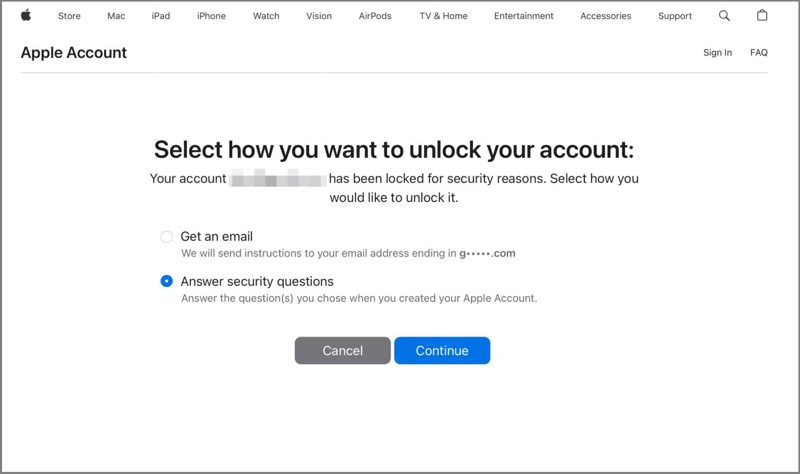
Step 3. Select Answer security questions when prompted.
Step 4. Click the Continue button.
Step 5. Next, verify your personal information and hit Continue.
Step 6. Now, input the answer for each security question.
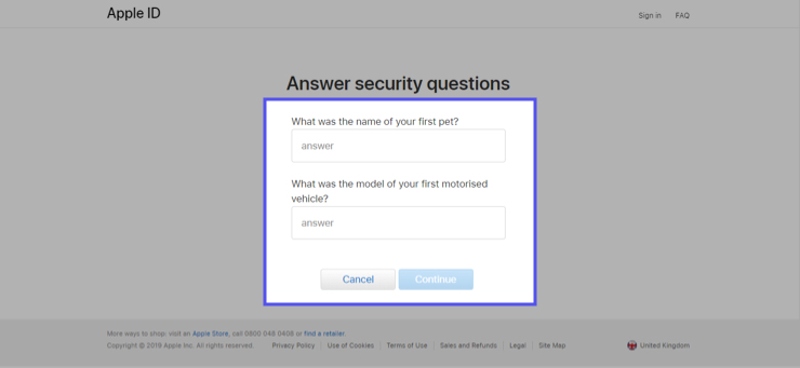
Step 7. Click Continue to go to the new password page.
Step 8. Type a new password, re-enter it, and click Reset Password.
Part 6: How to Reset iCloud Password with Recovery Key
If you have generated a recovery key on the device associated with your iCloud account, you can reset your iCloud password with it. This method requires your trusted phone number and a fast internet connection.
Prerequisites:
- 1.Your recovery key.
- 2.A web browser and a network.
- 3.Your trusted phone number.
Step 1. Turn on an Apple device associated with your iCloud account.
Step 2. Go to the Settings or System Settings app.
Step 3. Press your profile and go to Sign-In & Security.
Step 4. Choose Recovery Key, then toggle it on.
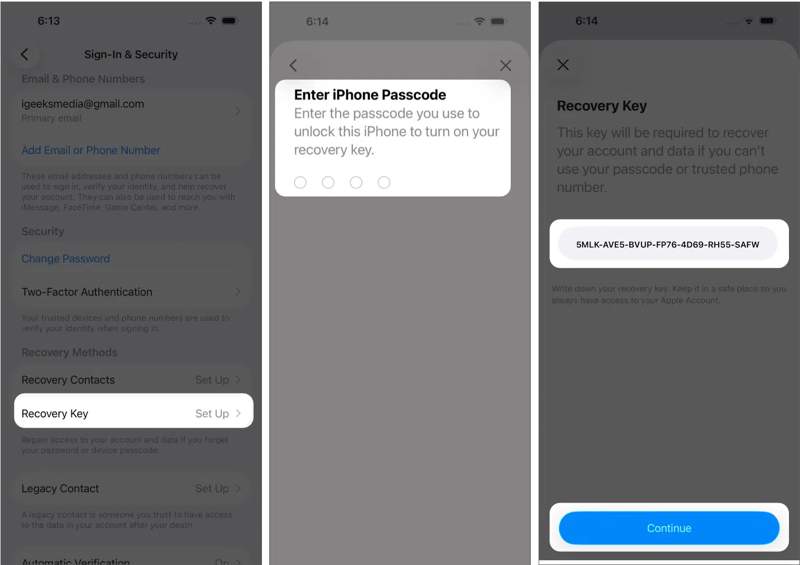
Step 5. Press Use Recovery Key, then authenticate with Face ID, Touch ID, and your passcode.
Step 6. You will now see the 28-character recovery key.
Step 7. Visit iforgot.apple.com and hit Reset Password.
Step 8. Follow the onscreen instructions until you are asked to enter your trusted phone number.
Step 9. Input your phone number and hit Continue.
Step 10. Next, tap Send code.
Step 11. Enter the 6-digit verification code.
Step 12. Now, input your 28-character recovery key to proceed.
Step 13. Set a new password, retype it, and hit Done.
Part 7: How to Reset iCloud Password from Recovery Contact
Recovery Contact is a new feature that lets you reset your iCloud Password without a phone number. This feature is available on iOS 15, iPadOS 15, and macOS Monterey or above. The contact can help you verify your ownership.
Prerequisites:
- 1.You have added a recovery contact.
- 2.A stable internet connection.
- 3.The recovery contact can generate a recovery code.
Add Recovery Contact
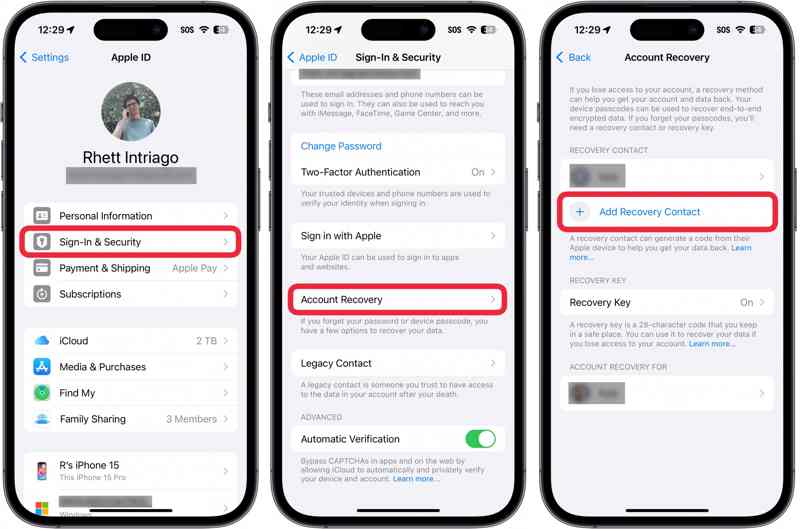
Step 1. Open the Settings or System Settings app.
Step 2. Press your profile picture and go to Sign-In & Security.
Step 3. Choose Account Recovery, and then hit Add Recovery Contact.
Step 4. Choose a proper contact and hit Next.
Step 5. Then, hit the Send to send a message to the contact.
Step 6. Finally, press Done to confirm it.
Step 7. On the contact’s device, press the request, then hit Accept to complete the setup.
Get Recovery Code
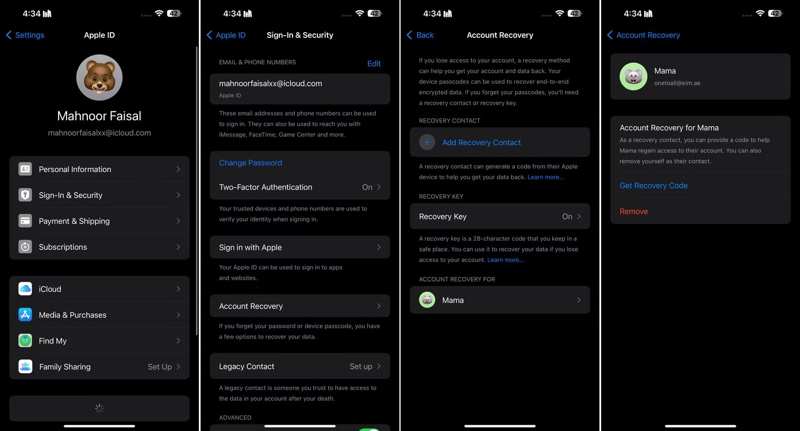
Step 1. When you need to reset your iCloud password, turn to the contact’s device.
Step 2. Go to Settings, tap on the profile, then choose Sign-In & Security.
Step 3. Tap Account Recovery, and choose your name under the Account Recovery For heading.
Step 4. Tap Get Recovery Code.
Reset iCloud Password with Recovery Contact
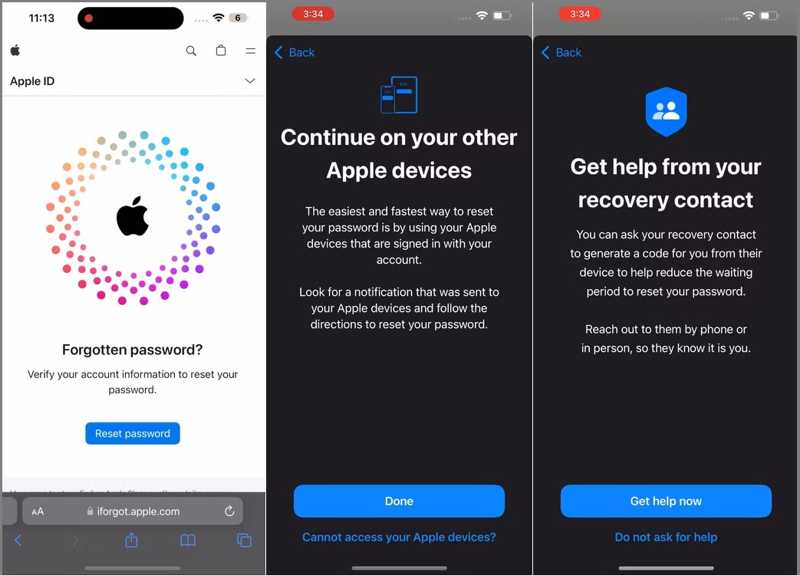
Step 1. Visit Apple’s iForgot website.
Step 2. Press Reset Password and enter the email address or phone number linked to your iCloud account.
Step 3. Choose Cannot access your Apple devices when prompted.
Step 4. Then, select Cannot use this number when you are asked to enter the trusted phone number.
Step 5. Next, press Get help now.
Step 6. Once your recovery contact generates a 6-digit recovery code, tap I have a recovery code and enter it.
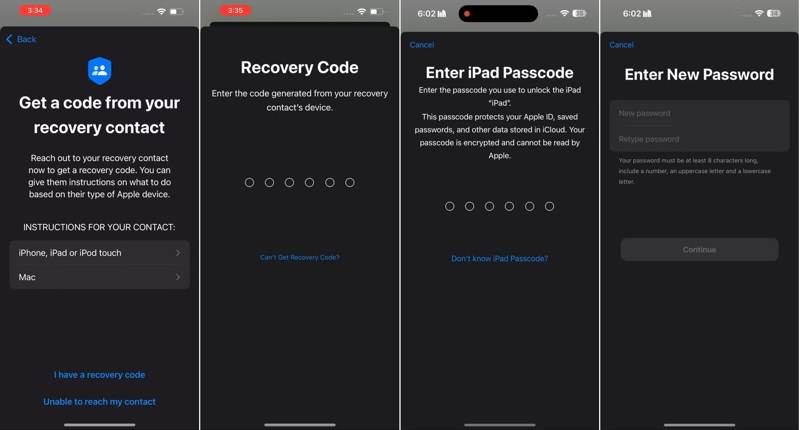
Step 7. Enter your device passcode.
Step 8. At last, type a new password, retype it, and tap Continue.
Part 8: How to Reset iCloud Password on a Borrowed iPhone
The Apple Support app lets you reset your iCloud password using your phone number on a borrowed iOS device. It requires you to enter your Apple ID email address, verify your ownership, and set a new password.
Prerequisites:
- 1.Your Apple ID address.
- 2.The trusted phone number is still accessible.
- 3.A borrowed iPhone or iPad.
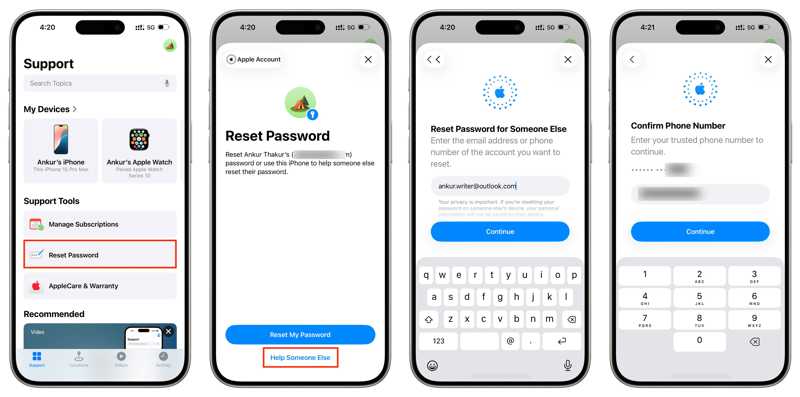
Step 1. Install the Apple Support app on another iOS device.
Step 2. Run the app from the home screen.
Step 3. Tap the Reset Password option under the Support Tools section.
Step 4. Press Help Someone Else at the bottom.
Step 5. Input the email address or phone number associated with your iCloud account and tap Continue.
Step 6. Type your trusted phone number and tap Continue.
Step 7. Hit the Send code to button to send a verification code.
Step 8. Then, enter the code.
Step 9. Enter a new password, re-enter it, and tap Continue.
Part 9: How to Reset iCloud Password with a New Account
If the methods above are unavailable, try Apeaksoft iFoneKit iOS Unlocker. It is able to remove your iCloud password from your iOS device without any restrictions. Furthermore, the user-friendly design makes the software easy to use, even for beginners.

Downloaded by over 1,000,000 users
- Remove the forgotten iCloud password from your iPhone.
- Don’t require your iPhone passcode or iCloud password.
- Offer bonus features, like Screen Time password removal.
- Support almost all iPhones and iPad models.
Secure Download
Secure Download

How to Reset iCloud Password with a New Account
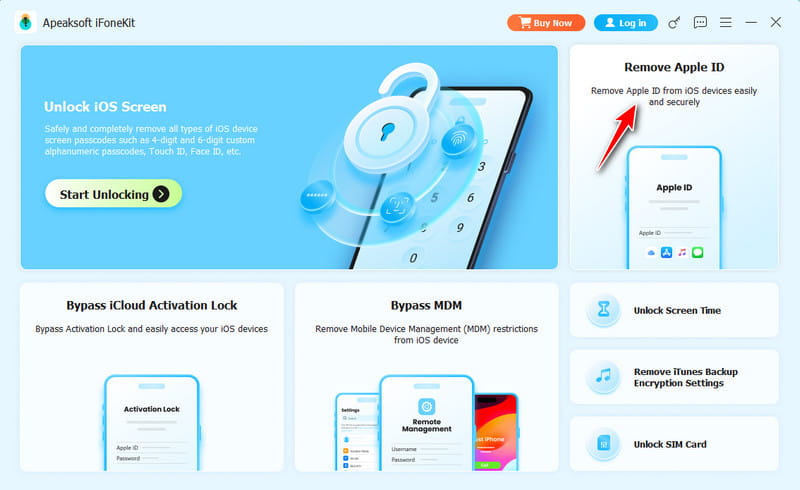
Step 1. Install iFoneKit
Launch iCloud password removal software after you install it on your computer. It works on Windows 11 to Vista and macOS 10.7 or above. Choose the Remove Apple ID mode to continue.
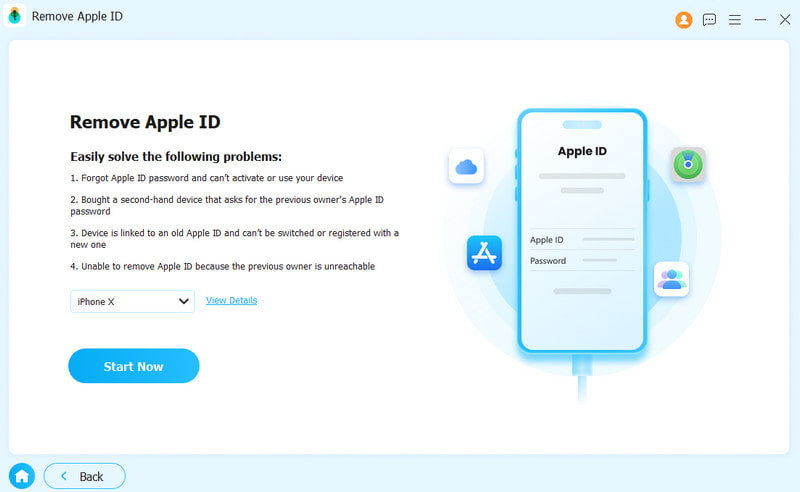
Step 2. Plug your iPhone
Connect your iPhone or iPad to your computer with a Lightning cable. If prompted, tap Trust on your screen to trust this computer. Once the software detects your device, click the Start Now button.
Step 3. Remove iCloud password
If Find My iPhone is disabled, the software will automatically remove your iCloud password. If Find My iPhone is enabled, reset all settings on your device. Then, click OK on the confirmation dialog and hit Confirm Again to initiate the process.
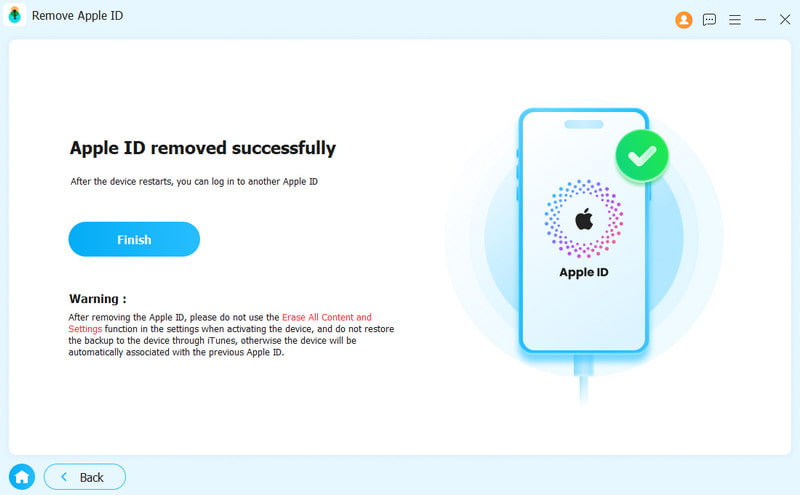
Step 4. Reset iCloud password
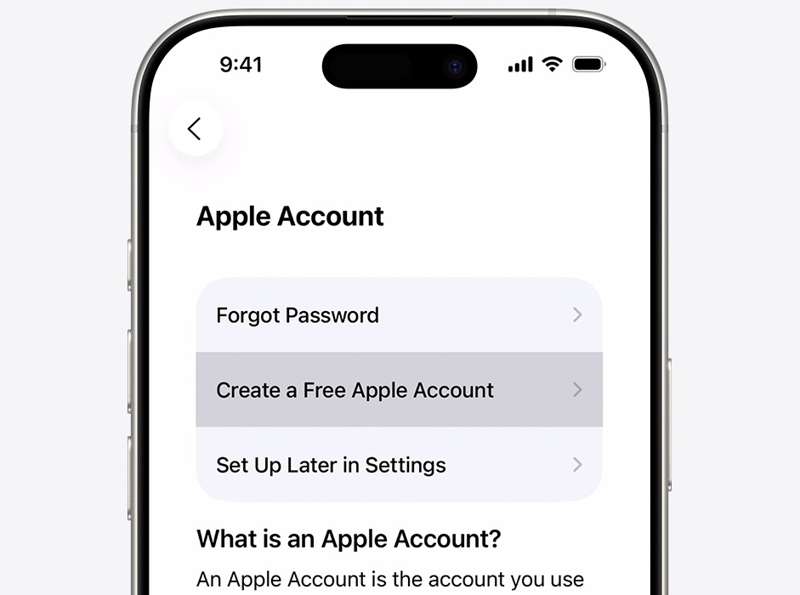
When it is done, disconnect your iPhone and set it up. Then, create a new iCloud account and password.
Conclusion
This guide demonstrated eight ways to reset iCloud password on your iPhone, iPad, Mac, and online. We discussed the prerequisites for each method and shared detailed steps for creating a new password, even if you forgot your iCloud credentials. Apeaksoft iOS Unlocker lets you completely remove your iCloud account from your device without a password.
 Apeaksoft iFoneKit
 Unlock all types of iOS passwords from iPhone, iPad and iPod.
Secure Download
Secure Download
Related Articles




