


How to Change and Reset Screen Time Passcode on iPhone/Mac

Screen Time is a valuable feature to control device usage. Lots of parents set up it on their kids’ iPhone and iPad to avoid device abuse. Once an iOS device is locked by Screen Time, you need to unlock it with your passcode, which is different from the lock screen passcode. If you forgot the Screen Time passcode, you will lose access to your data. This guide explains how to reset the Screen Time passcode.
PAGE CONTENT:
- Part 1: How to Reset Screen Time Passcode [Official Method]
- Part 2: How to Change Screen Time Passcode on Child's Device
- Part 3: How to Reset Screen Time Without Apple ID If Forgot
- Part 4: How to Remove Screen Time Passcode by Restoring iPhone [Data Loss]
- Part 5: FAQs About Resetting Screen Time Passcode
| Method | Best For | Need Passcode | Need Apple ID | Data Loss |
| Change Screen Time Passcode | Know the current Screen Time passcode and want to update it | Yes | No | No |
| Reset with Apple ID | Forgot Screen Time passcode but remember the Apple ID | No | Yes | No |
| Family Sharing Management | Parents changing a child’s Screen Time passcode | No | Yes | No |
| Screen Time passcode Remover | Forgot both Screen Time passcode and Apple ID password | No | No | No |
| Restore iPhone | Cannot remove Screen Time passcode with other methods | No | Only for Activation Lock | Yes |
Part 1: How to Reset Screen Time Passcode [Official Method]
An official way to reset the Screen Time passcode is to change the Screen Time password on your iPhone/Mac Settings. However, the workflow may require your Apple ID password if you forgot the Screen Time passcode. The process won't damage existing data on your device. Plus, you don't need extra software or hardware.
How to Reset Screen Time Passcode on iPhone
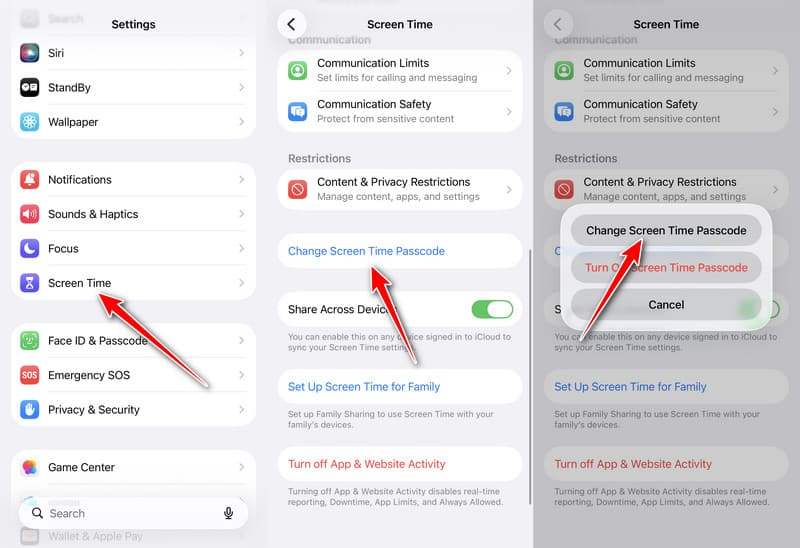
Step 1. Open the Settings from your iPhone.
Step 2. Scroll down and go to the Screen Time tab.
Step 3. Tap the Change Screen Time Passcode button and choose Change Screen Time Passcode again on the pop-up dialog.
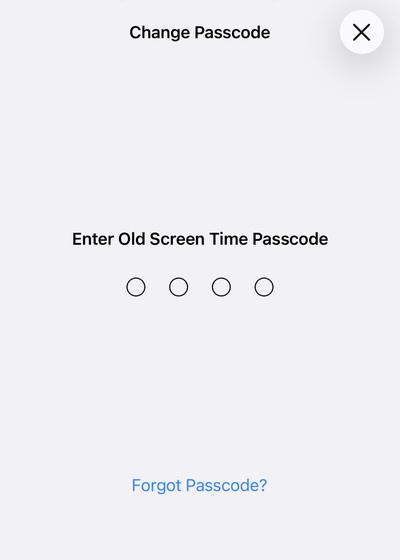
Step 4. If you still remember your Screen Time passcode, enter it and change the passcode directly.
If you cannot remember your passcode, tap the Forgot Passcode button. Enter the Apple ID and password that you entered for recovery during the setup process. Then, create a new Screen Time passcode and confirm the changes.
How to Reset Screen Time Passcode on Mac
If you are using Screen Time on your MacBook, you can recover and change the Screen Time passcode when you forget it. On macOS 10.15.4 or higher, you can follow the steps below to complete the process.
Step 1. Go to the Apple menu and choose System Settings or System Preferences.
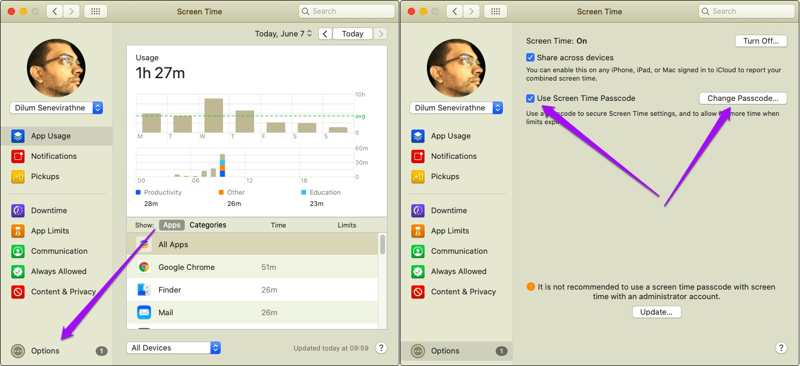
Step 2. Click the Screen Time option and hit Options at the bottom left corner.
Step 3. If you want to remove the Screen Time passcode, uncheck the box next to Use Screen Time Passcode. To find or change your Screen Time passcode, click the Change Passcode button.
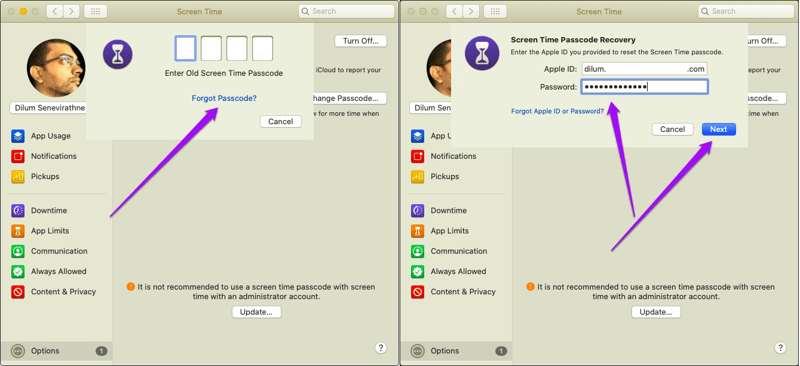
Step 4. Here, you can enter the old Screen Time passcode if you still remember it and create a new one. If you forgot the passcode, click the Forgot Passcode link.
Tips: You won’t see the link on macOS 10.15.3 and earlier.
Step 5. Type the associated Apple ID and password. Click on the Next button to enter the new passcode screen. Here, you can set a new passcode, verify it, and confirm the changes.
Part 2: How to Change Screen Time Passcode on Child's Device
If you use Family Sharing to manage your child’s device, you can change your child’s iPhone Screen Time passcode on your iPhone or Mac. The children cannot change or reset the Screen Time passcode on their device.
Change Screen Time Passcode on Child’s Device on iPhone
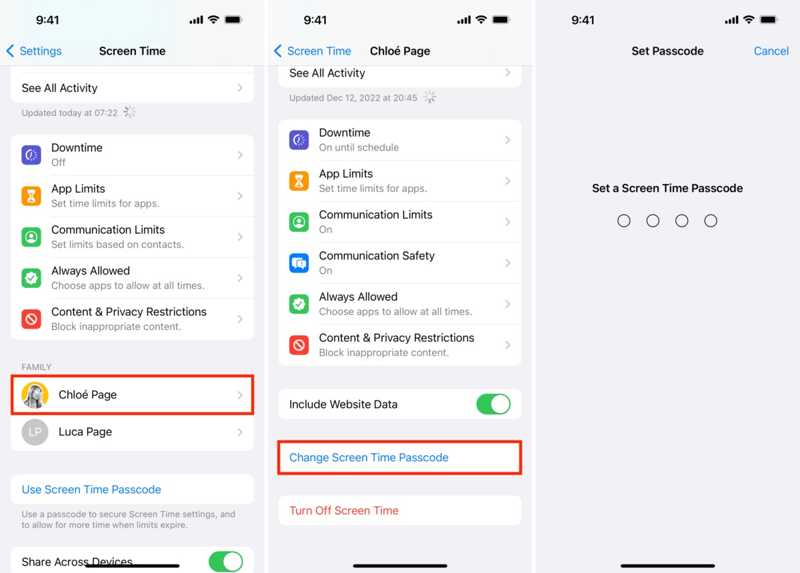
Step 1. Open the Settings app on the family organizer’s iPhone or iPad.
Step 2. Go to Screen Time and choose your child’s name under the Family section.
Step 3. Tap Change Screen Time Passcode and choose Change Screen Time Passcode on the pop-up.
Step 4. Authenticate with your Face ID, Touch ID, or iPhone passcode. Finally, set a new Screen Time passcode for your child’s device.
Change Screen Time Passcode on Child’s Device on Mac

Step 1. If you are using a Mac computer to manage your child’s Apple device, go to the Apple menu and choose the System Settings or System Preferences option.
Step 2. Choose the Screen Time option on the panel or sidebar and pick your child’s name from the Family Member heading.
Step 3. Enter your Mac login password to authenticate the ownership and move to the new passcode screen.
Step 4. At last, type a new Screen Time passcode, re-enter it, and confirm the changes.
Part 3: How to Reset Screen Time Without Apple ID If Forgot
By default, you need the current passcode or your Apple ID password to change the Screen Time passcode. If you forgot both the Screen Time passcode and Apple ID password, how to reset Screen Time passcode? Apeaksoft iFoneKit iOS Unlocker is a useful tool that can help you reset Screen Time passcode if forgotten without passcode, Apple ID, and even data loss.

Downloaded by over 1,000,000 users
- Reset Screen Time passcode without Apple ID.
- Remove the Screen Time passcode with no data loss.
- Offer bonus features, like MDM removal, Apple ID removal, etc.
- Support resetting Screen Time passcode on iPhone/iPad.
- Support the latest models of iPhone and iPad.
Secure Download
Secure Download

How to Reset Screen Time Passcode Without Apple ID
Step 1. Connect to your iPhone
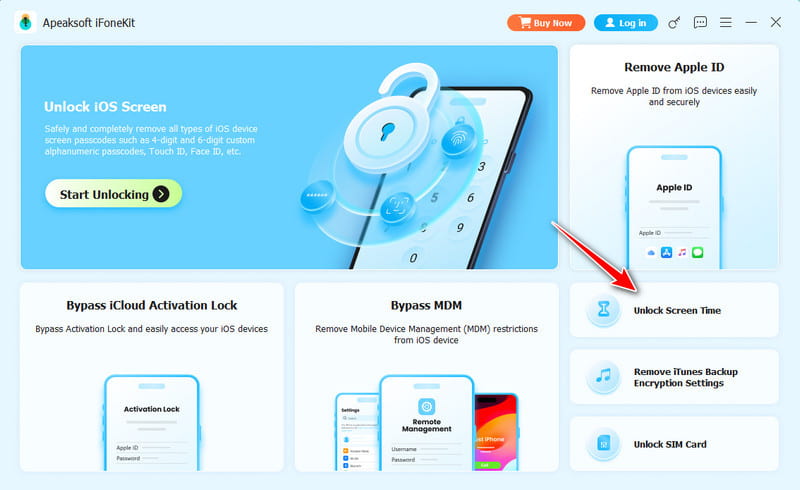
Launch the best Screen Time unlocking software after you install it on your PC. There is another version for Mac. Choose the Unlock Screen Time mode in the home interface. Then, connect your iPhone to your PC with a Lightning cable.
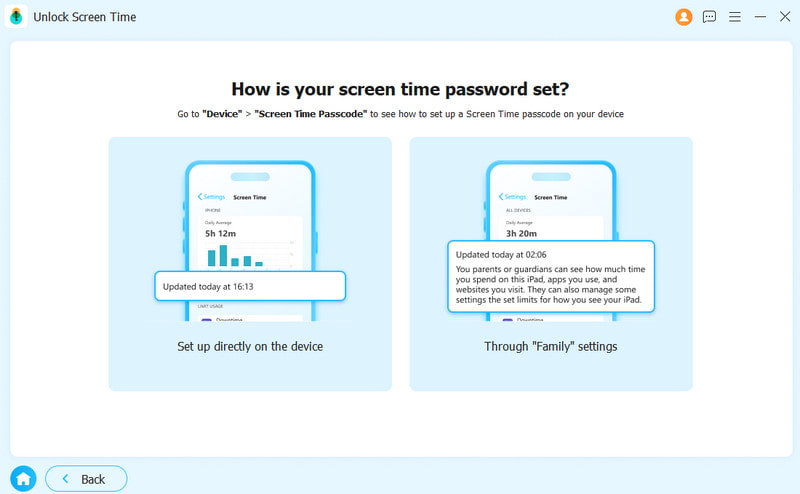
Step 2. Choose your Screen Time Type
Once your iPhone is detected, choose how your screen time lock is set.
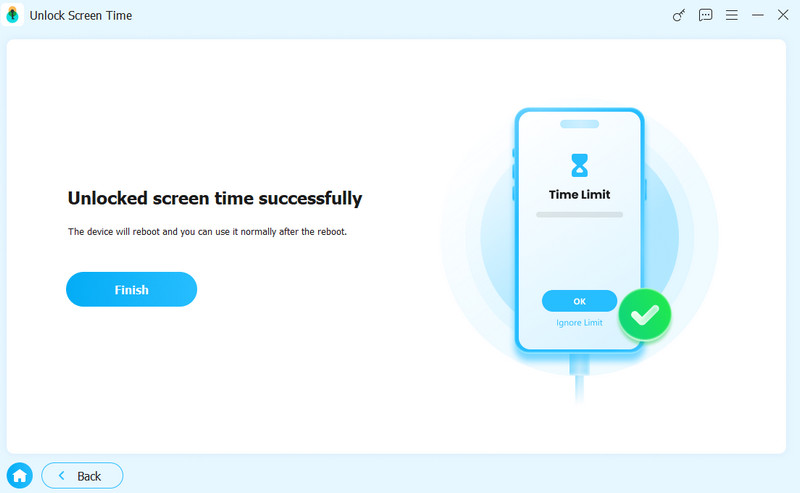
Step 3. Remove the Screen Time passcode
If your iPhone runs iOS 12 or later, all you need to do is wait for the software to complete Screen Time passcode removal.
If your iPhone runs iOS 11 or earlier and iTunes backup is unencrypted, the software will begin removing the current Screen Time passcode. If the iTunes backup is encrypted, you can also use this program to remove iTunes Backup password.
Part 4: How to Remove Screen Time Passcode by Restoring iPhone [Data Loss]
If you forget your Screen Time passcode or cannot reset it with Apple ID, restoring your iPhone can help remove the Screen Time passcode. The process will delete all data on your device, including the current Screen Time passcode. This way requires a computer, the latest version of iTunes or Finder, and a USB cable.
Note: This method will ease all your device data, back up your iPhone in advance.
Step 1. Connect your iPhone to your computer with a USB cable.
Step 2. Open iTunes on your PC. On macOS Mojave or earlier, iTunes is still available. On macOS Catalina or later, open Finders.
Step 3. Put your iPhone in Recovery Mode:
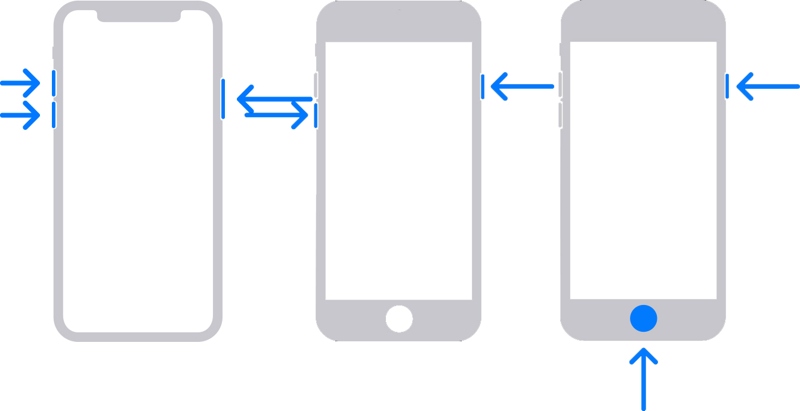
On an iPhone 8 or newer, quickly press and release the Volume Up button. Do the same thing with the Volume Down button. Hold the Side button until the connect-to-computer screen appears.
On an iPhone 7/7 Plus, long-press the Volume Down + Side buttons together until the connect-to-computer screen pops up.
On an iPhone 6s or earlier, hold down the Home + Sleep/Wake buttons simultaneously until you see the connect-to-computer screen.
Step 4. Once iTunes or Finder detects your device in Recovery Mode, you will see the alert dialog. Click the Restore button and follow the on-screen instructions to restore your device.
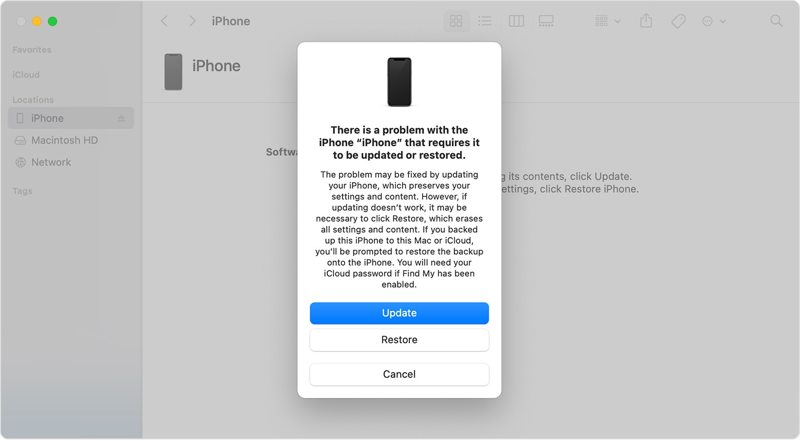
Step 5. When your iPhone restarts, set it up as a new device or restore a backup. Then, go to the Settings app, choose Screen Time, and tap the Use Screen Time Passcode button to set a passcode for Screen Time.
Part 5: FAQs About Resetting Screen Time Passcode
Is Screen Time passcode the same as iPhone passcode?
No. Screen Time passcode is an independent 4-digit code and not identical to your iPhone lock screen passcode.
Can I reset Screen Time passcode without Apple ID?
Apple doesn't provide an official way to reset Screen Time without Apple ID. But third-party tool like Apeaksoft iFoneKit iOS Unlocker can help remove the Screen Time restriction without Apple ID or password.
Does resetting Screen Time passcode erase iPhone data?
No. Resetting Screen Time will not erase your iPhone data. But if you restore your iPhone through recovery mode, your data will be erased.
Conclusion
This guide has explained how to reset the Screen Time passcode in different situations. Firstly, you can reset the passcode for Screen Time on your own Apple device, such as an iPhone, iPad, or Mac computer. Moreover, you can change the passcode for your child's Screen Time on their Apple device.
If you forget the Screen Time passcode or Apple ID, you can use Apeaksoft iFoneKit iOS Unlocker remove the Screen Time passcode without data loss. If you have a backup, you can also use iTunes/Find to restore your iPhone via recovery mode to remove the Screen Time passcode.
 Apeaksoft iFoneKit
 Unlock all types of iOS passwords from iPhone, iPad and iPod.
Secure Download
Secure Download
Related Articles




