


Detailed Steps to Remove MDM Profile from Your iPhone, iPad, and Mac

MDM profile on your iPhone, iPad, or Mac can prevent you from using your device as normal. If you have just bought a second-hand device, left an organization but your device is still managed, or cannot install apps due to MDM restrictions, you are coming to the right place! This post shows how to remove the MDM profile from your iPad, iPhone, or Mac to get rid of the control. And the good news is that the process doesn’t require jailbreak or factory reset.
Disclaimer
Removing an MDM profile requires permission if the device is supervised by an organization. We also recommend backing up your device before making any changes.
PAGE CONTENT:
Part 1: What Is an MDM Profile
MDM, short for Mobile Device Management, is used to control and manage your device as its name suggested. It is usually adopted by organizations like schools and companies to manage a large number of iPhones, iPads, and Mac remotely.
When your device installs MDM profile, administrators can control your device settings, app installation or uninstallation, app features, security options, and network configurations remotely.
However, some people find it inconvenient and want to remove the MDM profile from their devices after leaving a company/school or when buying a second-hand device. In such cases, you can keep reading the content below to learn in detail how to remove the MDM profile on iPhone, iPad, and Mac respectively.
Part 2: How to Remove MDM Profile on iPhone/iPad
If you have an admin password, it is quick and easy to remove the MDM profile from your iPhone or iPad for free. The process won’t interrupt existing data on your device. Moreover, it won’t jailbreak your device.
Step 1. Open the Settings app on your device.
Step 2. Go to the General tab.
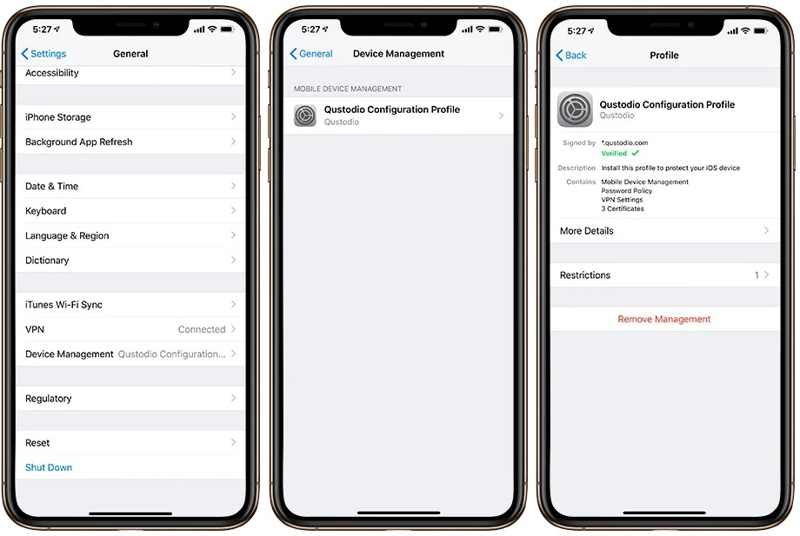
Step 3. Scroll down and tap Device Management (or VPN & Device Management on newer iOS versions) .
Tips: If you don't see the Device Management-related options, it means there is no MDM profile on your iPhone, and you don't need to remove the MDM.
Step 4. Now, you will see the installed MDM profile. Tap it to move on.
Step 5. Finally, tap the Remove Management button at the bottom.
Step 6. When prompted, enter your iPhone or iPad passcode.
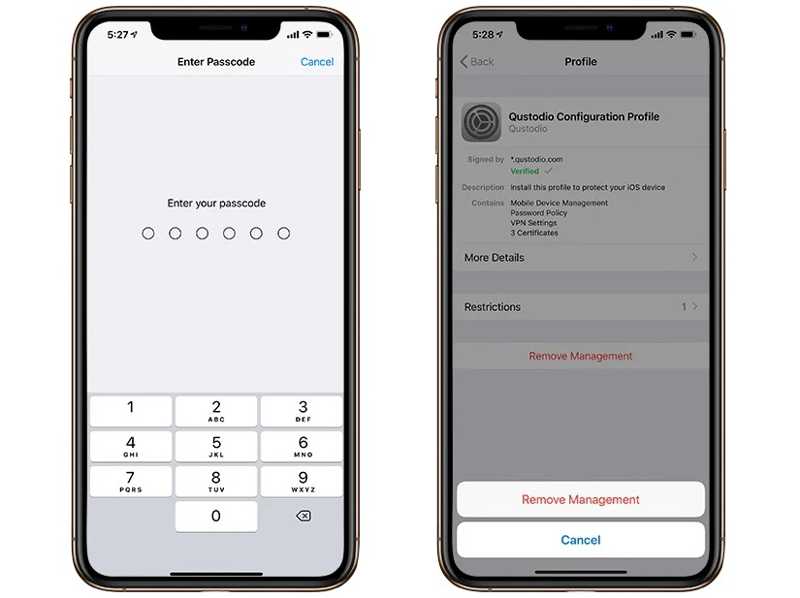
Step 7. Tap the Remove Management button on the dialog to confirm your action.
Note: During the process, you may or may be asked to provide the admin password depending on the MDM installation.
Bonus: Can You Remove MDM Without Admin Password?
| Situation | Can you remove MDM |
| Know the admin password | Yes |
| Personal device with removable profile | Yes |
| Device supervised by organizations | Usually no. Need the organization to remove the device from their MDM system |
| Forgot MDM password | Need professional tool |
Part 3: How to Remove MDM Profile on Mac
If your MacBook has been enrolled by your organization, you can remove MDM from your Mac after you leave the company or school. The workflow is a little different depending on the version of your macOS.
On macOS Monterey or Earlier
Step 1. Click your Apple menu and choose System Preferences.
Step 2. Click profiles and hit the unwanted MDM profile.
Step 3. Press the Remove button with a minus icon.
Step 4. If prompted, enter your Mac login password.
On macOS Sonoma and Ventura
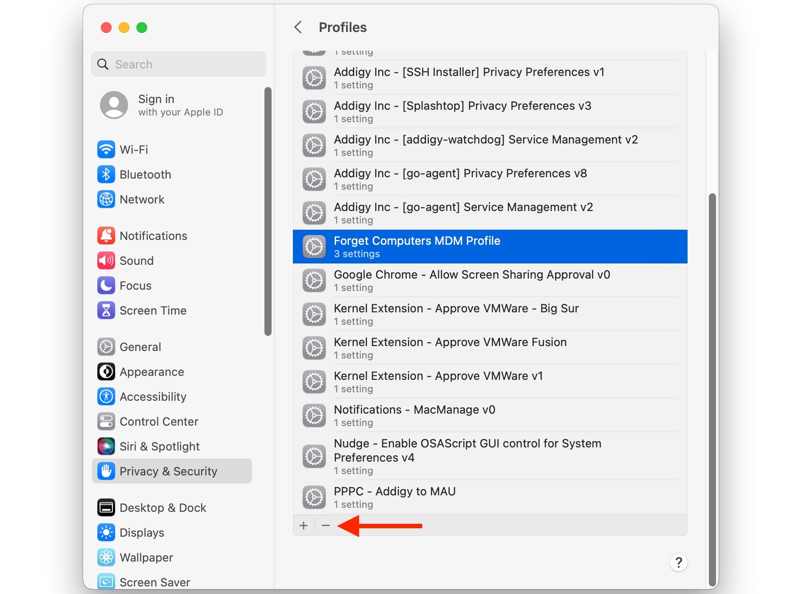
Step 1. Choose System Settings in your Apple menu.
Step 2. Go to Privacy & Security on the sidebar.
Step 3. Choose Profile and click the desired MDM profile.
Step 4. Hit the Remove button and input your Mac password.
On macOS Sequoia and Newer
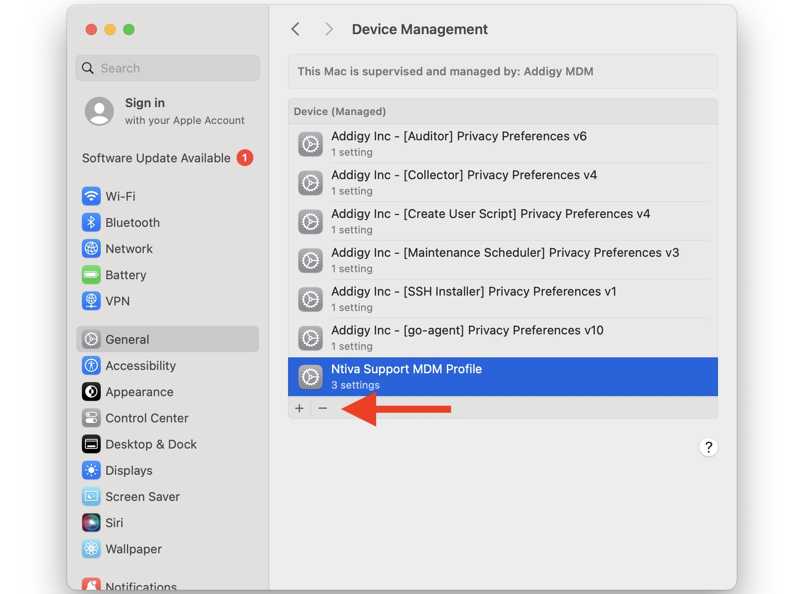
Step 1. Click the Apple menu and choose System Settings.
Step 2. Go to the General tab on the sidebar.
Step 3. Choose Device Management and click the unwanted MDM profile.
Step 4. Click the Remove button and type your Mac password.
Note: Since macOS 15.3, you also see a new Unenroll button once you click an MDM profile. Clicking the button will force remove the MDM from your Mac.
How to Remove an MDM on Mac with Terminal

Step 1. Start your MacBook in Recovery Mode.
Step 2. Choose Utility and click Terminal.
Step 3. Enter csrutil disable and hit the Return button.
Step 4. Reboot your computer and boot into the integrated terminal.
Step 5. Perform the commands below:
cd /var/db/ConfigurationProfiles
rm -rf *
mkdir Settings
touch Settings/.profilesAreInstalled
Step 6. Reboot your Mac in Recovery Mode, go to Utilities, and choose Terminal.
Step 7. Enter csrutil disable and hit the Return.
Step 8. Reboot your Mac to standard mode to completely remove MDM from your Mac.
Tips: This method is only recommended for advanced users. Improper options will lead to system issues.
Part 4: How to Remove MDM Profile on iOS Without Data Loss
In some cases, the Remove Management option is unavailable because the device is protected by an MDM restriction or you don't have administrator credentials. If you cannot remove the MDM profile on your iPad or iPhone in the Settings app, a dedicated MDM removal tool, Apeaksoft iFoneKit iOS Unlocker, for example, can help you remove MDM profile on an iPad or iPhone without any restrictions. Moreover, it won’t erase your data or settings.

Downloaded by over 1,000,000 users
- Remove an MDM profile on iPhone/iPad quickly.
- Don’t require your iPhone passcode or admin password.
- Protect your data on your iOS device during the process.
- Offer bonus features, like unlocking an iPhone without a passcode.
- Compatible with a wide range of iPhones and iPad devices.
Secure Download
Secure Download

How to Remove Forgotten Apple ID on Your iPhone
Step 1. Launch the best MDM removal software once you install it on your computer.
Step 2. Choose the Bypass MDM mode in the home interface.
Step 3. Connect your iPhone or iPad to your computer with a Lightning cable. If prompted, tap the Trust button on your screen to trust the computer. The software will detect your device immediately.
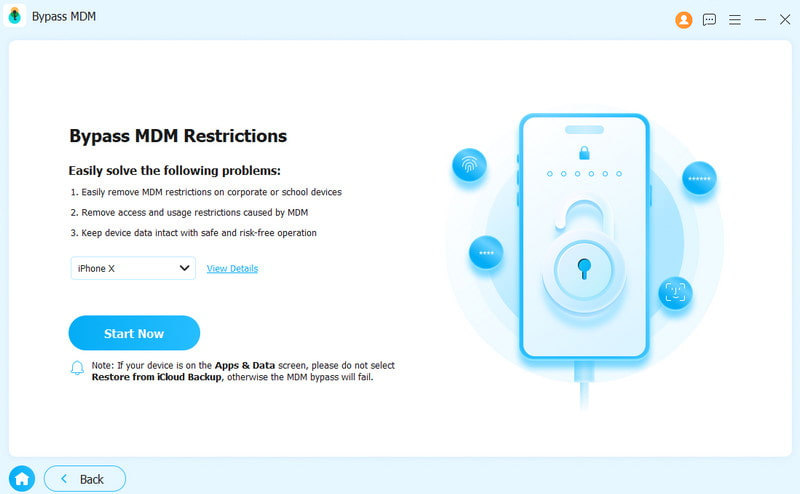
Step 4. Click the Start Now button to begin deleting the MDM profile on your iPad or iPhone if Find My is disabled.
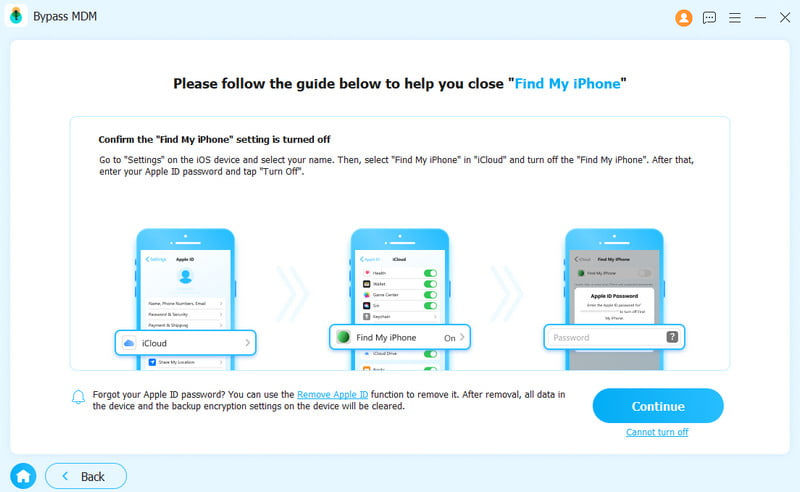
Step 5. If Find My is enabled, follow the onscreen instructions turn it off on your iOS device first.
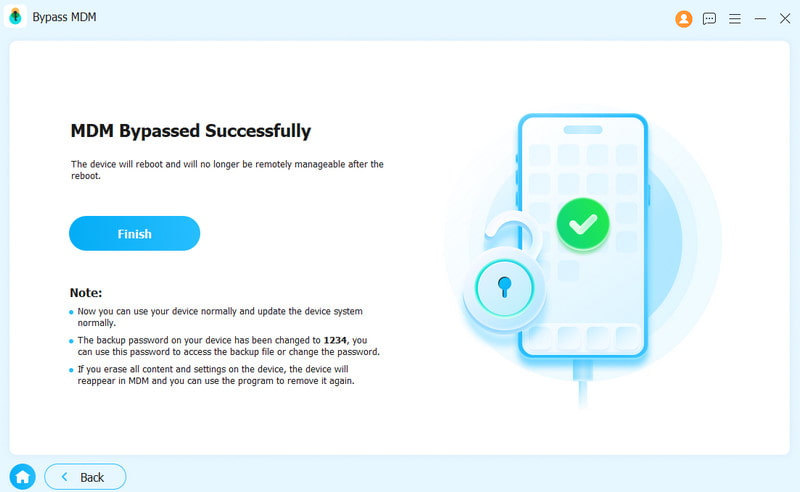
Step 6. Your device will restart automatically. Then, you can use it as normal.
Conclusion
This article discussed how to delete an MDM profile on your iPad, iPhone, or Mac. You can pick the right method and follow our steps to get rid of the MDM control. Apeaksoft iOS Unlocker is able to delete unremovable MDM from your iPhone or iPad. If you have other questions about this topic, please write them down below this post.
 Apeaksoft iFoneKit
 Unlock all types of iOS passwords from iPhone, iPad and iPod.
Secure Download
Secure Download
Related Articles




