


A Concrete Tutorial to Sign out of Apple ID Quickly

There are scenarios when you have to sign out of Apple ID on your iPhone, iPad, Apple Watch, or Mac. Before you give your device to someone else or sell it on the second-hand market, for example, you need to remove your current account. Furthermore, you have to delete the old account if you wish to add another Apple ID to your device. This guide shares the proven methods.
PAGE CONTENT:
- Part 1: What Happens If I Sign out of Apple ID
- Part 2: How to Sign out of Apple ID on iPhone/iPad
- Part 3: How to Sign out of Apple ID on Mac
- Part 4: How to Sign out of Apple ID with Restrictions
- Part 5: How to Sign out of Apple ID on Other Devices
- Part 6: How to Sign out of Apple ID without a Password
Part 1: What Happens If I Sign out of Apple ID
Before signing out of your account on your device, let's discuss what happens if you sign out of your Apple ID. Here is all you need to know about Apple ID and what happens when you log out of your account:
- 1.You can still use your Apple device, but some services are unavailable, such as iMessage and FaceTime.
- 2.Your apps still work, and app data is accessible.
- 3.You cannot download or update apps in the App Store.
- 4.iCloud sync will stop.
- 5.The data backed up to iCloud will be removed from your device.
- 6.Find My is disabled automatically.
- 7.Your music and playlists will be removed from Apple Music.
- 8.Your notes, voice memos, and reminders will stop syncing.
- 9.Your Apple Pay and Apple Card will be removed.
- 10. You will lose access to the content purchased by the Apple ID.
- 11. The account will be logged out automatically on the paired Apple Watch.
Part 2: How to Sign out of Apple ID on iPhone/iPad
To avoid data loss, you'd better back up your iOS device to a computer before signing out of your Apple ID on your iPhone or iPad. Plus, you'll need your Apple ID password to turn off Find My during the process.
How to Sign out of Apple ID in Settings
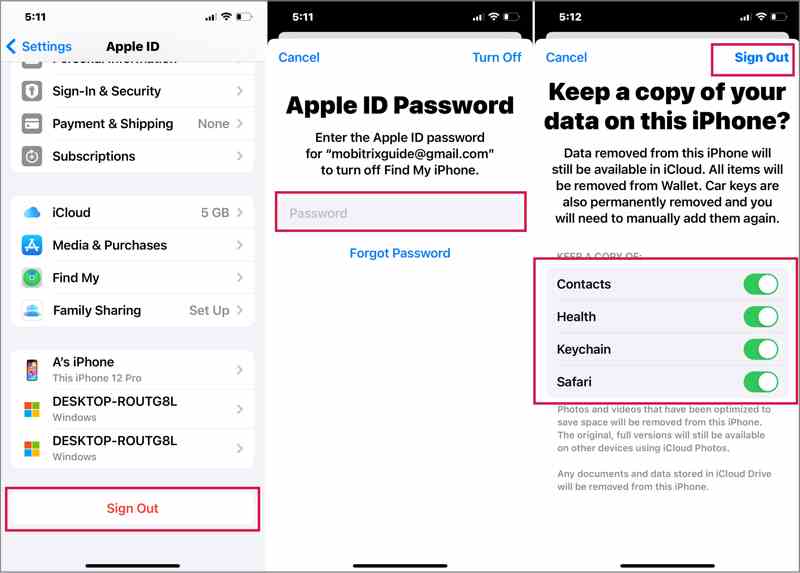
Step 1. Open the Settings app on your iPhone or iPad.
Step 2. Tap on your profile.
Step 3. Scroll down and tap the Sign Out button.
Step 4. Enter your Apple ID password to turn off Find My iPhone.
Step 5. Tap the Turn Off button to proceed.
Step 6. Choose the data types you want to keep and tap Sign Out.
How to Sign out of Apple ID in App Store
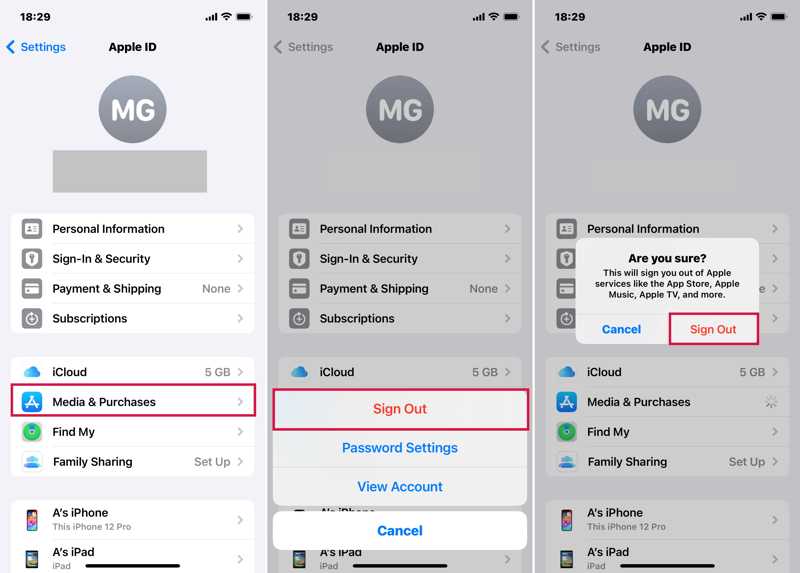
Step 1. If you use an independent Apple ID, open the Settings app to sign out of Apple ID on your iPad or iPhone.
Step 2. Tap on your profile and choose Media & Purchases.
Step 3. Choose Sign Out on the pop-up.
Step 4. Then, tap the Sign Out button in the confirmation dialog.
Part 3: How to Sign out of Apple ID on Mac
If you stop using your MacBook or intend to use another account, you can sign out of your Apple ID on your Mac. Of course, the process requires your Apple ID password to verify your ownership.
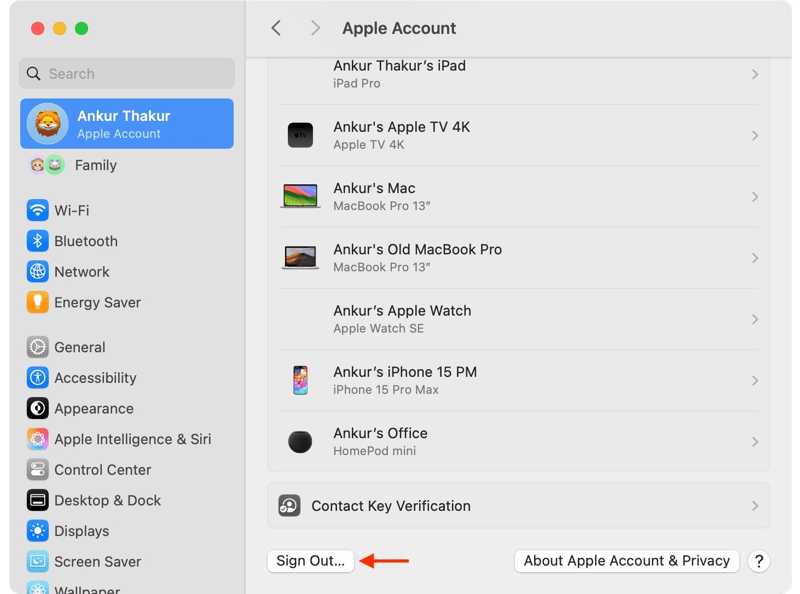
Step 1. Click your Apple menu.
Step 2. Choose System Settings or System Preferences.
Step 3. Click Apple Account on the sidebar.
Step 4. Then, click the Sign Out button at the bottom.
Step 5. Select the desired data types, and click Keep a Copy to save iCloud data locally.
Further Reading
Part 4: How to Sign out of Apple ID with Restrictions
Some users reported that the Sign Out button is greyed out. It means you have to sign out of your Apple ID with Restrictions enabled. You need to remove Restrictions before signing out of your account.
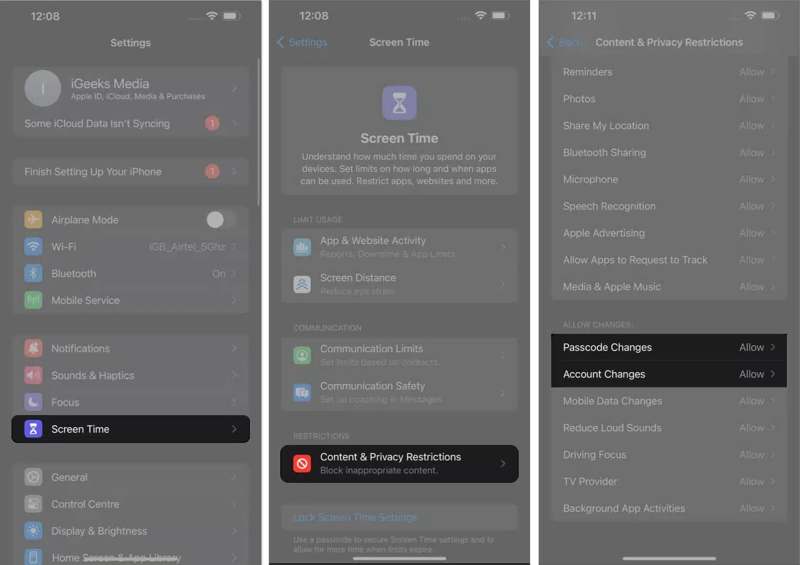
Step 1. Go to your Settings app.
Step 2. Tap the Screen Time option.
Step 3. If prompted, enter your Screen Time passcode.
Step 4. Head to Content & Privacy Restrictions.
Step 5. Choose the Account Changes option.
Step 6. Pick Allow to remove Restrictions to sign out of Apple ID.
Step 7. Then, go back to the Settings app.
Step 8. Tap on your profile and sign out of your Apple ID.
Part 5: How to Sign out of Apple ID on Other Devices
In addition to Apple devices, you may log in to your account on Windows. You can sign out of Apple ID on other devices, like iTunes and iCloud for PC. We demonstrate the workflows below:
How to Sign out of Apple ID in iTunes
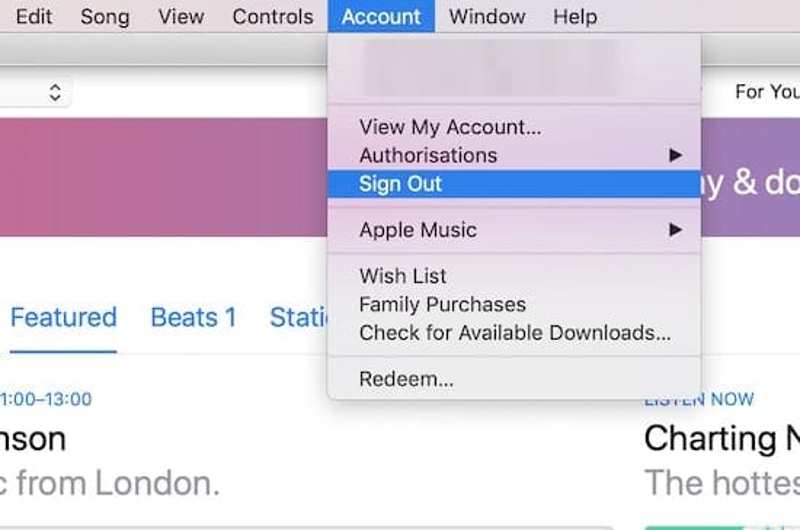
Step 1. Open the latest version of iTunes.
Step 2. Go to the Account menu.
Step 3. Choose Sign Out, and follow the on-screen instructions to sign out of Apple ID on other devices.
How to Sign out of Apple ID in iCloud for PC
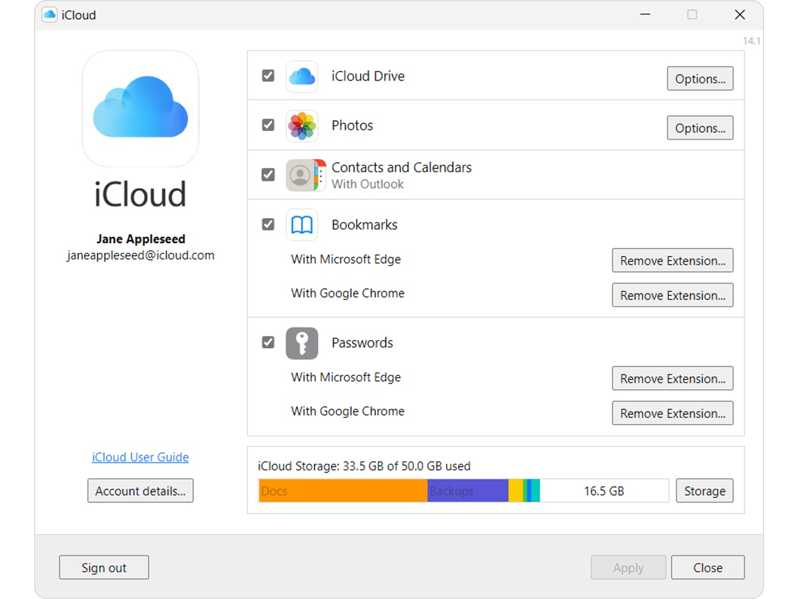
Step 1. Run the iCloud app on your PC.
Step 2. Click the Sign Out button at the bottom.
Step 3. If prompted, confirm it.
Part 6: How to Sign out of Apple ID without a Password
Can you sign out of Apple ID without a password or email? Apeaksoft iFoneKit iOS Unlocker can help you if you forgot your Apple ID password. It is able to remove the current account from your iPhone or iPad without any restrictions.

Downloaded by over 1,000,000 users
- Sign out of Apple ID from an iPhone or iPad in 3 steps.
- Don't require iPhone passcode or Apple ID password.
- Work for locked or disabled Apple ID accounts.
- Compatible with the latest iPhone and iPad models.
Secure Download
Secure Download

How to Sign out of Apple ID from Your iPhone Without the Password
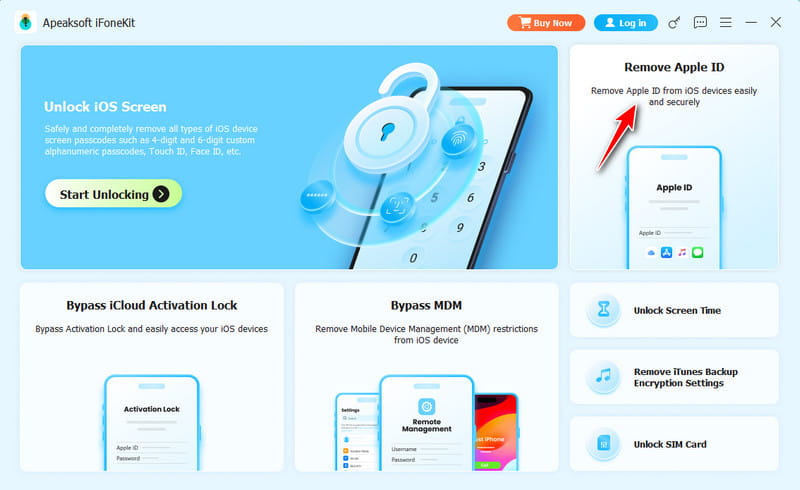
Step 1. Install iFoneKit
Launch the Apple ID removal tool after you install it on your computer. It works on Windows 11/10/8/7/XP/Vista and macOS 10.7 or above. Choose the Remove Apple ID mode to proceed.
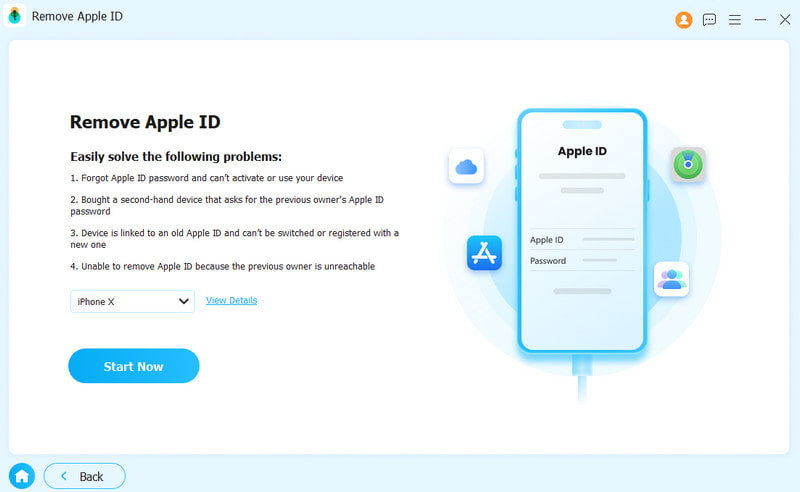
Step 2. Connect to your iPhone
Plug your iPhone into your computer with a Lightning cable. Once your device is detected, click the Start Now button.
Step 3. Sign out of Apple ID
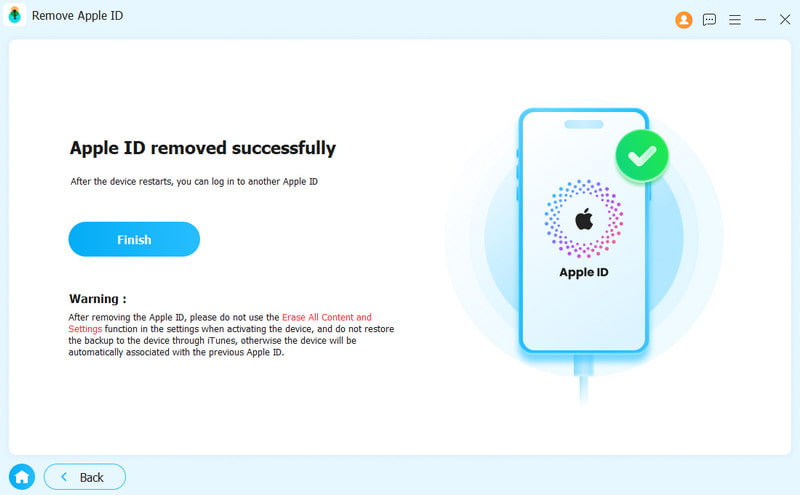
If Find My is disabled, the software will automatically sign out of your Apple ID on your device. If Find My is enabled, reset all settings on your device. Then, click OK, and hit Confirm Again to initiate the process.
Conclusion
Now you should understand why I cannot sign out of my Apple ID and how to get rid of the account from your iPhone, iPad, Mac, and other devices. You can follow our steps to properly remove the useless account from your Apple device. Apeaksoft iFoneKit iOS Unlocker can help you complete the process without the password.
 Apeaksoft iFoneKit
 Unlock all types of iOS passwords from iPhone, iPad and iPod.
Secure Download
Secure Download
Related Articles




