

How to Turn off Passcode on iPhone With or Without a Password

For many iPhone users, turning off the passcode isn’t just about convenience - it often becomes necessary when you forget the iPhone passcode. Whether you are locked out of your device or simply want quicker access, it is necessary to understand how to disable the iPhone passcode.
So, how to turn off passcode on iPhone to ensure smooth use of the device without affecting core functions? This article will give you a detailed answer. You can find the most suitable method, whether you are a new or experienced user.
PAGE CONTENT:
- Part 1. Quick Comparison: Which Method Suits You Best
- Part 2. How to Turn off Passcode on iPhone Settings [Password Known]
- Part 3. How to Turn off iPhone Passcode [Forgot iPhone Passcode]
- Part 4. How to Disable Passcode on iPhone Without Password [Official]
- Part 5. Tips for Managing Your iPhone Without a Passcode
- Part 6. FAQs About Disabling iPhone Passcode
Part 1. Quick Comparison: Which Method Suits You Best
| Method | Need Passcode | Need Computer | Difficulty | Time Required | Best For |
| Settings | Yes | No | Easy | 1 minute | Users who remember the passcode |
| iFoneKit | No | Yes | Easy | 5 minutes | Users who forgot passcode |
| Find My | No | No | Medium | 10-15 minutes | Users who don’t have a computer |
| iTunes | No | Yes | Hard | 20-30 minutes | Users who want a free official method |
Part 2. How to Turn off Passcode on iPhone Settings [Password Known]
Now that you've decided to turn off the password on your iPhone, we'll walk you through how to do so step by step. With simple Settings, you can easily turn off password protection while keeping data, making it easier to use your device. Here are the detailed steps:
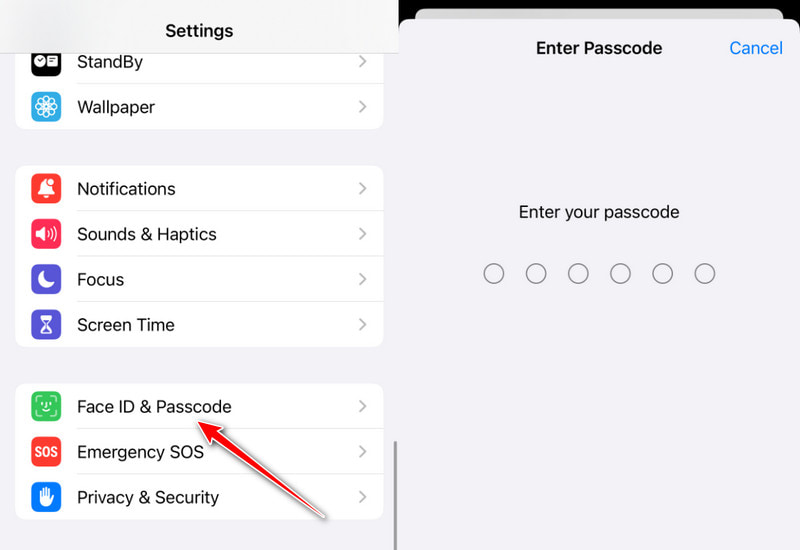
Step 1. First, unlock your iPhone and go to Settings. Swipe down, find and tap the Face ID & Passcode options. If you're using a device with fingerprint recognition, it will show Touch ID & Passcode. Enter your current password for authentication.
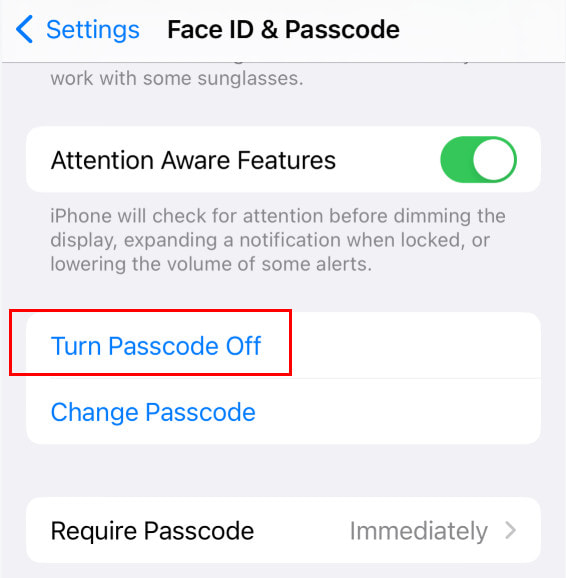
Step 2. Locate and click the Turn Passcode Off option on the password setting screen. The system will again ask you to confirm. After entering the correct password, click the Turn Off button, and the password will be turned off successfully.
By following these steps, you can easily disable passcode on your iPhone. When turned off, your device will no longer require a passcode to unlock, making the experience smoother and easier. Of course, your device may lose some security by turning off passwords, so it’s recommended to balance convenience with security before making a decision.
Part 3. How to Turn off iPhone Passcode [Forgot iPhone Passcode]
If you follow the above methods but find yourself forgetting the passcode and unable to turn off the password on your iPhone through the system Settings because “turn passcode off” greyed out, don’t fret. To help you resolve this issue quickly and securely, we highly recommend using Apeaksoft iFoneKit. As a professional iPhone unlocking tool, it can easily turn off strong passwords on iPhones without a password and ensure simple and efficient operation.

Downloaded by over 1,000,000 users
- Turn off iPhone passcode even if you forgot it.
- Works when iTunes or Finder fails to detect the device.
- Beginner-friendly process - no technical skill required.
- Support the latest iPhone models and iOS versions.
Secure Download
Secure Download

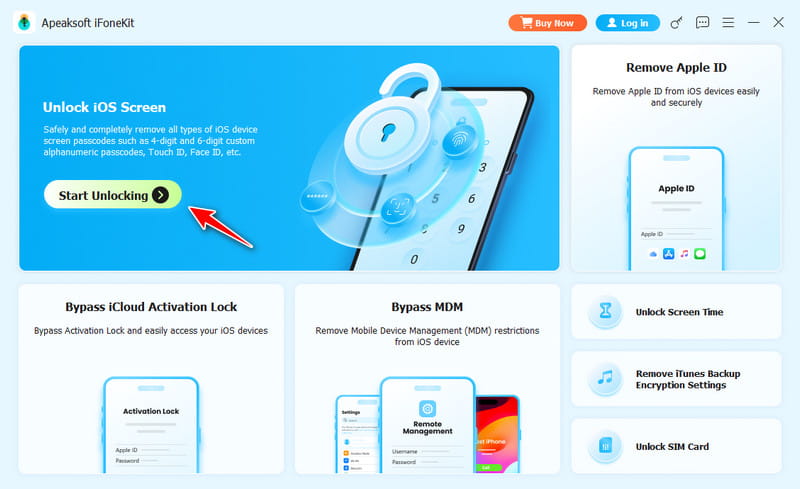
Step 1. Download and install Apeaksoft iOS Unlocker on your computer. Launch iOS Unlocker and choose the Unlock iOS Screen mode.
Step 2. Then, connect your iPhone to your computer and wait for the program to recognize the device. Your iOS device information will be loaded. Confirm the information on your own, and click the Start Now button to proceed.
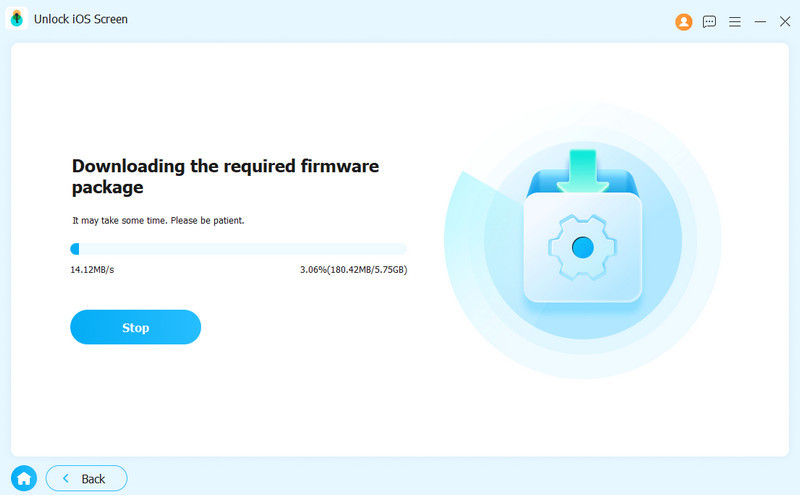
Step 3. Wait for the software to download the corresponding firmware package. There will be a Confirmation window popping up after the firmware is downloaded successfully. You need to confirm twice to allow the program to verify the firmware. The process takes a few minutes; please keep the device connected stably.
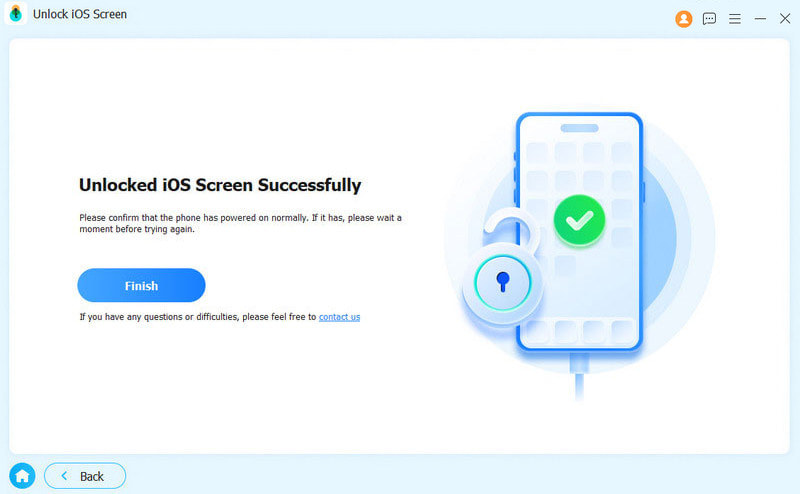
After the unlock is successful, restart the device and set a new password, or choose not to set a password to improve use convenience.
Part 4. How to Disable Passcode on iPhone Without Password [Official]
If you don’t want to use a third-party tool but still need to turn off the password on iPhone in case you forget it, Apple officially offers a viable solution as well. Here’s how to disable the passcode on iPhone through iTunes or Apple ID without it.
Turn off iPhone Passcode via Find My
Step 1. Go to your favorite browser, open icloud.com, and sign in with your Apple ID. If you forget your password, use other ways to unlock iOS without an Apple ID.
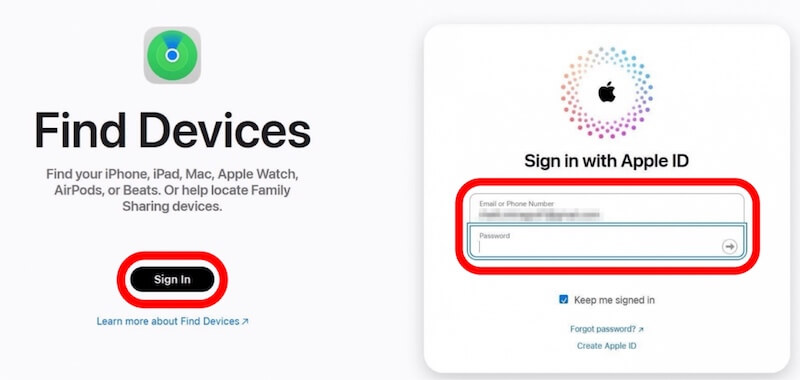
Step 2. Once signed in, tap the Find My iPhone option, then select your iPhone from the list of devices. Once you're sure it's your device, tap Erase This Device, which erases everything on the device, including the passcode.
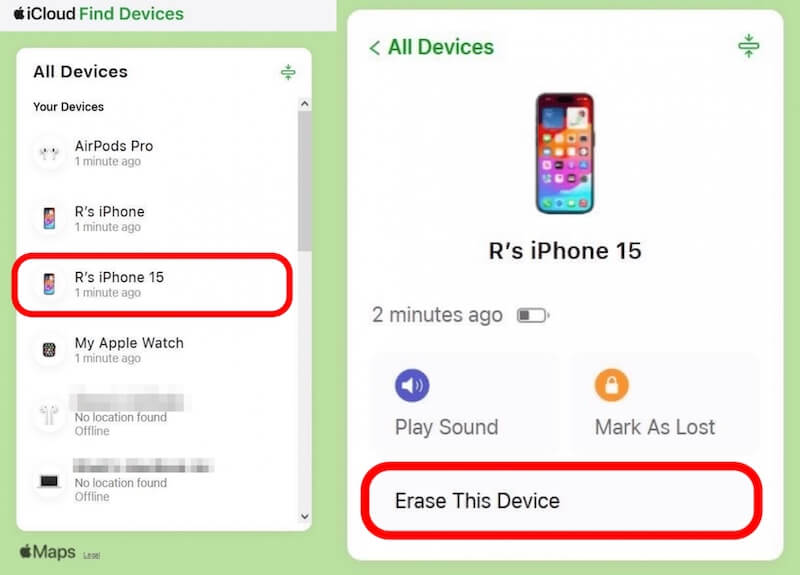
Once erased, restart the device and follow the on-screen prompts to reset it. You can choose not to enable the password and go through the configuration.
Turn off Passcode on iPhone via iTunes
Step 1. Connect your iPhone to a computer with iTunes via a USB cable.
Tips: You must have already Trusted This Computer before, or this method will not work.
Step 2. Then, depending on your iPhone model, follow these steps to enter recovery mode:
iPhone 8 or later: Press the volume up button quickly, press the volume down button immediately after releasing it, and press and hold the side button until the interface resumes.
iPhone 7 (plus): Press the volume down and power buttons, and release the buttons when you see the recovery mode screen.
iPhone 6s and earlier: Hold down the home button and the power button at the same time until you enter recovery mode.
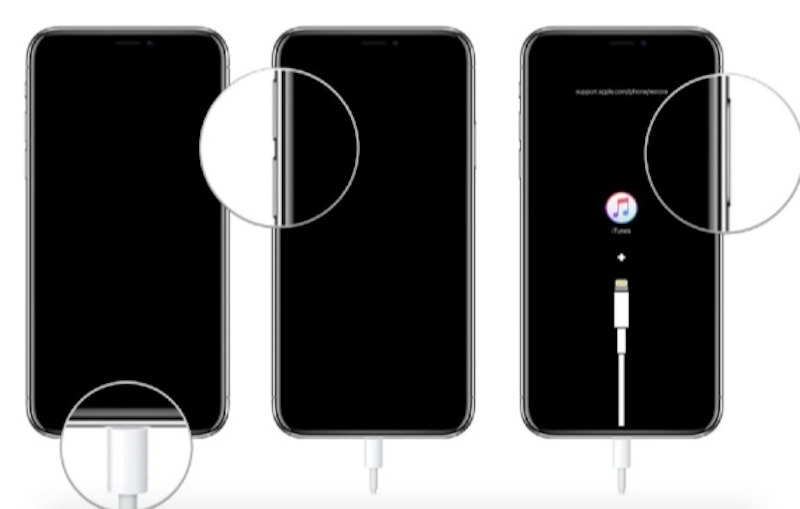
Step 3. Then, you'll see the recovery mode prompt pop up in iTunes. Select the Restore option, and iTunes will reset your device.
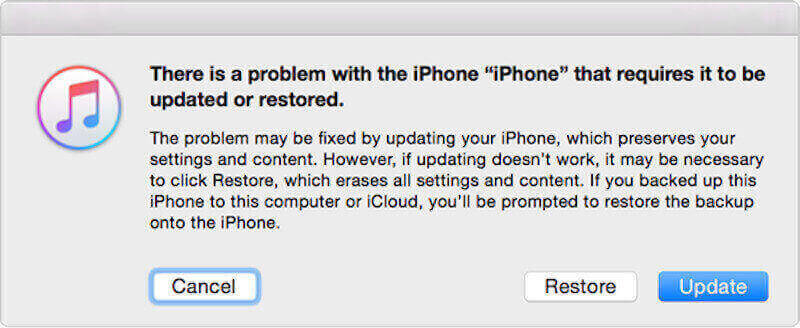
Once the recovery is complete, restart the iPhone, and you can choose not to set a passcode or a new one.
Part 5. Tips for Managing Your iPhone Without a Passcode
After successfully turning off passwords on iPhones, managing a password-less iPhone also requires a bit of finesse to ensure a secure device and a good experience. It helps you keep your data and privacy safe while increasing convenience.
• Face ID or Touch ID will be disabled
When the passcode is turned off, Face ID and Touch ID are automatically disabled as well.
• Backup data
Regularly backing up your iPhone to iCloud or other cloud storage platforms will prevent accidental loss and facilitate quick recovery.
• Restrict public network connections
Avoid connecting to unsecured public Wi-Fi networks to prevent malicious device attacks or data leakage. Unsecured networks can increase the risk of data interception, especially when your device has no lock protection. Use private networks first or enable VPN protection.
• Share equipment with caution
When multiple people use your device, avoid direct exposure to sensitive information and try to set access restrictions, such as permissions for apps or content.
With these tips, you can manage your iPhone more efficiently without passwords while keeping the security and privacy of your device intact.
Part 6. FAQs About Disabling iPhone Passcode
Is it safe to use an iPhone without a passcode?
It is not recommended to use an iPhone without a passcode, which will make your device or personal data more vulnerable if lost or accessed by others.
What happened is I forgot my iPhone passcode?
If you forgot your iPhone passcode, you will not be able to access the home screen and use your iPhone normally. The device will become disabled after multiple incorrect attempts.
Can Apple unlock my iPhone passcode?
No. Apple cannot unlock your iPhone or turn off the iPhone passcode for security reasons. But it provides methods to remove the passcode by erasing your device.
Conclusion
Whether it's to be more efficient or because you've forgotten your passcode, turning off your iPhone passcode sometimes becomes unavoidable. This article explains in detail how to disable password on iPhone, among which Apeaksoft iFoneKit provides the most convenient and secure unlocking experience.
Related Articles




